

PREREQUISITES
- A version 7 or above of Winbooks is required
-
You need to install the connector on the server where Winbooks is installed. To ensure the connector works on the server, please make sure before installation that:
-
You have admin access to the server where Winbooks is installed in order to proceed with the installation
- Be aware that the server/computer must be permanently accessible with internet access (24 hours a day). Otherwise, the data could not be synchronized at some point.
- You know your Winbooks username and password
-
You have admin access to the server where Winbooks is installed in order to proceed with the installation
PREPARATION
Watch this video:-
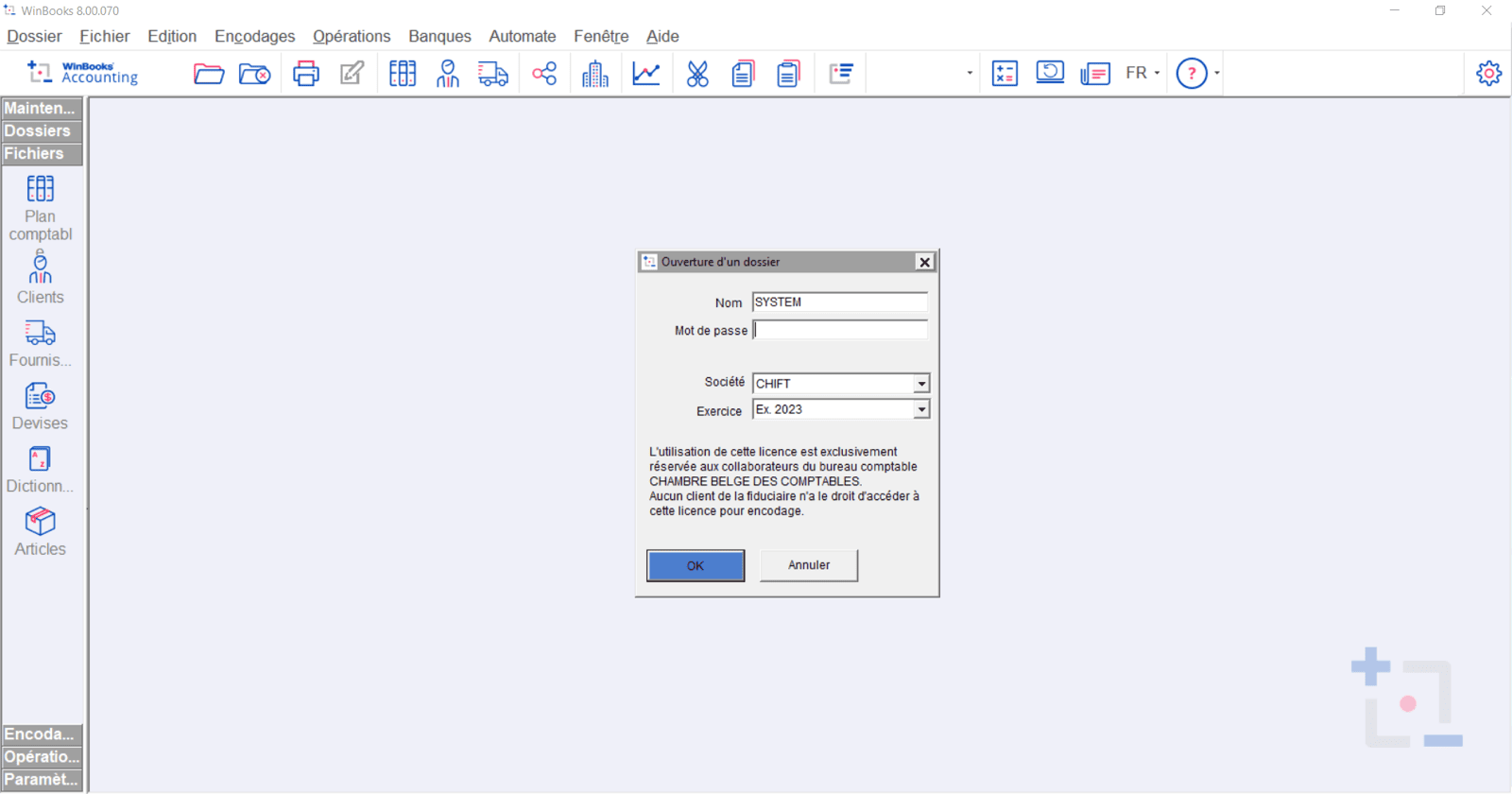
Find the code of your accounting folder in your Winbooks account
-
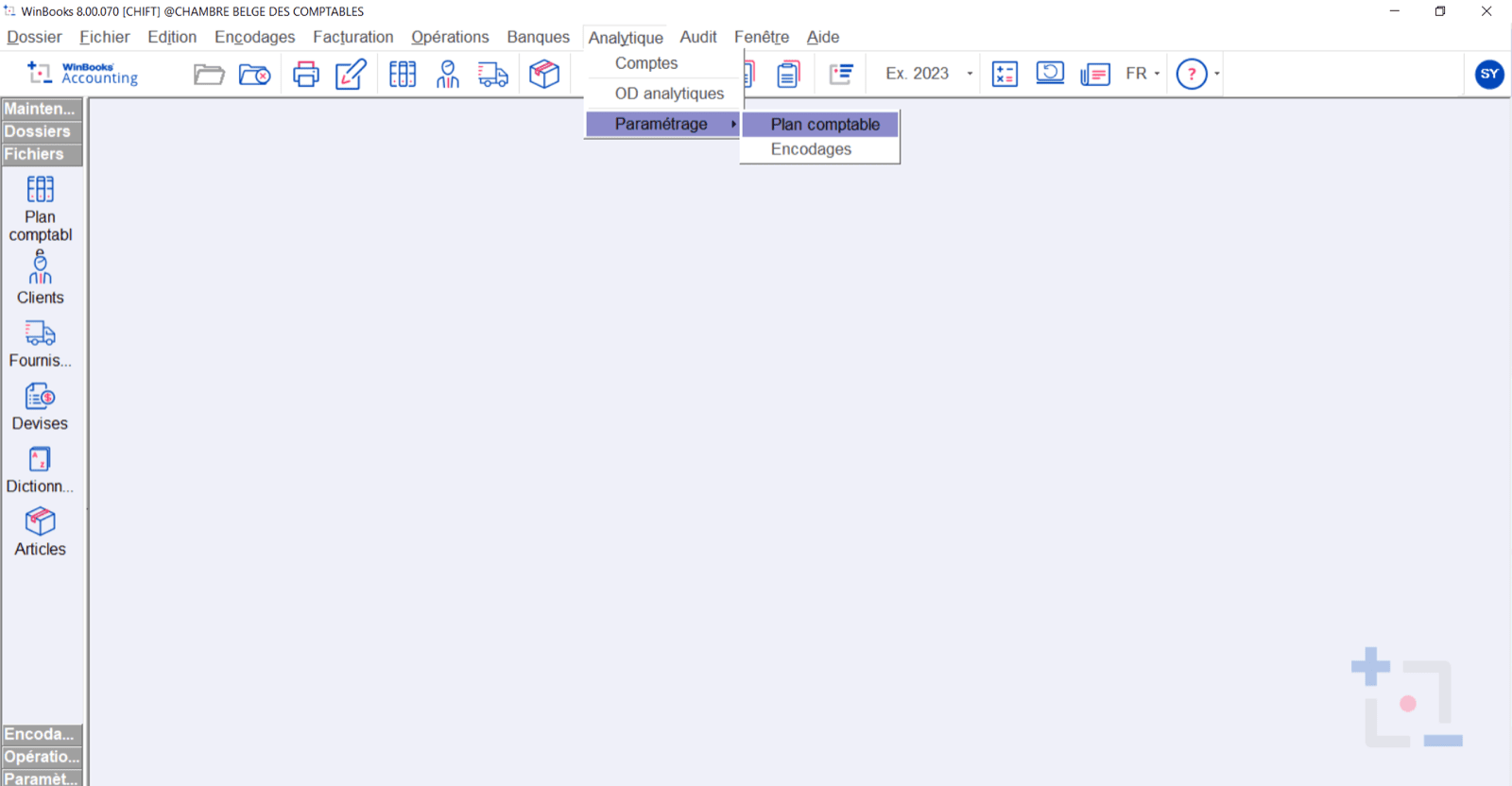
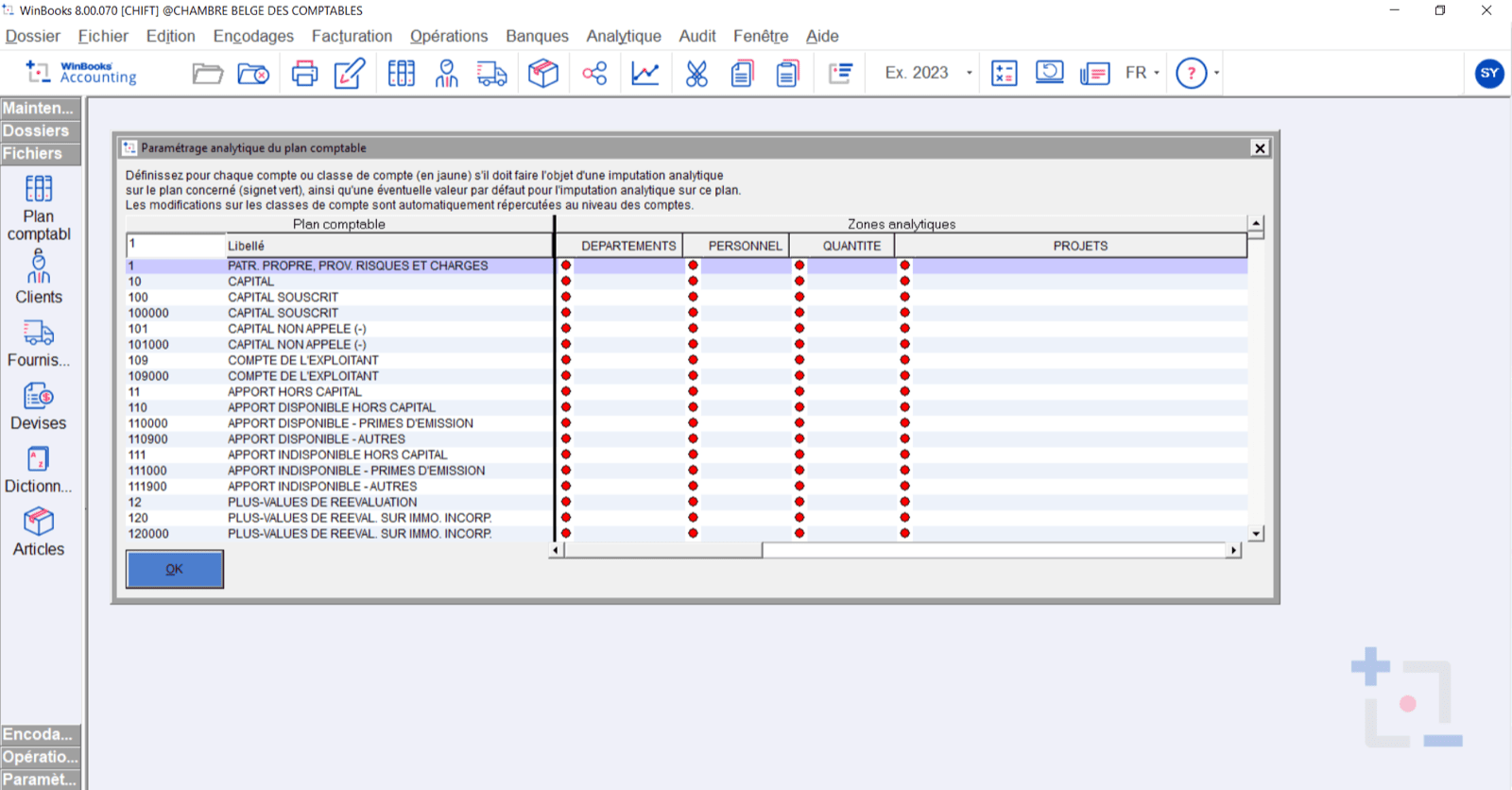
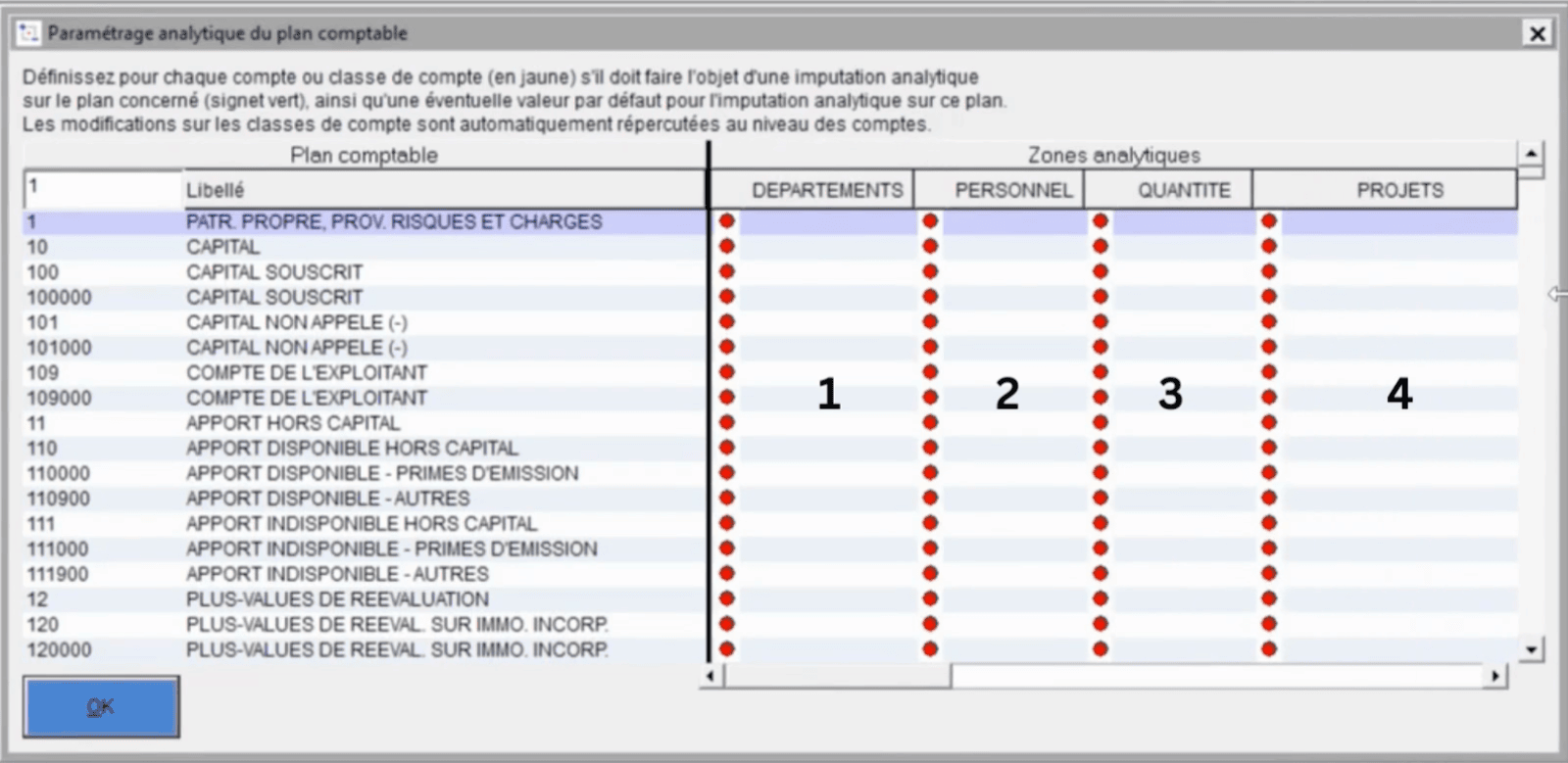
Select the analytical plan to use by default
- Go to your Winbooks account
- Select the Analytics tab → Parameters → Accounting Plan
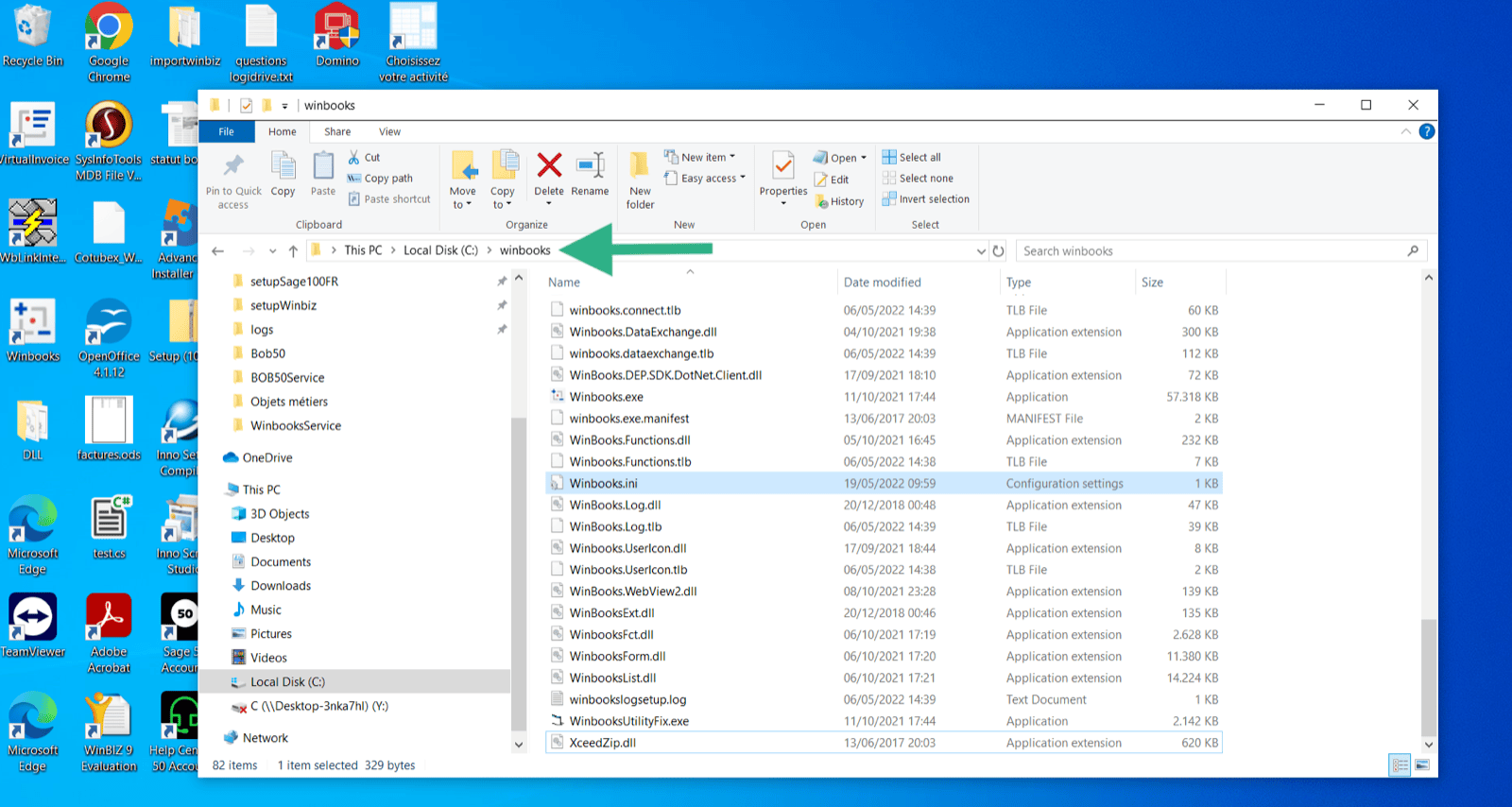
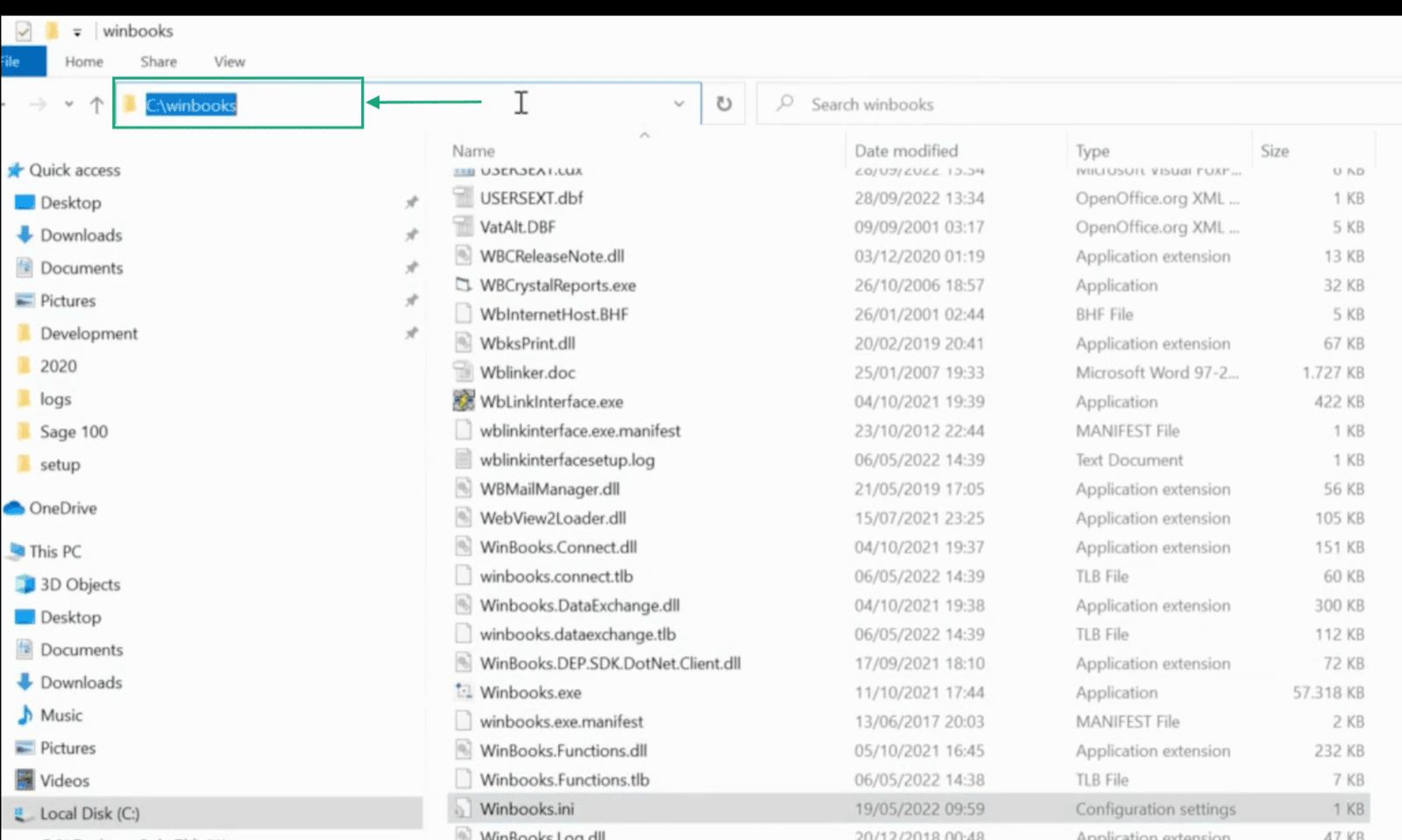
- On your computer, find the disk on which the Winbooks.ini file is located and copy the route the the folder
CONNECTION
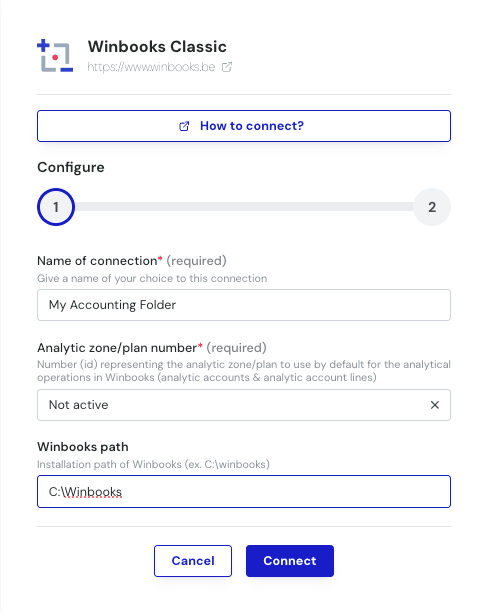
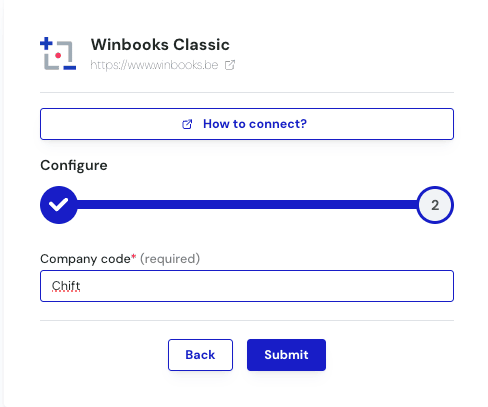
Step 1: Choose a name for your connection
DOWNLOAD OF THE LOCAL AGENT
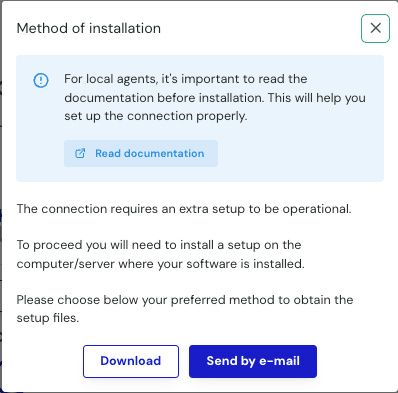
Winbooks is installed on a server. To enable data sharing, it is necessary to download a connector (local agent) that will allow data transmission with Winbooks. After the connection step, you will have two options to download and install the local agent on the same server as your Winbooks instance:- If Winbooks is hosted on your computer, you can directly download the program by clicking on Download
- If Winbooks is hosted on another server, you have the option to send the installer of the connector via email to the person or company hosting Winbooks so they can download and install it
🚨 If there is an error with Winbooks local agent in Chift
Go to the logs folder in the Service (C:/Program Files (x86)/WinbooksService/Log/log.html) and open the file with your default browser. The most recent lines will be at the end of the file and should help to understand what is going on. If the file does not exist, it means that we haven’t tried to reach the connector yet, so there are no logs to see. In that case, a request has to be done for this consumer in order to have it created. Is Winbooks installed on a network drive or the data hosted on a network drive- Update the settings.json to map your network drive with a UNC path
- Make sure that the user that is running the service has access to both Winbooks and the network drive
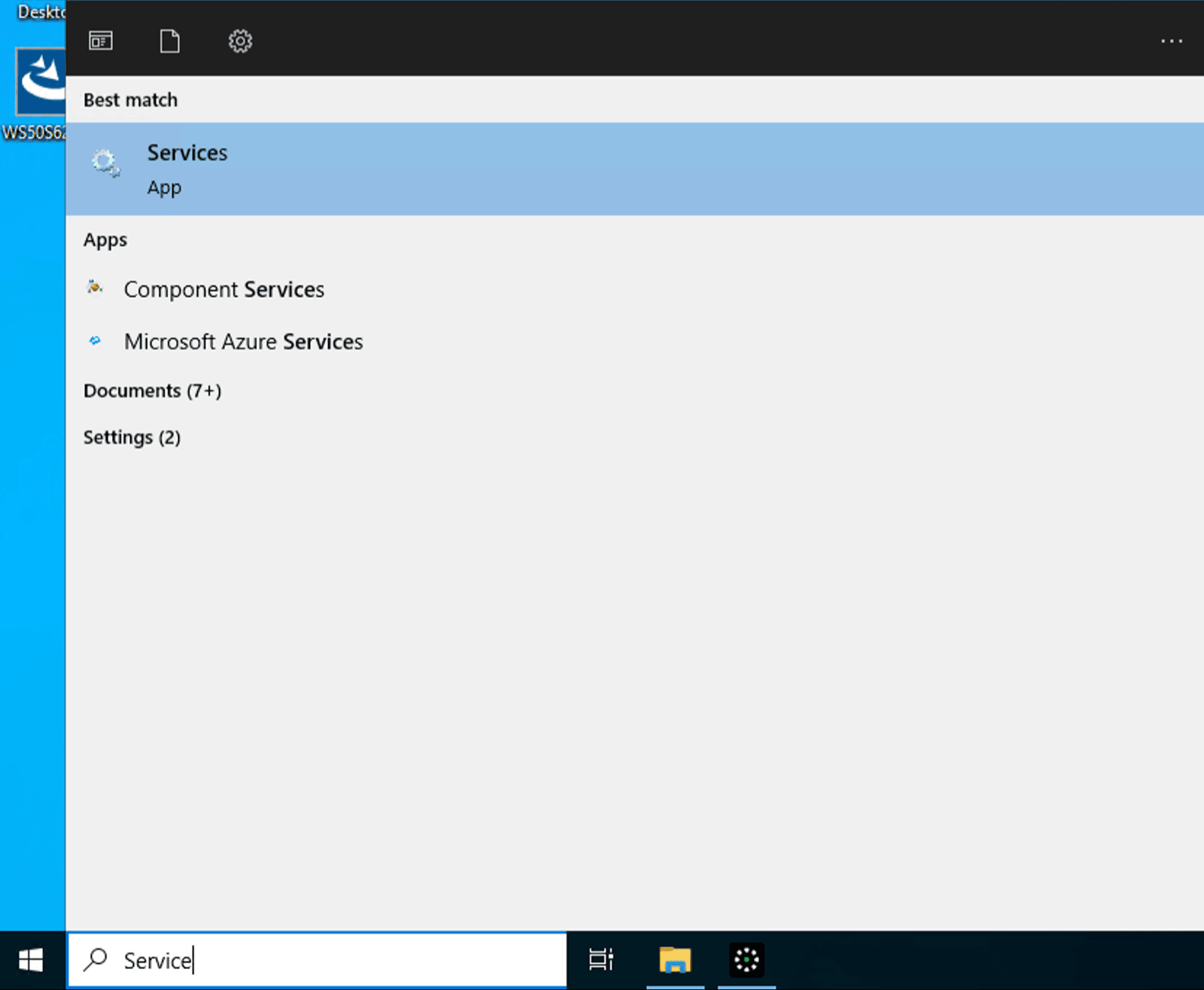
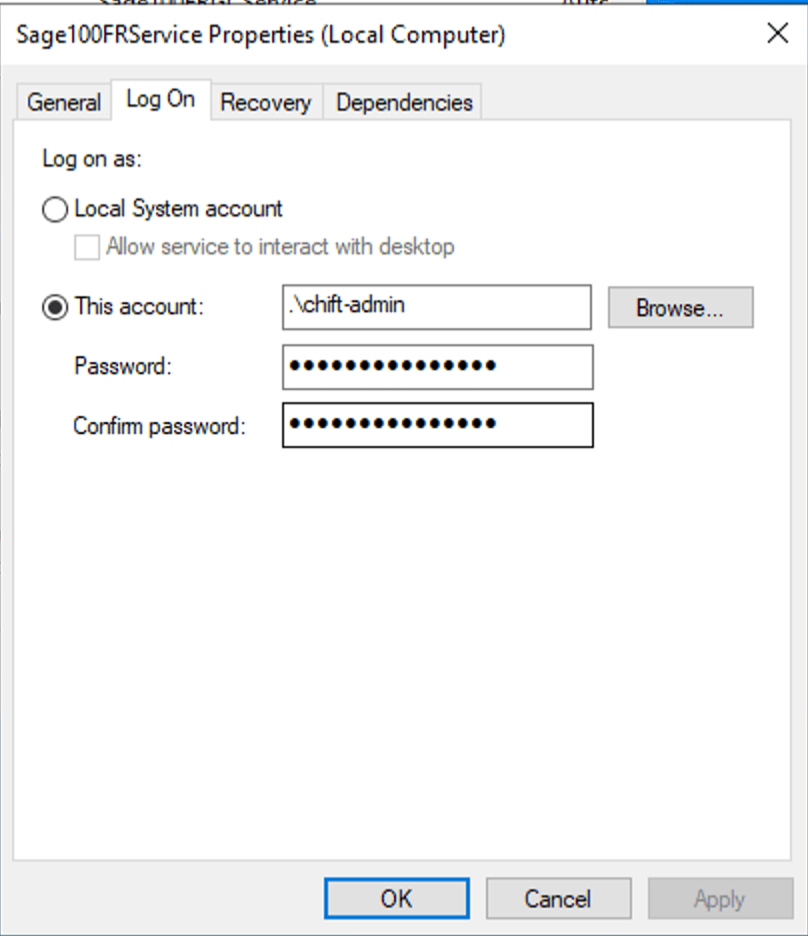
- Once all the checks before have been completed, restart the service and test the connection
-
Navigate to the service.msc windows app

-
Make sure that service is configured with a windows user with access privileges to SQL DB and network shared drives
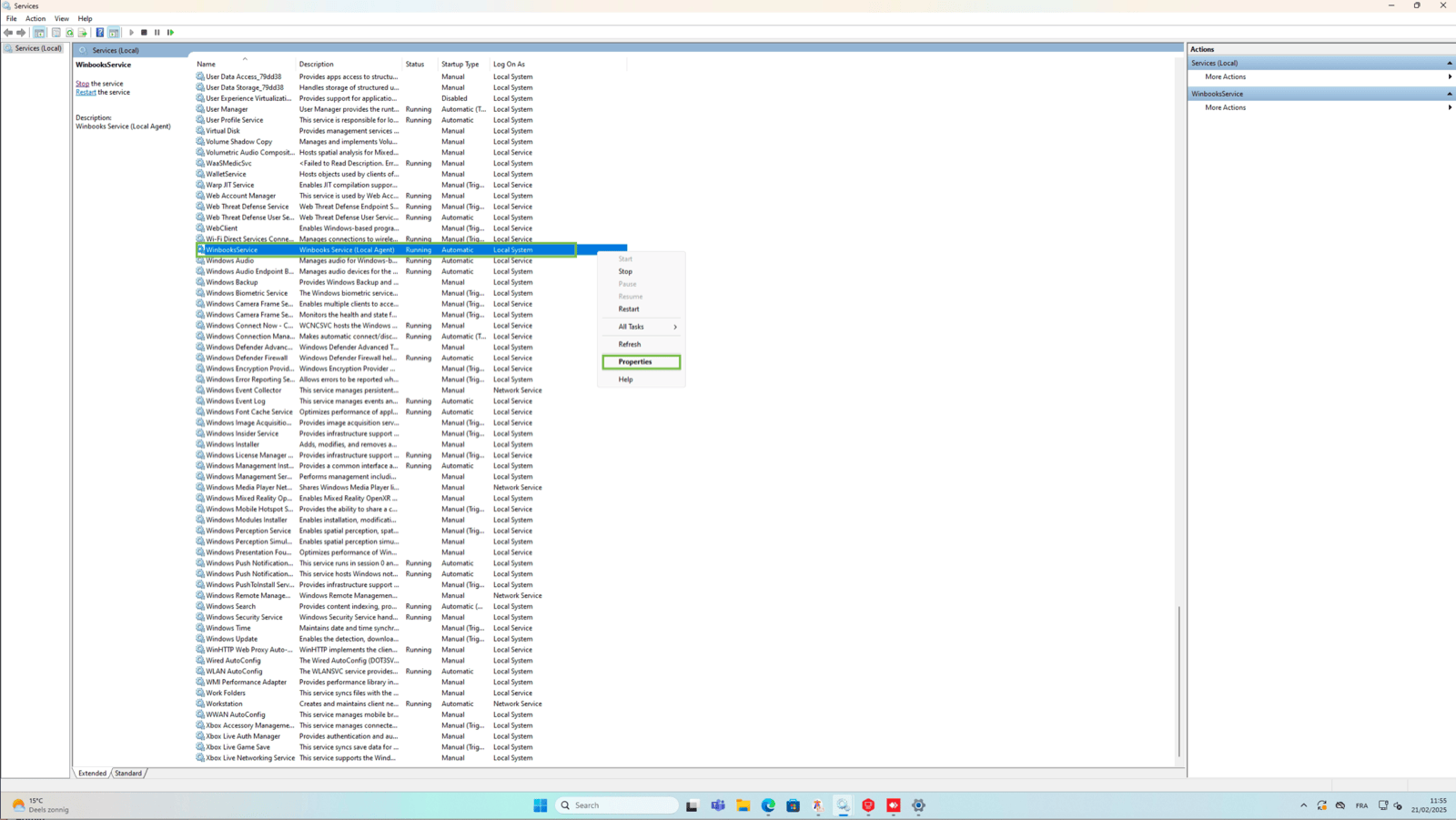

-
Then restart the winbooks service

-
Navigate to the Winbooks service folder “C:/Program Files (x86)/WinbooksService/” and launch the “VFPOLEDBSetup” executable
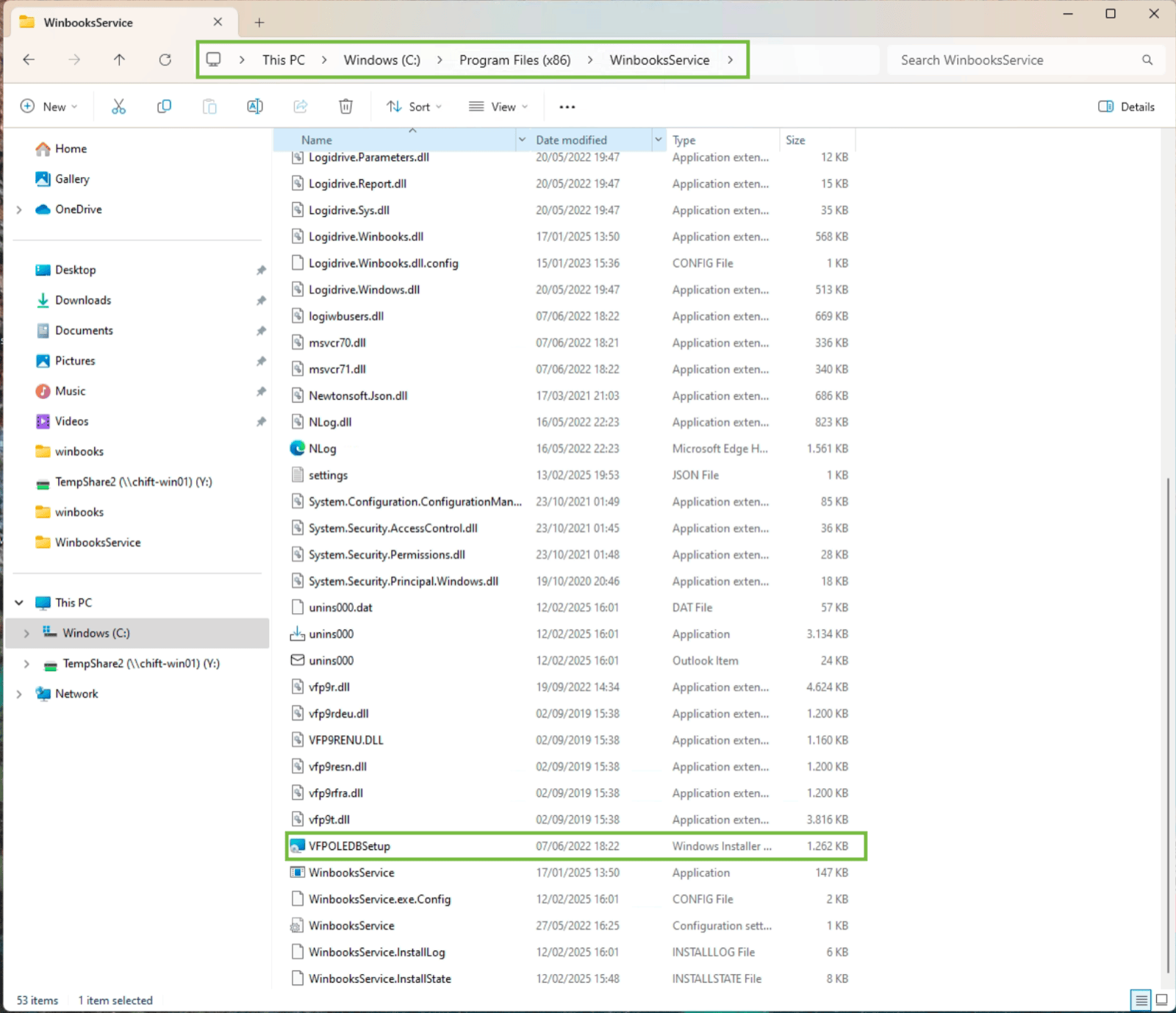
-
Uninstall it (windows admin privileges required)

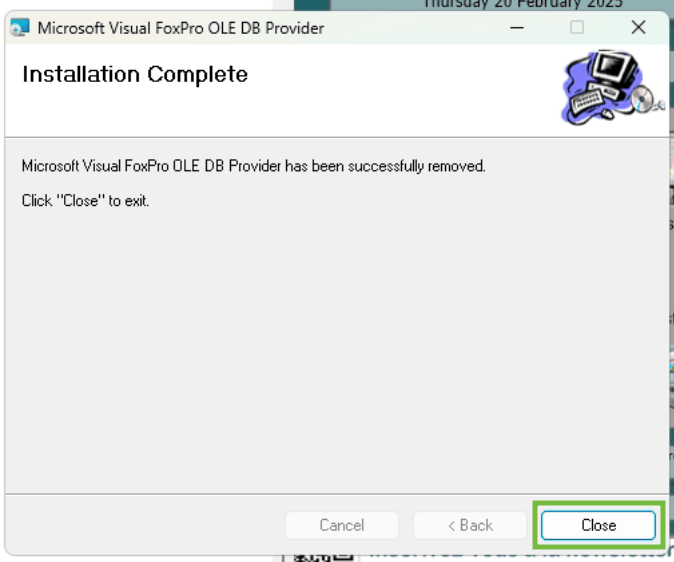
-
Then launch the installer again (windows admin privileges required)
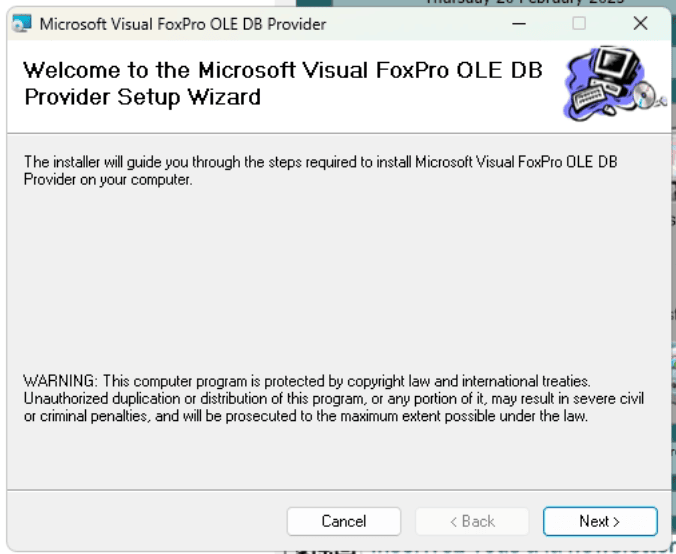
-
Don’t check the “Sample data files and programs” checkbox
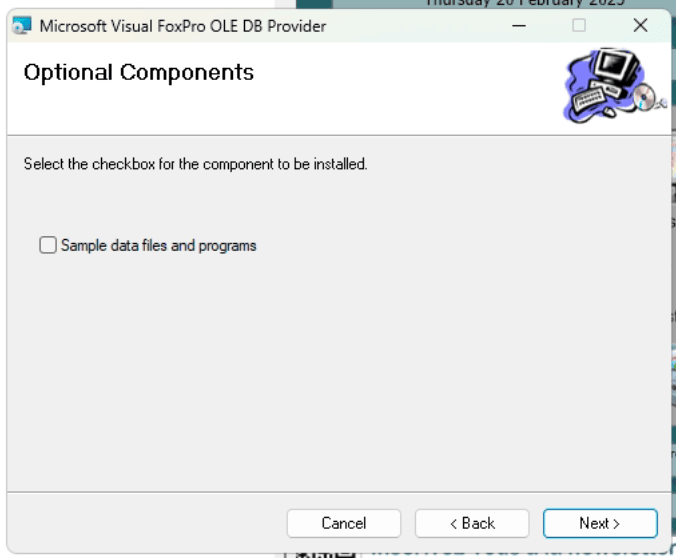
-
Make sure that “Everyone” option is checked, otherwise the driver won’t work with the local system user executing the Winbooks service.
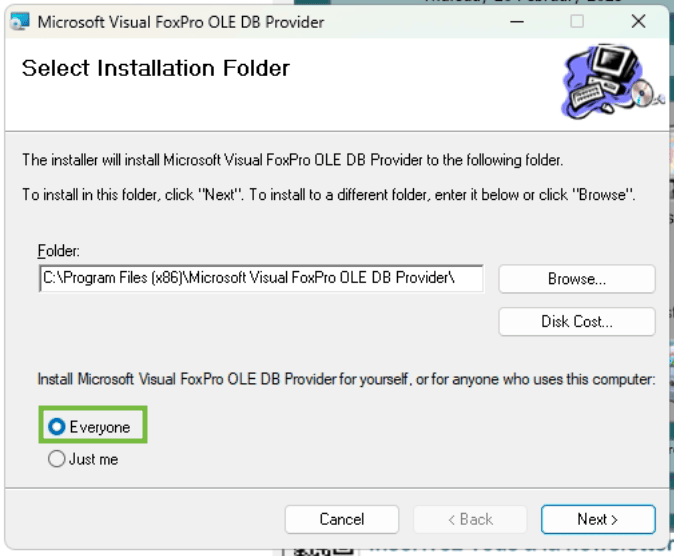
-
Proceed with installation
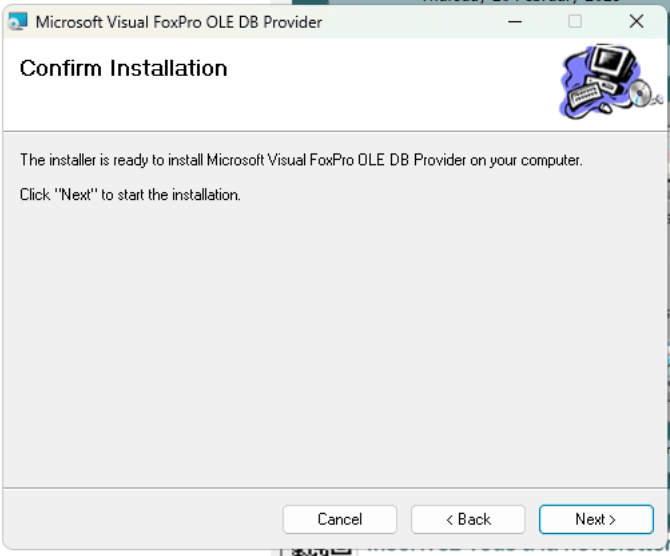
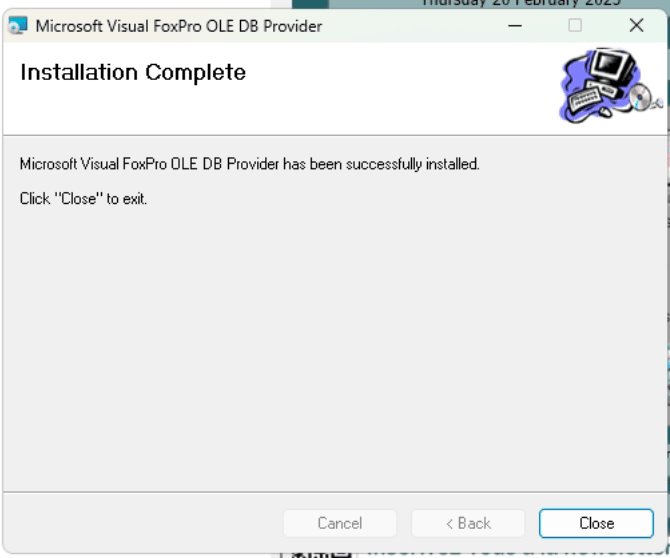
-
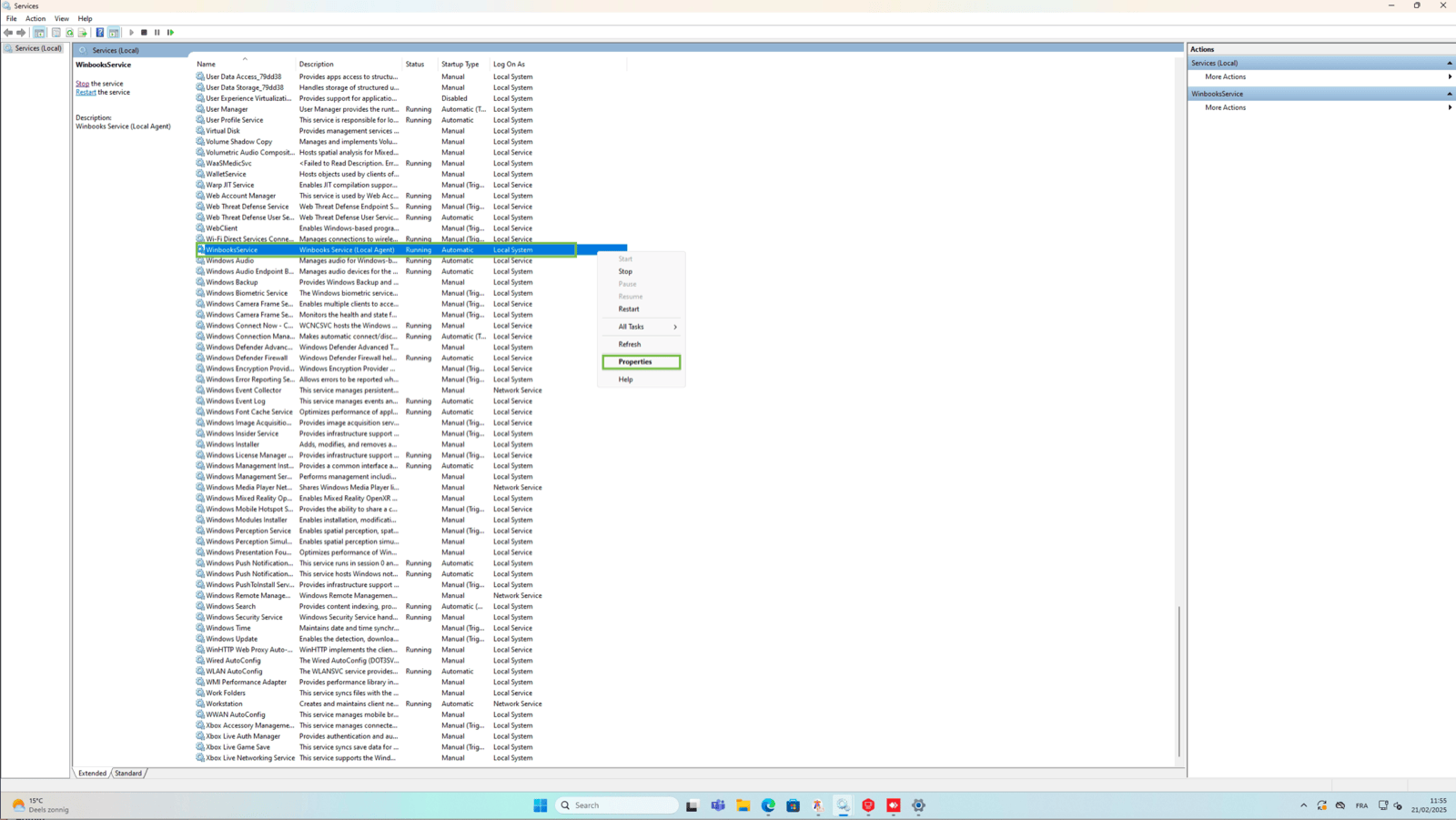
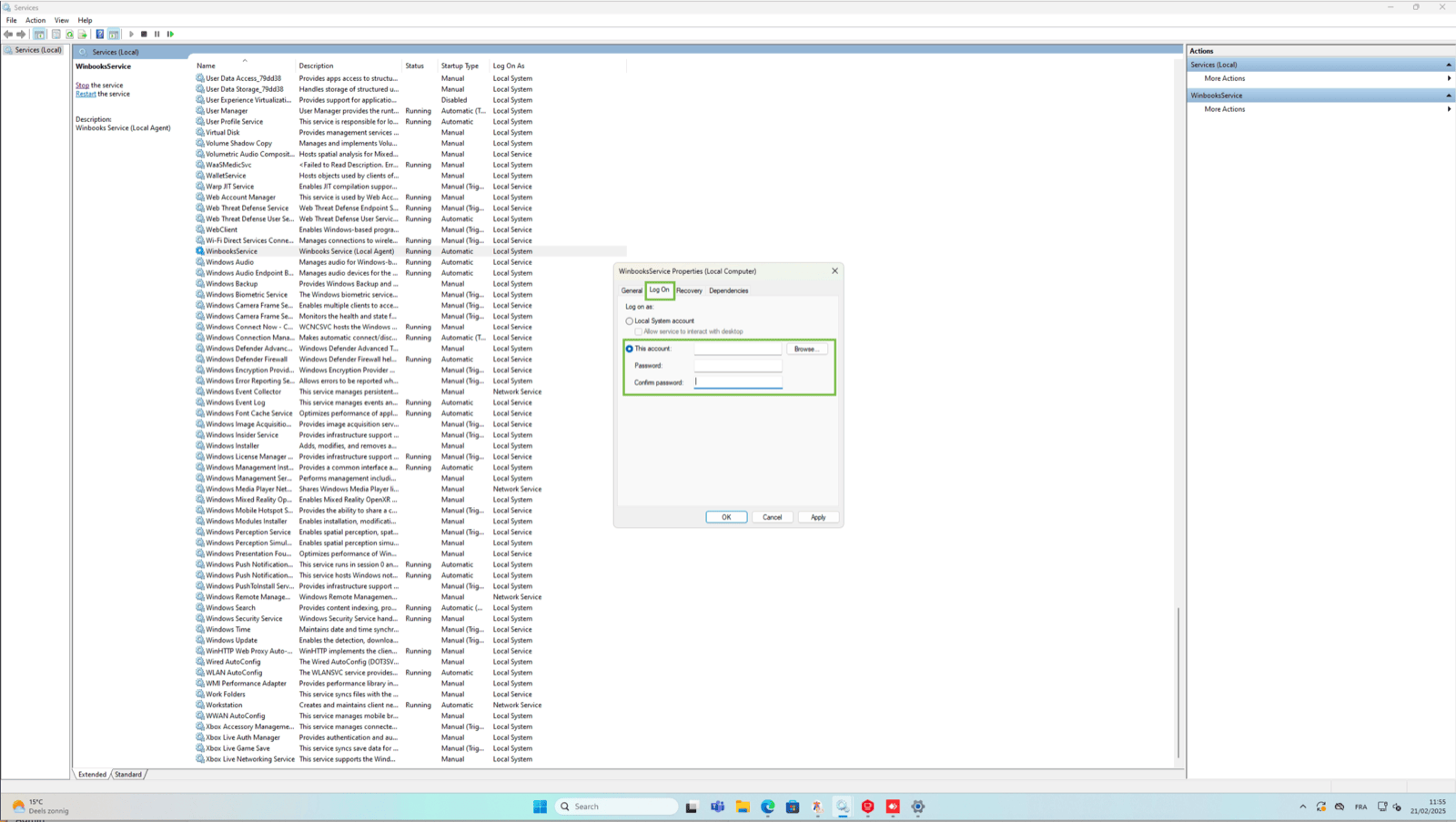
Navigate to the service.msc windows app
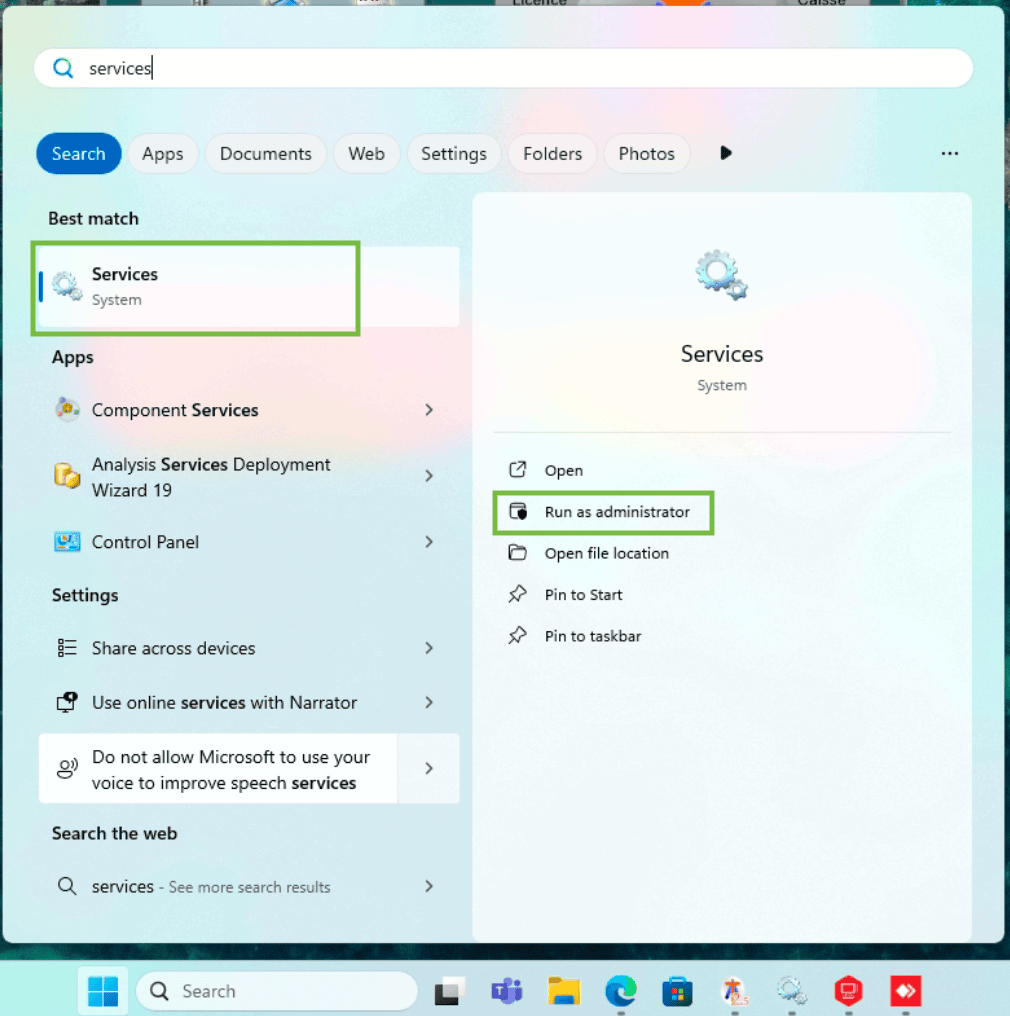
-
Make sure that service is configured with a windows user with access privileges to SQL DB and network shared drives
-
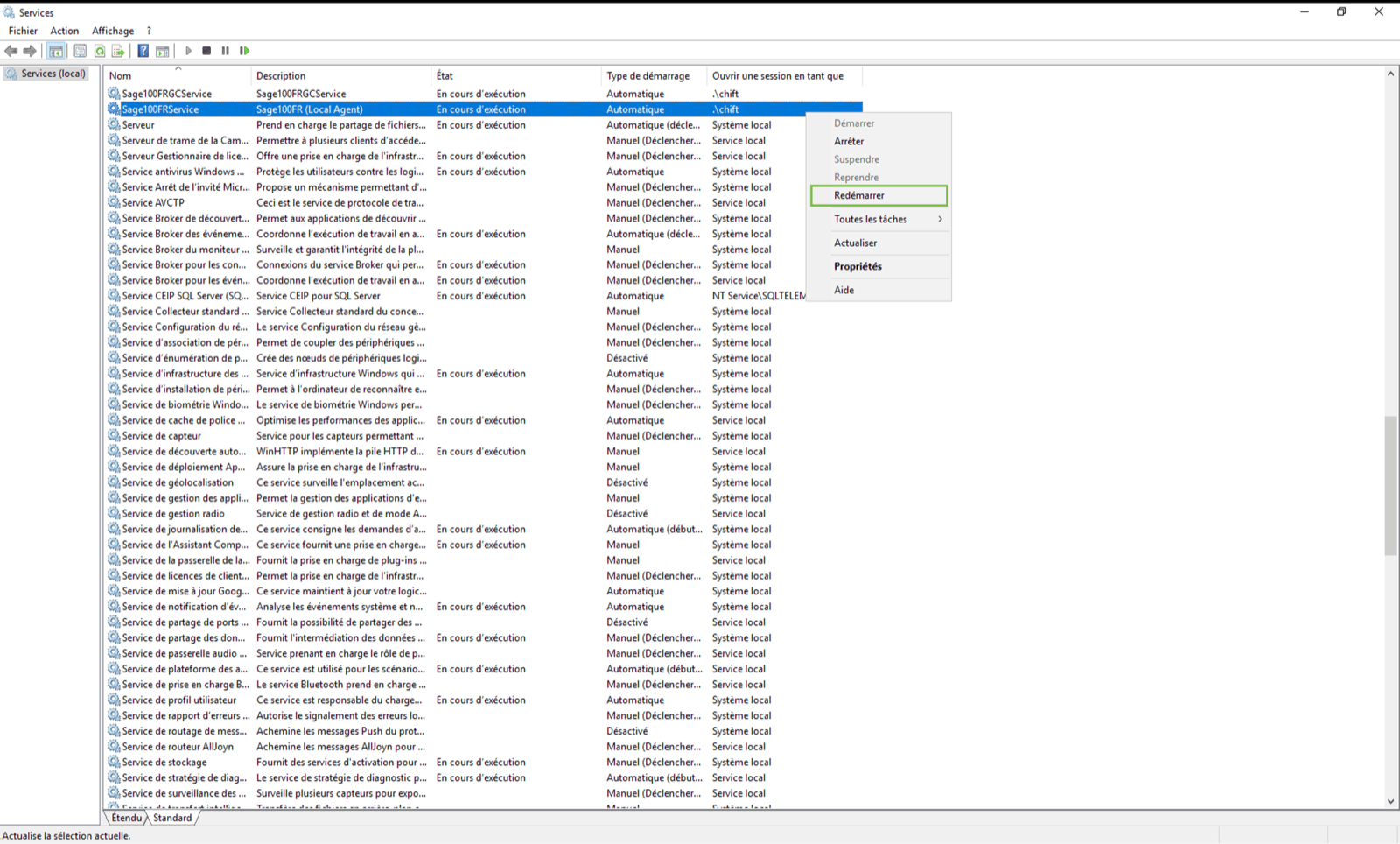
Then restart the winbooks service
-
Check the path configured in the Winbooks connection form on Chift
- Make sure the specified path (e.g.,
C:\\Winbooks) exists. - Verify that this folder contains the Winbooks.ini file.
- ⚠ If the path does not exist or is not accessible by the user running the Windows service → use a UNC path if the folder is on a shared or network drive.
- Make sure the specified path (e.g.,
-
Open the Winbooks.ini file
- Check for the presence of the UsersPath variable.
- If the variable is missing or empty → This is most likely the issue (often happens when the connector is installed on a proxy server instead of the main server).
-
Verify the folder specified in UsersPath
- Make sure the folder exists.
- Check that it contains the Users.dbf file.
- ⚠ Same rule: if the folder is shared or on a network drive, replace with a UNC path in the winbooks.ini file
-
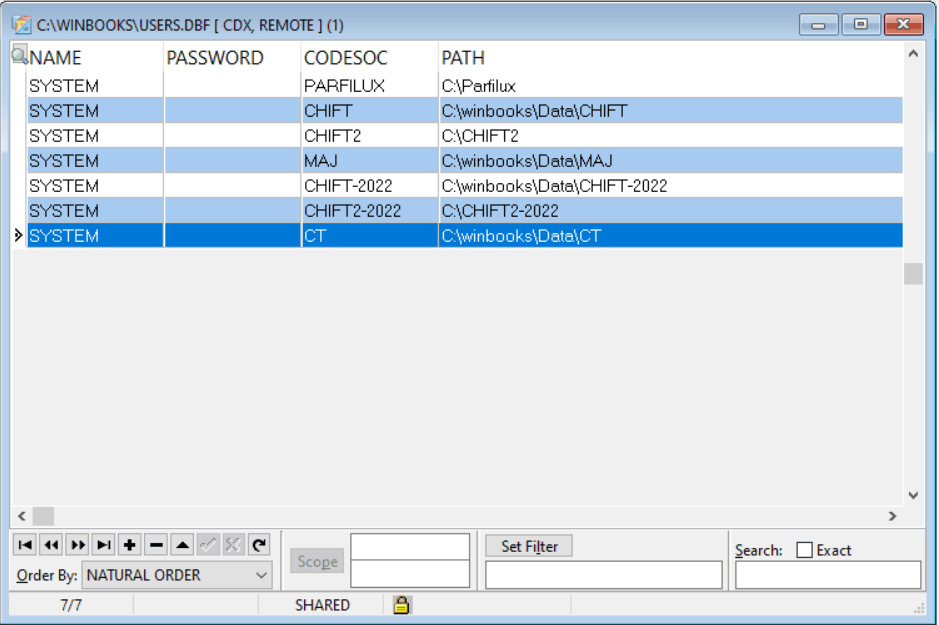
Check the Users.dbf file
- This file contains the list of all companies (1 row = 1 company).
- Each company entry specifies the path to its DB/DATA folder. If your path is leading to a network drive, this path has to be a UNC path.
-
⚠ The file is encrypted → the connector automatically decrypts it and creates a temporary decrypted file in:
C:\\Program Files (x86)\\WinbooksService\\tmp. This file will only be visible when a request is performed to the service.
-
To verify:
-
The company code entered in Chift matches a company in the file.
- If no match is found in the file, then the connector won’t work. You can re submit the form on Chift to change it without having to reinstall the service
-
The path specified for the DB/DATA folder is valid and accessible.
- If the path does not exist or is not accessible by the user running the service, then it cannot work. You thus have to update the user running the service as explained in the detailed troubleshooting section.
- The path exists, is correct but is not UNC and is associated to a network drive, then you have to update this file to have the UNC path and not the local path. This won’t change anything to your winbooks configuration as those 2 paths are the same for your machine but will allow the service to know where to look for winbooks related files
-
The company code entered in Chift matches a company in the file.