PREPARATION
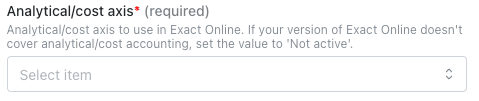
If you don’t see any field for analytical/cost axes on your activation page (Step 2 of the Connection section), or if you don’t need them, you can skip this step. Check if your account has analytical/cost axis enabled. For that, log into your Exact Online account.- Go to the Financial tab → Analysis & Results.
- In the example below, two axes are enabled: Cost Centres and Cost Units.

CONNECTION
Step 1: Choose a name for your connection.

AUTHENTICATION
You will be redirected to an Exact Online page to authenticate your account Important: Exact Online refresh tokens expire after 30 days of inactivity. If no requests are made to Exact Online within a month, the token will expire and cannot be refreshed, resulting in a401 authentication error with the message “The refresh token expired.” You will need to re‑authenticate your connection if this occurs.
CONFIGURATION
Step 1: Select the company, folder, division you’d like to configure.
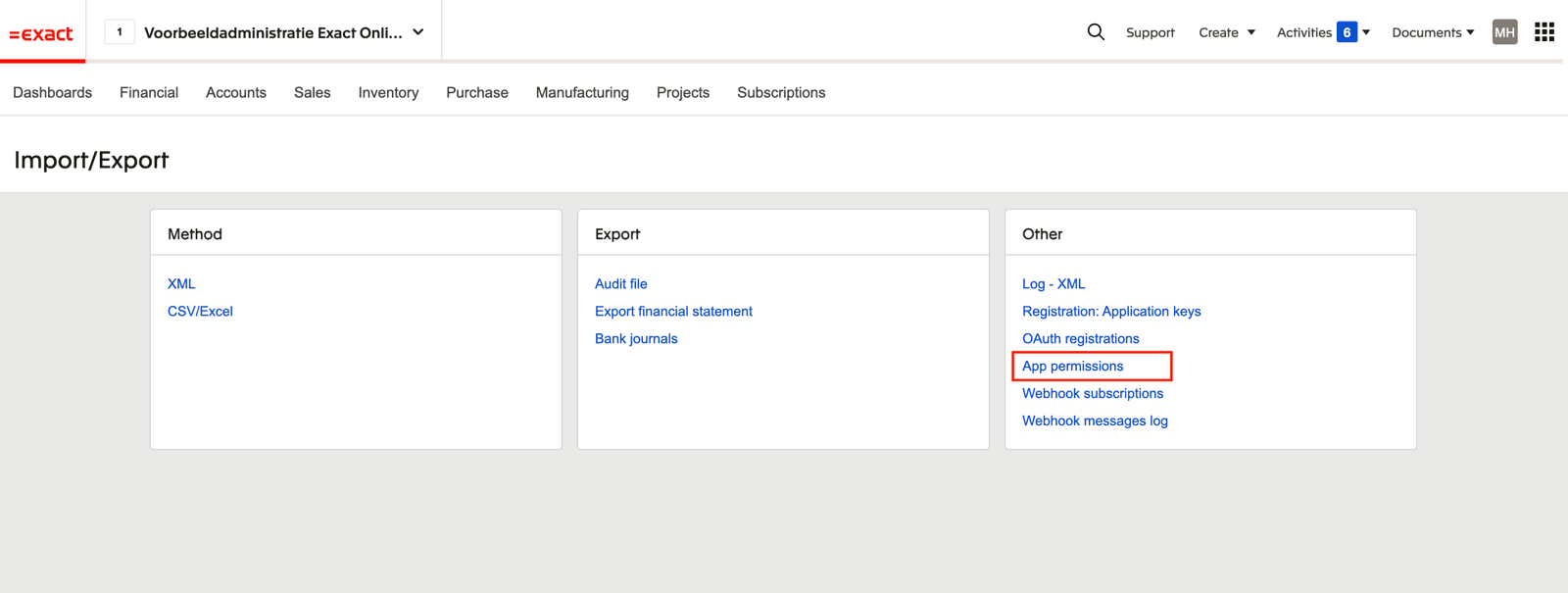
- Open Exact Online “Import/Export” Settings

- Select “App permissions”
- Select the app you are trying to connect to Exact Online
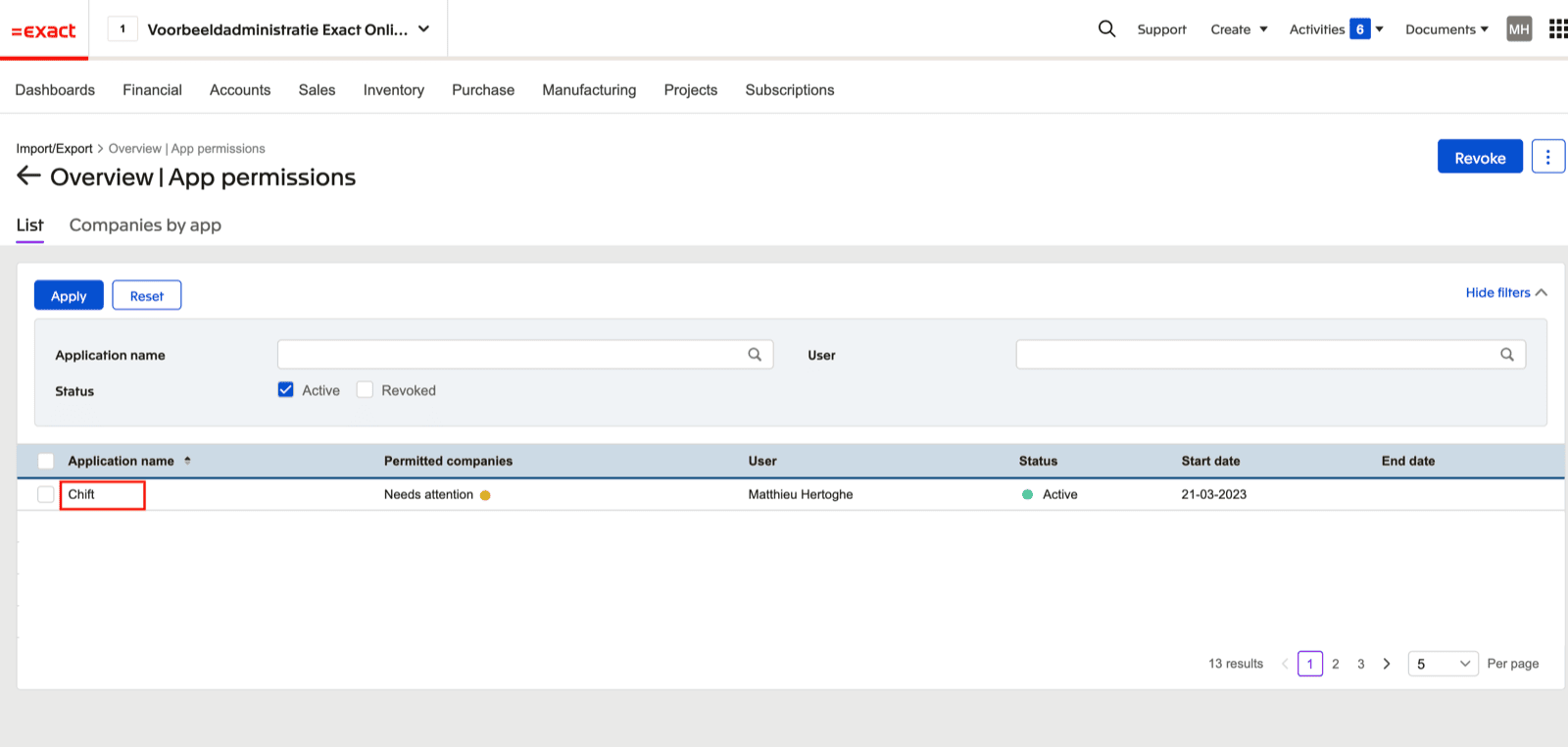
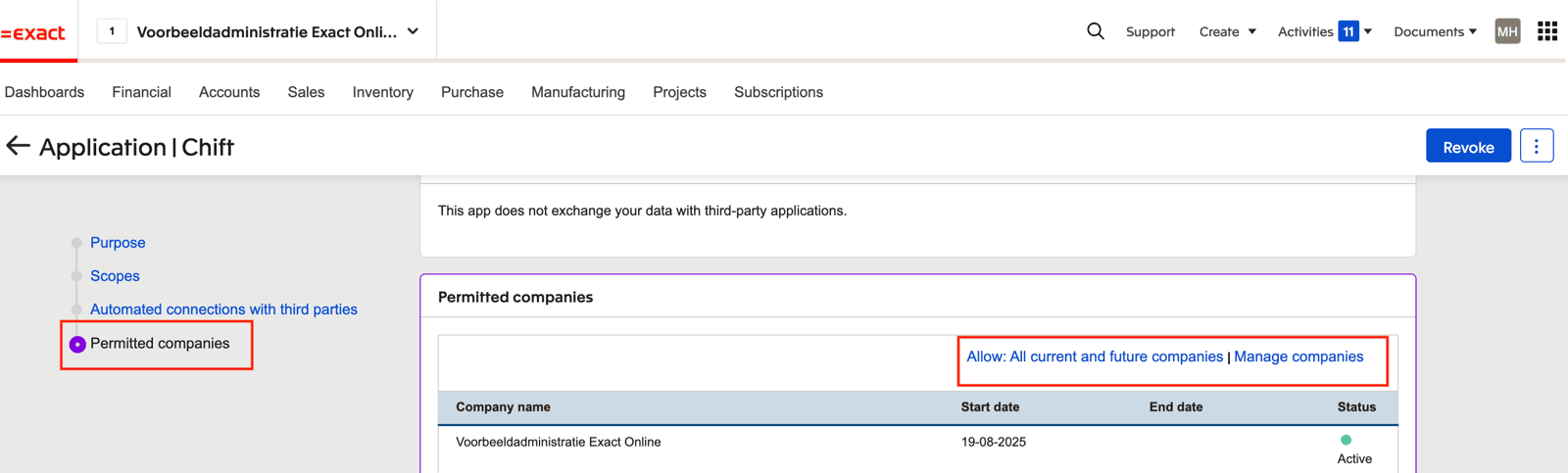
- Go to the “Permitted companies” section. Here you can allow all current and future companies OR select “Manage companies” to only allow specific companies