

🚨 Prerequisites
Technical requirements- .NET Framework 4.8 must be installed on the server where a3ERP is installed.
- The local agent must be installed on the same server as a3ERP.
→ Installation on another machine is not supported.
Access & credentials required
- a3ERP username with access to the target company.
- Password for the above a3ERP user.
- A Windows admin account to perform the installation.
-
Network Drive Access for a3ERP
When the a3ERP data is stored on a network/shared drive (e.g. W:), the A3ERPService Windows service must run under a Windows user account that has access to that drive.
The default Local System account does not have access to mapped network drives, which will cause a login issue.
To fix this:
- Open services.msc
- Find A3ERPService, right-click → Properties
- Go to the Log On tab
- Switch from Local System account to a domain/local user account that has access to the network/shared drive (e.g. W:)
- Restart the service
Supported a3ERP versions
- 14.5.2 → …
⚡️ Connection
❶ Connect
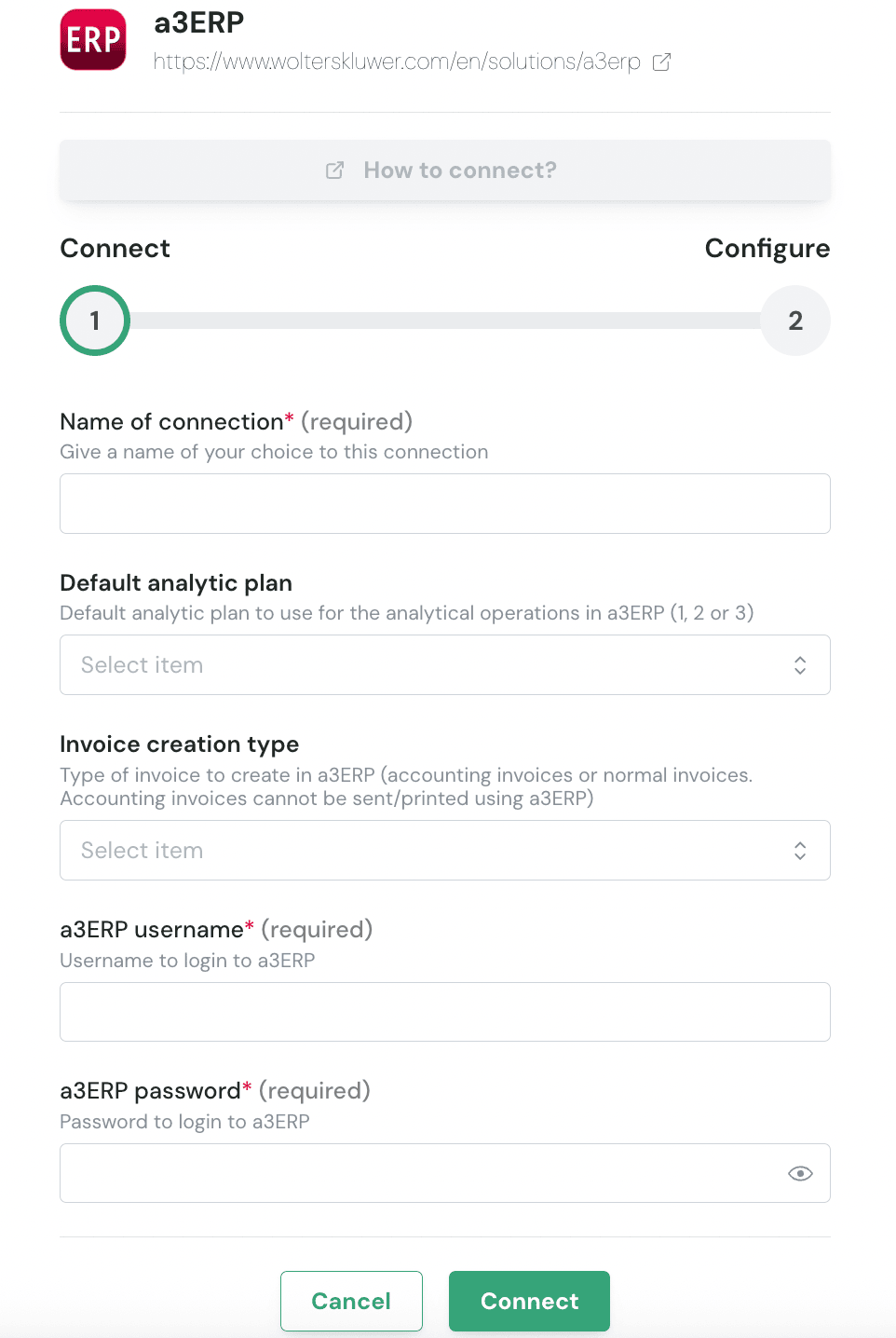


- Normal invoices
- Accounting invoices


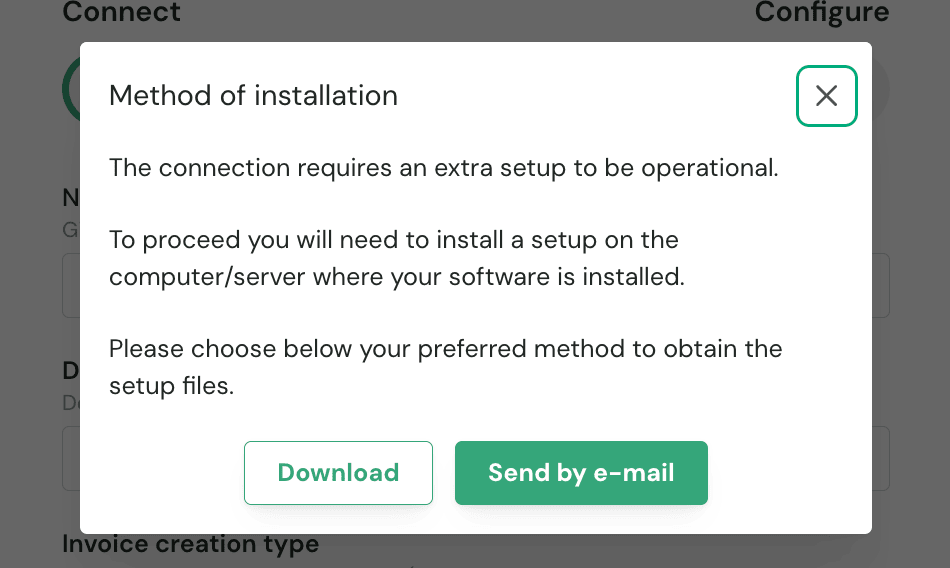
- If you are filling the form on the server, click Download to get the installation file.
- If someone else will perform the installation, click Send by Email and provide their email address.
❷ Configure

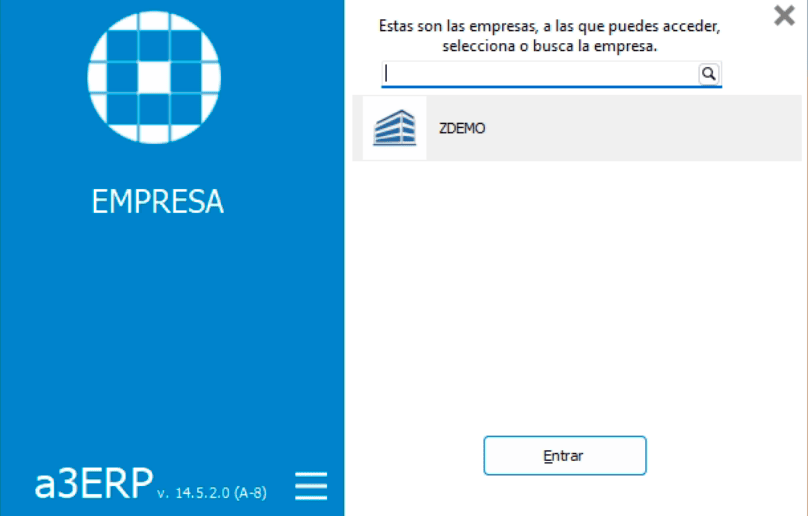
✅ Authentication
Recommendation: Perform the installation directly on the server running your a3ERP instance. Perform the installation directly on the server hosting the a3ERP instance. After completing the form and downloading the ZIP archive:- Copy the archive to the a3ERP server.
- Extract the contents of
Setup.zip. - Run the executable.
- Follow the on-screen installation steps to complete the setup.
❓ Troubleshooting
No reply from the local agent
No reply from the local agent
The local agent on your a3ERP server has not been in contact for more than 35 minutes, so requests to a3ERP fail until it is back. This happens when the server is off or offline, or the local agent service has stopped.Check that the a3ERP server is on, then restart the local agent service,
A3ERPService (how to restart it).