

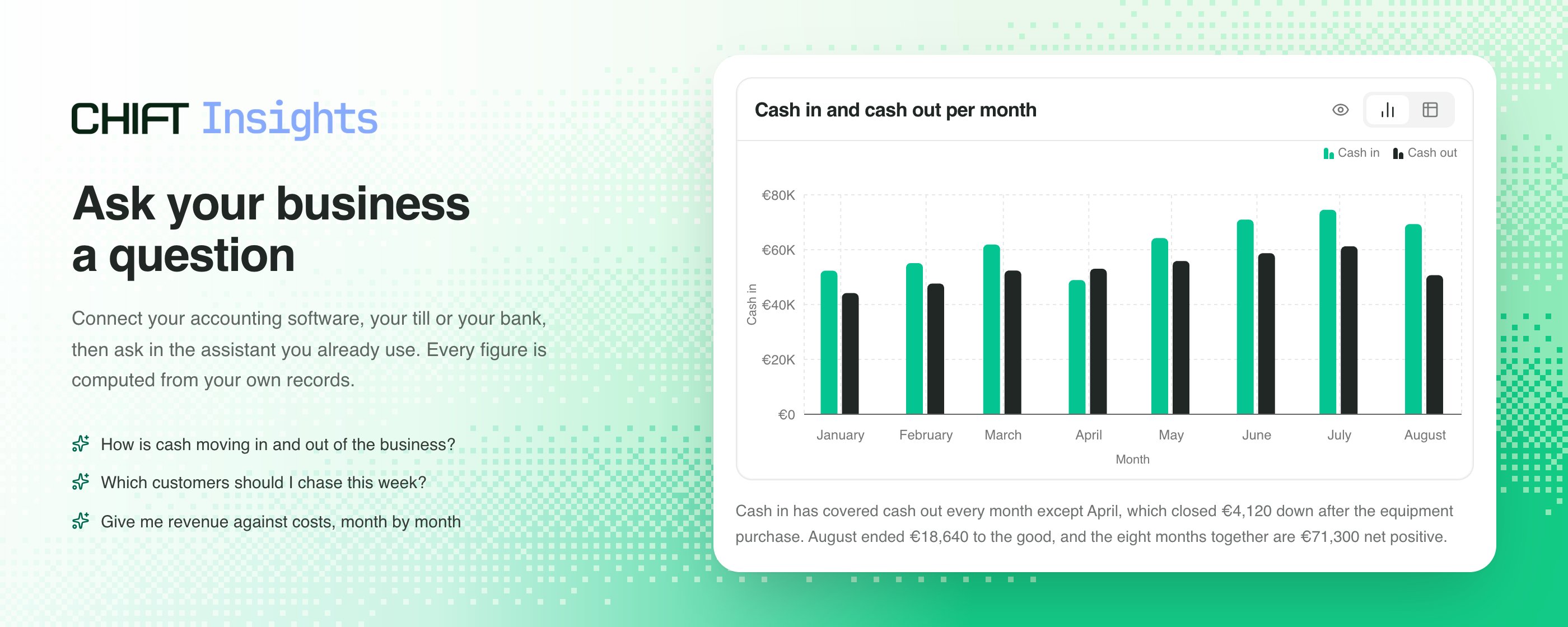
Ask your business a question
Connect your accounting software, your point of sale or your bank account to Chift Insights, then ask questions in the assistant you already use, the way you would ask your bookkeeper. You get the figure, and a chart when the answer is a trend or a comparison. Every number is calculated from your own records rather than estimated, so the same question gives the same answer twice.Before you connect anything
Reading and writing are separate
Answering a question only reads your records. The assistant can create or change records, such as an invoice, only in an area where you also allow writing. Tick Read only when you connect to keep it to questions.
You choose what it sees
Access is granted one area at a time, your books or your point of sale or your bank. Nothing is shared until you authorize it.
Chift does the sums
Chift sums the totals from your records before the assistant sees them, and amounts in different currencies are never added together. The assistant is instructed not to do arithmetic of its own, so a figure it works out in its own words is worth checking against the table.
It is not live to the second
Answers come from a copy of your records, refreshed once a day by default, so a sale from this morning may not be counted yet. Asking your software directly every time would use up the capacity it gives you and slow everything else connected to it. The exception is a question Chift Insights does not cover, which the assistant can send to your software instead, and that answer is live.
Your answers pass through your assistant. The figures Chift Insights returns are read by the assistant you connected it to, so they are handled under that provider’s terms and privacy policy rather than Chift’s. Chift decides what the assistant is allowed to ask for. It does not control what the provider then does with the answer.Questions it cannot answer are reported to Chift. When Chift Insights has no data for a question, the assistant sends Chift a sentence or two describing the question and what was missing, so Chift can see which questions to support next. The assistant is asked to leave out company names and amounts, and it is told not to mention the report in the conversation.
Getting connected
Everything happens inside an assistant you already have. There is no separate app to install and no Chift page to find first: adding the address below is what creates your account, and the same flow is where you connect your software.1
Add Chift Insights to your AI assistant
In your assistant’s connector settings, add this address:Most assistants that support MCP let you add a server by its address, usually under connectors, plugins or tools in their settings. Where to find it:
The wording differs between assistants and keeps changing. Claude calls them connectors, ChatGPT called them connectors and renamed them apps in December 2025, and you may still see plugins in older articles. They all mean the same thing here: a server you add by its address. On ChatGPT, custom ones sit behind developer mode, and on Enterprise or Edu plans an administrator has to allow them first.
2
Sign in, or sign up, on the page it opens
The first time your assistant connects, it opens a page for you to log in to Chift Insights.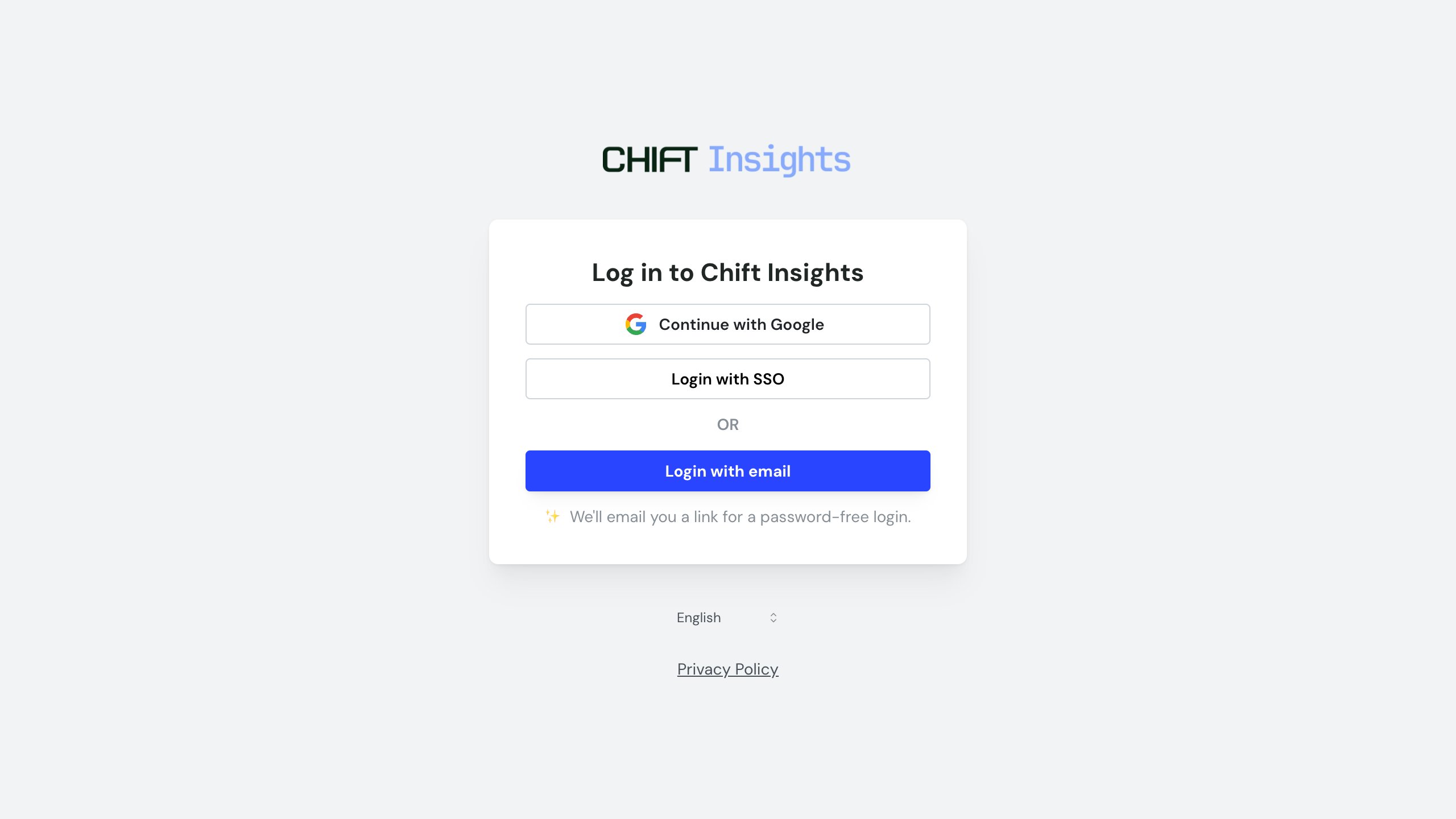
3
Connect your software
Once you are signed in, Chift Insights asks for the software your business runs on.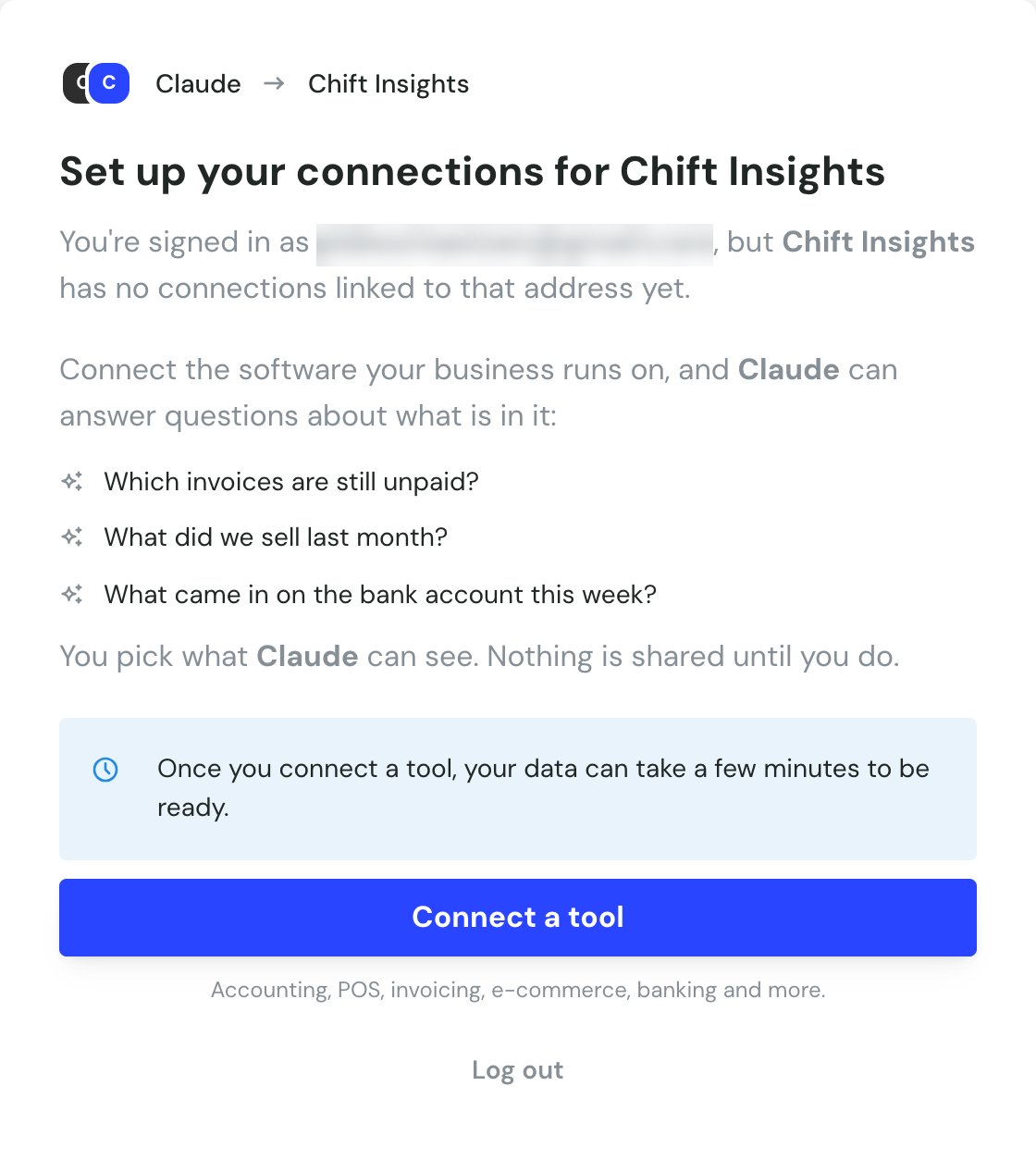
4
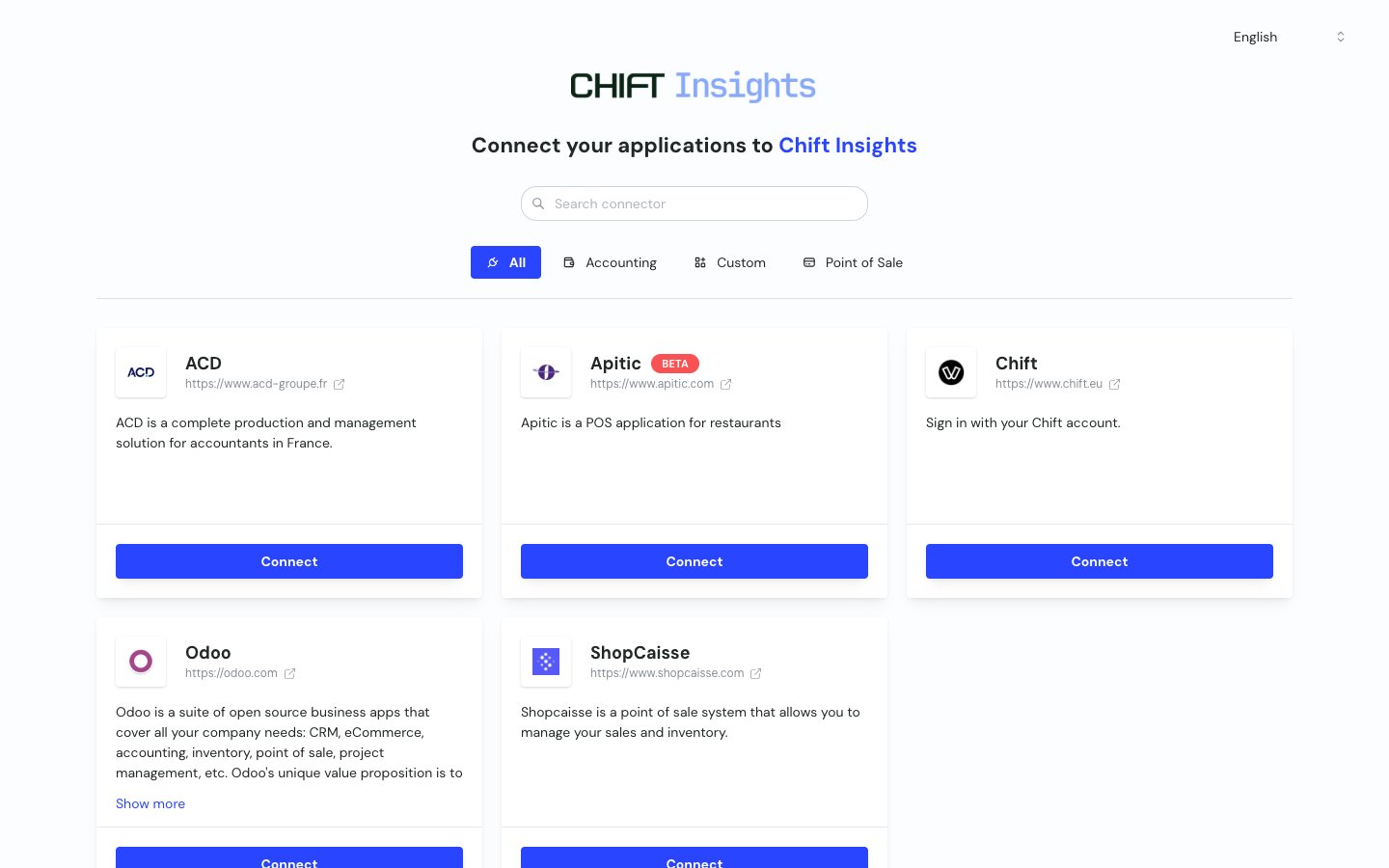
Choose what the assistant may access
Each area gets its own control. None shares nothing, All shares the whole area, and Limited lets you pick parts of it. The assistant only ever sees what you allow.Writing is allowed by default wherever your account permits it. Tick Read only on an area if you only want answers, and the assistant cannot create or change anything there.
5
Ask your first question
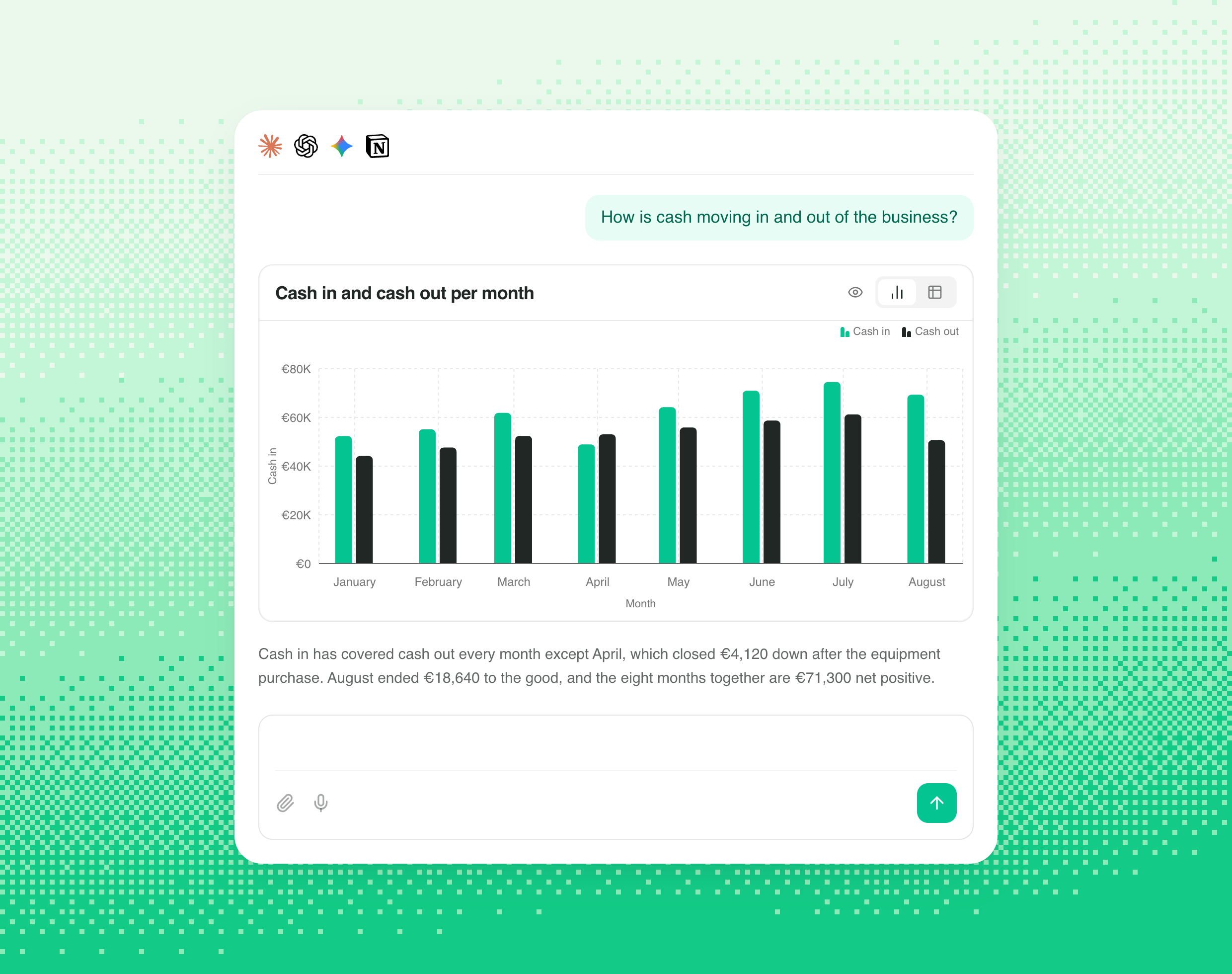
Try “how is cash moving in and out of the business?”. If your first data refresh is still running, you are told to try again in a few minutes rather than shown an empty answer.
What you can ask
Real-time cash flow
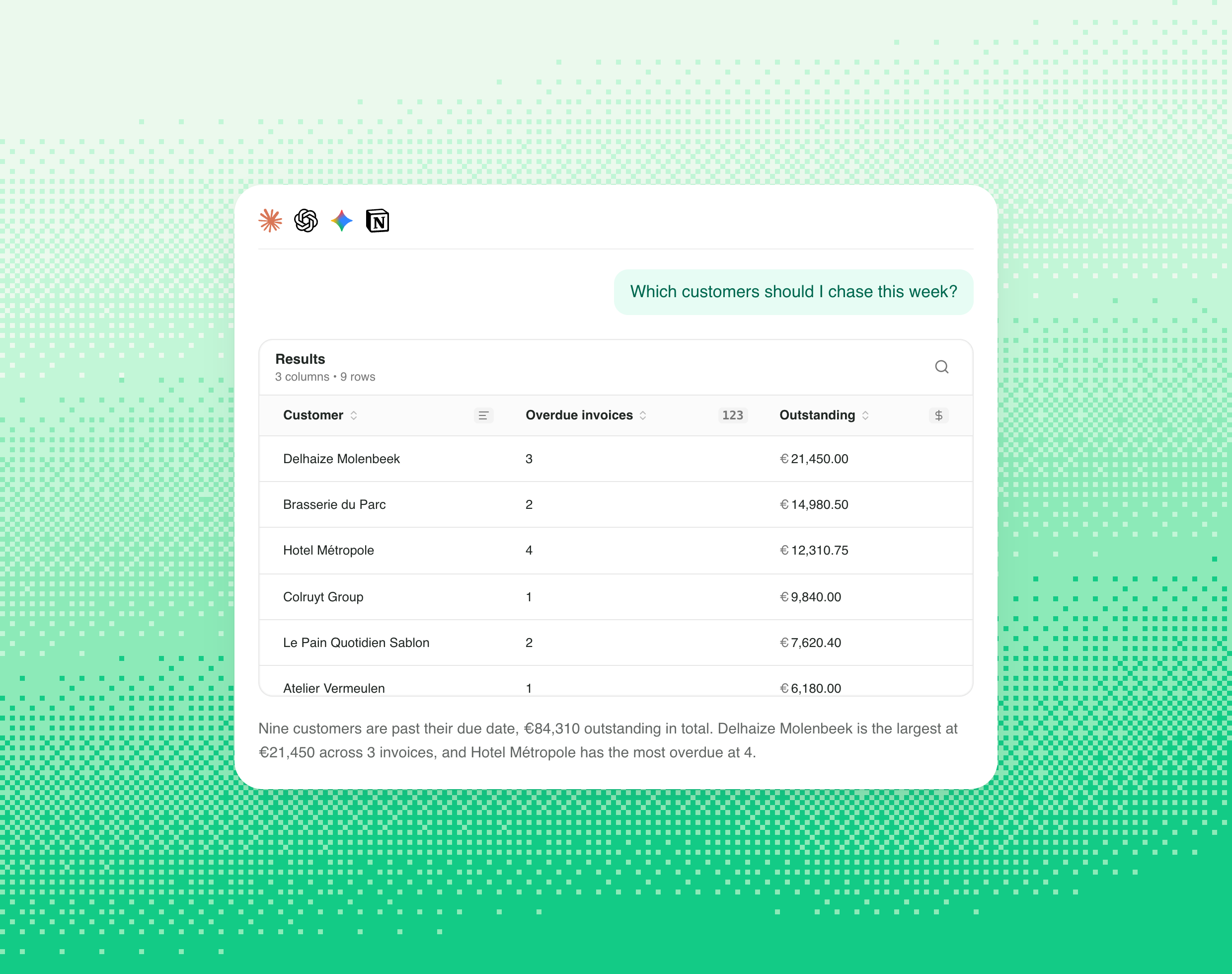
Customer follow-ups
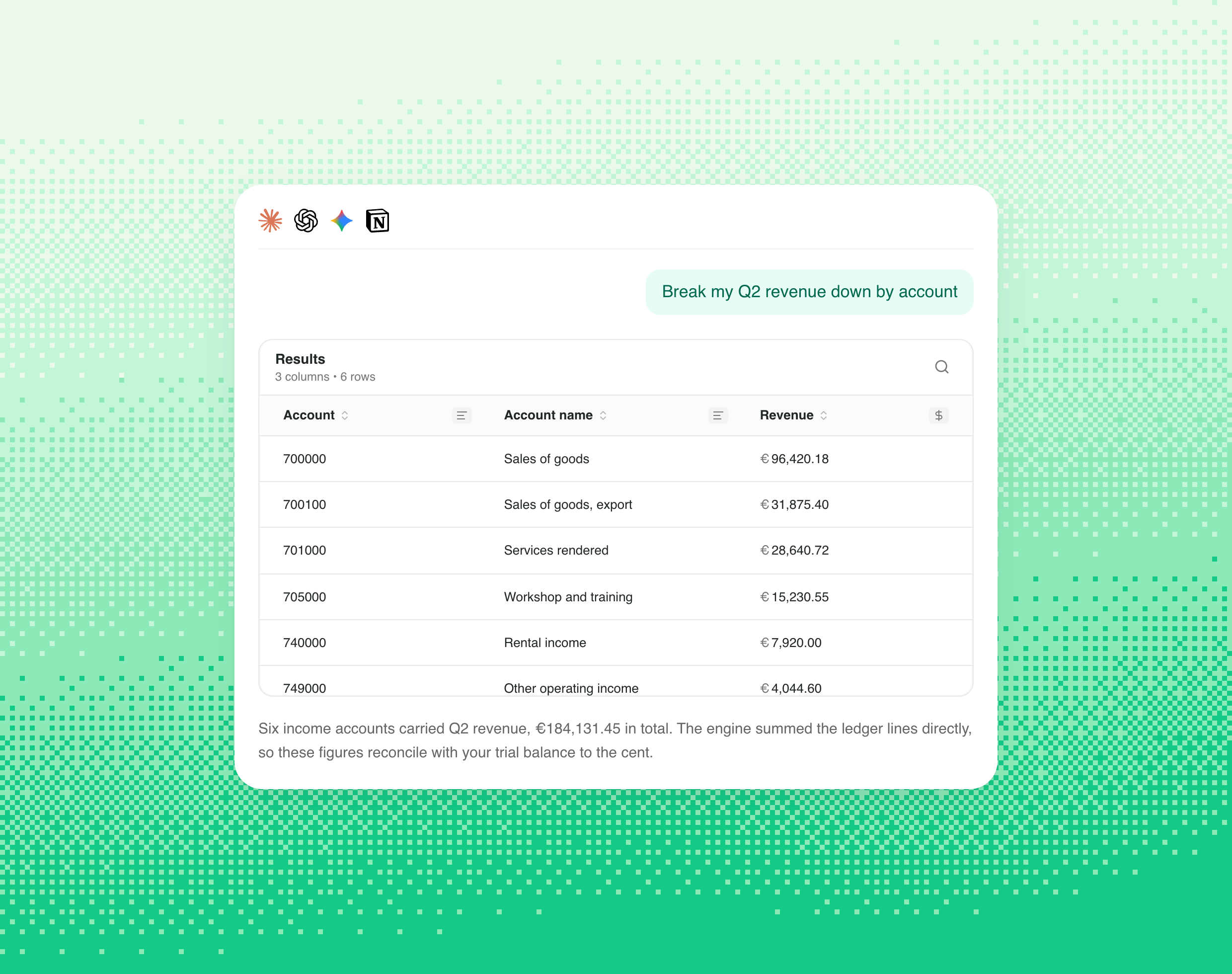
Numbers that add up
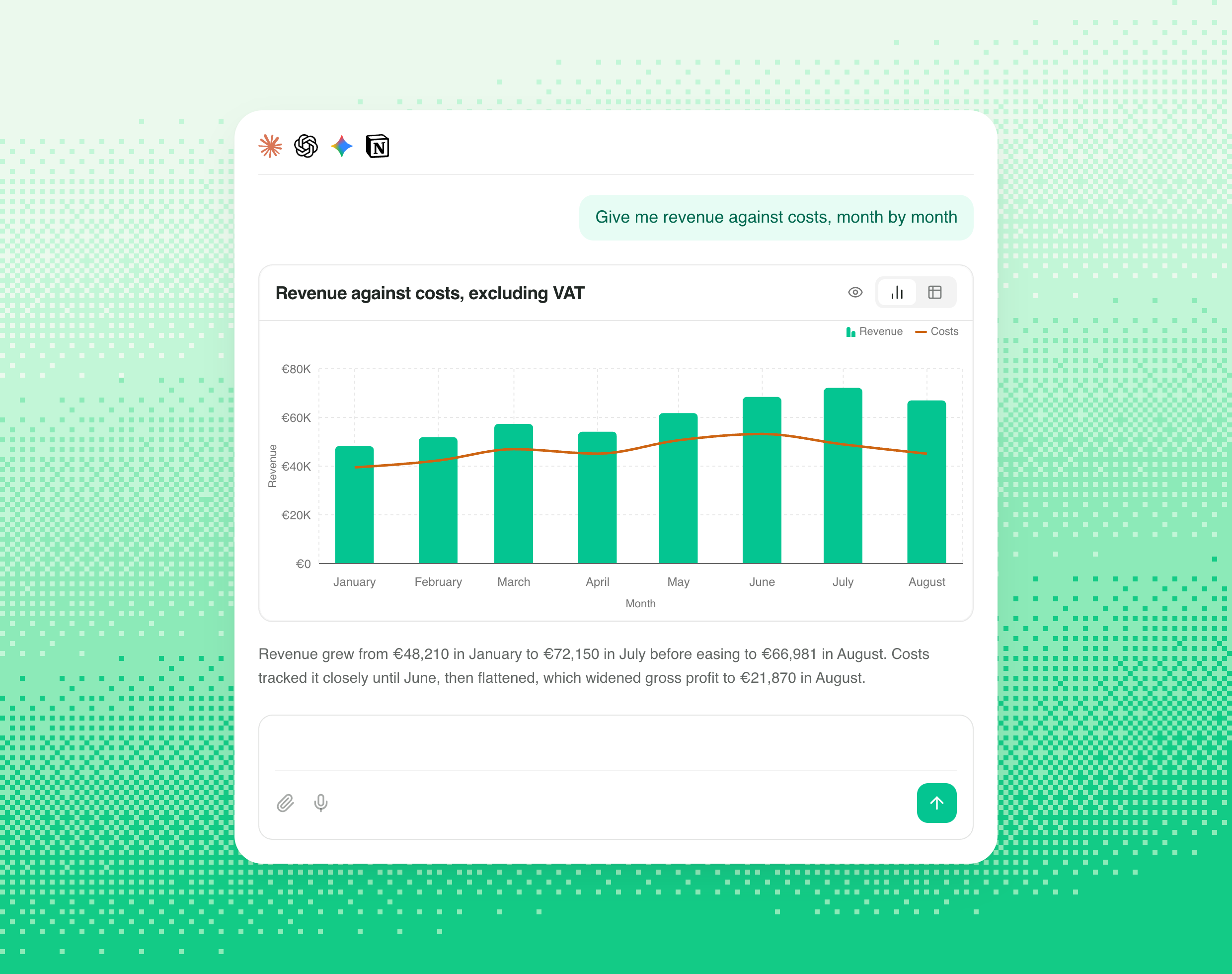
On-demand reporting
One question, three sources
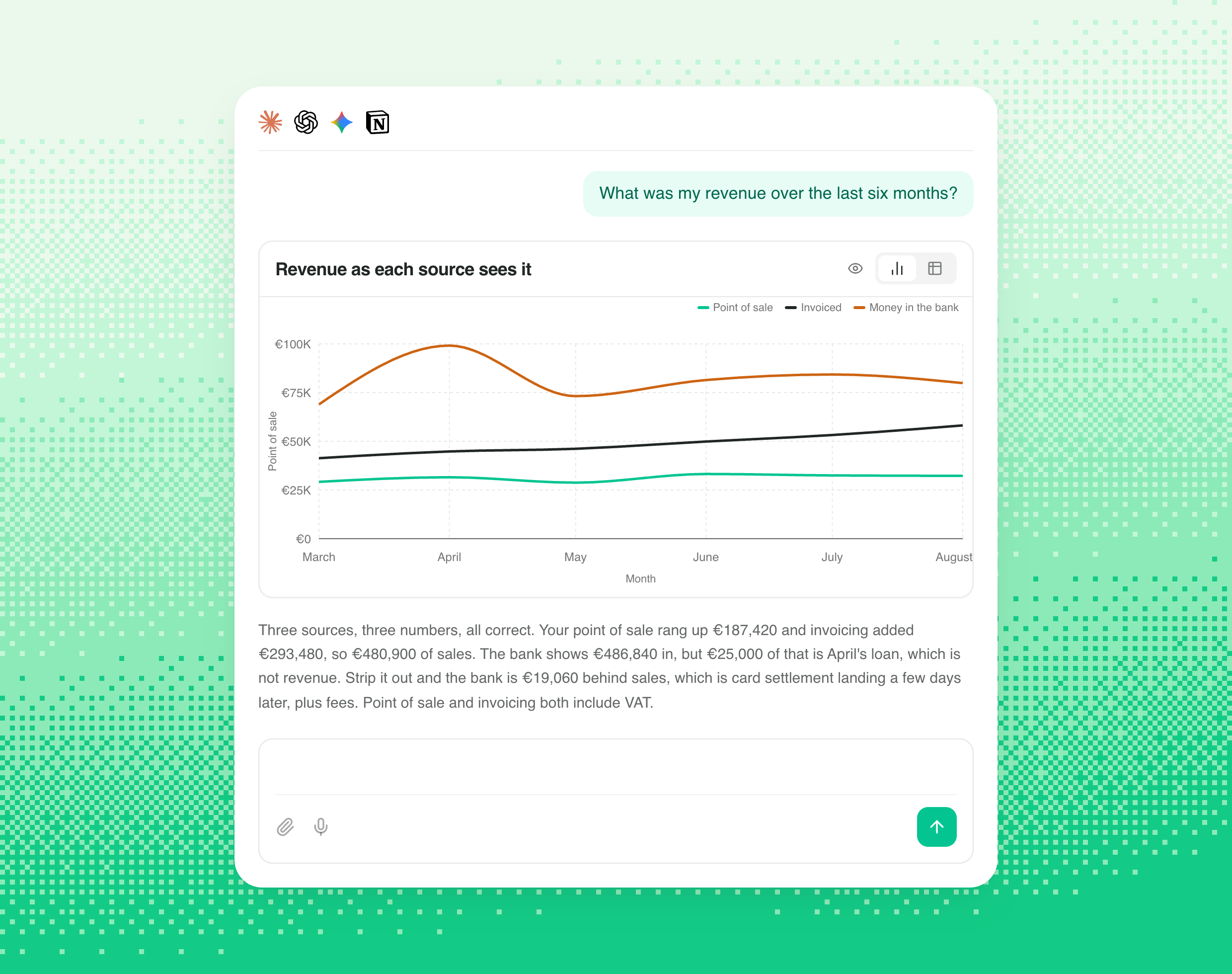
Reading an answer
Most answers come back as a table. When the question is a trend, a comparison or a ranking, a chart comes with it, and you can switch between the two. A few things the answer tells you that are easy to miss:- Amounts in more than one currency never get added together. If your records hold euros and pounds, the answer splits them and gives you a switch between the two. A single total across currencies would be meaningless, so Chift Insights does not produce one.
- The wording of the measure carries the detail. “Customer revenue” and “customer revenue, excluding VAT” are different questions with different answers. The assistant states which one it used, and it is worth reading that line before quoting the figure.
- An empty answer is not always a zero. The assistant says when a query returned no rows, which is different from a total of nothing.
If something looks wrong
It says the data is not available yet
It says the data is not available yet
Your first refresh has not finished. This resolves on its own, usually within a few minutes for a small business and longer if you have years of history. Ask again rather than reconnecting.
It says the connection has not been set up for analysis
It says the connection has not been set up for analysis
Waiting will not help with this one. The area you are asking about was connected but never opened up for questions. Contact your Chift contact and it can be switched on.
A total disagrees with my accounting software
A total disagrees with my accounting software
Check the timing first. This is the most common cause by a wide margin: answers come from a copy of your data that refreshes once a day by default, so anything posted since the last refresh is not counted yet. Ask again after the next refresh before assuming the number is wrong.If the gap survives a refresh, the measure is probably not the one you assumed. Ask the assistant which measure it used and over which period, since “revenue” and “revenue excluding VAT” are different questions.
It will not answer my question
It will not answer my question
Chift Insights declines rather than approximating. Usually nothing you connected holds the data, so connecting the missing source fixes it.It can also happen on a question that combines two sources with nothing to line them up by. Point of sale takings and revenue invoiced in your accounting compare fine because both sit on a month. Two figures that share only a currency usually cannot be combined, and two that share neither a date nor a currency never can. Asking about each separately always works.
Chift Insights reads through the Chift platform. If you build software and want to put this inside your own product, see the MCP documentation and the Insights endpoints in the API reference, starting with Get Catalog.