

🚨 Prerequisites
Before you start, make sure you have:- EBP Comptabilité ELITE, version 24.8 or later, installed on your own server or computer (local subscription), and activated there. The online version, EBP Comptabilité en ligne, cannot be connected.
- EBP’s command-line module, Module SDK, active on your EBP license
- an active EBP Offre de Services subscription: EBP requires it for software connected through its SDK. If you do not have one, it is an extra subscription, on quote from EBP or your reseller.
- a Windows administrator account on the server or computer where EBP Comptabilité is installed: the local agent is installed on that same machine
- the right to create a user in your EBP company
🛠 Preparation
Find the path of your company's .ebp file
.ebp file of the company you want to connect, not of its folder.In EBP Comptabilité, open the main menu at the top left (Mes paramètres), then go to Gestion de dossiers › Maintenance des données.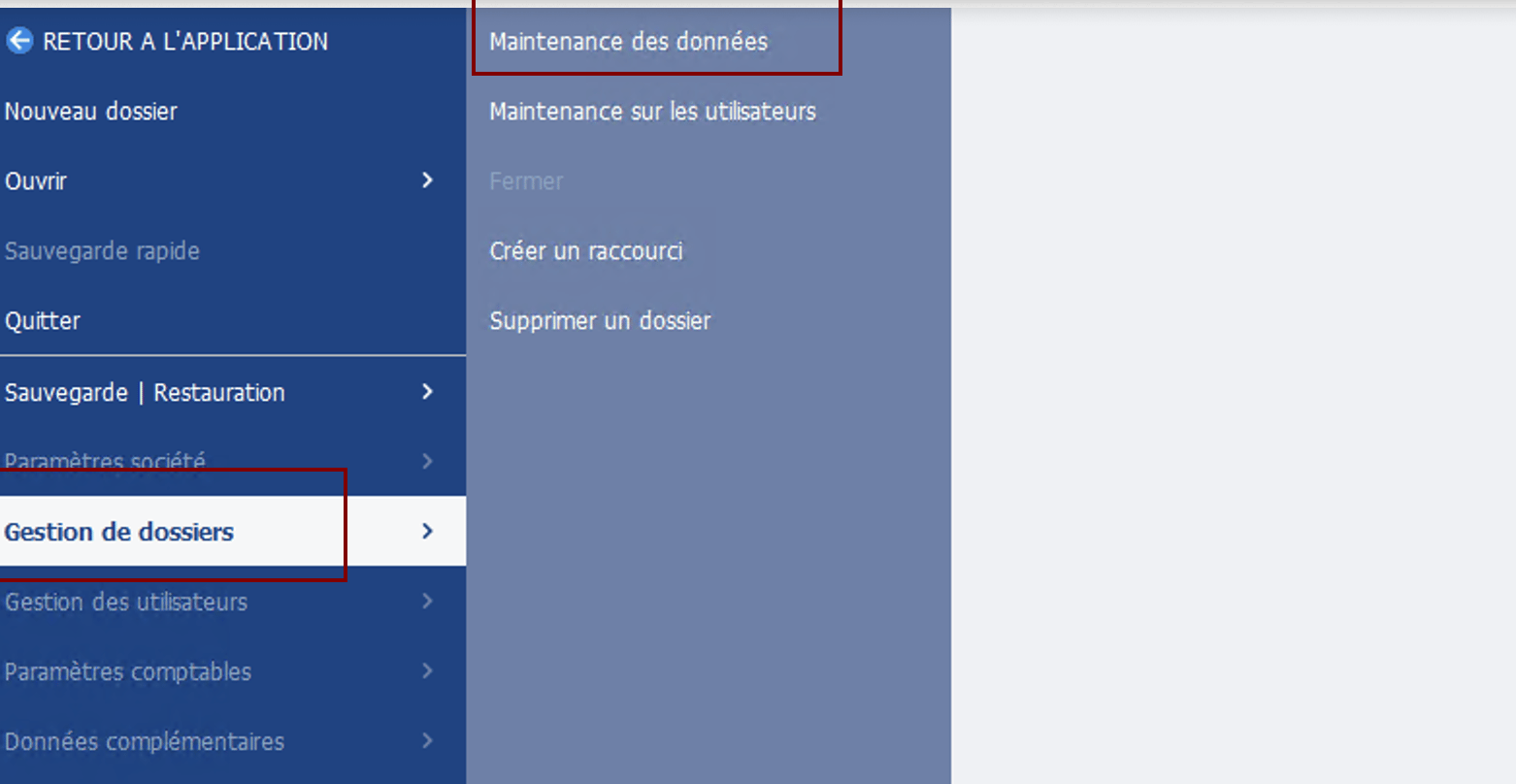
C:\Users\Public\Documents\EBP\Comptabilite\Dossier.ebp. Keep it: you will paste it into the local agent’s configuration.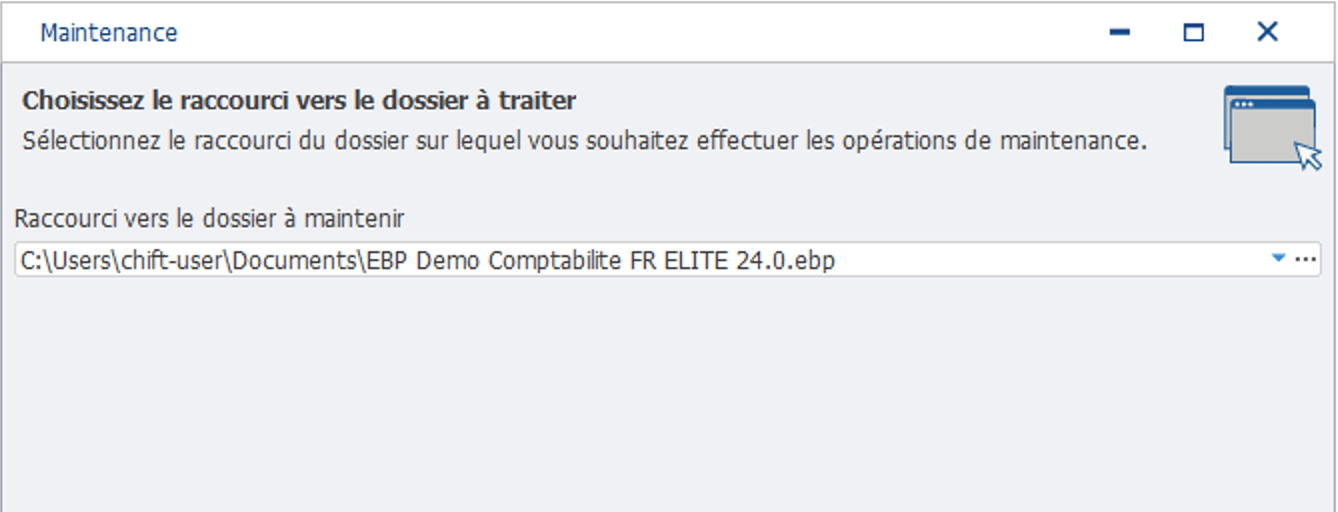
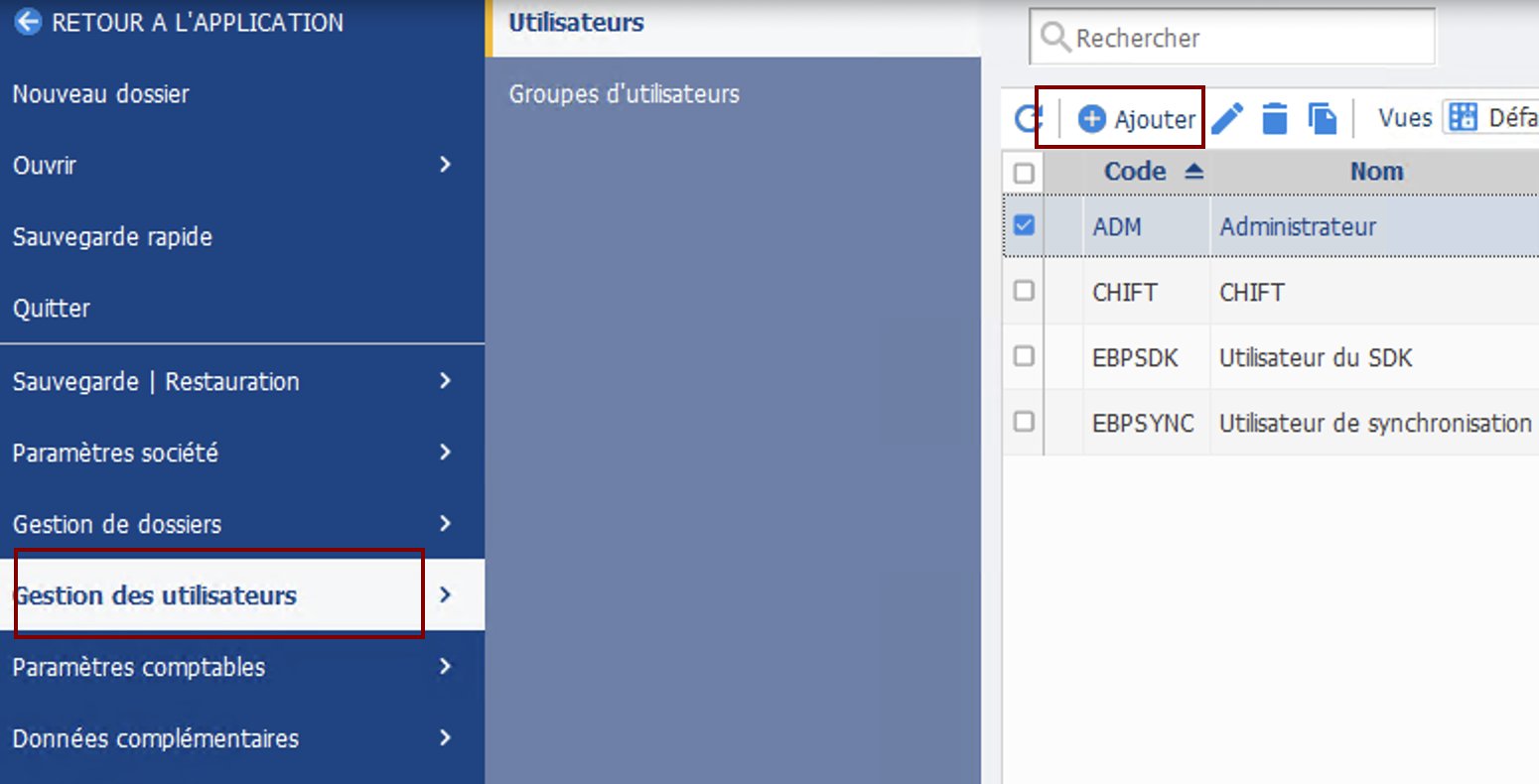
Create an EBP user for the connection
⚡️ Connection
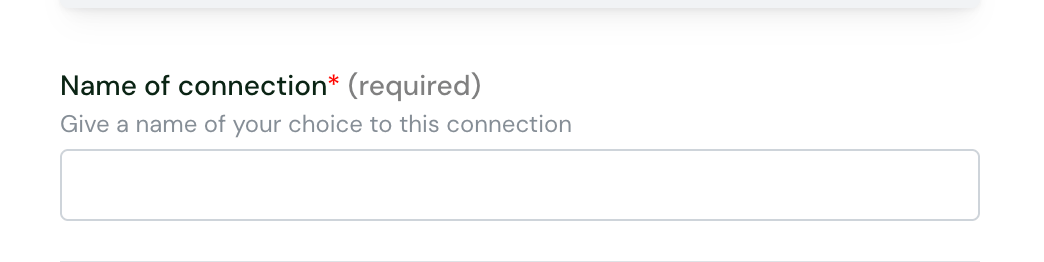
Name your connection
Click Connect
- If you are on the machine where EBP Comptabilité is installed, click Download to get the installer.
- If someone else installs it, click Send by Email and enter their email address.
✅ Authentication
The connection downloads an installer. Install it on the server or computer where EBP Comptabilité runs, by following the local agent installation guide. Then come back here for the steps specific to EBP Comptabilité.Run the installer next to EBP Comptabilité
Fill in the EBP connection in Cockpit
Check the connection
- EBP Accounting database: the
.ebpfile was read and the company’s database opened. Reading data needs it. - EBP Accounting application: EBP Comptabilité is installed on this machine. Creating and updating data needs it. It shows Not checked, because a check above did not pass when the
.ebpfile could not be read: fix the database line first.
⚙️ Setup
Entries in other currencies
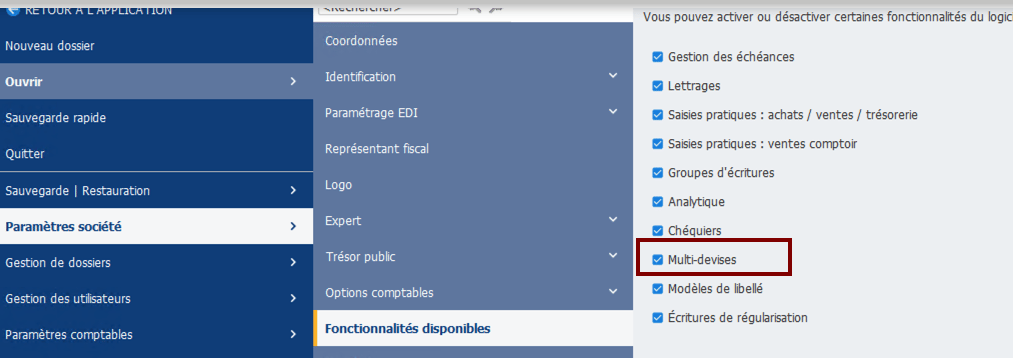
To send entries or invoices in a currency other than the euro, switch on EBP’s multi-currency feature.- In EBP Comptabilité, open the main menu at the top left and go to Paramètres société › Fonctionnalités disponibles.
- Tick Multi-devises.
- Make sure the currency is in the company’s list of currencies (Devises). Add an exchange rate there, dated on or before the entries, unless the rate is sent with each entry.
ERROR_CURRENCY_NOT_ALLOWED without Multi-devises, ERROR_CURRENCY_NOT_FOUND when the currency is not in the list.
Analytics
To allocate entries and invoices to analytic accounts, set up analytics in EBP.- In Paramètres société › Fonctionnalités disponibles, tick Analytique.
- Tick the Principal box of the analytic plan to use by default.
- On each general account that should take analytics (usually income and expense accounts), switch on its analytic option.
- without Analytique:
ERROR_ANALYTIC_ACCOUNTING_NOT_ACTIVE - without a plan ticked Principal:
ERROR_ANALYTIC_ACCOUNTING_PLAN_NOT_CONFIGURED, for analytic accounts and invoices sent without a plan - on an account without the analytic option:
ERROR_ACCOUNT_NUMBER_NOT_GOOD_SCOPE
❓ Troubleshooting
Cockpit: its EBP shortcut '…' does not exist
Cockpit: its EBP shortcut '…' does not exist
.ebp file, or the file was moved or deleted.Enter the full path of the company’s .ebp file (Preparation step 1).Cockpit: the .ebp file could not be read, or carries no 'ConnectionString'
Cockpit: the .ebp file could not be read, or carries no 'ConnectionString'
.ebp file, and check that the service account can read it. If the message persists, open the company once in EBP: it rewrites its shortcut file.Cockpit: the database refused the login, or the SQL Server could not be found
Cockpit: the database refused the login, or the SQL Server could not be found
.ebp file; only the login is set in Cockpit.Check EBP SQL Server username and EBP SQL Server password (both empty: the Windows account of the local agent’s service), and that the SQL Server named in the .ebp file is running and reachable from this machine.Cockpit: EBP is not installed on this machine
Cockpit: EBP is not installed on this machine
EBP could not open the company: L'utilisateur … est déjà connecté
EBP could not open the company: L'utilisateur … est déjà connecté
- Create an EBP user for the connection (Preparation step 2) and enter it in Cockpit, in EBP user and EBP user password.
- To end a session left behind, when nobody uses that EBP user, go to Mes paramètres › Gestion de dossiers › Maintenance sur les utilisateurs in EBP.
EBP could not run the import: Le login ne correspond à aucun utilisateur
EBP could not run the import: Le login ne correspond à aucun utilisateur
EBP refused the record: Vous avez atteint la limite du nombre d'écritures pour la version de démonstration
EBP refused the record: Vous avez atteint la limite du nombre d'écritures pour la version de démonstration
A record may or may not have been imported
A record may or may not have been imported
- Look in EBP before sending the record again: it may have been created.
- Check that the Module SDK is active on your EBP license.
- Check that the local agent’s service runs as Local System.
ERROR_CURRENCY_NOT_ALLOWED or ERROR_CURRENCY_NOT_FOUND
ERROR_CURRENCY_NOT_ALLOWED or ERROR_CURRENCY_NOT_FOUND
ERROR_EXCHANGE_RATE_NOT_FOUND
ERROR_EXCHANGE_RATE_NOT_FOUND
ERROR_ANALYTIC_ACCOUNTING_NOT_ACTIVE, ERROR_ANALYTIC_ACCOUNTING_PLAN_NOT_CONFIGURED or ERROR_ACCOUNT_NUMBER_NOT_GOOD_SCOPE on analytics
ERROR_ANALYTIC_ACCOUNTING_NOT_ACTIVE, ERROR_ANALYTIC_ACCOUNTING_PLAN_NOT_CONFIGURED or ERROR_ACCOUNT_NUMBER_NOT_GOOD_SCOPE on analytics