You must have Contasol installed with its API access available.
Activating the API requires a developer account (“cuenta de fabricante”) with Software DELSOL. This account provides a CodigoFabricante and is tied to an email address (EmailFabricante) that receives the API credentials.
You can either create your own developer account (fully autonomous — steps below), or use the developer account your integration partner provides (they share their CodigoFabricante and EmailFabricante with you). If your partner manages the developer account, skip Step 1 and go straight to Step 2 with the identifiers they gave you.
Contasol’s API is activated from inside Contasol using a CodigoFabricante and the email linked to the developer account. Once activated, Software DELSOL emails the API credentials, which you then enter in the Chift connection settings.There are two ways to organize this:
You manage your own developer account → you create it once (Step 1), receive your CodigoFabricante, and stay independent.
Your partner manages the developer account → they give you their CodigoFabricante and EmailFabricante to create the connection in Contasol; the credentials email is sent to them, and they share the credentials with you.
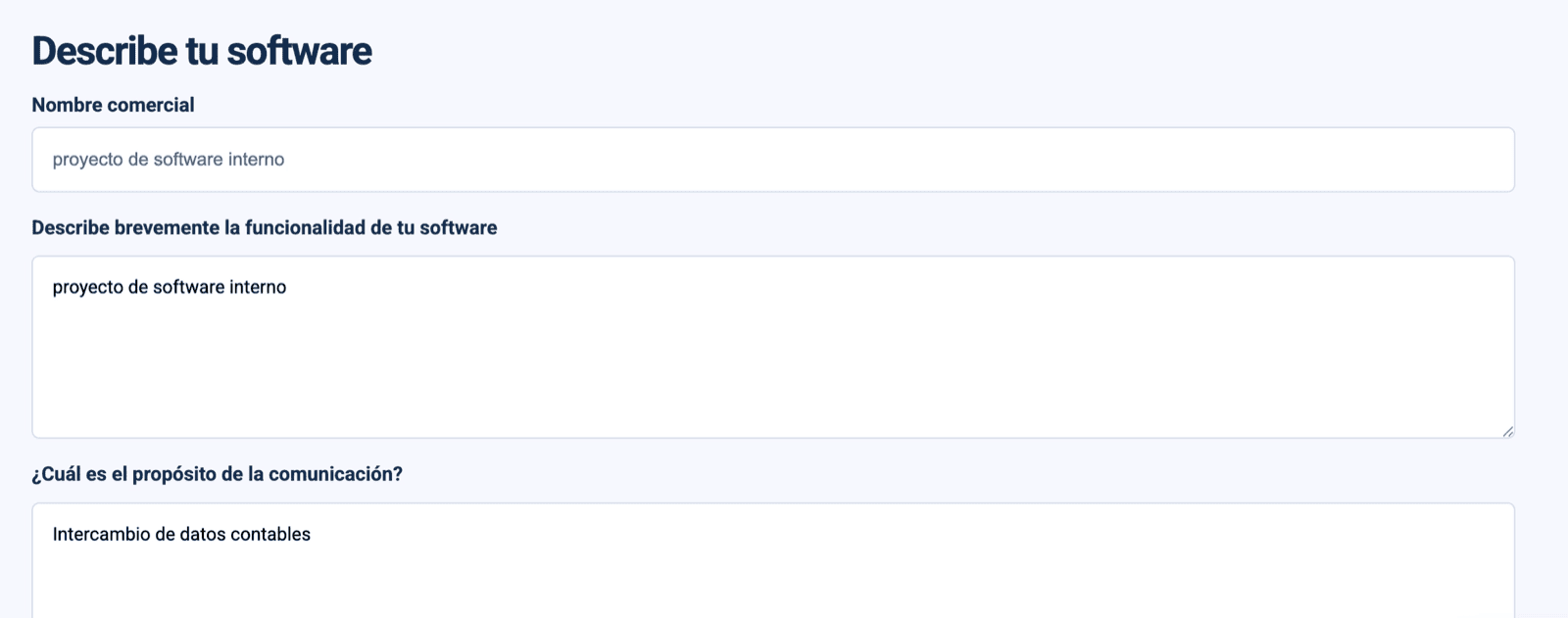
Go to the Software DELSOL developer registration and create a developer account to receive your CodigoFabricante. Choose an email address you have access to — Software DELSOL sends the API credentials to this address.
Use an email you actively monitor: this is where your CodigoFabricante confirmation and, later, your API credentials arrive.
You will receive a confirmation email containing your CodigoFabricante.
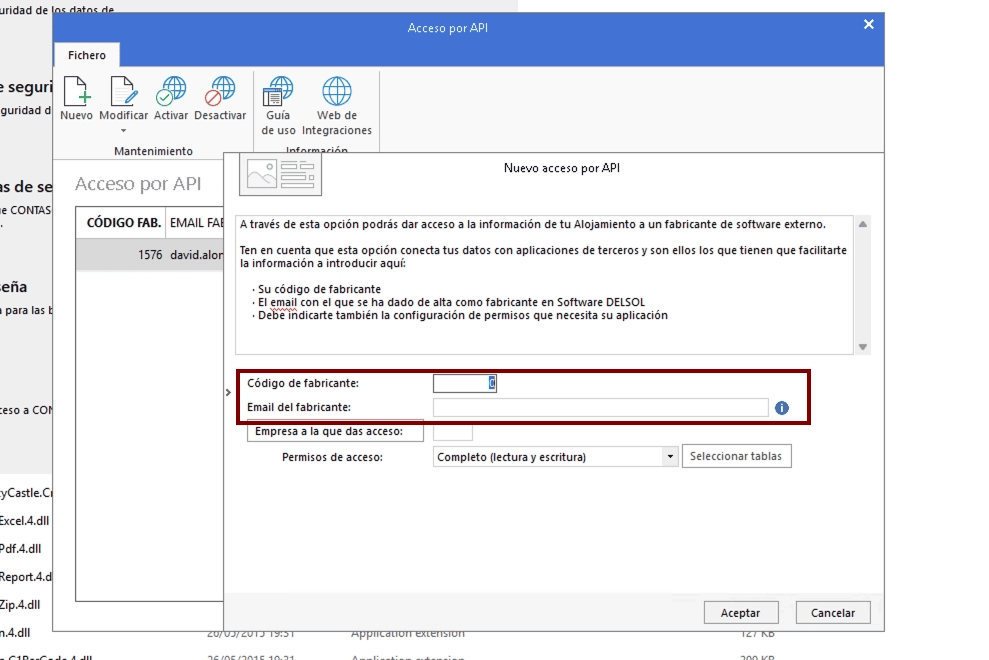
Using your CodigoFabricante and the email you registered, activate API access inside Contasol. Software DELSOL’s official guide walks through each screen:CONTASOL | Acceso por APIOnce activated, you or your partner, depending on who set up the developer account, receives an email with your API credentials.
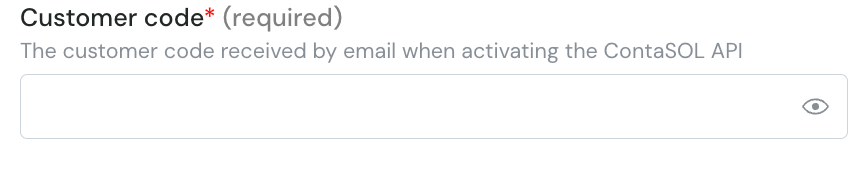
Step 1: Choose a name for your connection. (If the connection name field isn’t visible, simply skip this step and continue.)Step 2: Enter your Customer code. This is the customer code received by email when activating the ContaSOL API.Step 3: Enter your Customer database. This is the name of the ContaSOL company database you want to connect to, received by email when activating the ContaSOL API.Step 4: Enter your Password. This is the password received by email when activating the ContaSOL API.Step 5 — Fill in the Manufacturer code (if you created your own developer account).Step 6 — Fill in the Manufacturer email (if you created your own developer account).Step 7 — Click Connect to finalise the connection.
Check the inbox of the exact email registered as the developer account (EmailFabricante), including spam. Re-check the CodigoFabricante entered in Contasol matches the account.
Connection fails in Chift
Make sure you entered the credentials exactly as received in the email, with no extra spaces.
Using your partner’s developer account
You do not need to create your own account — enter the CodigoFabricante and EmailFabricante your partner provided in Step 2, and ask them for the resulting credentials.