

🚨 Prerequisites
Before you start, make sure you have:- an active a3factura subscription (a3facturago or a3facturapro)
- the Conectia module on that subscription, Wolters Kluwer’s API module: without it, the connection cannot work
- It is not included by default in a3facturago or a3facturapro.
- Its price is not published: ask Wolters Kluwer or your distributor.
- a Wolters Kluwer user (email and password) with access to the company you want to connect
- for the preparation, access to Conectia in My Wolters Kluwer, to copy the Conectia API key. Don’t see Conectia in the menu? Ask your account administrator to give you access.
🛠 Preparation
1
Open the Conectia module
Sign in to My Wolters Kluwer. In the menu on the left, under My solutions, click Conectia.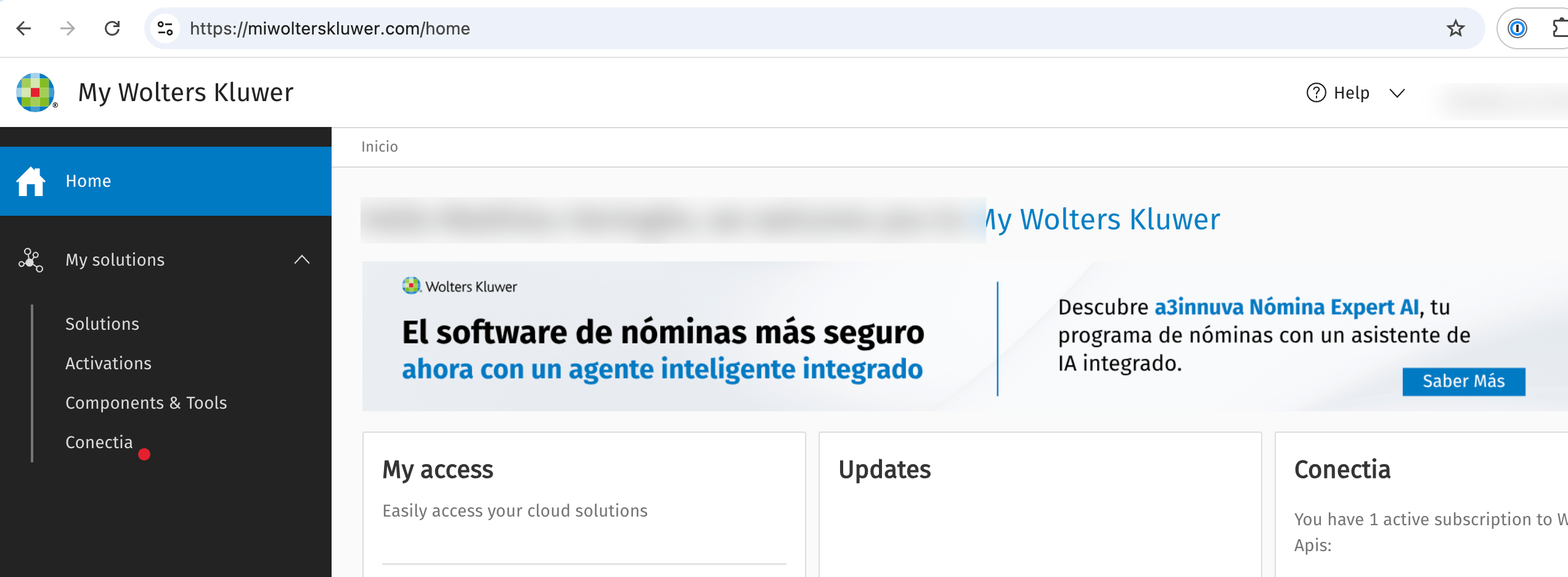
2
Copy your API key
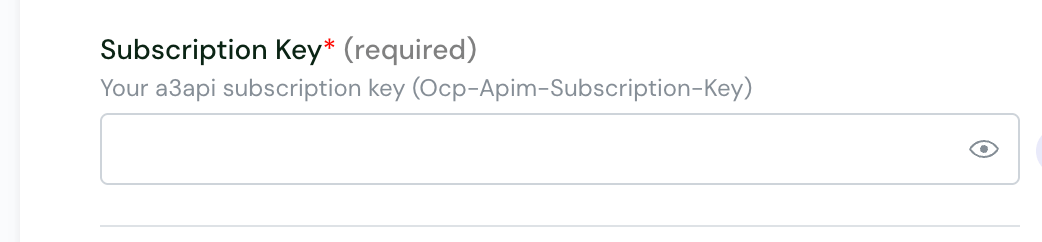
Next to Apikey, click Copy. Keep it somewhere safe: you will paste it into the connection form, where it is called Subscription Key.No API key yet? Generate it first, as Wolters Kluwer explains in Conectia: qué es y cómo funciona.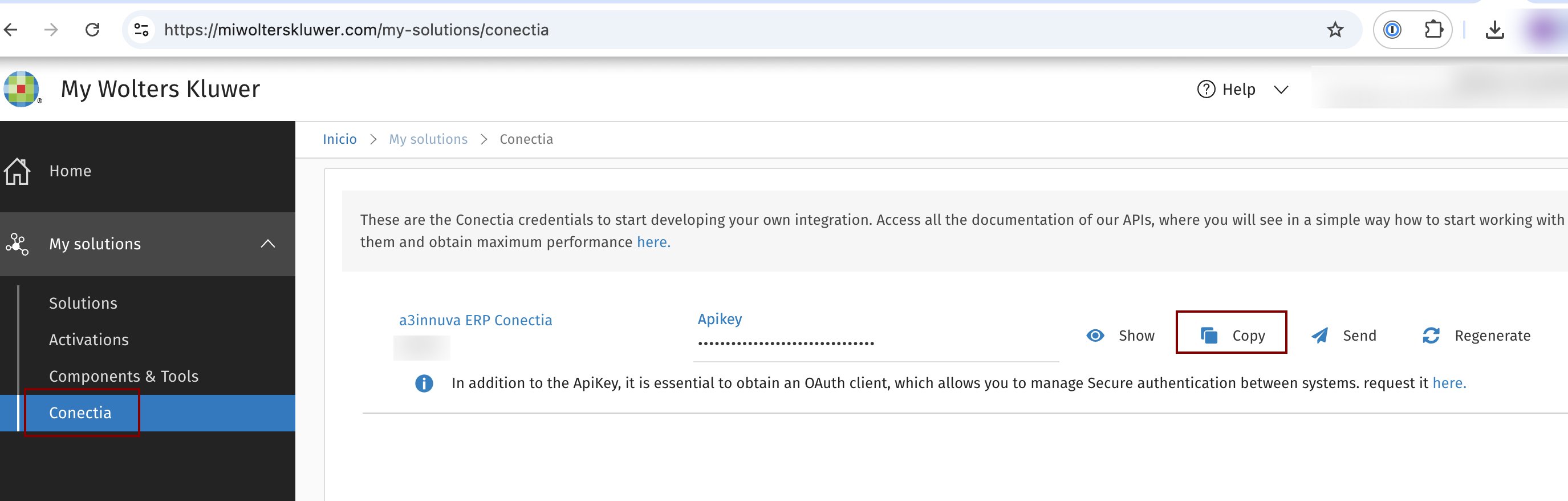
⚡️ Connection
1
Name your connection
In Name of connection, choose a name you will recognize later.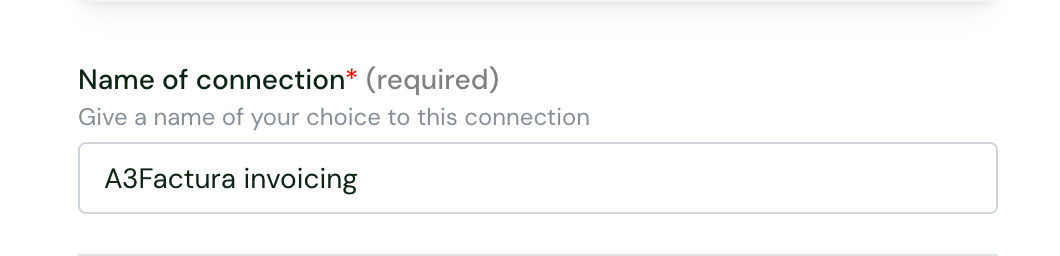
2
Fill in your subscription key
3
Click Connect
You are redirected to Wolters Kluwer to sign in.
✅ Authentication
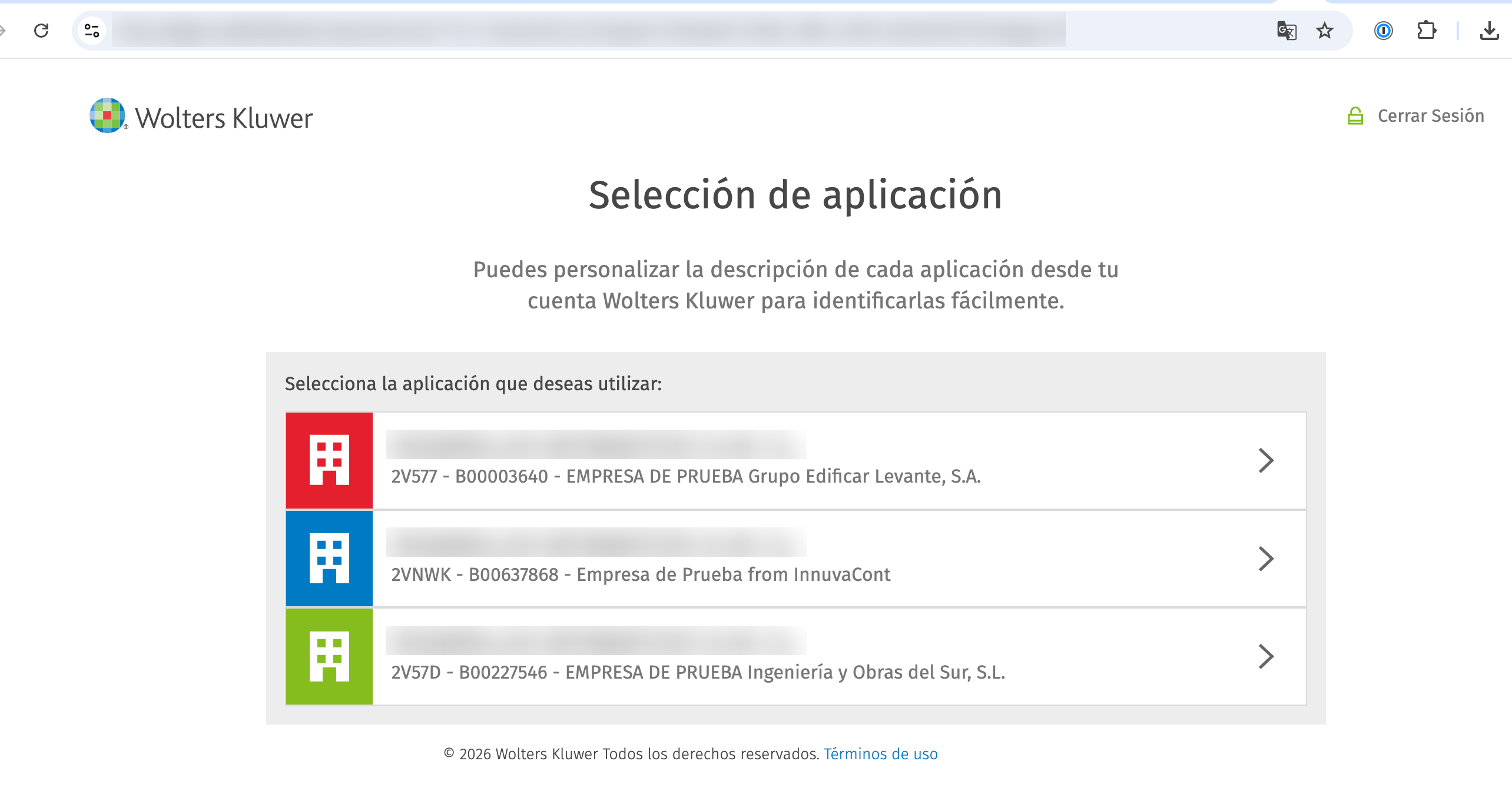
Sign in with your Wolters Kluwer account, the one you use for a3factura.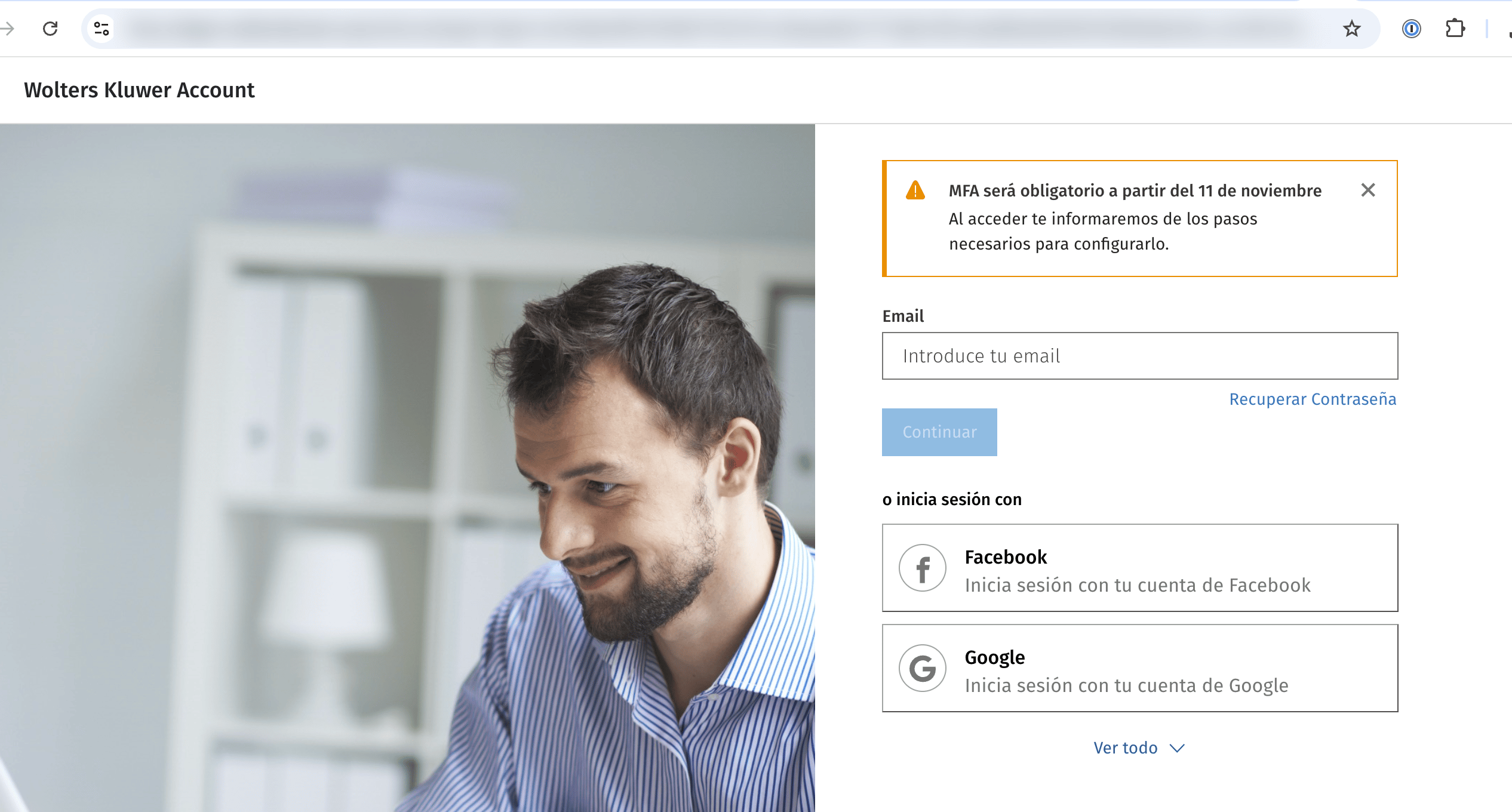
❓ Troubleshooting
Authentication with a3factura failed. Please reconnect your a3factura account.
Authentication with a3factura failed. Please reconnect your a3factura account.
a3factura no longer accepts the connection’s access. Two common causes:
- The Subscription Key is wrong, or it was regenerated in Conectia. Copy it again from Conectia in My Wolters Kluwer, then connect again.
- Your password changed, or the authorization was revoked. Connect again and sign in with your Wolters Kluwer account to renew the access.
Impossible to retrieve data from a3factura due to a permission issue.
Impossible to retrieve data from a3factura due to a permission issue.
The user you signed in with is not allowed to read this data in a3factura.Ask your a3factura administrator to check the user’s access, then connect again.