🚨 Prerequisites

  • You must have an active Dinero subscription on the Pro plan or above (the Total plan also works).

⚡️ Connection

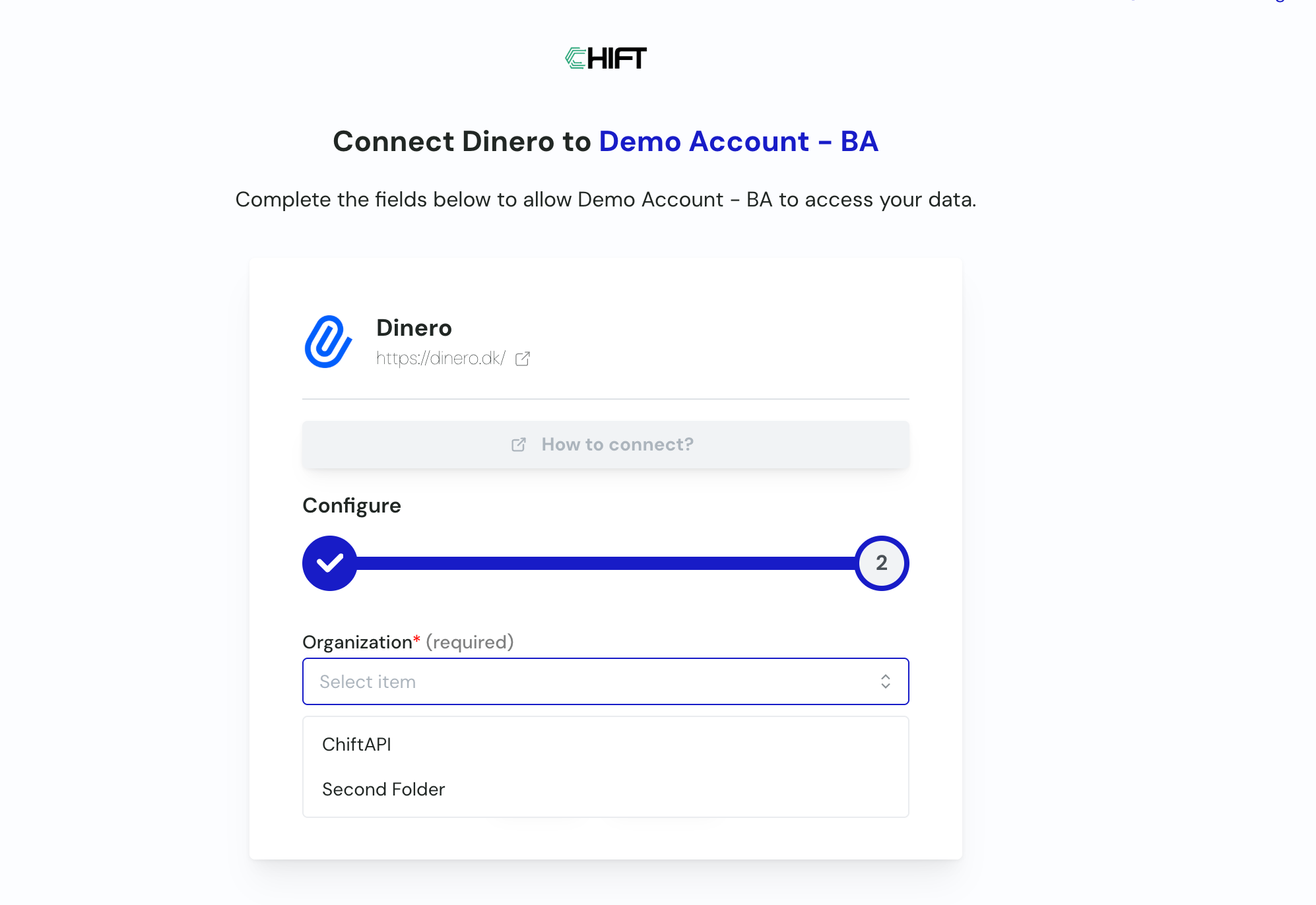
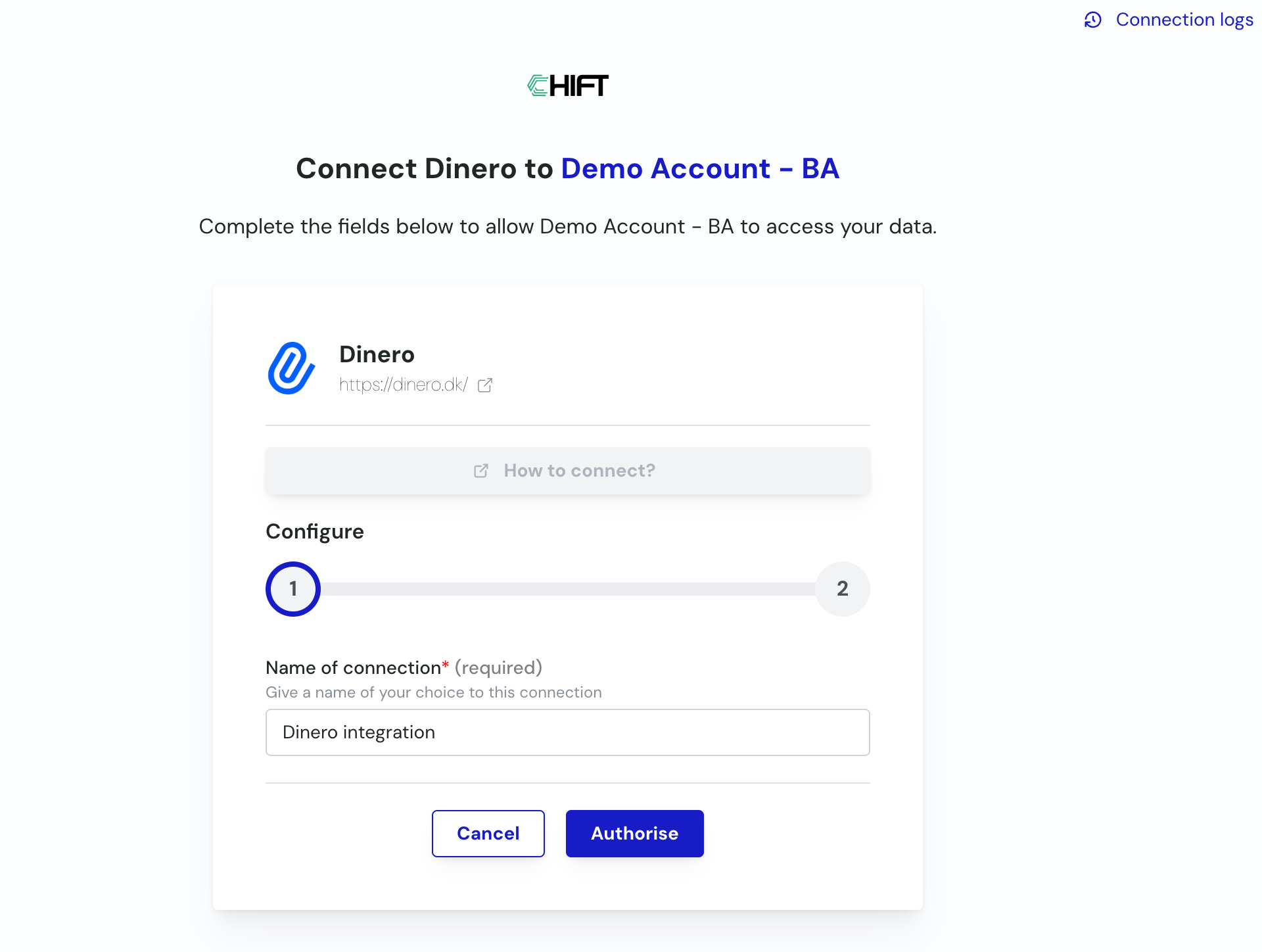
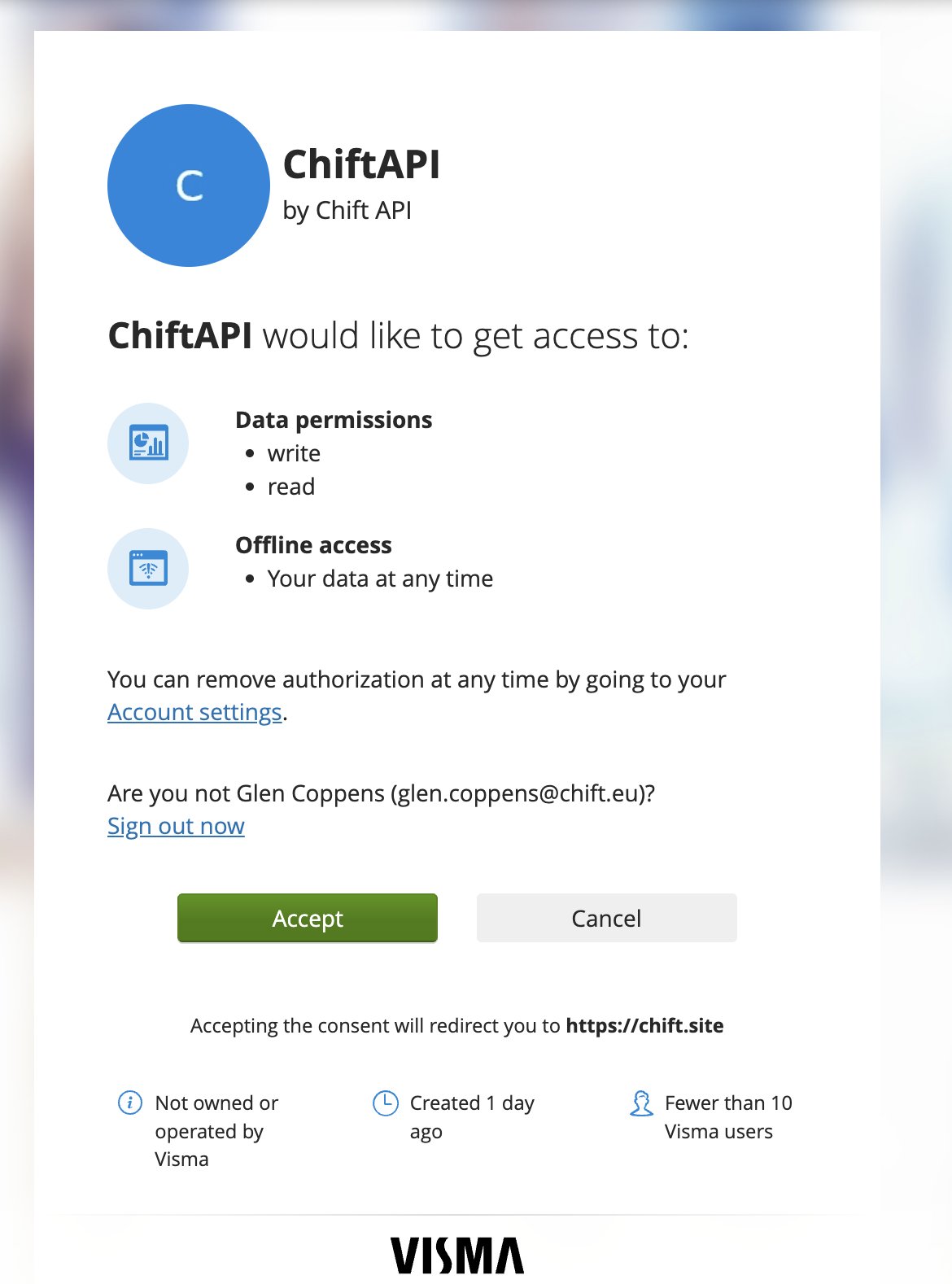
Step 1: Choose a name for your connection, then click Authorise. (If the connection name field isn’t visible, skip this step and continue.) image.png Step 2: You’re redirected to Dinero to authorize the Chift app. Click Accept. image.png Step 3: You’re redirected back to the Chift platform. If you manage several Dinero organizations, select the one you want to connect, then confirm. image.png Your connection is now active.
⚙️ Setup

VAT codes on sales accounts

Dinero takes the VAT of an invoice line from the VAT code of its account, so every sales account used by the integration needs the right VAT code. You set it once per account. In Dinero, open your chart of accounts and give each sales account the VAT code its invoices use. If you skip this, an invoice line with VAT is rejected when its account has no VAT code or a different VAT code. The error message is “The tax code ’…’ cannot be used on account ’…’”.

❓ Troubleshooting