

- Sage 100 “On Premise”
- Sage 100 Azure Sage Partner Cloud (SPC)
- Sage 100 Online
Local agent:
In both versions of Sage 100, “On-Premise” and “SPC”, you will need to install a local agent (program) on the server/computer where your Sage 100 instance is installed in order to establish the connection with the software. To know more about the local agent, here is a dedicated documentation: 📄 Local Agent🚨 If you’re encountering a synchronization error between the Sage 100 FR local agent and Chift:
Restart the local agent
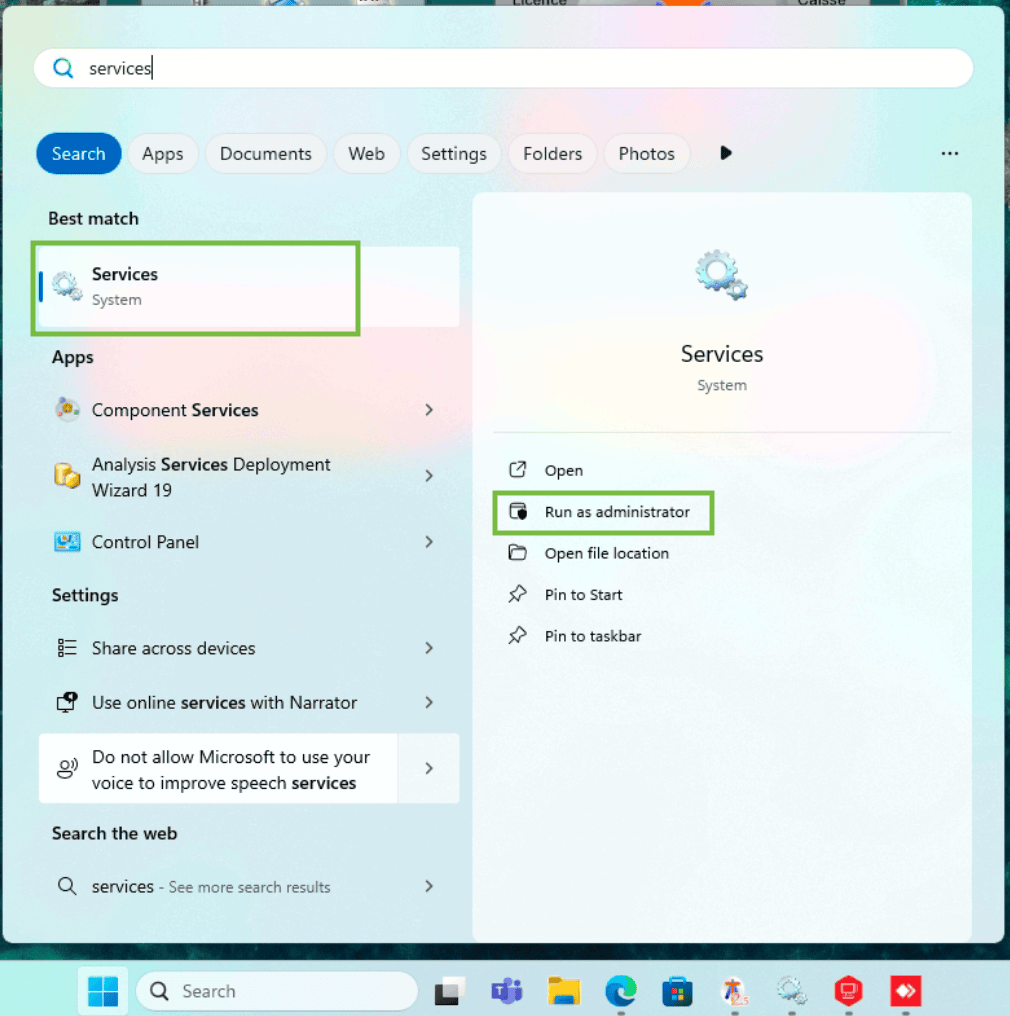
- Open the Windows Services Management application (service.msc)
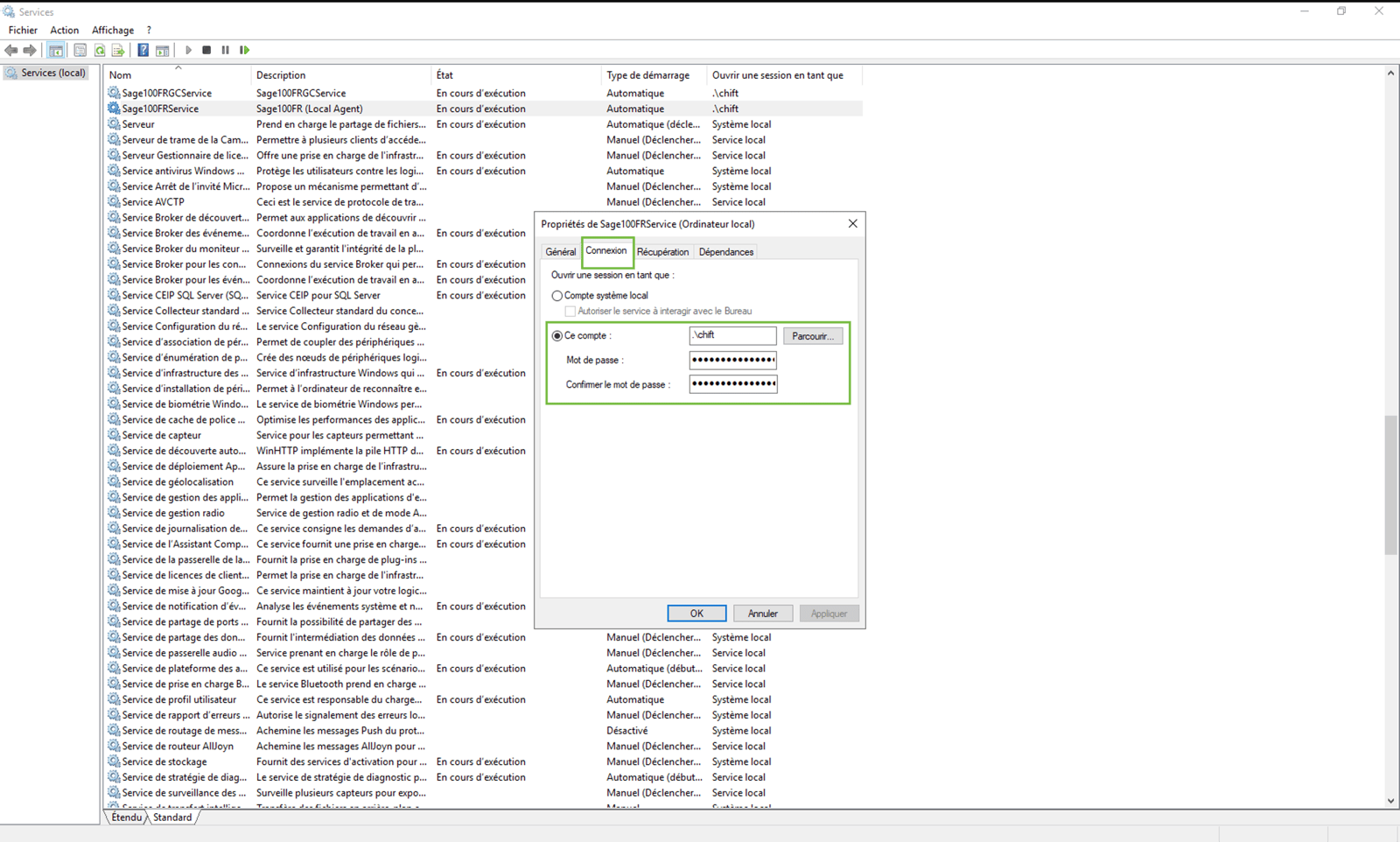
- Ensure the SAGE100FR service is configured to run under a user account with the necessary access rights to both the Sage SQL database and any network shares where Sage files are stored.

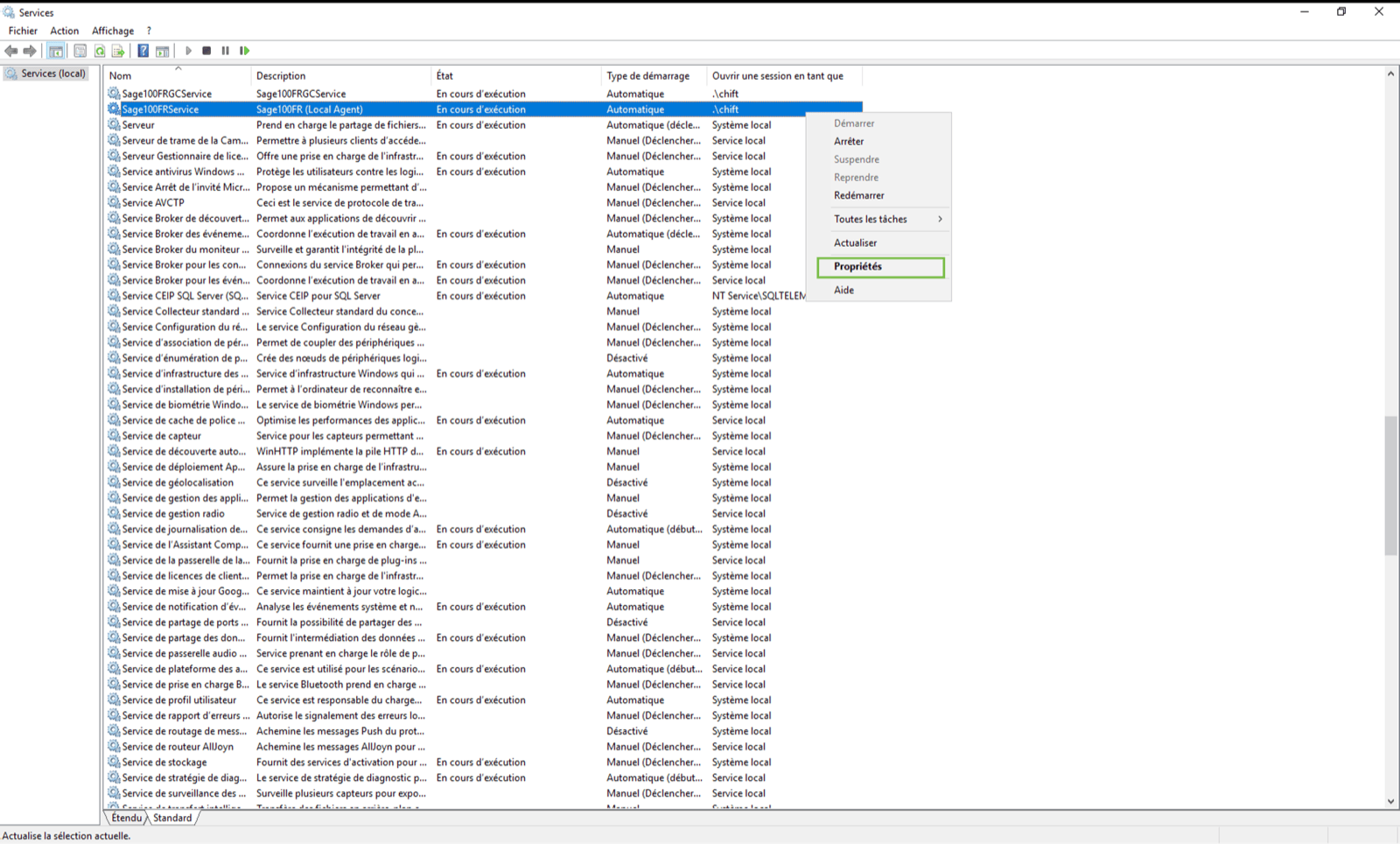
- Then, restart the SAGE100FR service.

“Retrieving the COM class factory for component XXX failed”
This issue is caused by a mismatch between the installed Business Objects library and the data available on the computer or server where the local agent is installed. Please check the following in order:- Is the Business Objects library installed?
- Is the installed version of the Business Objects library matching the client’s Sage version?
- Does the installed version of the local agent match the Sage version used by the client?
One folder is connected but others appear inactive or uninstalled
This likely stems from an error during installation: one of the connected folders may have overwritten the existing connections, causing all other previous connections to be lost. To fix this:-
Open the
settings.jsonfile used by the Windows Service. This file is located at:C://ProgramFiles/Sage100FRService -
This file contains the current connections configured in the local agent.
In the
"connections"section, ensure that there is one connection per entity to be connected to Sage.
- Re-download the connections for the other entities.
-
When the pop-up appears, make sure to select the “add connection” option rather than replacing the existing ones.
This will append the new connection to the
settings.jsonfile.
An error occurred during the initialization of Sage 100 FR (Objets Metiers)
Access denied
This error is typically due to the Windows Service running under a user that does not have the necessary permissions. To resolve this:-
Make sure the path entered in the form is correct.
- If the folder is on an external server or network drive, always use the UNC path (e.g.,
\\SERVER\Folder) instead of a mapped network drive likeS:.
- If the folder is on an external server or network drive, always use the UNC path (e.g.,
- Ensure the user running the Windows Service has access to that path.
- Open the Windows Services list.
- Find the service named Sage100FRService, right-click on it and select Properties.
- Go to the Log On tab, select This account, then click Browse.
- In the bottom section, enter the Windows username to use. Click Check Names to verify it exists, then click OK.
- Enter the password for that user, and click Apply to save the changes.
Error: Amazon.Runtime.AmazonServiceException – Connection failure to AWS services
If you encounter the following error in the logs of the local agent:Root cause
- The server is blocking outgoing connections to AWS endpoints used by Chift.
- This typically happens if outbound traffic on port 443 (HTTPS) is restricted at the firewall level.
How to diagnose
Perform a telnet test to check if the required endpoints are accessible from the server:- Open a command prompt on the server where the local agent is installed.
-
Run the following command:
- This tests the ability to connect to AWS SQS, which is used for communication between the agent and Chift.
-
Run a second test for the S3 endpoint (used during large data transfers):
Resolution
- Ensure that port 443 is open for outbound HTTPS traffic.
-
The firewall or proxy should allow connections to at least the following domains:
sqs.eu-west-3.amazonaws.coms3.eu-west-3.amazonaws.com
-
You may need to allow the full range of AWS IPs for the
eu-west-3region, depending on your network policies. Refer to AWS IP ranges for up-to-date information.