🚨 Prerequisites
- User account of type Collaborateur (staff member), unless your firm has enabled secured API access (Administration → i-Suite Expert Tools → API Access Management → “Secure API access” = Yes), in which case a dedicated API user account (linked to the #ACD_API# functional security role) is required instead. A regular staff account will not be able to connect via the API in that case. Check with your ACD administrator which one applies to your folder. Link to ACD’s documentation.
- ACD version 23 or higher
- i-Suite Expert client status
- 4 preparation steps to complete beforehand (see below)
- the port 443 must be open for the communication to work (must be verified by your IT administrator)
- If the connection is allowed, then restart the “Comptabilité Entreprise Web” service for the changes to be taken into account (must be performed by your IT administrator)
🛠 Preparation
Step 1: Retrieve connection details
In the DIA software, go to Administration → i-Suite Expert Tools → “i-Suite Expert Settings Configuration” to obtain the i-Suite Expert URL and connection reference (CNX).Step 2: Verify analytical accounting
In Comptabilité Expert, “Editions” tab, check whether analytical accounting is activated for the relevant folder (dossier). You’ll need this information at step 5 of the connection process.
Step 3: Check schedule management
In Comptabilité Expert, “Fichiers” tab, check whether schedule management (échéancier) is configured.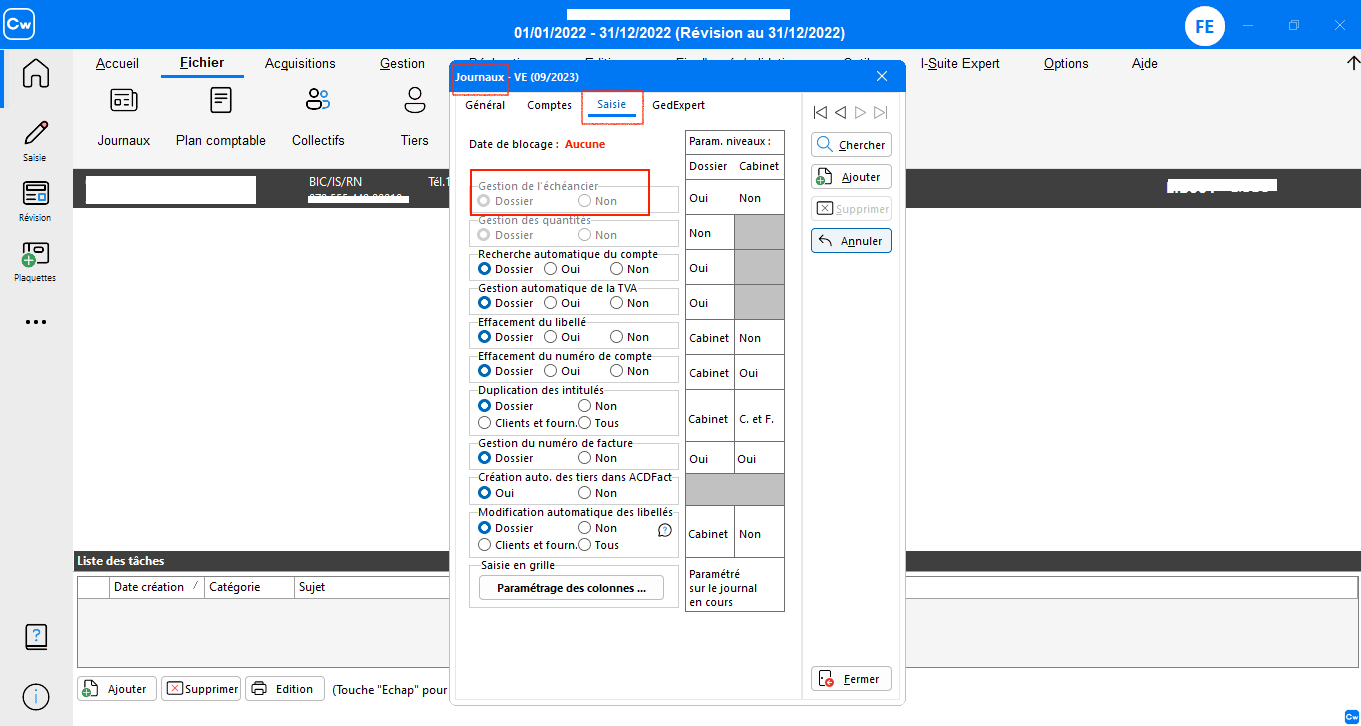
Step 4: Configure folder sharing
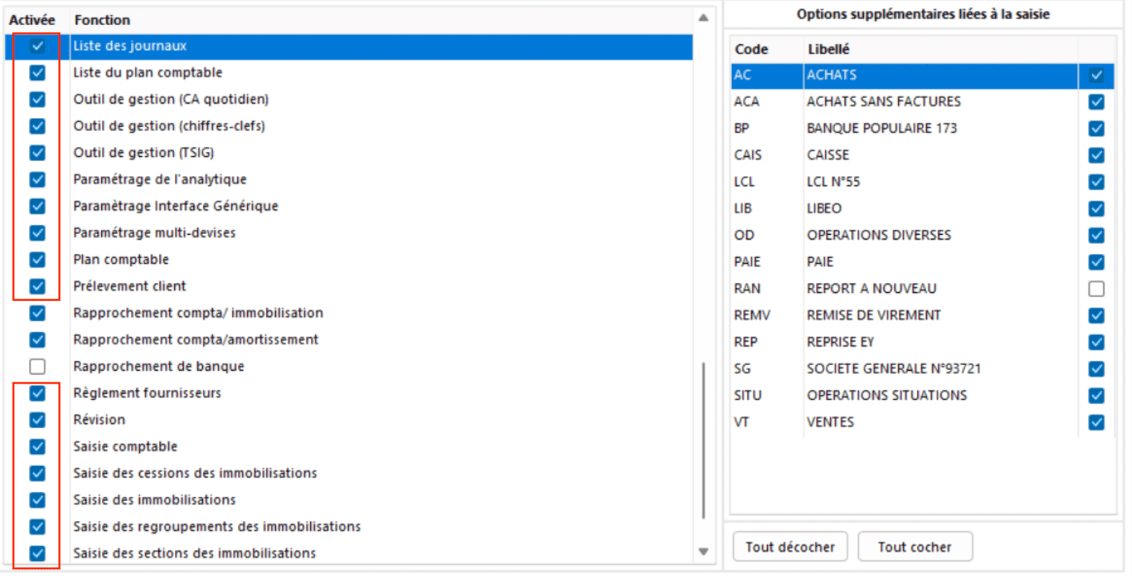
In Comptabilité Expert, enable folder sharing via the i-Suite Expert menu: check the required fields and select the journals that will receive accounting entries created via the API.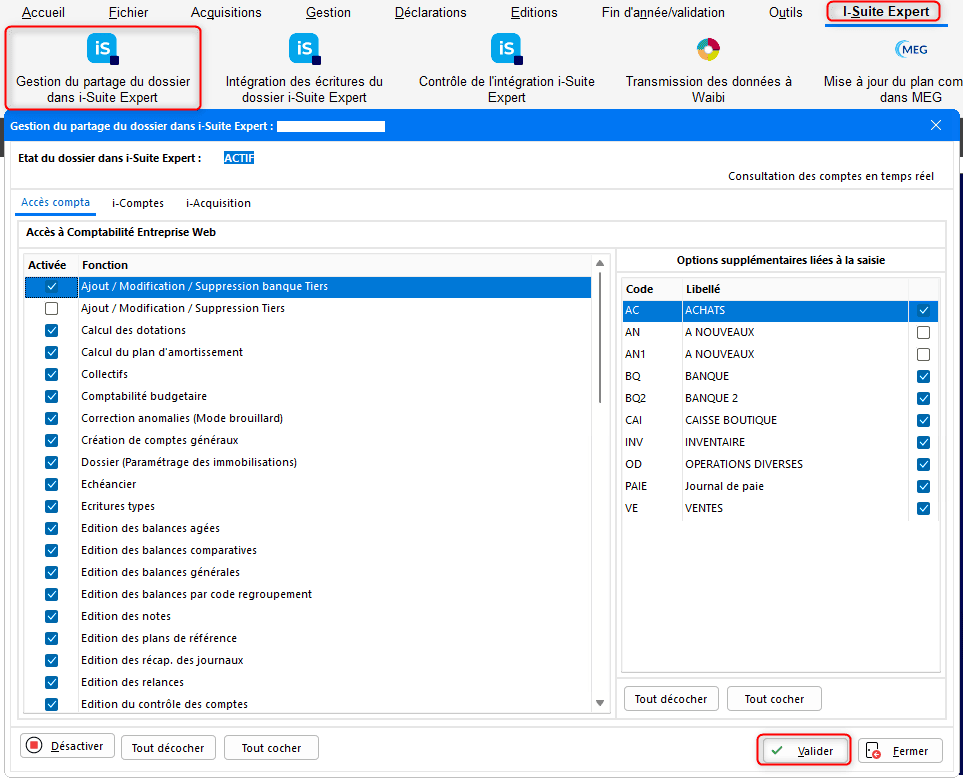



⚡️ Connection
Step 1: Choose a name for the connection.







Troubleshooting connection errors
Authentication errors when connecting? Verify these items systematically on the ACD side:- Confirm the user account is a Collaborator type, active, with an up-to-date password
- Re-verify the username and password entered in the Chift connection window
- Confirm the i-Suite Expert URL and the CNX connection reference used during the initial “Connect” step
- Verify that the i-Suite Expert version is at least version 23
- Open a private browsing window to ensure you’re not already logged in.
- Navigate to your i-Suite Expert login URL ().
- Enter the exact username and password you used in Chift.
- If the login succeeds on the ACD web interface, copy those exact values character-by-character into the Chift form and try again.
- If the login fails on the ACD web interface as well, contact ACD support - the issue is on the ACD side (disabled account, modified username, or server-side password policy).
Configuration
Step 1: Select the accounting folder to sync