PREREQUISITES
The connector currently supports the version with the ADS database (and the ADT files). If you have a more recent version using a MySQL database, the connector is not compatible yet with your version of BOB 50. You need to install a program on the same server where Sage 50 is installed. To ensure the connector works on the server, please make sure before installation that:-
You have admin access to the server where Sage 50 is installed in order to proceed with the installation
- Be aware that the server/computer must be permanently accessible with internet access (24 hours a day). Otherwise, the data will not be synchronized
- The integration is enabled for Sage versions 6.16 and above
- Have the code (not the password) of the ADMIN user in BOB50.
- You may require the help of the person managing your company’s server to setup the integration
PREPARATION
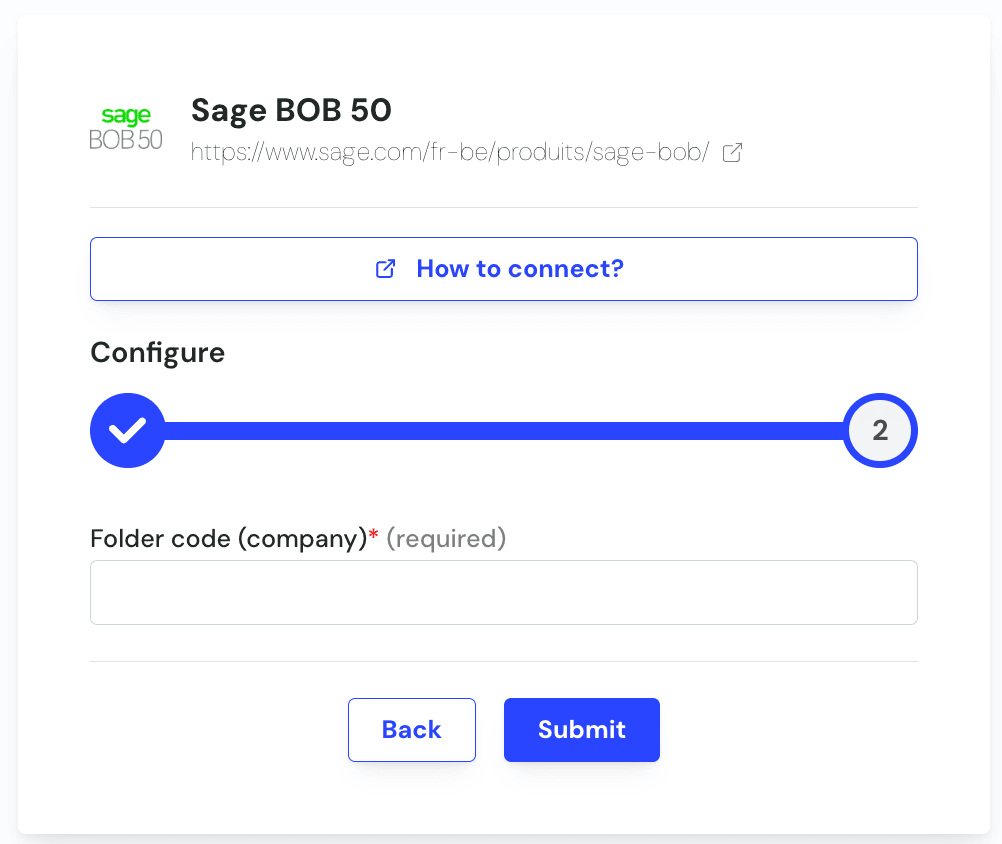
Step 1: Find the accounting folder code from your authentication page on your Sage BOB 50 account.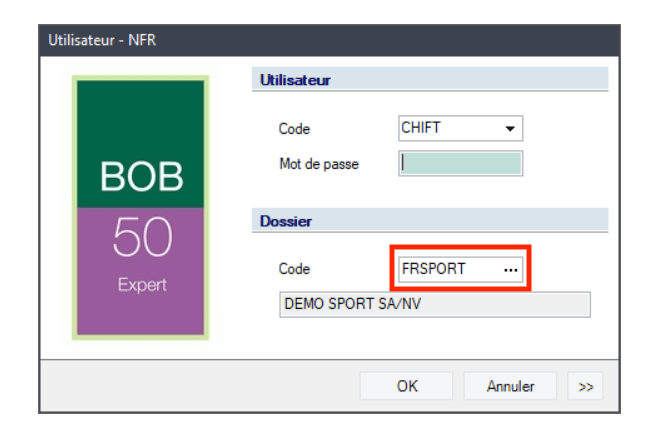

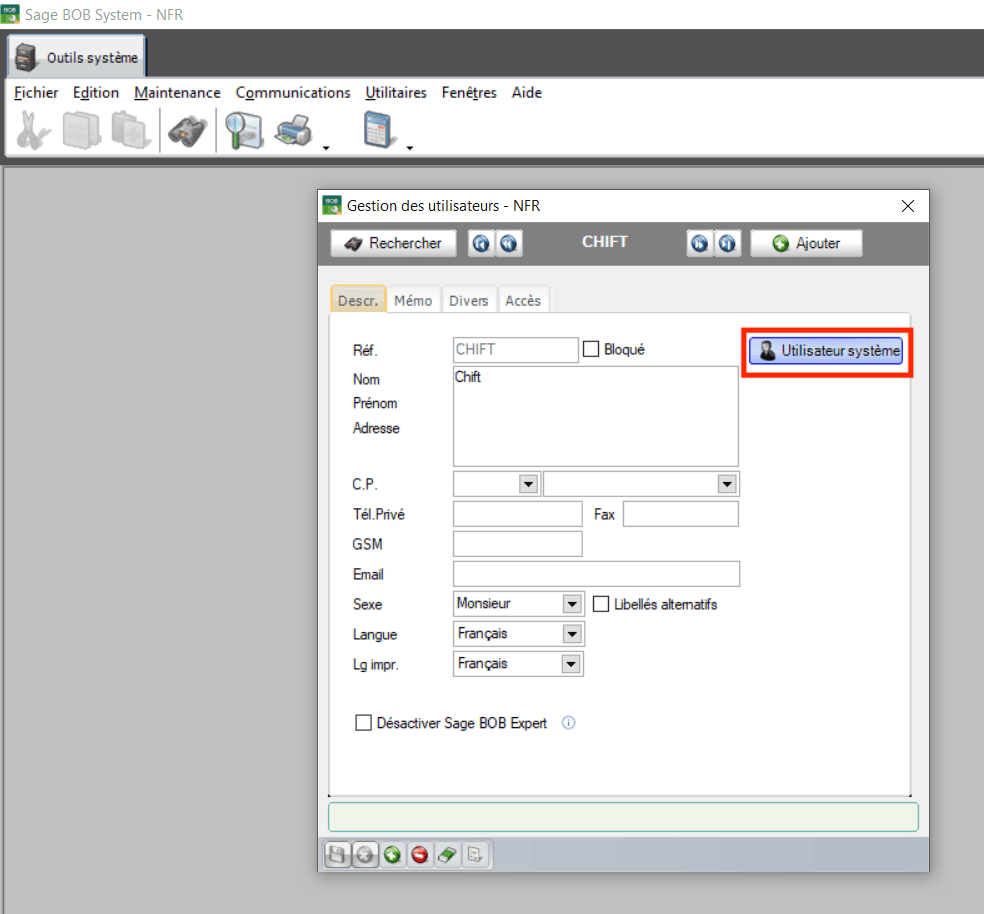
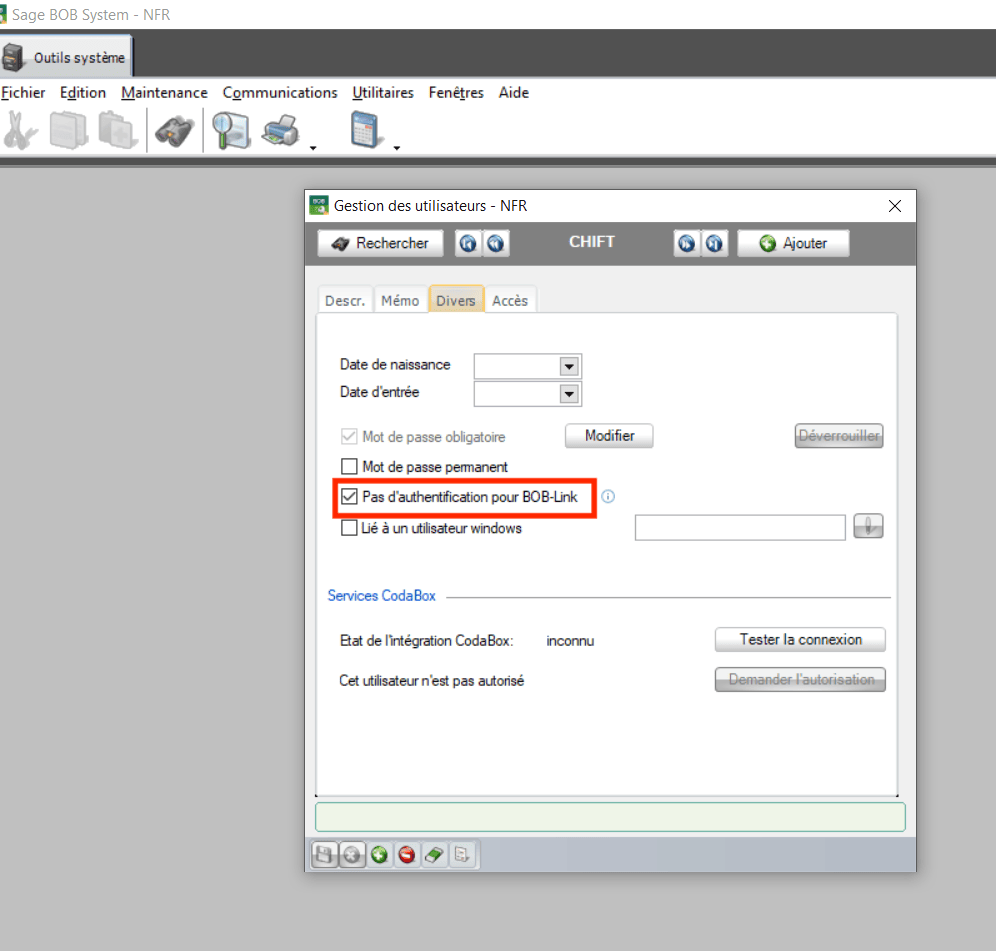
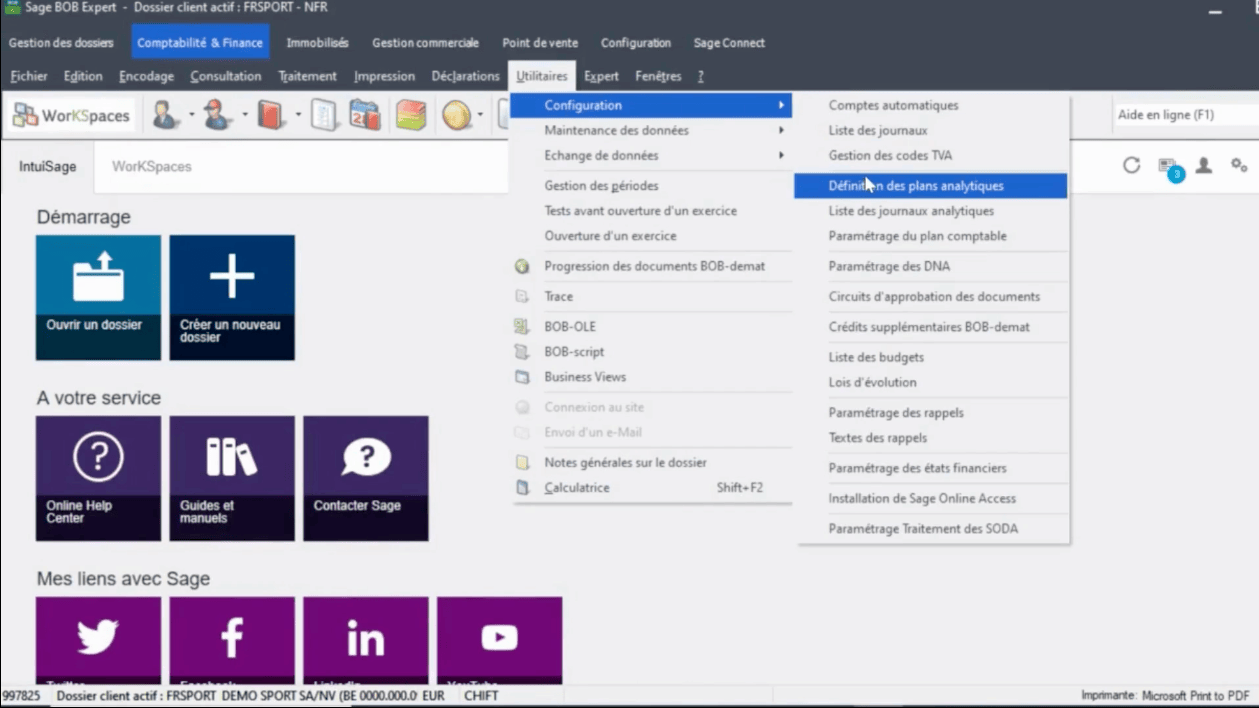
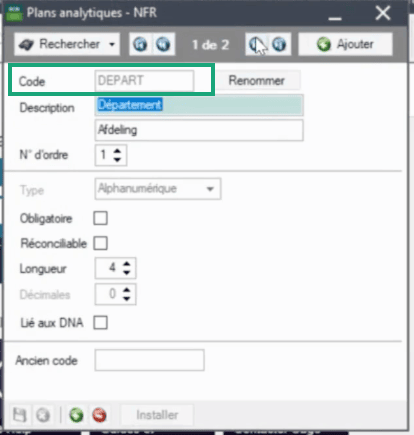
- Go to folder → Hard disk (?:) → Bob50
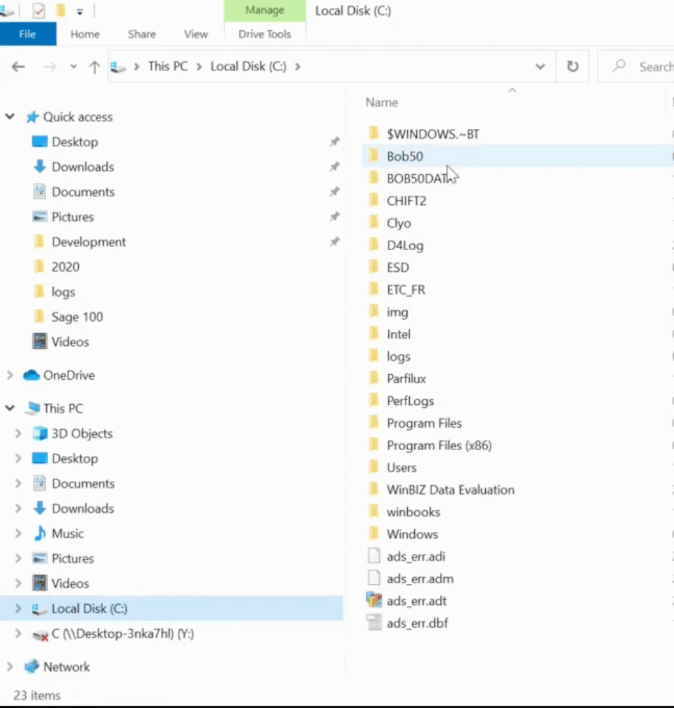
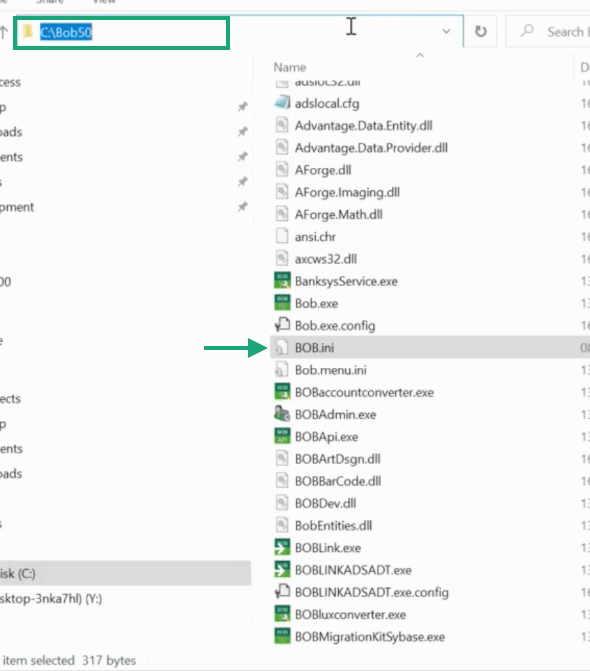
CONNECTION
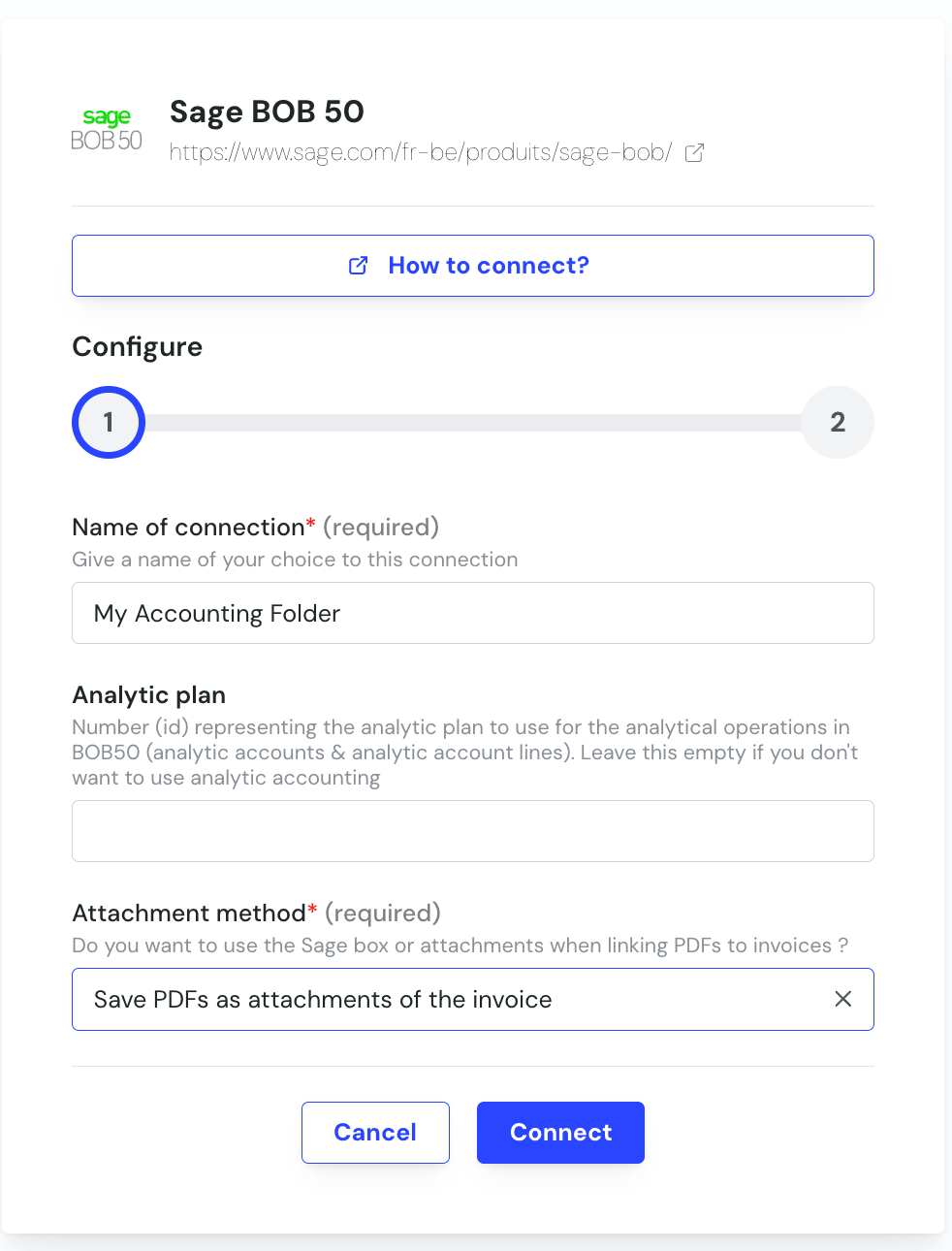
Step 1: Choose a name for your connection. This field is not always displayed, so if you do not see it you can ignore this step and go directly to Step 2.

Installation process
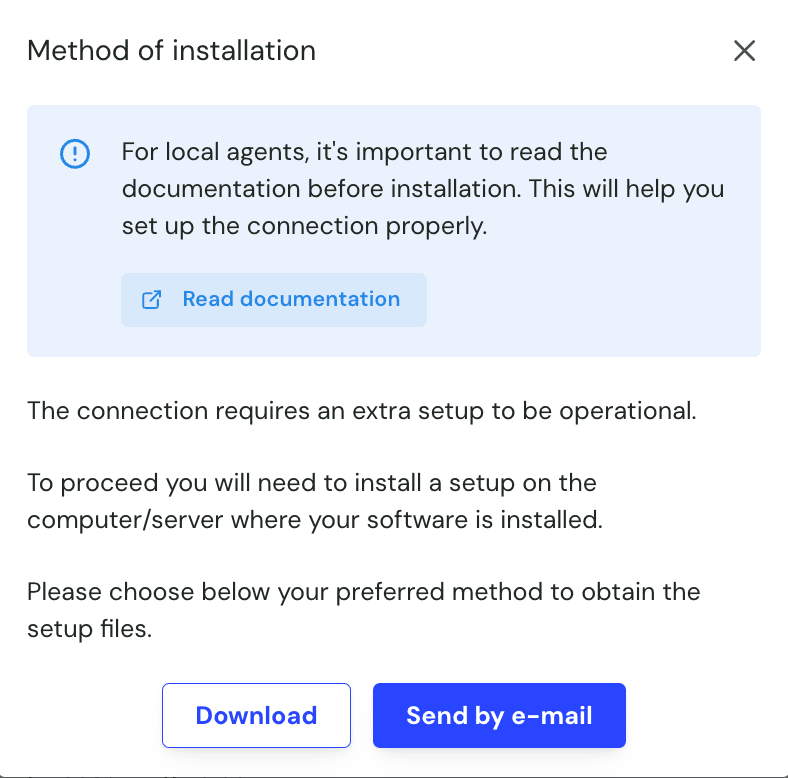
For the next steps of the installation, it is required to run the installation of the agent with the user that is going to execute the service. The required permissions are:- Access to any shared drives used by your BOB50
- Read and Write access to the following path (C://Program Files x86/BOB50Service (the name of the first folder might be slightly different based on your architecture). Note that this folder will only be present once the installation of the service started
- Permission to start a scheduled task on the server (only required when the advanced option is enabled).
Cockpit installation
Step 1: install the Chift Cockpit on your server by running the SetupBOB50Service.exe provided in the zip file you downloaded. Step 2: Pick your preferred installation language then click OK.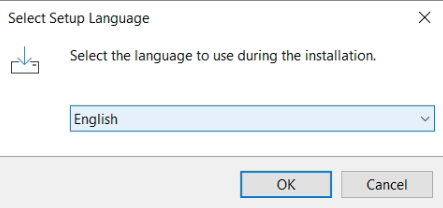
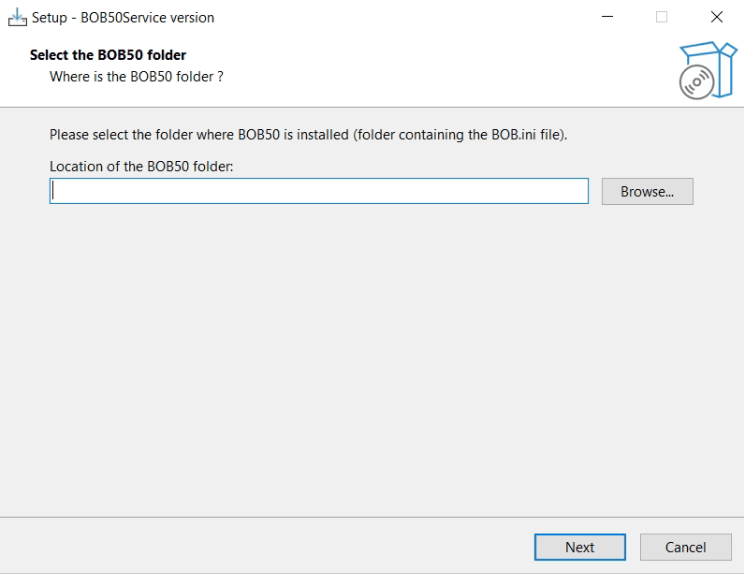
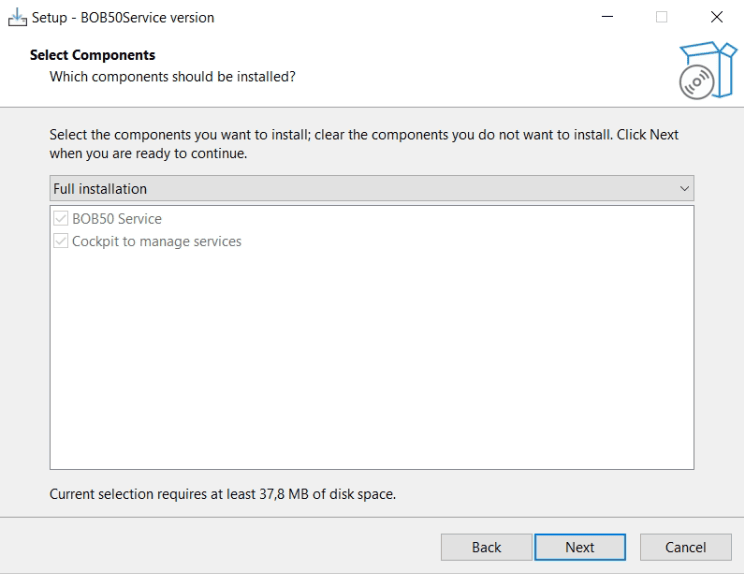
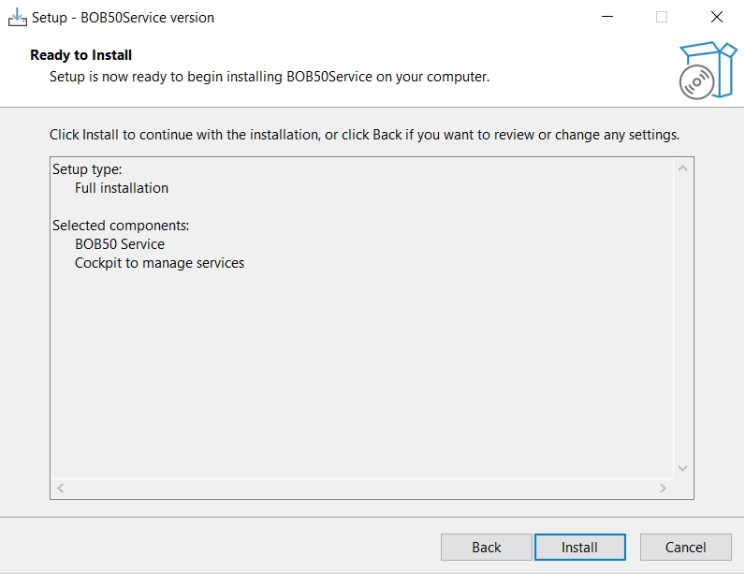
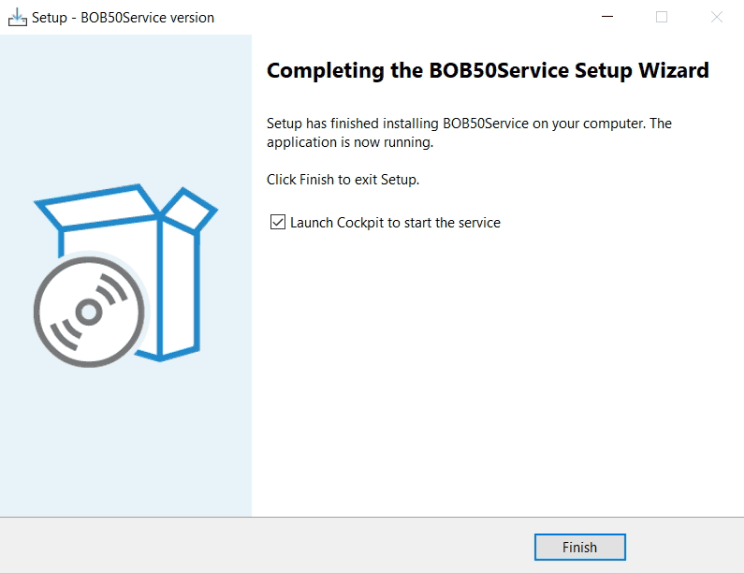
Setting up your BOB50 connection
Step 1: To setup a new connection in the cockpit, make sure you are on the BOB50 section of the cockpit, then click on the “add connection” button.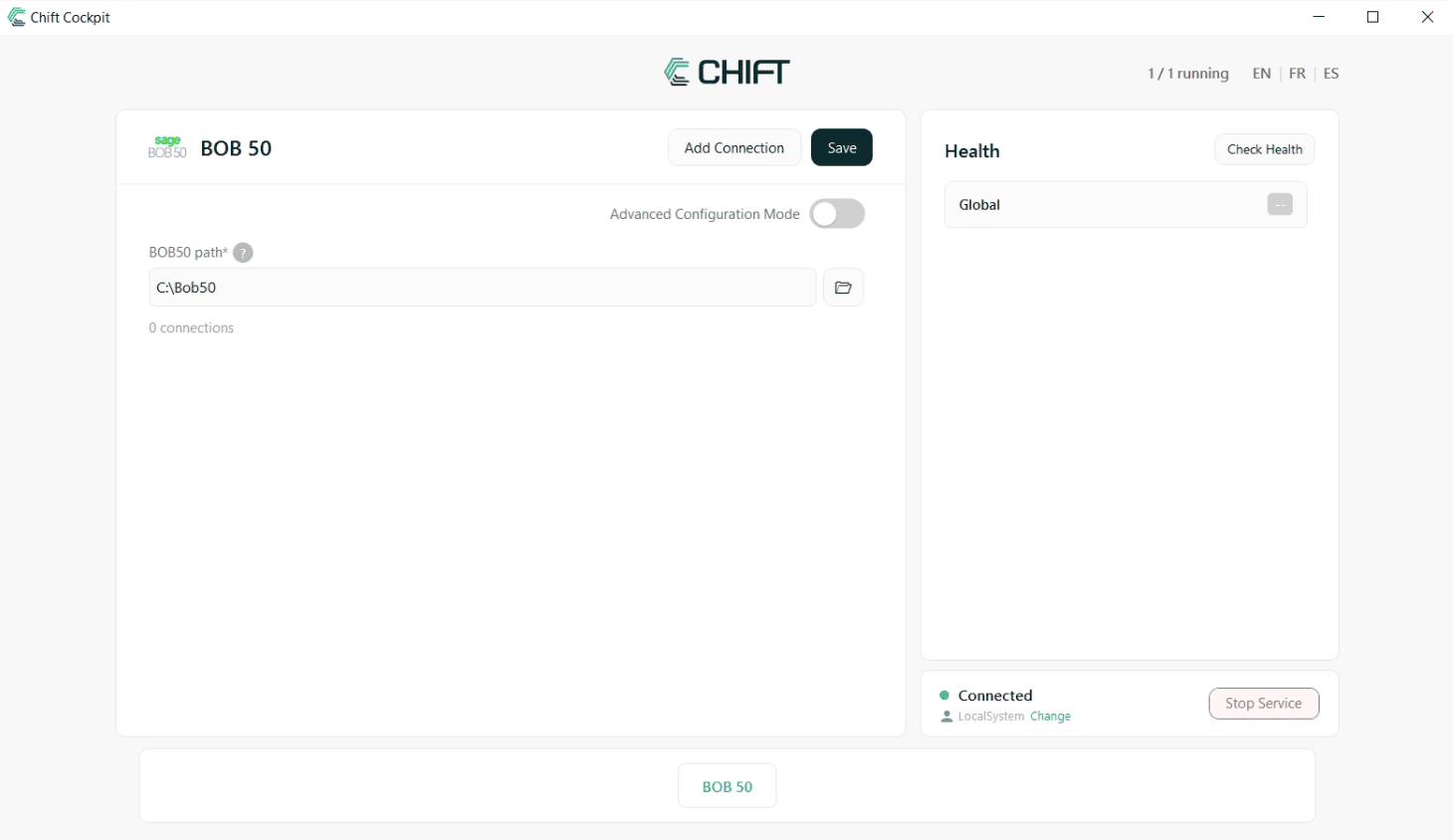
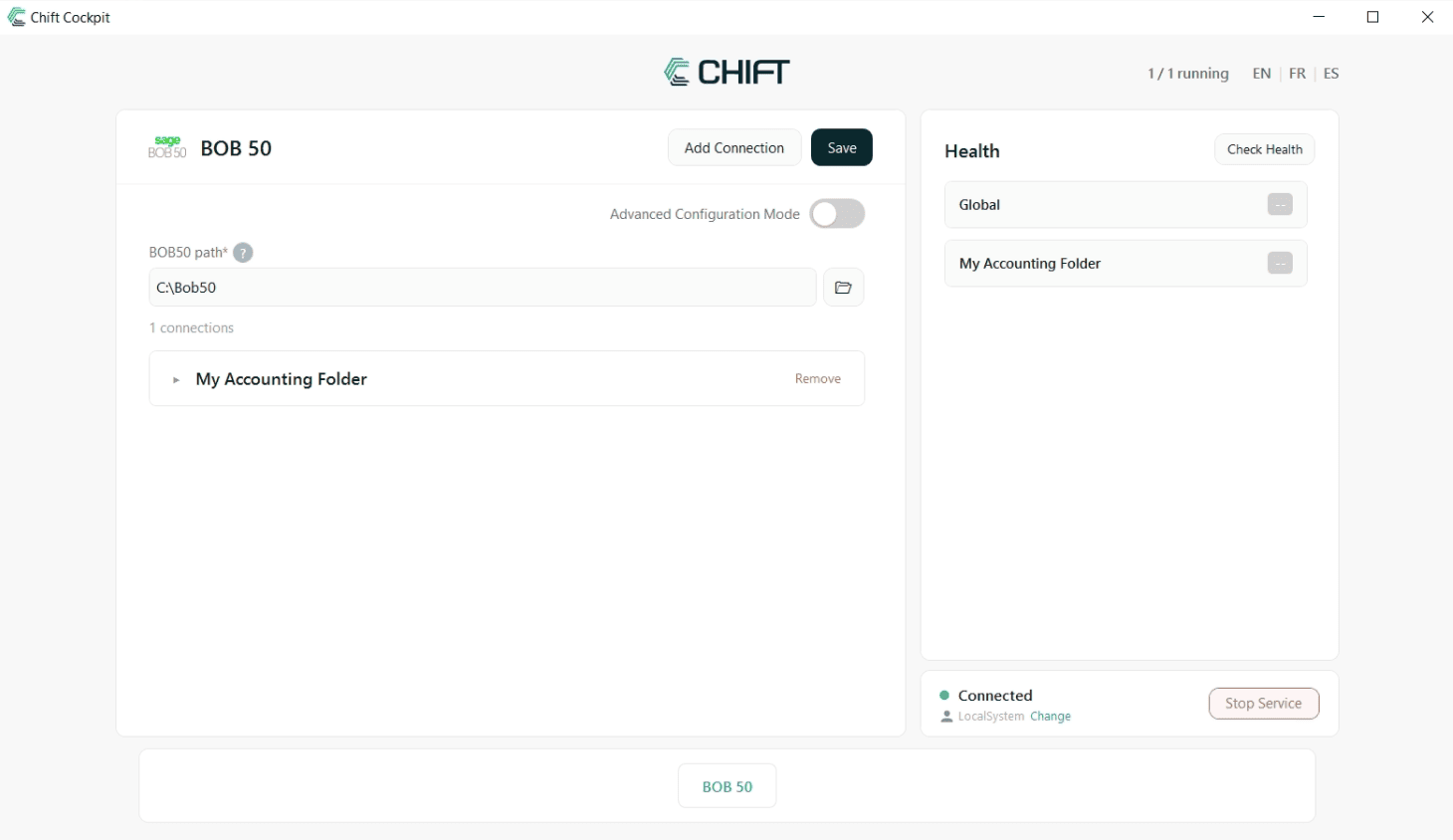
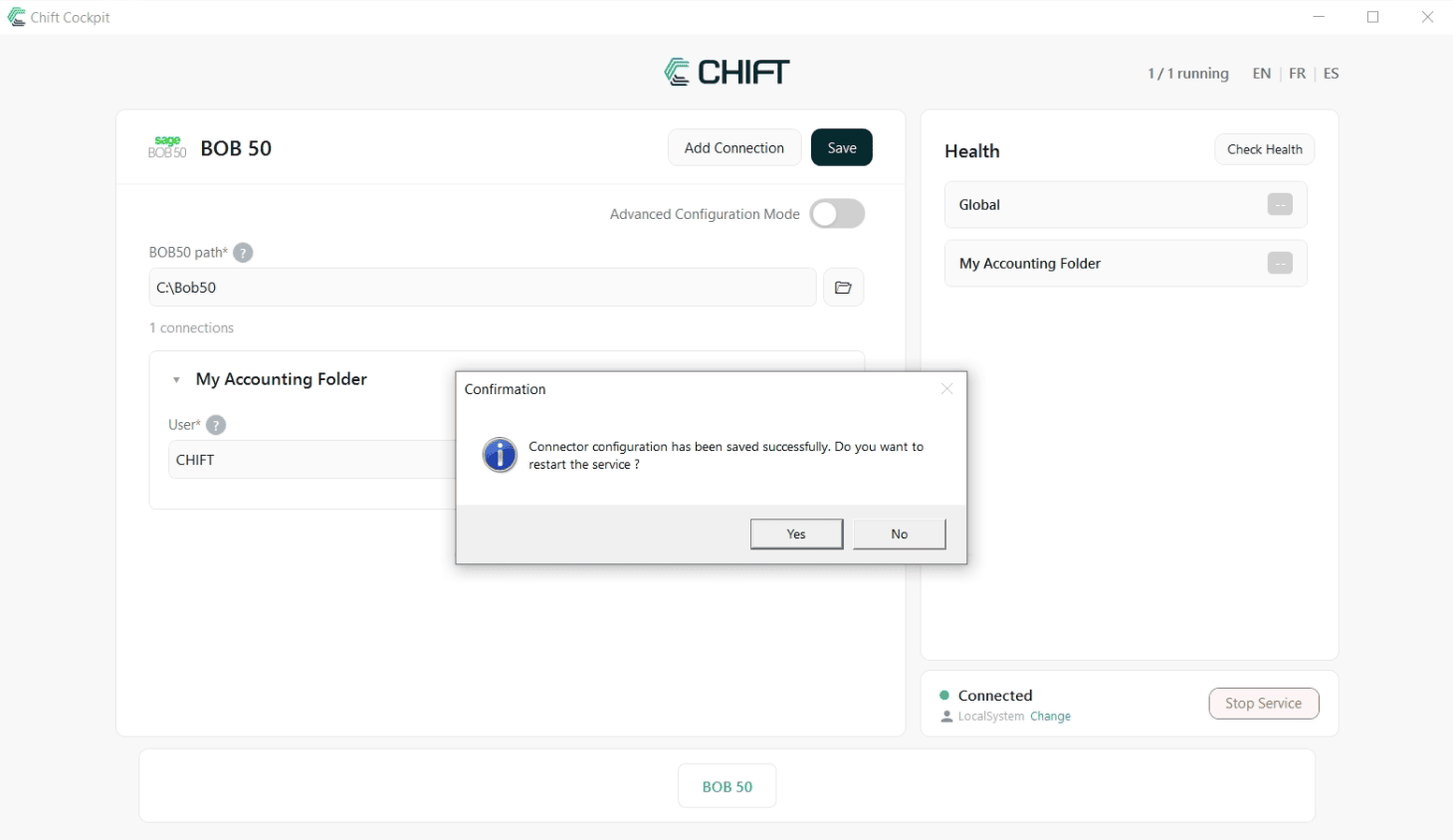
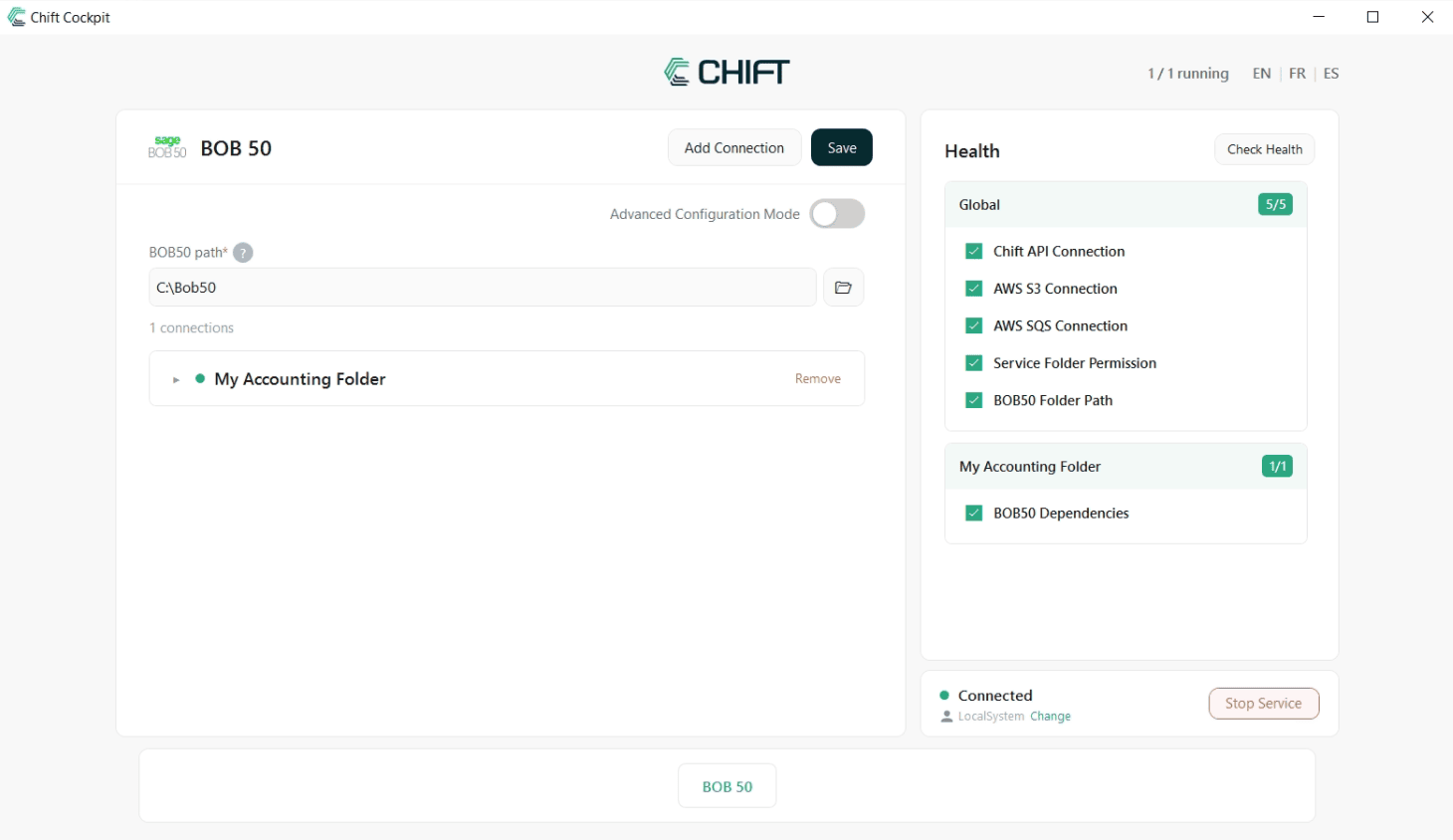
-
Update the permissions of the Local System user to have the following permissions:
- Read and write access to C:\ (required to read configuration files and write logs allowing the monitoring of the connection).
- Read and write access to your shared drive containing your BOB data
- Update the user running the service.