📋 Overview
This integration connects with two DATEV components:- DATEV Rechnungswesen – On-premise accounting software (main data source)
- DATEV Unternehmen Online (DUO) – Cloud portal used only for sending attachments such as documents, invoices, or receipts If you don’t plan to send attachments, DUO is not required.
(Make sure to verify that your system meets all the conditions listed in the Prerequisites section below 👇 )
🚨PREREQUISITES (conditions to be met prior to connection**)**
1. Licenses
How to confirm licenses:
- In DATEV Arbeitsplatz, go to Licence Management (Lizenzverwaltung) to view installed licences.
- Or request confirmation from your DATEV administrator, accountant (Steuerberater), or DATEV service partner.
2. User account requirements
You must provide the Windows username and password of a Windows user account that is linked to a DATEV user with the following permissions: ✔ Access to the relevant mandate/company in DATEV Rechnungswesen✔ Rights to use the DATEVConnect service
✔ Sufficient rights to read/write accounting data (depending on integration scope) DATEV requires that API authentication is conducted using a Windows login that is mapped to a DATEV user account. This mapping is configured in DATEV Benutzerverwaltung (User Management).
⚡️ CONNECTION
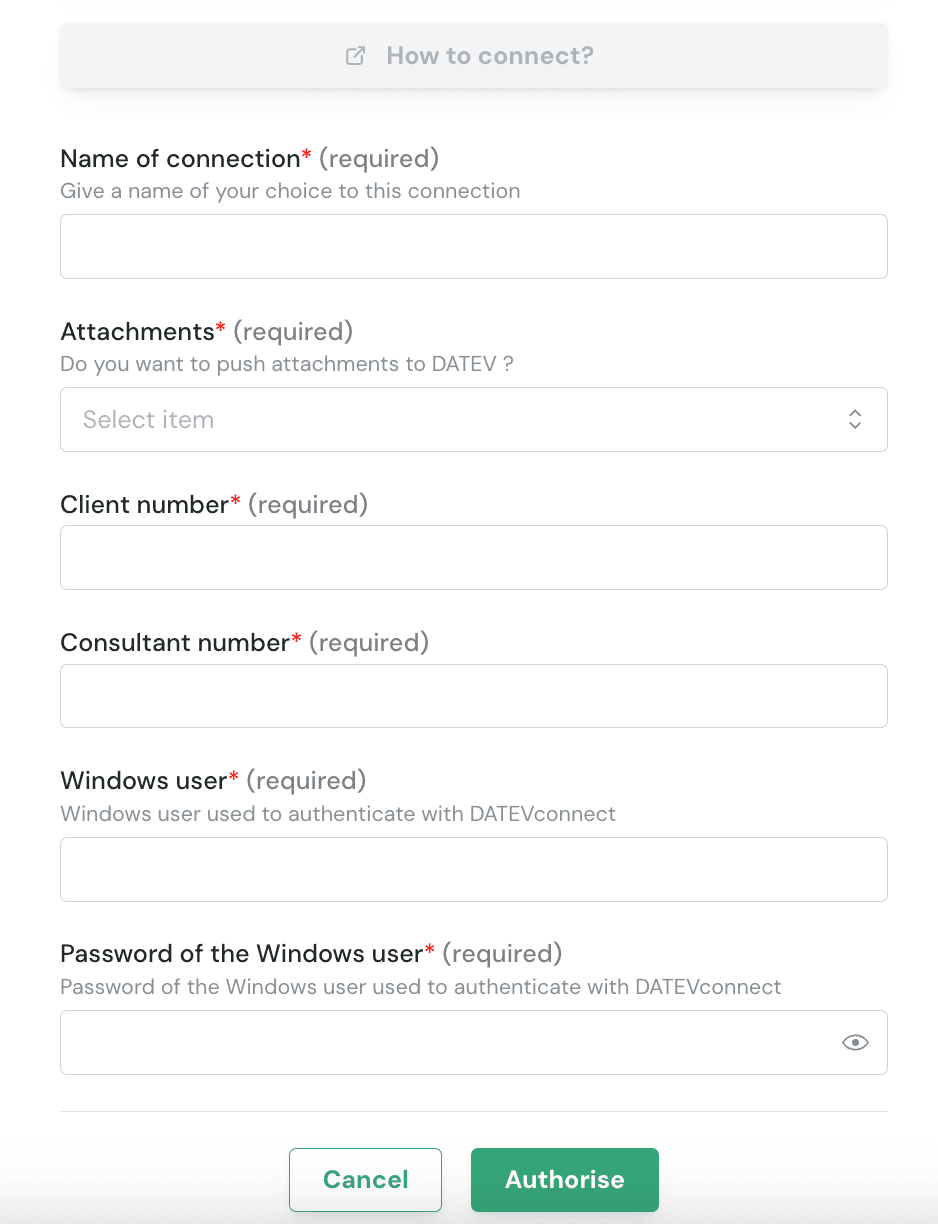

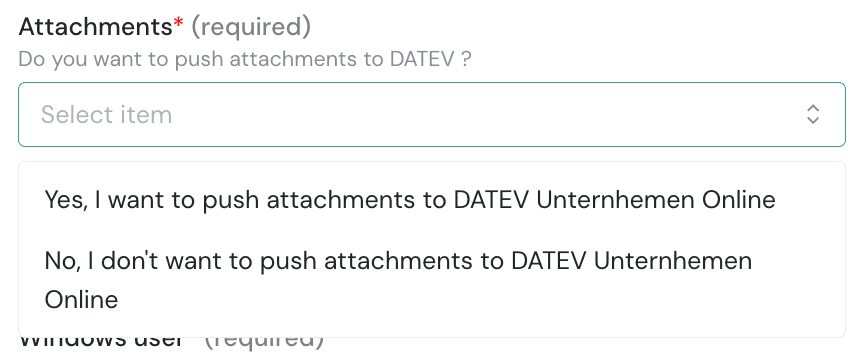
- If your integration needs to send PDF invoices, receipts, or supporting documents to DATEV, select Yes to enable attachments.
- This requires a valid DATEV Unternehmen Online licence (see above in prerequisites section)
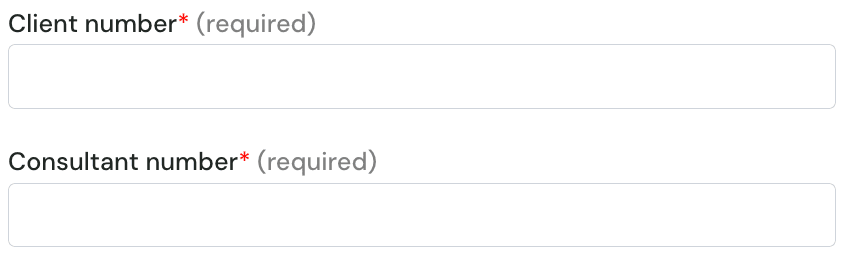
- Go to DUO sign-in page
- Click Show document overview
-
The numbers are shown on the right, below Settings:
- First number = Consultant Number (5696507 in the example)
- Second number = Client Number (55003 in the example)

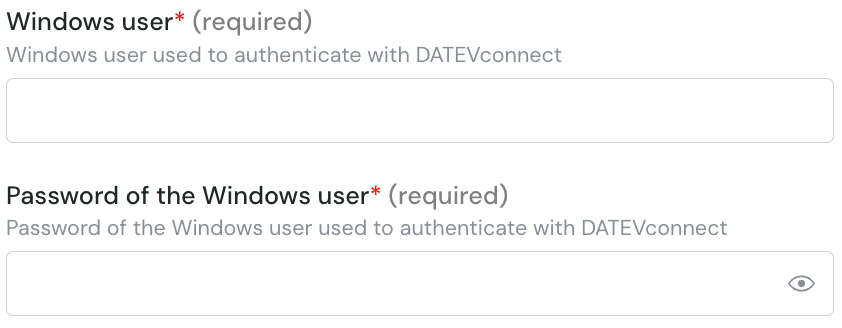

💿 INSTALLATION
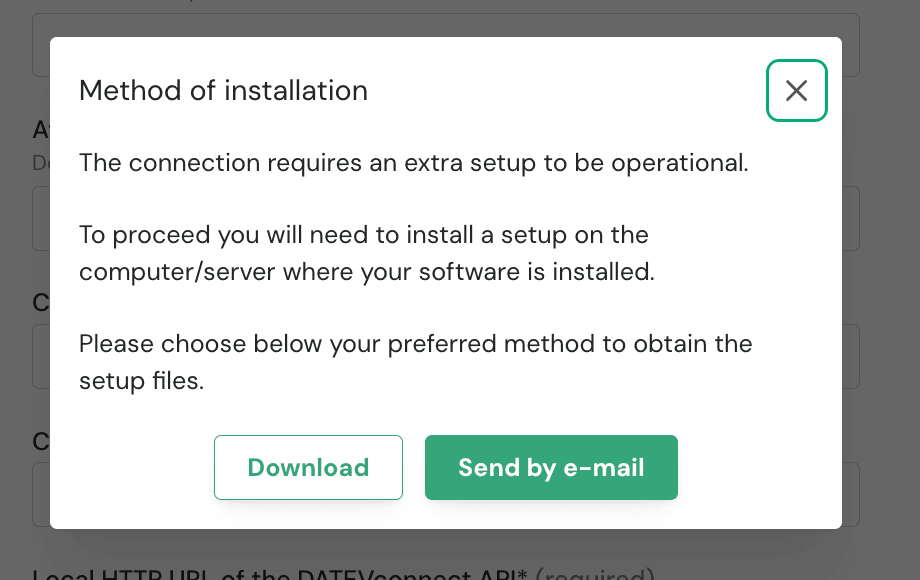
- If DATEV is hosted on your computer, you can directly download the program by clicking on Download.
- If DATEV is hosted on another server, you have the option to send the program via email (e.g to the person or company hosting DATEV so they can download and install it).
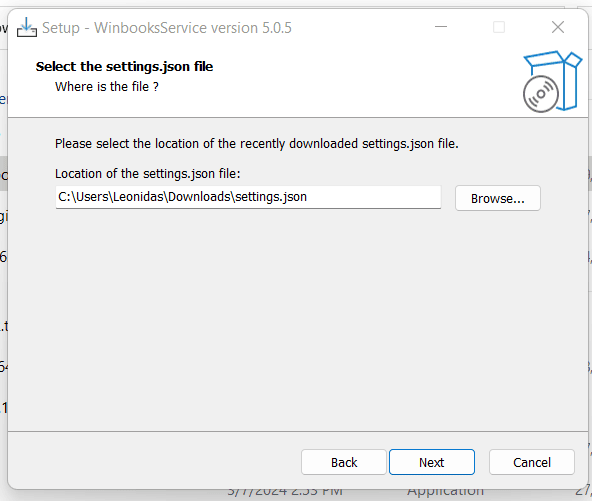
- settings.json : you do not have to edit this file, it contains the credentials needed to make the bridge to DATEV
- SetupLocalAPIService.exe: This is the file we need to make the installation
- Select the language of the installation screen
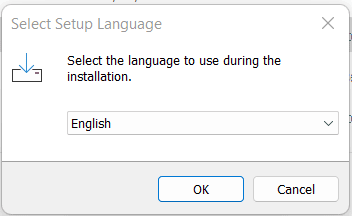
- Select the installation type: “standard installation” is recommended

- In this step, it’s important to select the settings.json extracted in the downloaded file. By default, it should already have selected that file.