

🚨 Prerequisites
Before you start, make sure you have:- A Revolut Business account with a Merchant account
- The Manage API permission on your Revolut Business account. If you don’t have it, ask your account administrator
🛠 Preparation
You create an API key in the Revolut API Console. The connection form asks for it.1
Open the API Console
Go to developer.revolut.com/console and log in with your Revolut Business credentials.In the account switcher, in the top-right corner, select your business. Do not select an account marked Sandbox.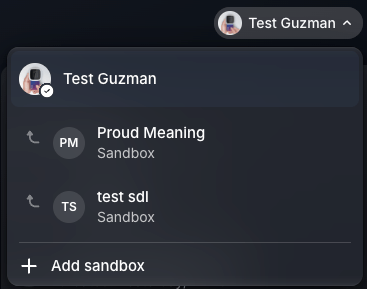
2
Start a new API key
Go to API keys and click New.
3
Select the Merchant product only
Tick Merchant, then click Continue.Do not tick other products, such as Accounts, Cards or Transfers. With them, Revolut requires every request to be signed, and the connection does not work with that key.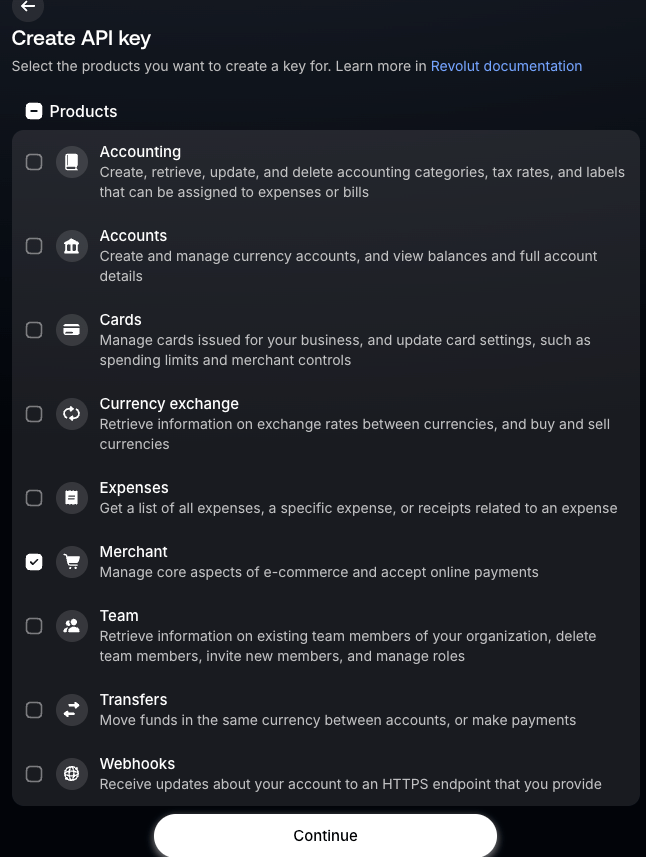
4
Set the permissions
Revolut sets the Merchant resources to Read. Keep these permissions, set Reports to Write, then click Continue. The connection creates reports to read the fees and transactions of your payouts, and Revolut only allows that with Write.
5
Name and create the key
In Name, enter a name you will recognize, for example the name of the software you connect.Leave API key expiry date and IP allowlist off. With an expiry date, the connection stops working the day after that date.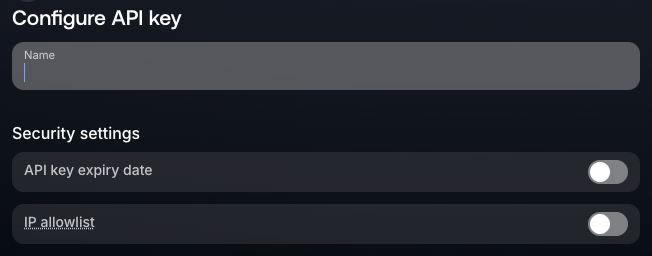
6
Copy the key
Copy the API key straight away: Revolut shows it only once. Keep it somewhere safe: you will paste it into the connection form.Do not add a signing key to this API key later. From then on, Revolut rejects every request that is not signed, and the connection stops working.
⚡️ Connection
1
Name your connection
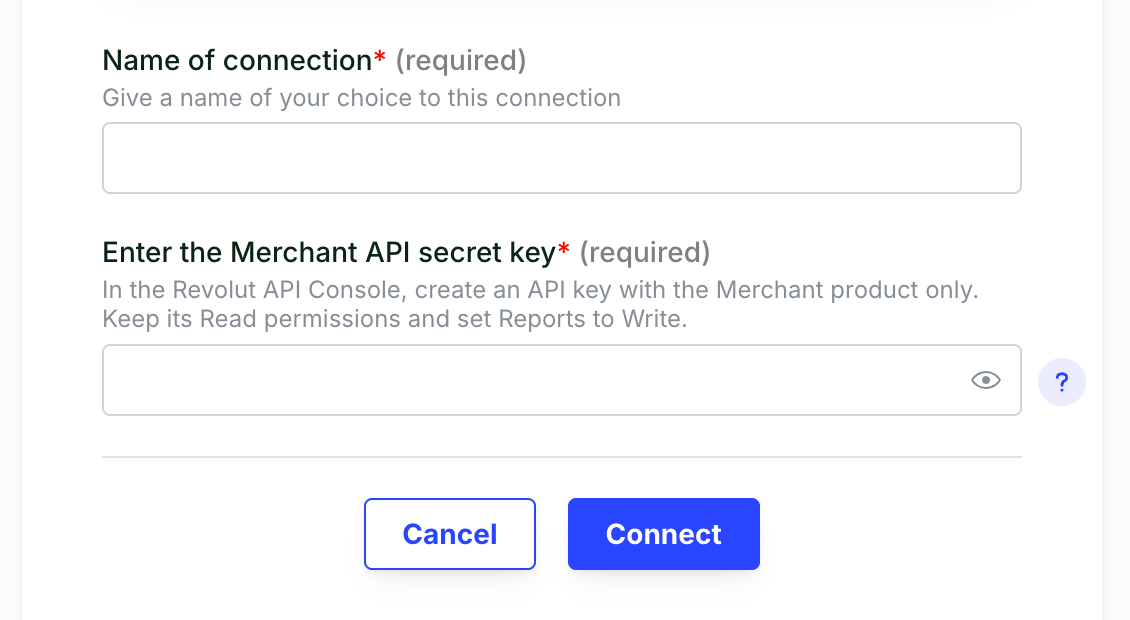
In Name of connection, choose a name you will recognize later. If there is no name field, skip this step.
2
Fill in the connection form
3
Click Connect
The key is checked straight away.
❓ Troubleshooting
Invalid Revolut secret API key. Please check it and try again.
Invalid Revolut secret API key. Please check it and try again.
Revolut did not accept the key. It may be incomplete, created in a Sandbox account, expired or deleted.Create a new API key, as described in Preparation, and paste it again in full.