

This guide explains how to create and manage consumers in your Chift account.
What is a consumer?
A consumer is an entity (typically one of your customers) that will use the connectors you’ve activated to integrate with various services.Each consumer can have multiple connections to different services (accounting, pos, ecommerce, invoicing, …). Each consumer is represented by a
GUID and by a name.
You can also add an internal reference (feature available upon request).
Creating a consumer
- Navigate to the Consumers page.
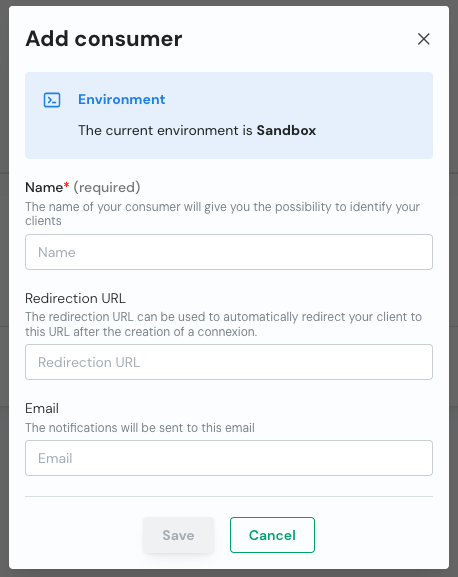
- Click the “Add consumer” button.
- Fill in the required information:
- Name: An identifier for the consumer (free text, up to you to choose if you want to use a GUID or something more readable).
- Redirection URL (optional): The URL to redirect the consumer to after authentication.
- Email (optional): Contact email for the consumer. If filled in, this email is used to send reminders and notifications (if activated in the account settings: Email reminders).
- Click “Save” to create.
- Once created, you can copy the connection URL or navigate directly to the consumer’s connection page.
In production, you will typically create a consumer through the API.
Activation of a connection
Connections make the link between consumers and software. Each consumer can have multiple connections. A connection is represented by a
name, a link to a specific software and link to a specific Chift API. A connection will for example represent the credentials to connect to an Odoo instance for a specific consumer.- Navigate to the Consumers page.
- Click the three dots on the right of the consumer you want to activate a connection for and select “Get consumer link”.
- Navigate to the connection page, select the connector you want to connect to, and click “Connect”.
In production, you typically skip this page and let your end-users navigate directly to the connection page of connectors.
- Fill in the required information and click “Connect” to initiate the connection.
- If successful, you are redirected to the consumer’s redirection URL or back to the marketplace.
In production, you typically activate a connection through the API. You can retrieve the connection URL for a consumer and share it with them.
Managing consumers
Once created, you can:- View all your consumers in the consumers list
- Search for specific consumers using the global search bar
- Export the list of consumers to a CSV file
- Filter consumers based on their status or connections
- Edit consumer details by clicking on a consumer in the list
Next steps
After creating a consumer and activating a connection, you can:- Use the API Explorer to test the APIs
- Create API keys to access our APIs
- Use our API endpoints to manage consumer data
- Monitor consumer activities and connection status