

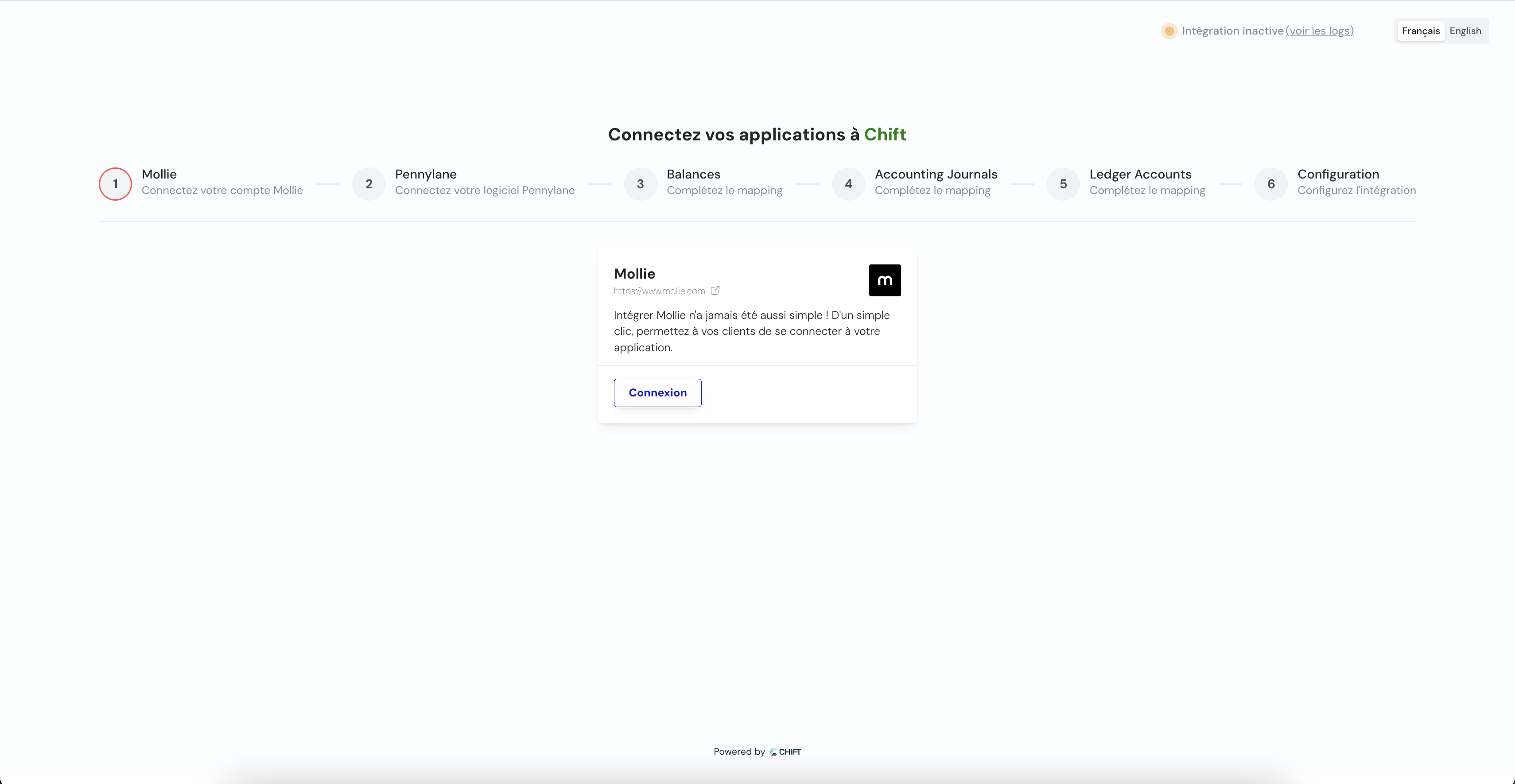
Payment sync setup: connect the payment app and the accounting software, then complete the mappings.
- Retrieve transactions by balance (each balance is linked to transactions in a specific currency). Transactions include:
- Payments, including the fees charged by the payment provider
- Refunds, including the fees charged by the payment provider
- Payouts (outgoing transfers to the merchant’s bank account)
- These transactions can be synchronized with the accounting system in 2 different ways:
- One accounting entry per transaction
- One accounting entry grouped by transaction type and period
Configuration of the sync & mappings
Mappings define how data from the payment software maps to the accounting software.1
Connect payment tool
Connect your payment tool through API key, credentials or OAuth2.
2
Connect accounting tool
Connect your accounting tool through API key, credentials or OAuth2.
3
Balances
Specify which balances you want to synchronize.
Reproduce this step by using the following API call(s) :
Reproduce this step by using the following API call(s) :
GET Retrieve all balances4
Accounting journals
Select your accounting journals for the synchronization.
Reproduce this step by using the following API call(s) :
Reproduce this step by using the following API call(s) :
GET journals5
Accounting accounts
Select default accounting accounts (client account, bank account, expense account, …) for the synchronization.
Reproduce this step by using the following API call(s) :
Reproduce this step by using the following API call(s) :
GET chart of accountsConfiguration
- This final step allows you to specify the synchronization start date: choice of the date from which payments are synchronized.
Synchronization starts automatically but you can choose:
- Each night (at 1 AM)
- Each Monday (at 1 AM)
- Each first day of the month (at 1 AM)
- Choose between one aggregated entry per period or one entry per invoice
Troubleshooting
Sync errors appear in the execution logs of the sync. See Monitor executions to find the execution logs and the affected records.
Errors that are not specific to this sync, such as
ERROR_SYNC_UNBALANCED_ENTRY, are listed in the sync errors section.