> ## Documentation Index
> Fetch the complete documentation index at: https://docs.chift.eu/llms.txt
> Use this file to discover all available pages before exploring further.
# End-user connection
A **connection** links one of your end-users to one of their software packages. You can create it in 3 ways, depending on how much of the flow you want inside your own product.
New to the model? Read [How it works](/home) first. It defines connector, consumer, and connection in two minutes.
## Prerequisites
1. **An API key**, and a bearer token obtained from it. See [Authenticate with Chift API](/home/authentication).
2. **At least one active connector** on your account. See [Activate a connector](/platform/getting-started/activate-connector). Connectors you have not activated are invisible to the API and cannot be connected.
## Choose a connection mode
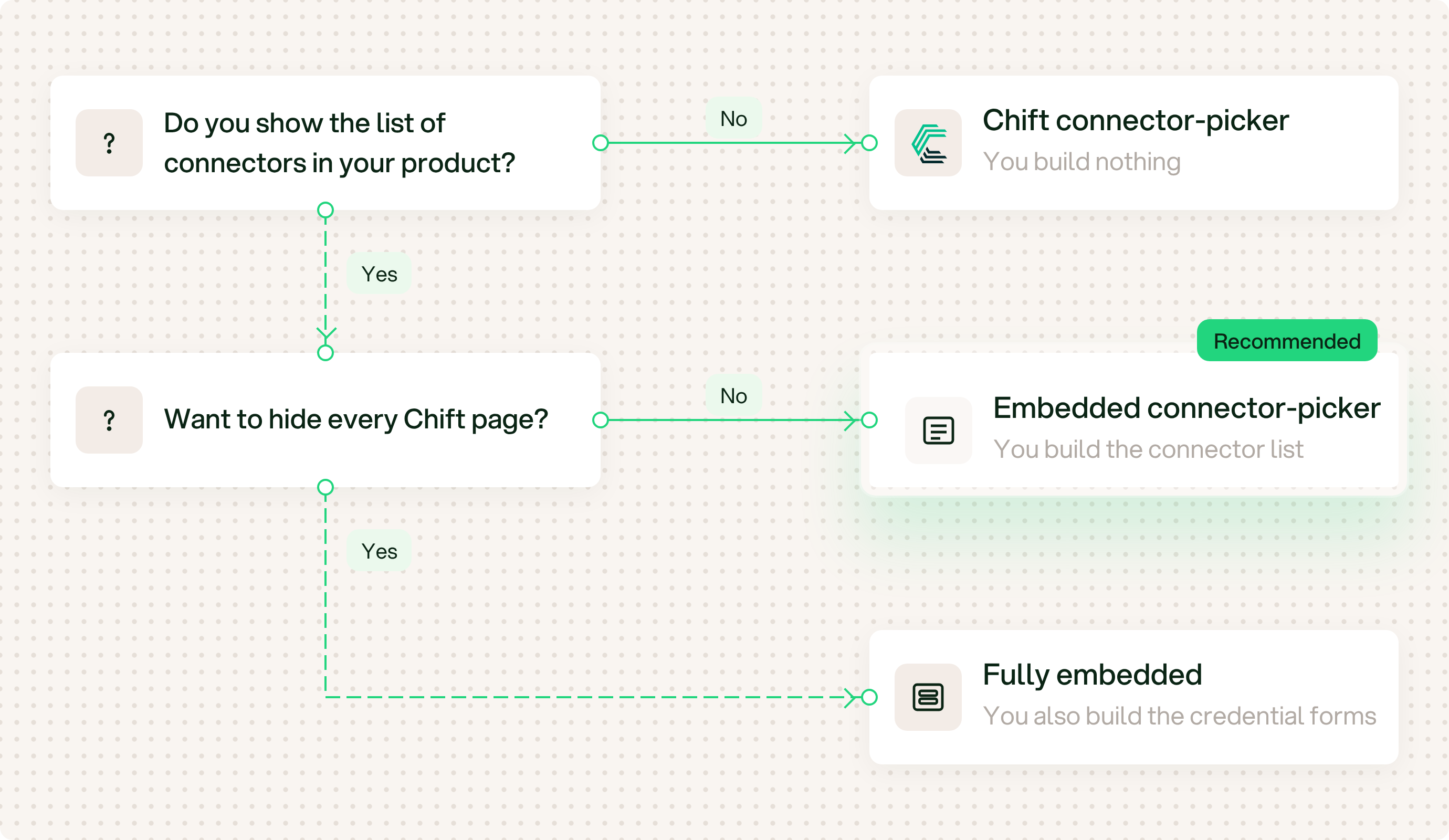 Answer 2 questions:
1. **Do you show the list of connectors in your product?** If not, use the [Chift connector-picker](/unified-apis/guides/end-user-connection/chift-connector-picker). You build nothing. If yes, go to question 2.
2. **Do you want to hide every Chift page?** If not, use the [embedded connector-picker](/unified-apis/guides/end-user-connection/embedded-connector-picker). You build the connector list. This is the recommended mode. If yes, use [Fully embedded](/unified-apis/guides/end-user-connection/fully-embedded). You also build the credential forms. It is more work for a small gain, and only some connectors support it.
You can mix modes. For example, use Fully embedded for the connectors that support it and the embedded connector-picker for the others.
Chift shows the connectors and collects the credentials.
Recommended. You show the connectors. Chift collects the credentials.
You show the connectors and collect the credentials.
This documentation is built and hosted on [Mintlify](https://mintlify.com), a developer documentation platform.
Answer 2 questions:
1. **Do you show the list of connectors in your product?** If not, use the [Chift connector-picker](/unified-apis/guides/end-user-connection/chift-connector-picker). You build nothing. If yes, go to question 2.
2. **Do you want to hide every Chift page?** If not, use the [embedded connector-picker](/unified-apis/guides/end-user-connection/embedded-connector-picker). You build the connector list. This is the recommended mode. If yes, use [Fully embedded](/unified-apis/guides/end-user-connection/fully-embedded). You also build the credential forms. It is more work for a small gain, and only some connectors support it.
You can mix modes. For example, use Fully embedded for the connectors that support it and the embedded connector-picker for the others.
Chift shows the connectors and collects the credentials.
Recommended. You show the connectors. Chift collects the credentials.
You show the connectors and collect the credentials.
This documentation is built and hosted on [Mintlify](https://mintlify.com), a developer documentation platform.