> ## Documentation Index
> Fetch the complete documentation index at: https://docs.chift.eu/llms.txt
> Use this file to discover all available pages before exploring further.
# POS sync
This sync lets you sync POS orders and payments with accounting software.
 ### Default scope
This integration sync automates cash register accounting (also called Point of Sale or POS), making manual exports unnecessary.
The integration imports daily sales and payments entries into accounting (Z ticket or cash register Z report).
The integration supports management of different payment methods, product categories and/or VAT rates.
The integration also supports management of tips and complimentary items.
This is the default scope. Based on your requirements, it can be modified.
### Mappings
Mappings define how data from the POS software maps to the accounting software.
These are the default mappings. Based on your requirements, they can be modified.
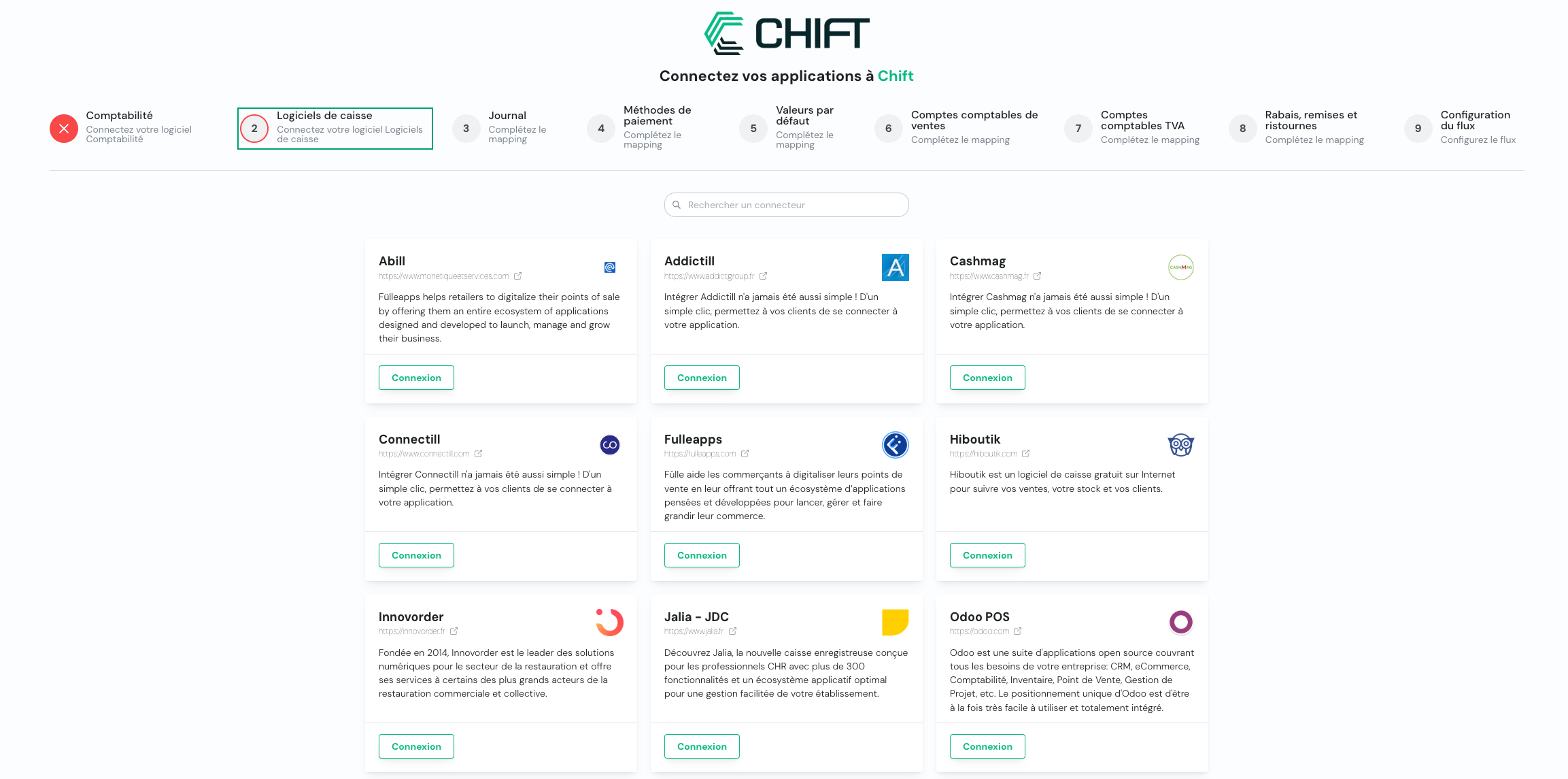
Connect your accounting tool through API key, credentials or OAuth2.
Connect your POS software through API key, credentials or OAuth2.
Specify the accounting journal in which to create closing entries
### Default scope
This integration sync automates cash register accounting (also called Point of Sale or POS), making manual exports unnecessary.
The integration imports daily sales and payments entries into accounting (Z ticket or cash register Z report).
The integration supports management of different payment methods, product categories and/or VAT rates.
The integration also supports management of tips and complimentary items.
This is the default scope. Based on your requirements, it can be modified.
### Mappings
Mappings define how data from the POS software maps to the accounting software.
These are the default mappings. Based on your requirements, they can be modified.
Connect your accounting tool through API key, credentials or OAuth2.
Connect your POS software through API key, credentials or OAuth2.
Specify the accounting journal in which to create closing entries
*Reproduce this step by using the following API call(s) :*
GET journals
Select the accounting account for each payment method (credit card, cash, etc.)\
If no match is found for a payment method (for example: a new payment method is added and not configured in the synchronization configuration), then account X is used.
*Reproduce this step by using the following API call(s) :*
GET payment methods
GET chart of accounts
*(Filter on class 4 and 5 accounts)*
Define how revenue is classified. The amounts excluding VAT can be allocated in 2 different ways:
* By product categories: the accounting account is determined based on the category linked to the product being sold. If the product is not linked to any category, then the accounting account indicated in the last option (=other) of this step's configuration is used
* By VAT rates: the accounting account is determined based on the VAT rate associated with the amount excluding VAT
*Reproduce this step by using the following API call(s) :*
GET accounting categories
GET chart of accounts
*(Filter on class 4 and 7 accounts)*
Select accounting accounts to record specific cases. In this step, you can also indicate the default sales account mentioned in step 6 above.
*Reproduce this step by using the following API call(s) :*
GET accounting categories
GET chart of accounts
Select the accounting account for tips.\
This account is then used when creating accounting entries to record the day's tips.
*Reproduce this step by using the following API call(s) :*
GET accounting categories
GET chart of accounts
Indicate whether you want to create an additional entry for complimentary items:
* If the option is not activated, anything given away for free is not shown in the generated accounting entries.
* If you activate this option, you'll need to indicate an account to use for debit and credit. When creating accounting entries, these two accounts are used to indicate the amount given away during each day. Generally, this involves a `class 7 account` for credit and a `class 6 account` for debit.
*Reproduce this step by using the following API call(s) :*
GET chart of accounts
*(Filter on class 6 and 7 accounts)*
Specify whether entries are made in an account for discounts, rebates and debates; it is an optional step.
*Reproduce this step by using the following API call(s) :*
GET chart of accounts
*(Filter on class 6 and 7 accounts)*
### Configuration
1. This final step allows you to specify the synchronization start date: choice of the date from which Z tickets are synchronized.
💡 Synchronization starts automatically each night (at 6 AM).
2. Rounding default values
Indicate the allowance that you tolerate for rounding errors (e.g. 1.00).
### Troubleshooting
See the [following guide](/platform/advanced/syncs/troubleshooting/pos-sync) for a step-by-step troubleshooting of the POS sync.
Sync errors appear in the execution logs of the sync. See [Monitor executions](/syncs/monitor-executions) to find the execution logs and the affected records.
| Error code | Error description | Resolution |
| - | - | - |
| ERROR\_SYNC\_MISSING\_CLIENT\_ACCOUNT | The client account is missing from the mapping configuration. | Complete the client account in the mapping of the sync. |
| ERROR\_SYNC\_MISSING\_DEFAULT\_ACCOUNT | The mapping is missing the default account. | Complete the default account in the mapping of the sync. |
| ERROR\_SYNC\_PAYMENT\_ACCOUNT\_NUMBER\_NOT\_FOUND | The payment account number could not be found in the accounting system. | Verify the payment methods mapping of the sync: the account number must exist in the accounting system. |
| WARNING\_SYNC\_DEFAULT\_PAYMENT\_METHOD\_USED | The payment method was not found in the mapping. The default payment method was used instead. | Map the payment method in the sync configuration if it must be booked on a specific account. |
Errors that are not specific to this sync, such as `ERROR_SYNC_UNBALANCED_ENTRY`, are listed in the [sync errors](/home/errors#sync-errors) section.
This documentation is built and hosted on [Mintlify](https://mintlify.com), a developer documentation platform.