> ## Documentation Index
> Fetch the complete documentation index at: https://docs.chift.eu/llms.txt
> Use this file to discover all available pages before exploring further.

# Odoo POS

# VEREISTEN

* De integratie is beschikbaar voor Odoo-versies 13 en hoger voor Odoo.sh en Odoo SaaS.
* Een "custom" prijsplan is nodig om de integratie met Odoo te activeren. (Odoo's Plans & Pricing)
* De gebruiker moet beheerdersrechten hebben om de verbinding tot stand te brengen

Beperkingen die zijn toegevoegd via aanpassingen in Odoo kunnen de prestaties van de connector beïnvloeden.

# **VOORBEREIDING**

Bekijk deze video:

[https://chift-connector-videos.s3.eu-west-3.amazonaws.com/1000/1000-config.mp4](https://chift-connector-videos.s3.eu-west-3.amazonaws.com/1000/1000-config.mp4)

1. Zoek uw Odoo-URL op.
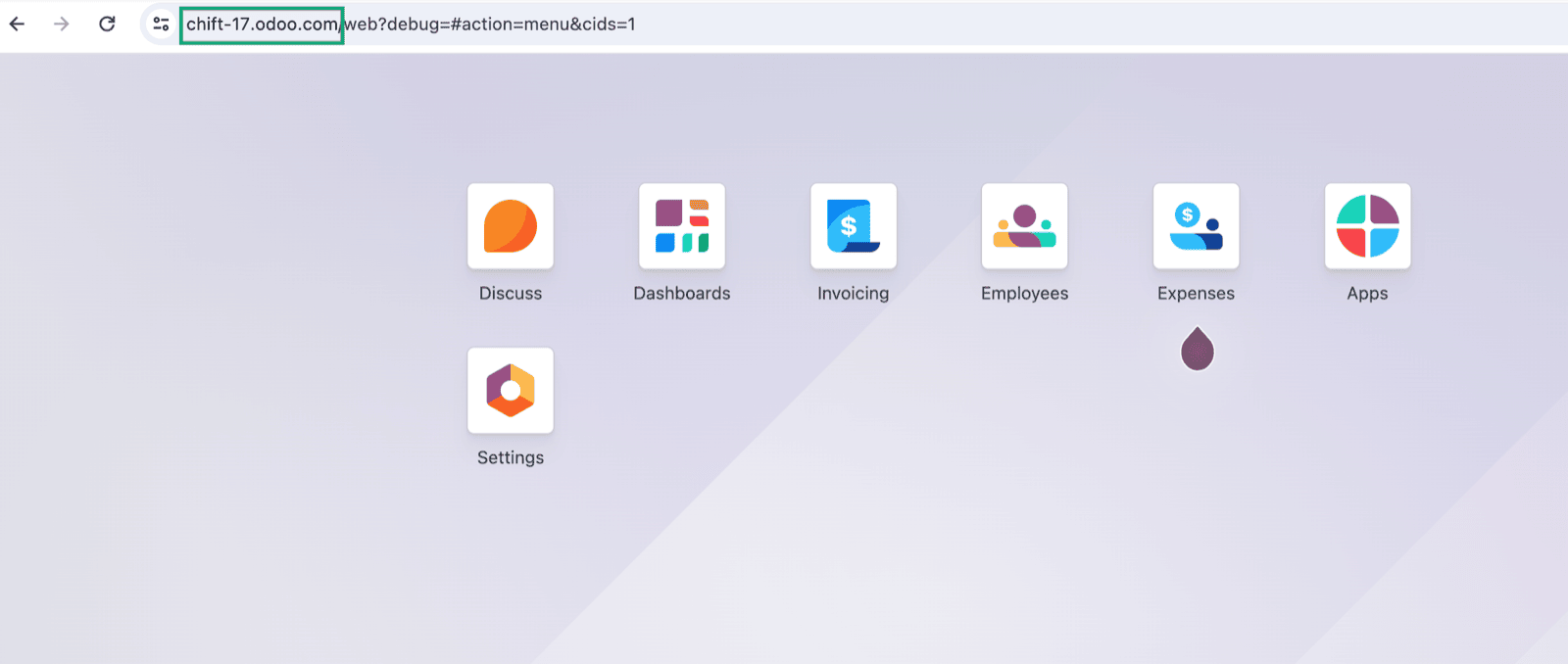
<img src="https://mintcdn.com/chift/U14_hTCN2xNLrbV6/images/help/odoo-pos/odoo-pos-1.png?fit=max&auto=format&n=U14_hTCN2xNLrbV6&q=85&s=e67d269164ae9e06a188a31bd36810c7" alt="" width="1600" height="678" data-path="images/help/odoo-pos/odoo-pos-1.png" />

2. Zoek de versie van uw Odoo-account op

* Ga naar Odoo → Parameters
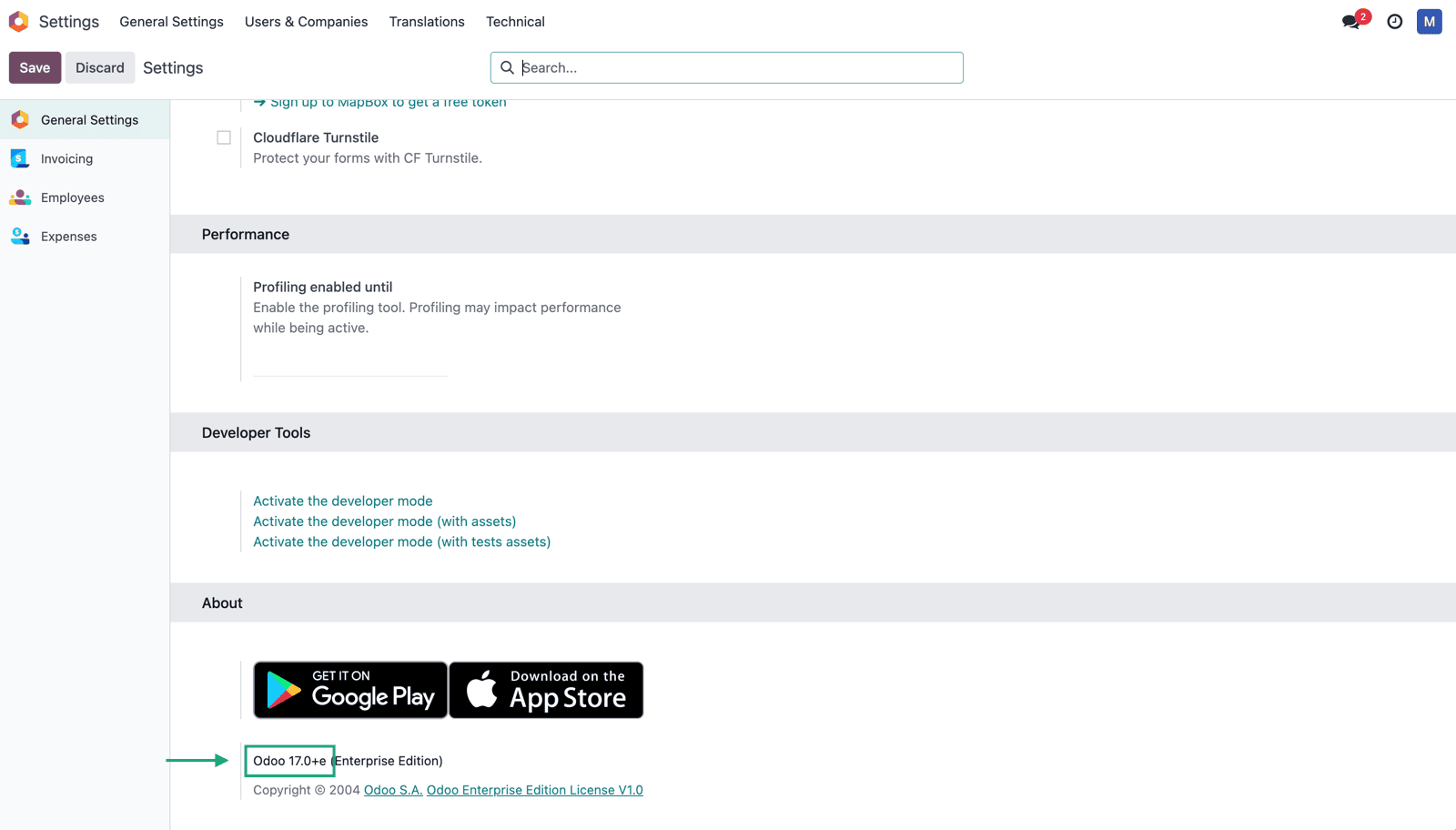
<img src="https://mintcdn.com/chift/U14_hTCN2xNLrbV6/images/help/odoo-pos/odoo-pos-2.png?fit=max&auto=format&n=U14_hTCN2xNLrbV6&q=85&s=4d998aa746fad7c78ea65360cac7202f" alt="" width="1600" height="912" data-path="images/help/odoo-pos/odoo-pos-2.png" />

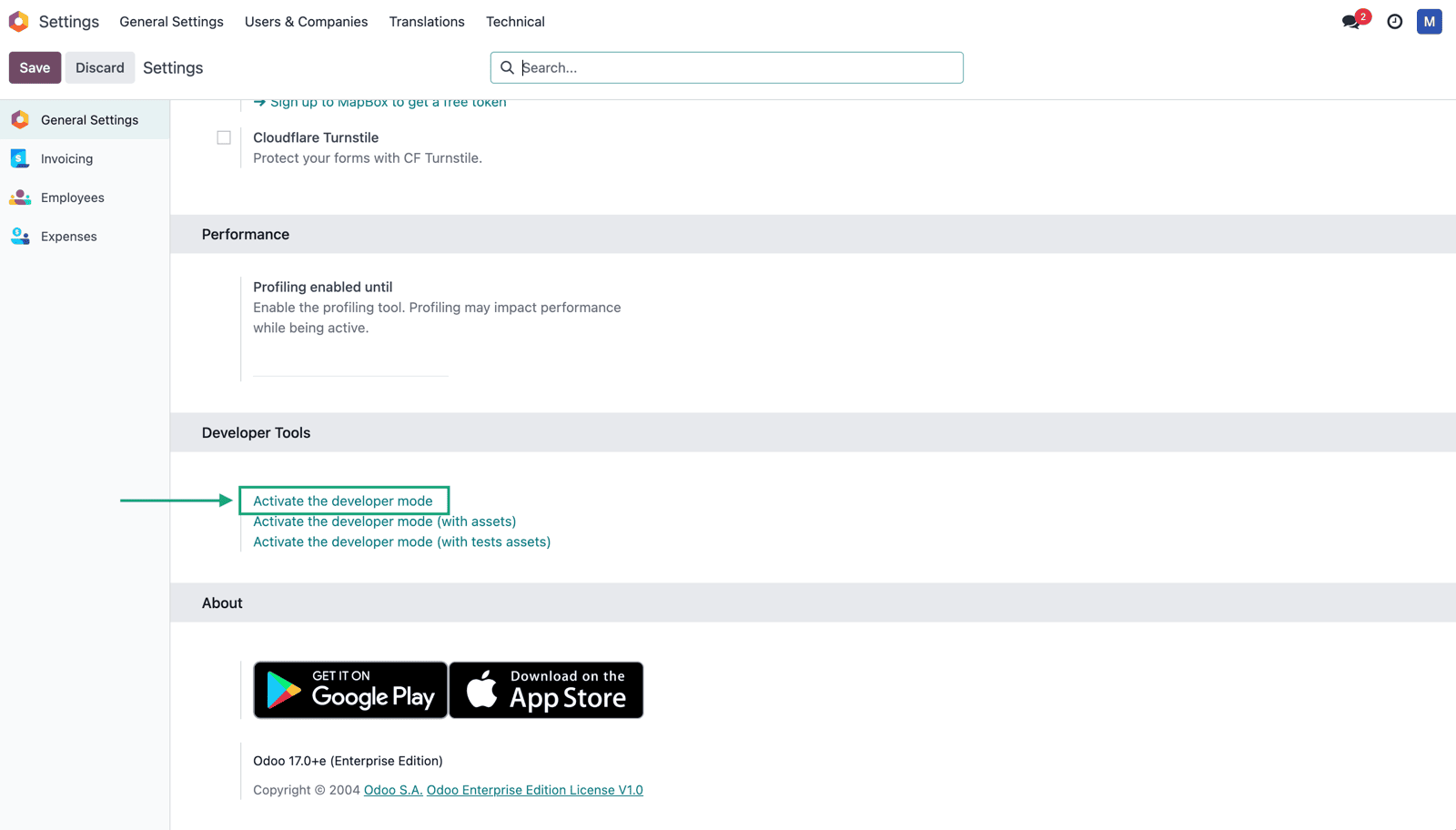
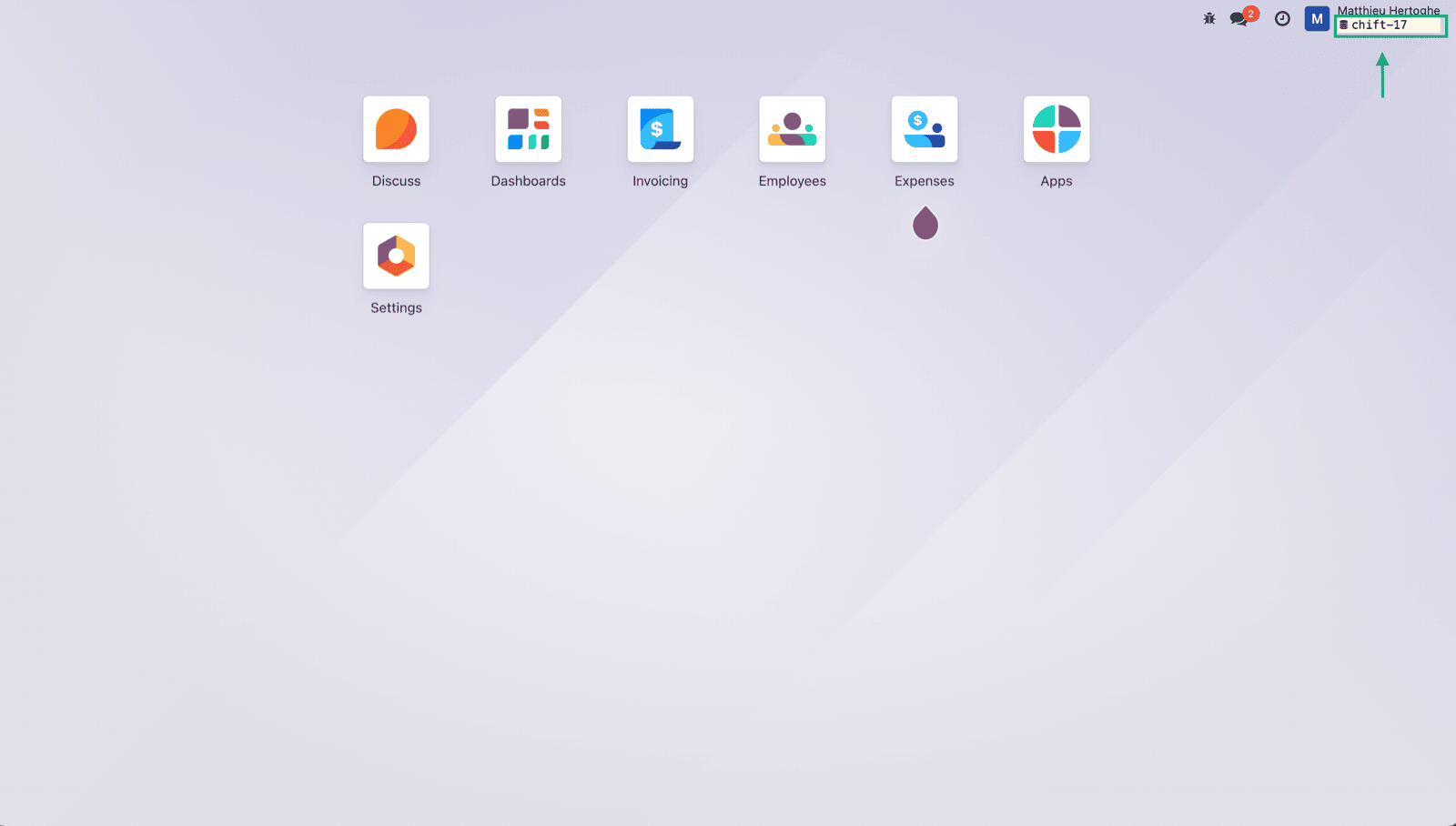
3. Zoek de databasenaam van uw account op door de ontwikkelaarsmodus te activeren en de gegevens op uw startpagina te raadplegen.
<img src="https://mintcdn.com/chift/U14_hTCN2xNLrbV6/images/help/odoo-pos/odoo-pos-3.png?fit=max&auto=format&n=U14_hTCN2xNLrbV6&q=85&s=406bea8426e103eaa8d607b432607844" alt="" width="1600" height="912" data-path="images/help/odoo-pos/odoo-pos-3.png" />

<img src="https://mintcdn.com/chift/U14_hTCN2xNLrbV6/images/help/odoo-pos/odoo-pos-4.png?fit=max&auto=format&n=U14_hTCN2xNLrbV6&q=85&s=ff1e6c6a4242ff85a82d06e2845c64bf" alt="" width="1600" height="908" data-path="images/help/odoo-pos/odoo-pos-4.png" />

# VERBINDING

**Stap 1:** Kies een naam voor uw verbinding.

<img src="https://mintcdn.com/chift/U14_hTCN2xNLrbV6/images/help/odoo-pos/odoo-pos-5.png?fit=max&auto=format&n=U14_hTCN2xNLrbV6&q=85&s=4acf52d0f37c85bf0300d55278c322cf" alt="" width="523" height="99" data-path="images/help/odoo-pos/odoo-pos-5.png" />

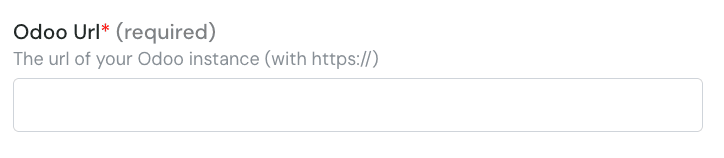
**Stap 2:** Voer de url van uw Odoo-instantie in.
<img src="https://mintcdn.com/chift/U14_hTCN2xNLrbV6/images/help/odoo-pos/odoo-pos-6.png?fit=max&auto=format&n=U14_hTCN2xNLrbV6&q=85&s=ba39173dc4799c52d9f4b522d9530cec" alt="" width="724" height="158" data-path="images/help/odoo-pos/odoo-pos-6.png" />

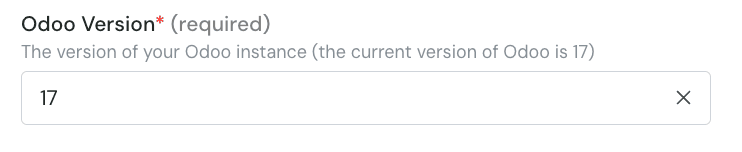
**Stap 3:** Voer de versie van uw Odoo-account in.
<img src="https://mintcdn.com/chift/U14_hTCN2xNLrbV6/images/help/odoo-pos/odoo-pos-7.png?fit=max&auto=format&n=U14_hTCN2xNLrbV6&q=85&s=72e03ac020a0fb74e0766ca984cc0cc7" alt="" width="742" height="152" data-path="images/help/odoo-pos/odoo-pos-7.png" />

**Stap 4:** Voer de databasenaam in

<img src="https://mintcdn.com/chift/U14_hTCN2xNLrbV6/images/help/odoo-pos/odoo-pos-8.png?fit=max&auto=format&n=U14_hTCN2xNLrbV6&q=85&s=b5ed3705ecc101d3ab47a6931e935836" alt="" width="752" height="126" data-path="images/help/odoo-pos/odoo-pos-8.png" />

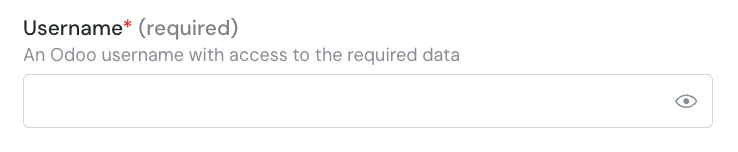
**Stap 5:** Voer de gebruikersnaam van uw Odoo-account in.
<img src="https://mintcdn.com/chift/U14_hTCN2xNLrbV6/images/help/odoo-pos/odoo-pos-9.png?fit=max&auto=format&n=U14_hTCN2xNLrbV6&q=85&s=51cc5a762824d079930fd5e0f551d782" alt="" width="738" height="152" data-path="images/help/odoo-pos/odoo-pos-9.png" />

**Stap 6:** Voer het wachtwoord van uw Odoo-account in.

<img src="https://mintcdn.com/chift/U14_hTCN2xNLrbV6/images/help/odoo-pos/odoo-pos-10.png?fit=max&auto=format&n=U14_hTCN2xNLrbV6&q=85&s=2d771e41a505abda0e5bcde5ce232239" alt="" width="742" height="200" data-path="images/help/odoo-pos/odoo-pos-10.png" />

⚠ Let op: als u MFA op uw Odoo-account hebt geactiveerd, moet u een API Key aanmaken en die gebruiken in plaats van uw wachtwoord.

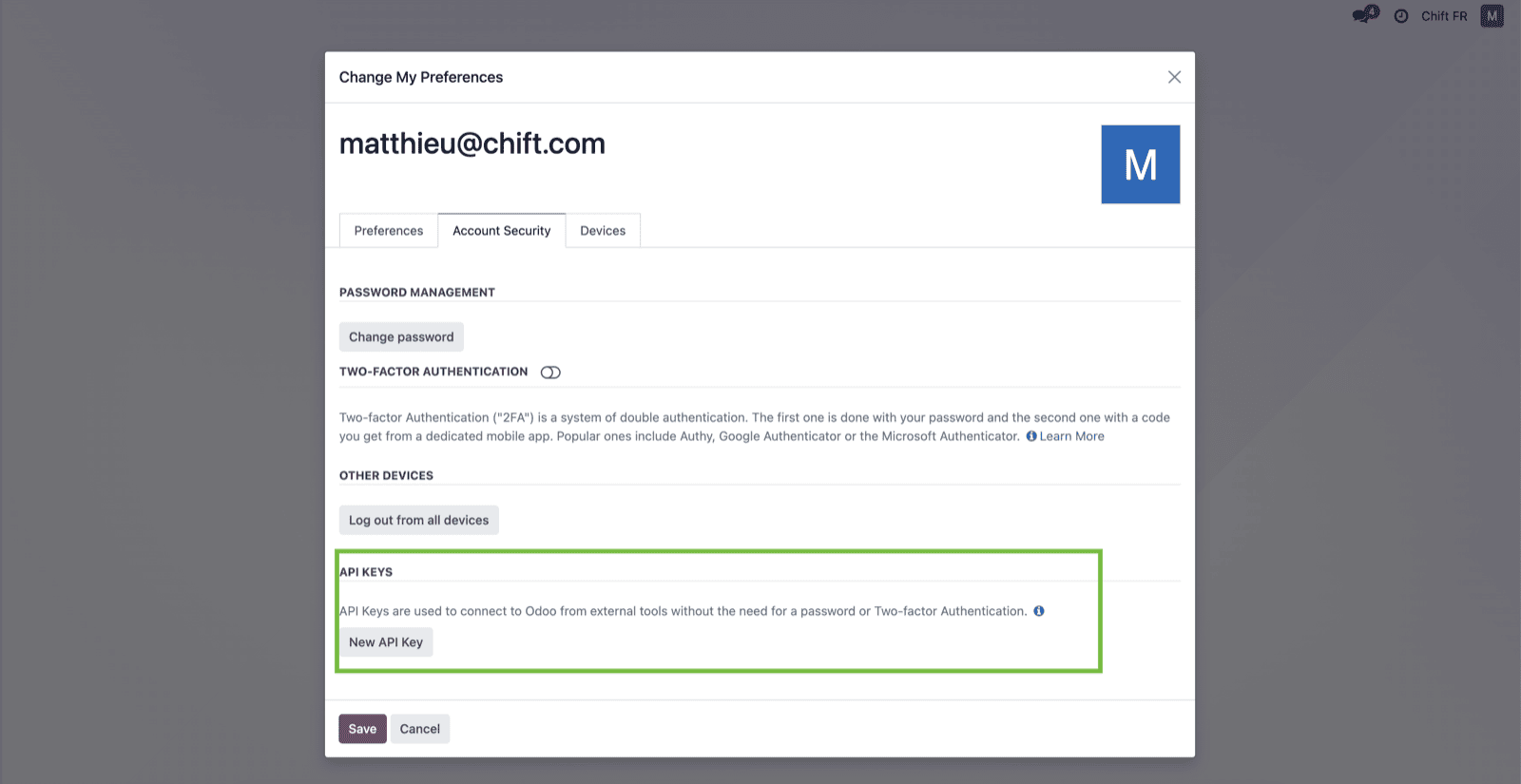
**Stap 6-1:** Als u een API Key moet genereren, log dan in op Odoo en klik op de knop rechtsboven en vervolgens op "preferences".

<img src="https://mintcdn.com/chift/U14_hTCN2xNLrbV6/images/help/odoo-pos/odoo-pos-11.png?fit=max&auto=format&n=U14_hTCN2xNLrbV6&q=85&s=e04fce21af1f08f3cb9638aca8fb32dd" alt="" width="1600" height="860" data-path="images/help/odoo-pos/odoo-pos-11.png" />

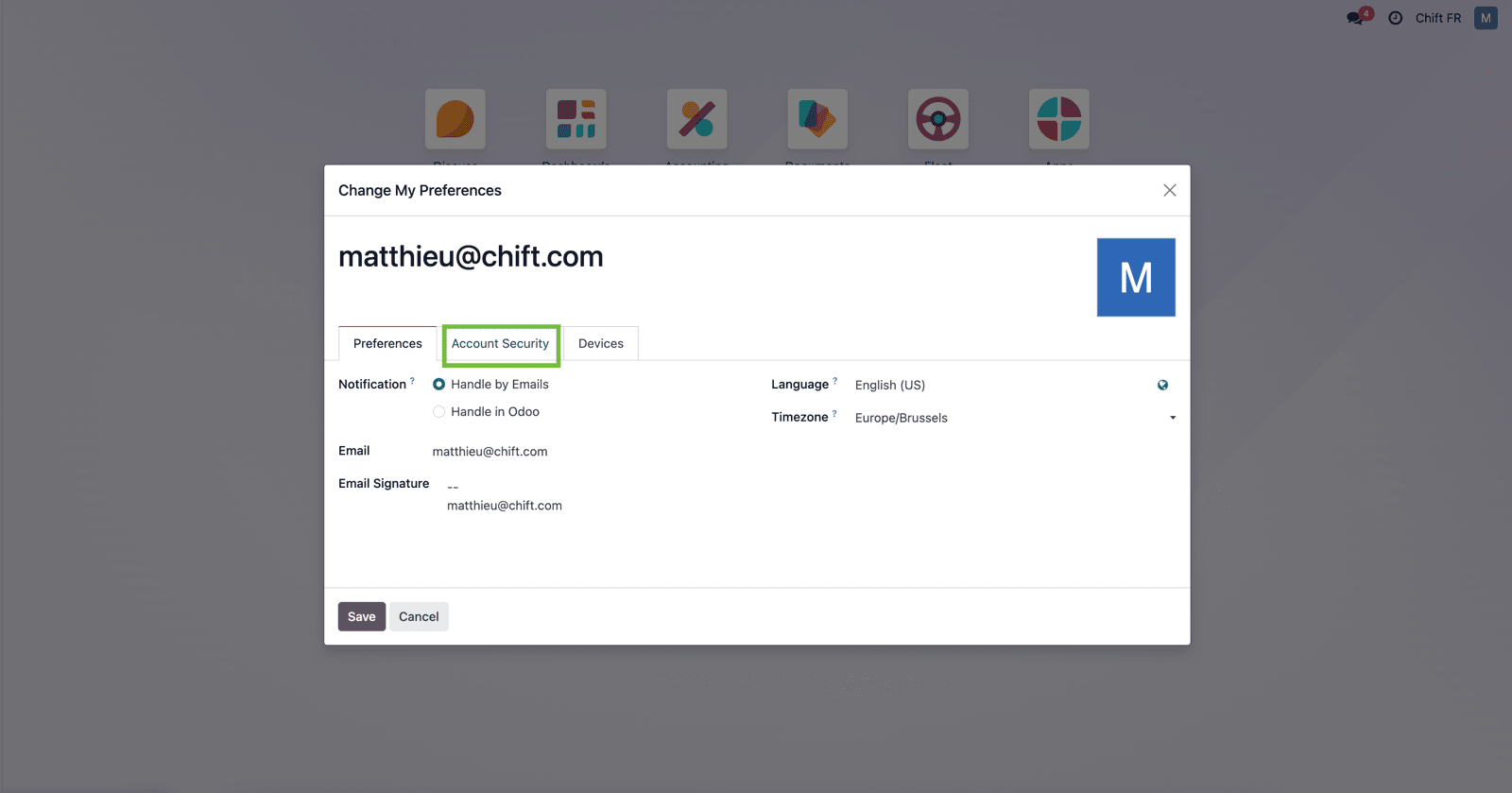
**Stap 6-2:** Selecteer "Account security"
<img src="https://mintcdn.com/chift/U14_hTCN2xNLrbV6/images/help/odoo-pos/odoo-pos-12.png?fit=max&auto=format&n=U14_hTCN2xNLrbV6&q=85&s=ff85d36f6bff2a9a2b06b64013ae2b54" alt="" width="1600" height="839" data-path="images/help/odoo-pos/odoo-pos-12.png" />

**Stap 6-3:** Selecteer "New API key"

<img src="https://mintcdn.com/chift/U14_hTCN2xNLrbV6/images/help/odoo-pos/odoo-pos-13.png?fit=max&auto=format&n=U14_hTCN2xNLrbV6&q=85&s=0753df346140d61782bc719d9f8caa73" alt="" width="1600" height="825" data-path="images/help/odoo-pos/odoo-pos-13.png" />

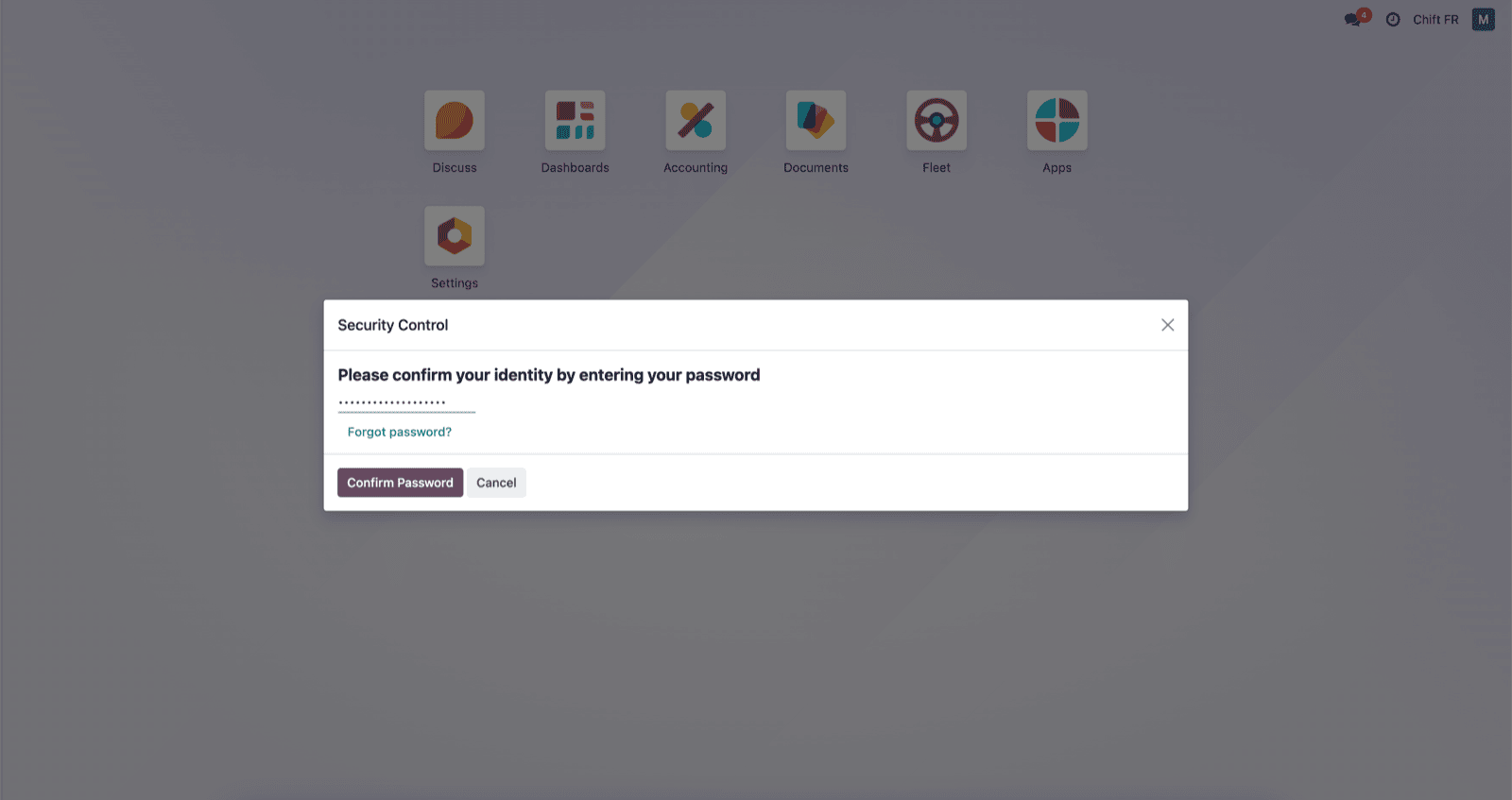
**Stap 6-4:** Vul uw wachtwoord in

<img src="https://mintcdn.com/chift/U14_hTCN2xNLrbV6/images/help/odoo-pos/odoo-pos-14.png?fit=max&auto=format&n=U14_hTCN2xNLrbV6&q=85&s=83be340ca3f939281c883e469d6fe085" alt="" width="1600" height="847" data-path="images/help/odoo-pos/odoo-pos-14.png" />

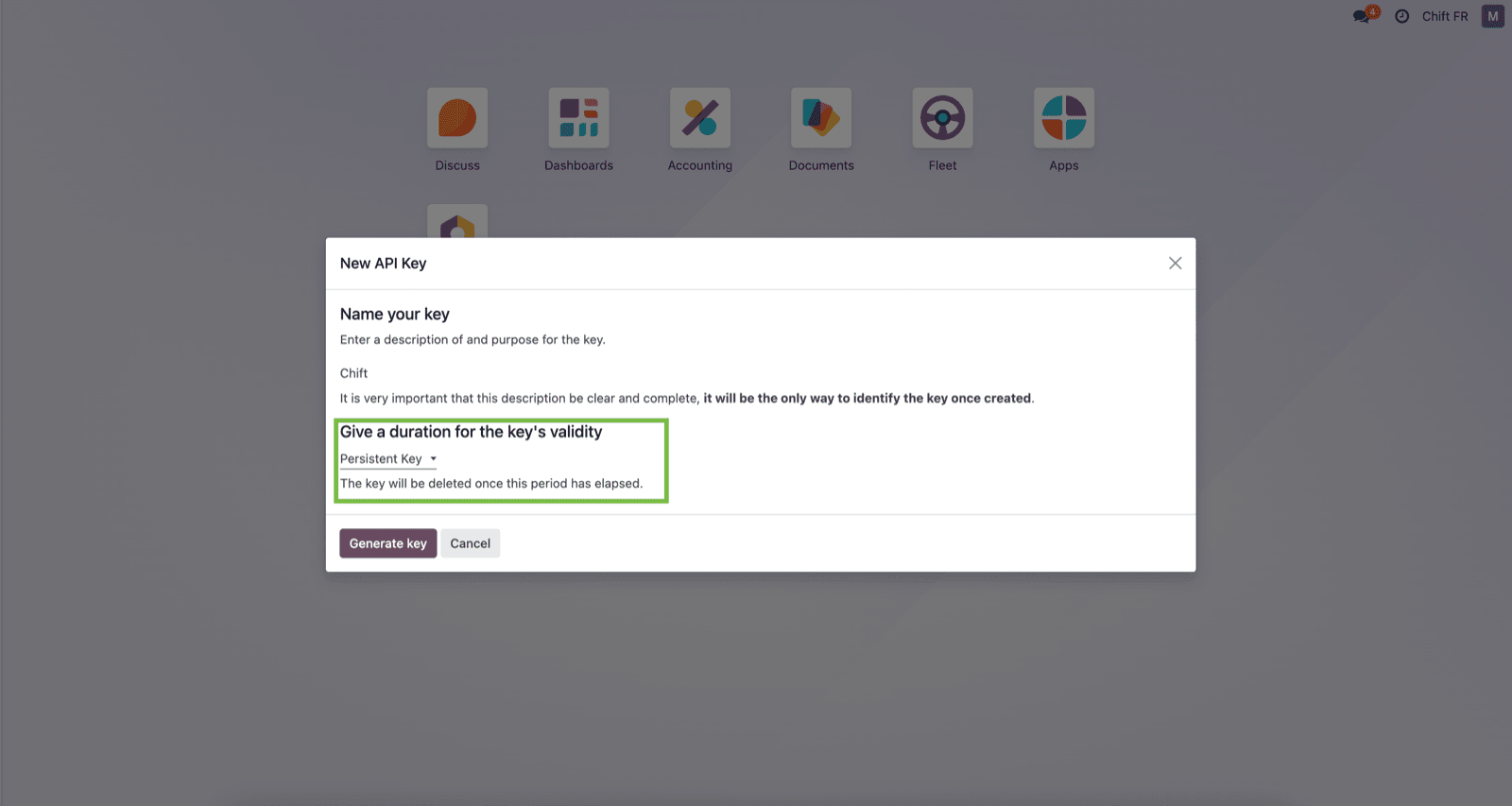
**Stap 6-5:** Geef uw api key een naam en kies "persistant key" als duur.
<img src="https://mintcdn.com/chift/U14_hTCN2xNLrbV6/images/help/odoo-pos/odoo-pos-15.png?fit=max&auto=format&n=U14_hTCN2xNLrbV6&q=85&s=d782482fc7f02f208899430846d56c34" alt="" width="1600" height="853" data-path="images/help/odoo-pos/odoo-pos-15.png" />

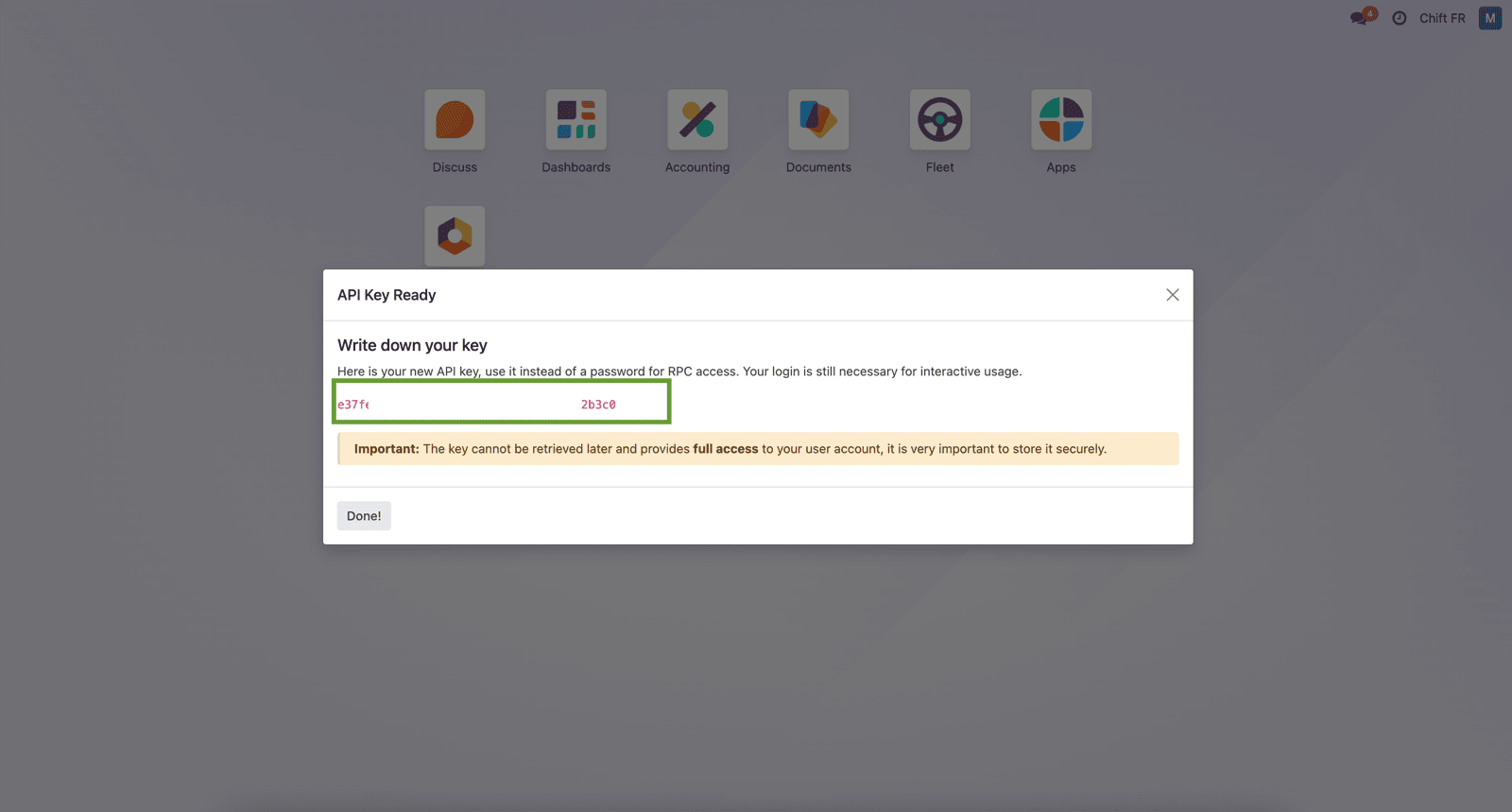
**Stap 6-6:** Dit is uw API key die u in de Chift-funnel kunt gebruiken om Odoo te verbinden.
<img src="https://mintcdn.com/chift/U14_hTCN2xNLrbV6/images/help/odoo-pos/odoo-pos-16.png?fit=max&auto=format&n=U14_hTCN2xNLrbV6&q=85&s=5b8182e95a10f6424c39d55c92130fcc" alt="" width="1600" height="859" data-path="images/help/odoo-pos/odoo-pos-16.png" />

**Stap 7:** Klik op "Connect" om de verbinding af te ronden.
<img src="https://mintcdn.com/chift/U14_hTCN2xNLrbV6/images/help/odoo-pos/odoo-pos-17.png?fit=max&auto=format&n=U14_hTCN2xNLrbV6&q=85&s=c62ba28747bb72757e092b81728ddd9a" alt="" width="184" height="79" data-path="images/help/odoo-pos/odoo-pos-17.png" />

# CONFIGURATIE

**Stap 1:** Selecteer het bedrijf waarmee u verbinding wilt maken in Odoo.

<img src="https://mintcdn.com/chift/U14_hTCN2xNLrbV6/images/help/odoo-pos/odoo-pos-18.png?fit=max&auto=format&n=U14_hTCN2xNLrbV6&q=85&s=8026667c7a8ca25cb53672baaff340b7" alt="" width="521" height="79" data-path="images/help/odoo-pos/odoo-pos-18.png" />

**Stap 2:** Klik op "Submit" om de configuratie af te ronden
<img src="https://mintcdn.com/chift/U14_hTCN2xNLrbV6/images/help/odoo-pos/odoo-pos-19.png?fit=max&auto=format&n=U14_hTCN2xNLrbV6&q=85&s=3638b00b97810fda1a8eff9fb079b4ad" alt="" width="167" height="78" data-path="images/help/odoo-pos/odoo-pos-19.png" />