> ## Documentation Index
> Fetch the complete documentation index at: https://docs.chift.eu/llms.txt
> Use this file to discover all available pages before exploring further.
# Exact Online NL
# **VOORBEREIDING**
**Als u geen enkel veld voor analytische assen/kostenassen ziet op uw activatiepagina** (Stap 2 van het gedeelte Verbinding), of als u ze niet nodig hebt, **kunt u deze stap overslaan**.
Controleer of voor uw account analytische assen/kostenassen zijn ingeschakeld.
Log daarvoor in op uw Exact Online-account.
1. Ga naar het tabblad **Financieel** → **Analyse & Resultaten**.
2. In het onderstaande voorbeeld zijn twee assen ingeschakeld: **Kostenplaatsen** en **Kostendragers**.
 # VERBINDING
**Stap 1:** Kies een naam voor uw verbinding.
# VERBINDING
**Stap 1:** Kies een naam voor uw verbinding.
 **Stap 2:** Bepaal welke analytische as/kostenas u wilt activeren.
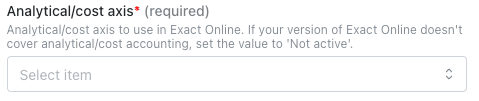 **Stap 3:** Klik op "Authorise" om de verbinding af te ronden
 # AUTHENTICATIE
U wordt doorgestuurd naar een pagina van Exact Online om uw account te authenticeren
**Belangrijk:** Refresh tokens van Exact Online verlopen na 30 dagen inactiviteit. Als er binnen een maand geen verzoeken naar Exact Online worden gestuurd, verloopt het token en kan het niet worden vernieuwd, wat resulteert in een `401`-authenticatiefout met de melding “The refresh token expired.” In dat geval moet u uw verbinding opnieuw authenticeren.
# AUTHENTICATIE
U wordt doorgestuurd naar een pagina van Exact Online om uw account te authenticeren
**Belangrijk:** Refresh tokens van Exact Online verlopen na 30 dagen inactiviteit. Als er binnen een maand geen verzoeken naar Exact Online worden gestuurd, verloopt het token en kan het niet worden vernieuwd, wat resulteert in een `401`-authenticatiefout met de melding “The refresh token expired.” In dat geval moet u uw verbinding opnieuw authenticeren.
 # CONFIGURATIE
**Stap 1:** Selecteer het bedrijf, de map of de administratie die u wilt configureren.
# CONFIGURATIE
**Stap 1:** Selecteer het bedrijf, de map of de administratie die u wilt configureren.
 **LET OP**: het is mogelijk dat u het bedrijf/de administratie die u wilt verbinden niet terugvindt in het vervolgkeuzemenu. Als dat het geval is, moet u de toegestane bedrijven/administraties aanpassen via de interface van Exact Online:
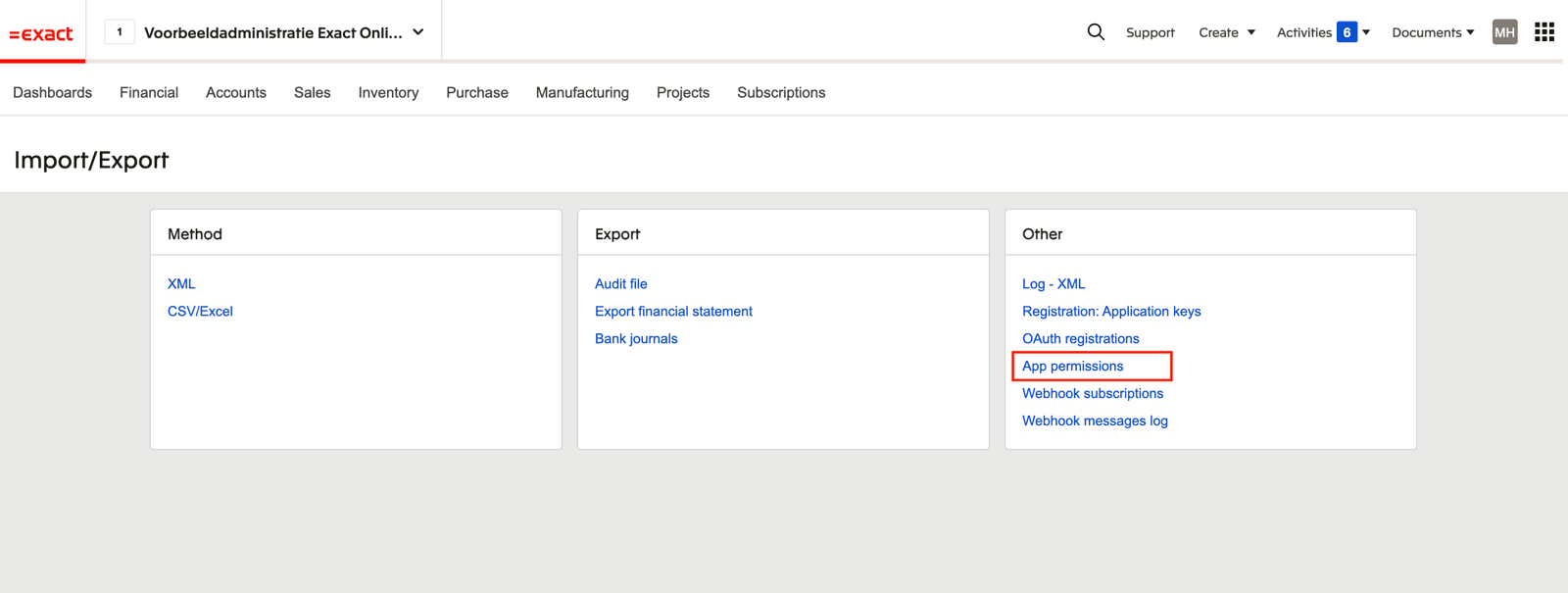
1. Open de instellingen "Import/Export" van Exact Online
**LET OP**: het is mogelijk dat u het bedrijf/de administratie die u wilt verbinden niet terugvindt in het vervolgkeuzemenu. Als dat het geval is, moet u de toegestane bedrijven/administraties aanpassen via de interface van Exact Online:
1. Open de instellingen "Import/Export" van Exact Online
 2. Selecteer "App permissions"
 3. Selecteer de app die u met Exact Online probeert te verbinden
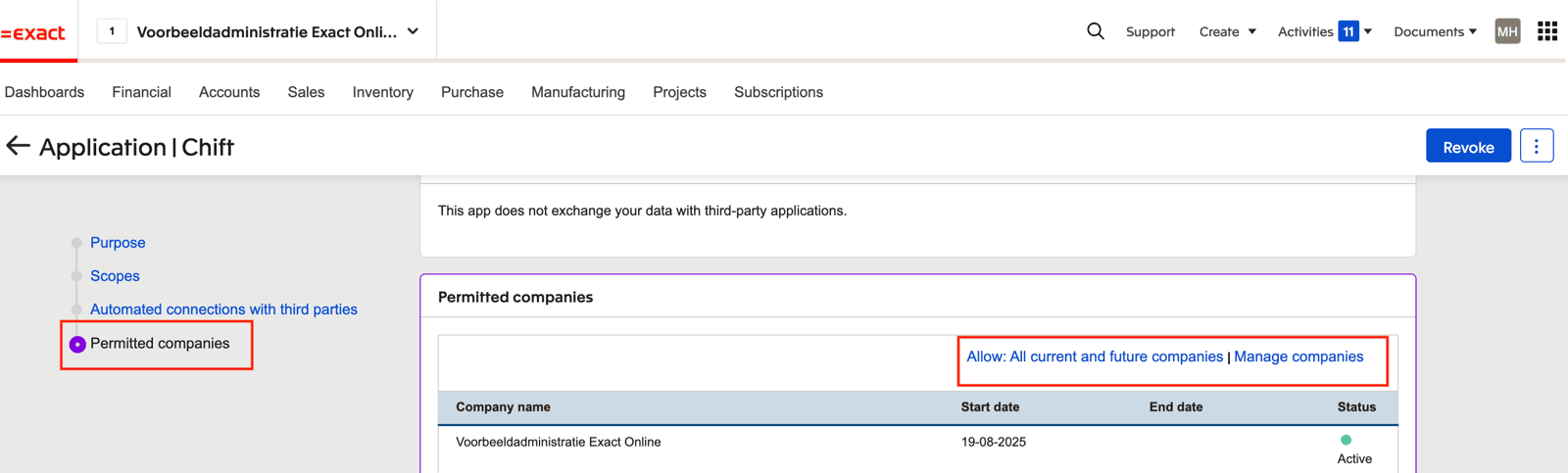
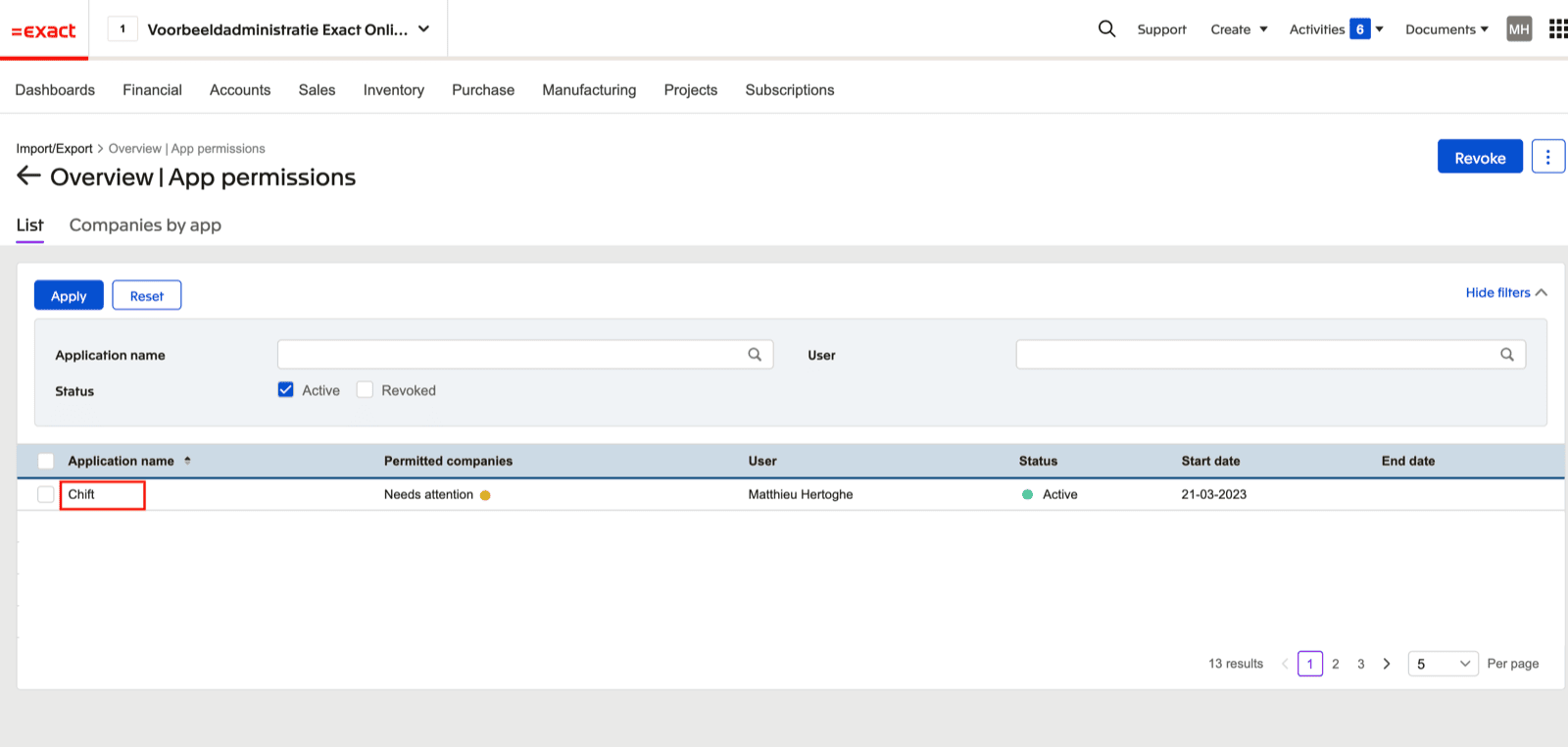 4. Ga naar het gedeelte "Permitted companies". Hier kunt u alle huidige en toekomstige bedrijven toestaan OF "Manage companies" selecteren om enkel specifieke bedrijven toe te staan
 **Stap 2:** Klik op "Submit" om de configuratie af te ronden.
 # Btw op memoriaaldagboeken
Als u wilt dat Chift btw-boekingen doorstuurt naar een **memoriaaldagboek** (type *Memoriaal*), moet u ervoor zorgen dat btw **toegestaan** is op dat dagboek in Exact Online. Anders worden de btw-lijnen geweigerd wanneer de boeking wordt doorgestuurd.
Om dit te controleren, gaat u naar **Stamgegevens → Dagboeken**, opent u het betreffende memoriaaldagboek en zorgt u ervoor dat op het tabblad **Algemeen** het selectievakje **Btw** is aangevinkt.
**LET OP**: dit geldt enkel voor dagboeken van het type *Memoriaal*. Als het btw-vakje niet is aangevinkt, mislukt elke boeking met btw die naar dit dagboek wordt verstuurd.
# Btw op memoriaaldagboeken
Als u wilt dat Chift btw-boekingen doorstuurt naar een **memoriaaldagboek** (type *Memoriaal*), moet u ervoor zorgen dat btw **toegestaan** is op dat dagboek in Exact Online. Anders worden de btw-lijnen geweigerd wanneer de boeking wordt doorgestuurd.
Om dit te controleren, gaat u naar **Stamgegevens → Dagboeken**, opent u het betreffende memoriaaldagboek en zorgt u ervoor dat op het tabblad **Algemeen** het selectievakje **Btw** is aangevinkt.
**LET OP**: dit geldt enkel voor dagboeken van het type *Memoriaal*. Als het btw-vakje niet is aangevinkt, mislukt elke boeking met btw die naar dit dagboek wordt verstuurd.