> ## Documentation Index
> Fetch the complete documentation index at: https://docs.chift.eu/llms.txt
> Use this file to discover all available pages before exploring further.
# Horus
# VOORBEREIDING
Er zijn twee manieren om te authenticeren op Horus:
1. gebruik een Horus-gebruiker (normaal gezien een gebruiker van de accountant), in dat geval zijn er geen vereisten.
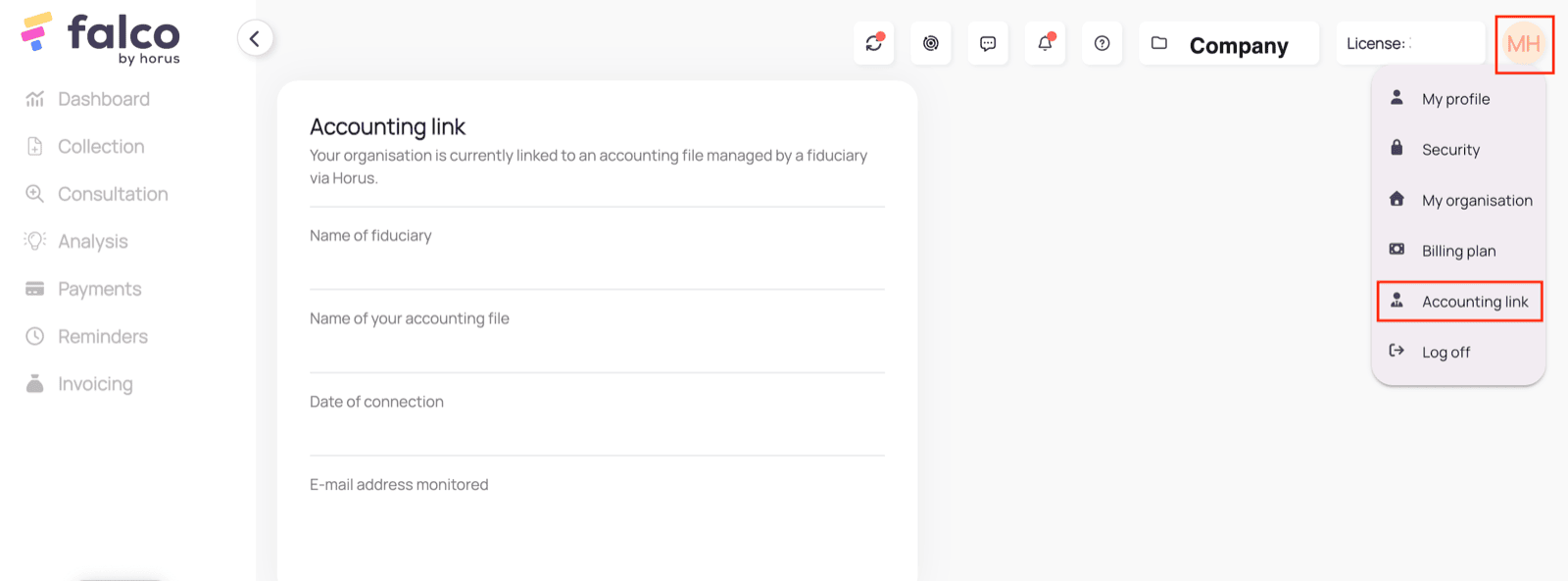
2. gebruik een Falco-gebruiker. Dit werkt enkel als de boekhoudkoppeling tussen Falco en Horus is ingeschakeld. Zorg ervoor dat de boekhoudkoppeling is ingeschakeld voordat u verdergaat met het autorisatieproces. Dit kan worden gecontroleerd in de Falco-instellingen:
 # VERBINDING
**Stap 1:** Kies een naam voor uw verbinding.
# VERBINDING
**Stap 1:** Kies een naam voor uw verbinding.
 **Stap 2:** Kies of u analytische gegevens wilt laten overdragen.
 **Stap 3:** Selecteer de standaardtaal van uw Horus-account.
 **Stap 4:** Klik op "Autoriseren" om de verbinding af te ronden
 # AUTHENTICATIE
**Stap 1:** Voer uw Horus-inloggegevens in en maak verbinding.
# AUTHENTICATIE
**Stap 1:** Voer uw Horus-inloggegevens in en maak verbinding.
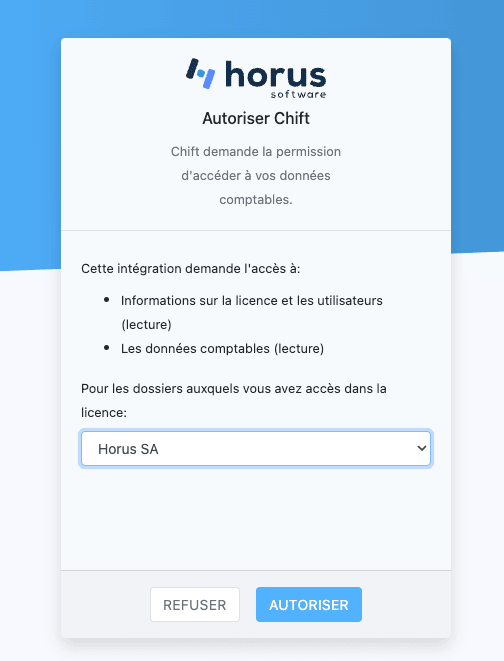
 **Stap 2:** Selecteer het dossier waarmee u de gegevensuitwisseling wilt verbinden en autoriseer. Op basis van het geselecteerde dossier zullen de gerelateerde mappen beschikbaar zijn voor de verbinding.
 # CONFIGURATIE
**Stap 1:** Selecteer de boekhoudmap die u wilt verbinden. Als u uw boekhoudmap niet in de lijst ziet, controleer dan of u in de vorige stap het juiste dossier hebt geselecteerd of dat de koppeling tussen uw boekhoudmap in Horus en de gerelateerde map in Falco correct is geconfigureerd.
# CONFIGURATIE
**Stap 1:** Selecteer de boekhoudmap die u wilt verbinden. Als u uw boekhoudmap niet in de lijst ziet, controleer dan of u in de vorige stap het juiste dossier hebt geselecteerd of dat de koppeling tussen uw boekhoudmap in Horus en de gerelateerde map in Falco correct is geconfigureerd.
 **Stap 2:** Klik op "Verzenden" om de configuratie te voltooien.