> ## Documentation Index
> Fetch the complete documentation index at: https://docs.chift.eu/llms.txt
> Use this file to discover all available pages before exploring further.
# Exact Online BE
# **VOORBEREIDING**
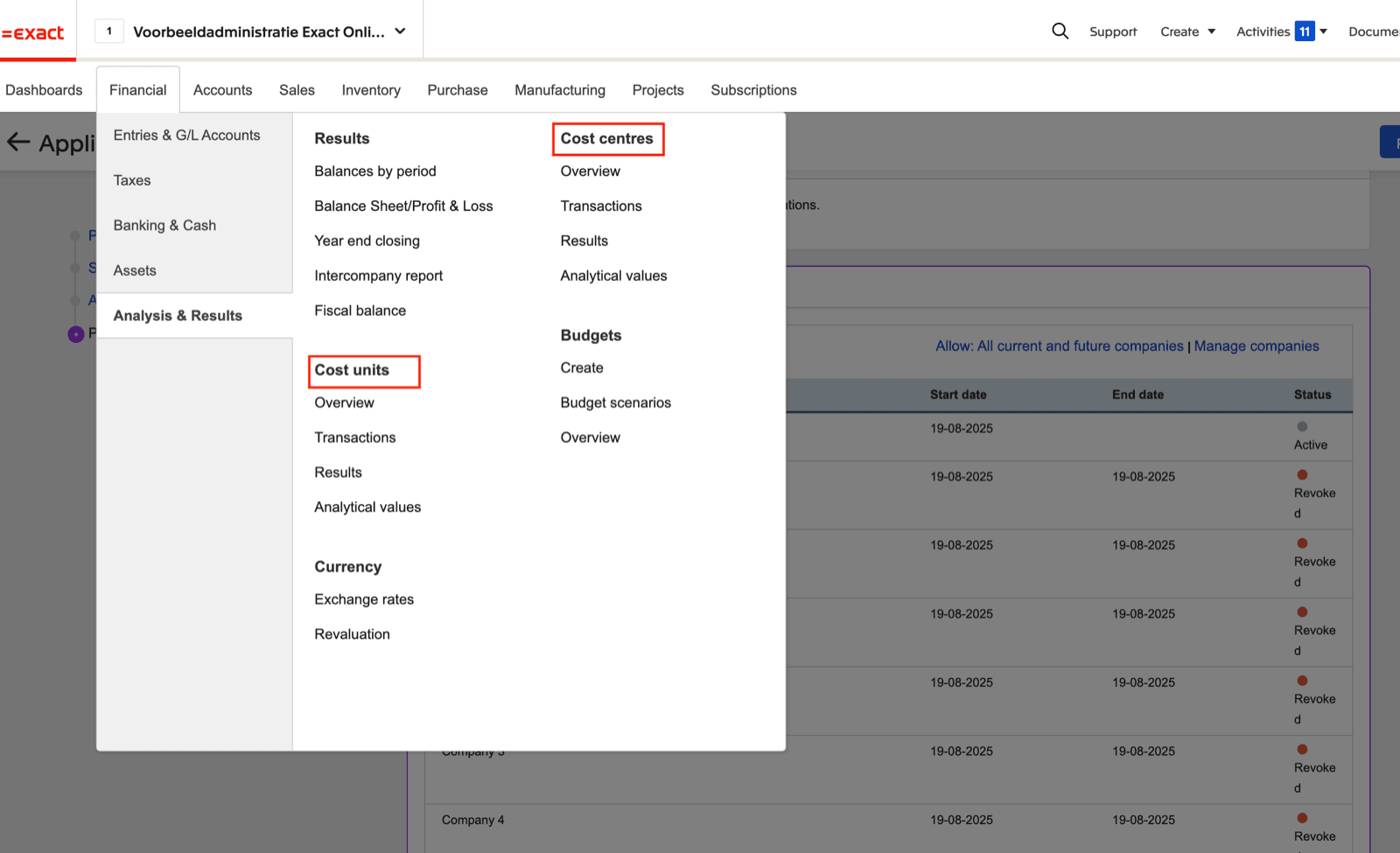
Controleer of in uw account de analytische/kostenas is ingeschakeld.
Log daarvoor in op uw Exact Online-account, selecteer het tabblad "Financieel" en "Analyse & Resultaten" (In het geval van het account in de afbeelding hieronder zijn er twee assen. Zowel kostenplaatsen als kostendragers zijn ingeschakeld).
 # VERBINDING
**Stap 1:** Kies een naam voor uw verbinding.
# VERBINDING
**Stap 1:** Kies een naam voor uw verbinding.
 **Stap 2:** Definieer de analytische/kostenas die u wilt activeren.
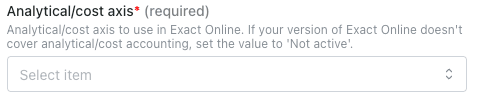 **Stap 3:** Klik op "Autoriseren" om de verbinding af te ronden
 # AUTHENTICATIE
U wordt doorgestuurd naar een Exact Online-pagina om uw account te authenticeren
**Belangrijk:** Exact Online-vernieuwingstokens verlopen na 30 dagen inactiviteit. Als uw verbinding binnen een maand niet is gebruikt om verzoeken te doen, verloopt het token en ontvangt u een 401-authenticatiefout met de melding 'The refresh token expired'. U moet uw verbinding opnieuw authenticeren door nogmaals op "Autoriseren" te klikken in de verbindingsinstellingen.
# AUTHENTICATIE
U wordt doorgestuurd naar een Exact Online-pagina om uw account te authenticeren
**Belangrijk:** Exact Online-vernieuwingstokens verlopen na 30 dagen inactiviteit. Als uw verbinding binnen een maand niet is gebruikt om verzoeken te doen, verloopt het token en ontvangt u een 401-authenticatiefout met de melding 'The refresh token expired'. U moet uw verbinding opnieuw authenticeren door nogmaals op "Autoriseren" te klikken in de verbindingsinstellingen.
 # CONFIGURATIE
**Stap 1:** Selecteer het bedrijf, de map of de administratie die u wilt configureren.
# CONFIGURATIE
**Stap 1:** Selecteer het bedrijf, de map of de administratie die u wilt configureren.
 **LET OP**: het is mogelijk dat u het bedrijf/de administratie die u wilt verbinden niet in het dropdownmenu vindt. Als dit het geval is, moet u de toegestane bedrijven/administraties aanpassen via de Exact Online-interface:
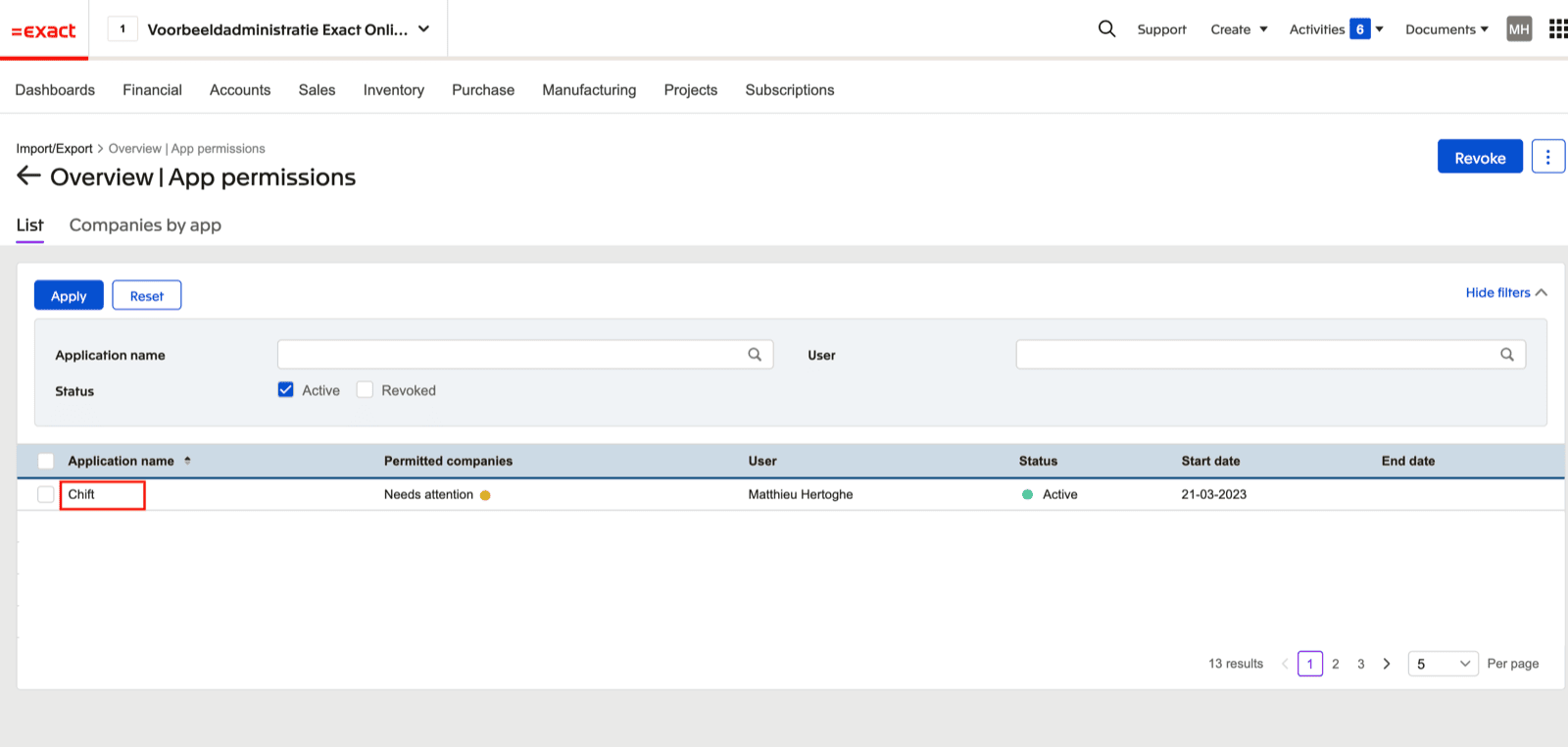
1. Open de Exact Online-instellingen "Import/Export"
**LET OP**: het is mogelijk dat u het bedrijf/de administratie die u wilt verbinden niet in het dropdownmenu vindt. Als dit het geval is, moet u de toegestane bedrijven/administraties aanpassen via de Exact Online-interface:
1. Open de Exact Online-instellingen "Import/Export"
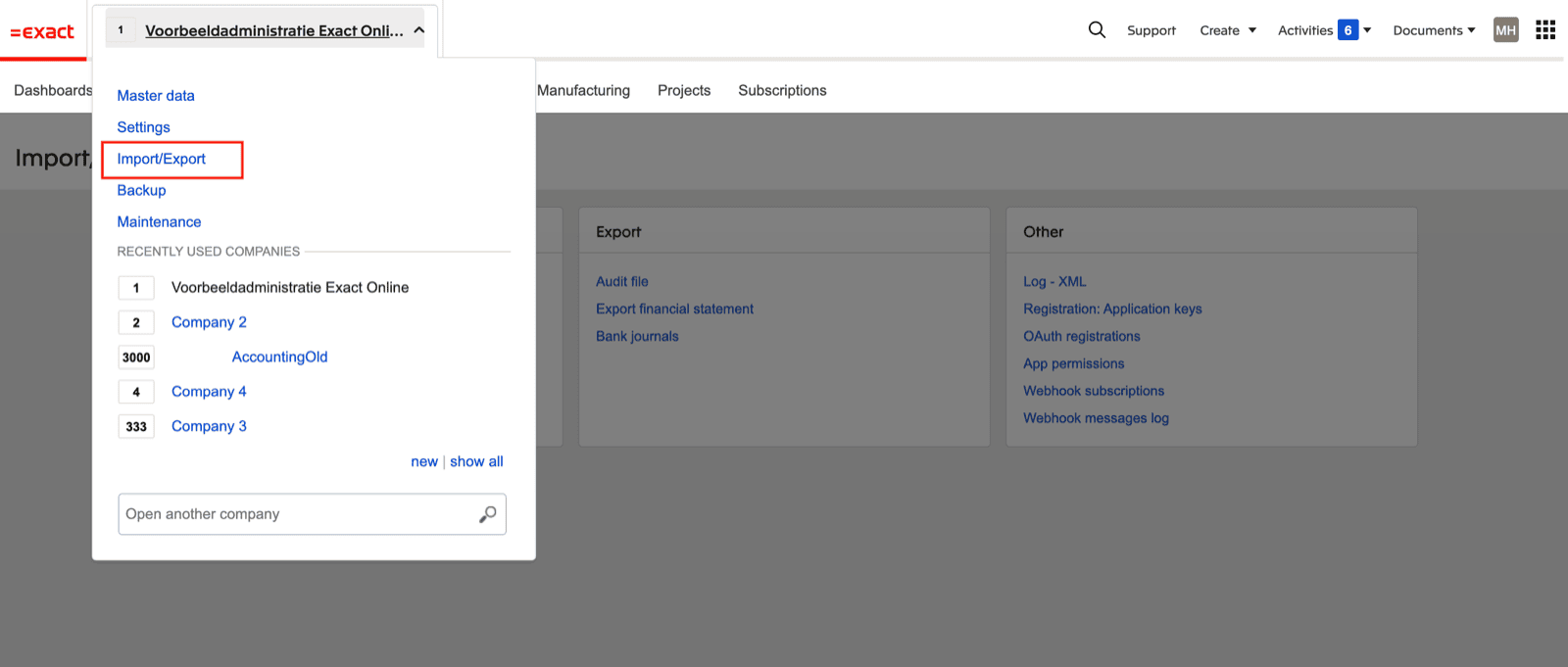 2. Selecteer "App-rechten"
 3. Selecteer de app die u met Exact Online probeert te verbinden
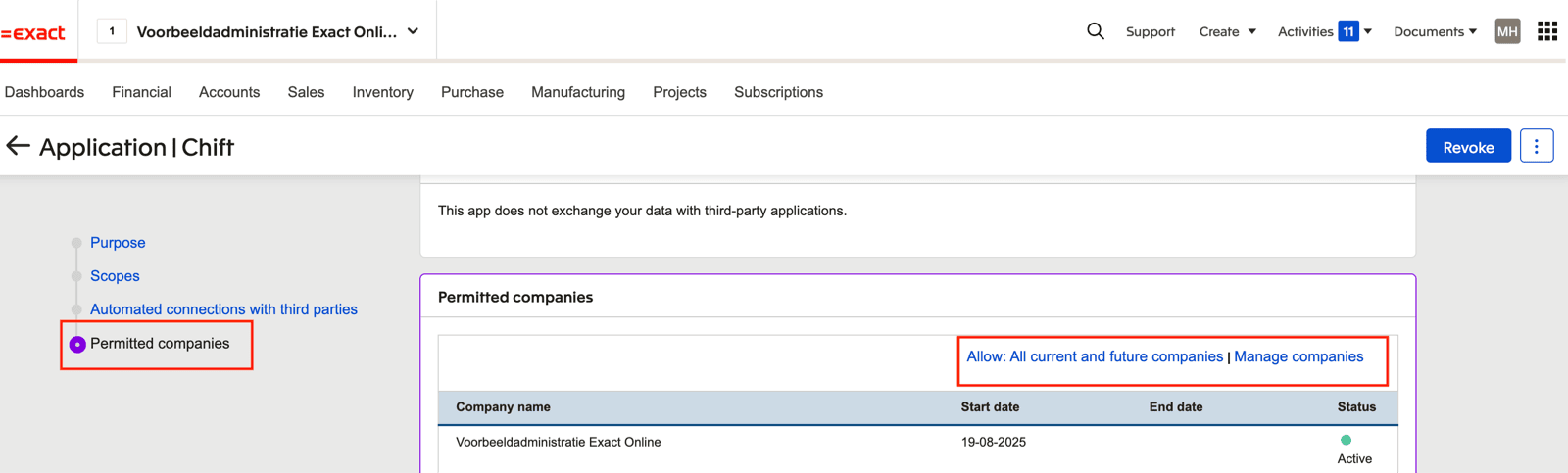
 4. Ga naar de sectie "Toegestane bedrijven". Hier kunt u alle huidige en toekomstige bedrijven toestaan OF "Bedrijven beheren" selecteren om alleen specifieke bedrijven toe te staan
 **Stap 2:** Klik op "Verzenden" om de configuratie af te ronden.