> ## Documentation Index
> Fetch the complete documentation index at: https://docs.chift.eu/llms.txt
> Use this file to discover all available pages before exploring further.
# Odoo
# 🚨 **VEREISTEN**
* De integratie is beschikbaar voor Odoo-versies 13 en hoger voor Odoo.sh en Odoo SaaS.
* Een "custom" prijsplan is noodzakelijk voor de activering van de integratie met Odoo. (Odoo's Plans & Pricing)
* De gebruiker moet beheerdersrechten hebben om de verbinding te activeren
Beperkingen die zijn toegevoegd via aanpassingen in Odoo kunnen de prestaties van de connector beïnvloeden.
# 🛠 **VOORBEREIDING**
Bekijk deze video:
[https://chift-connector-videos.s3.eu-west-3.amazonaws.com/1000/1000-config.mp4](https://chift-connector-videos.s3.eu-west-3.amazonaws.com/1000/1000-config.mp4)
1. **Zoek uw Odoo-URL.** 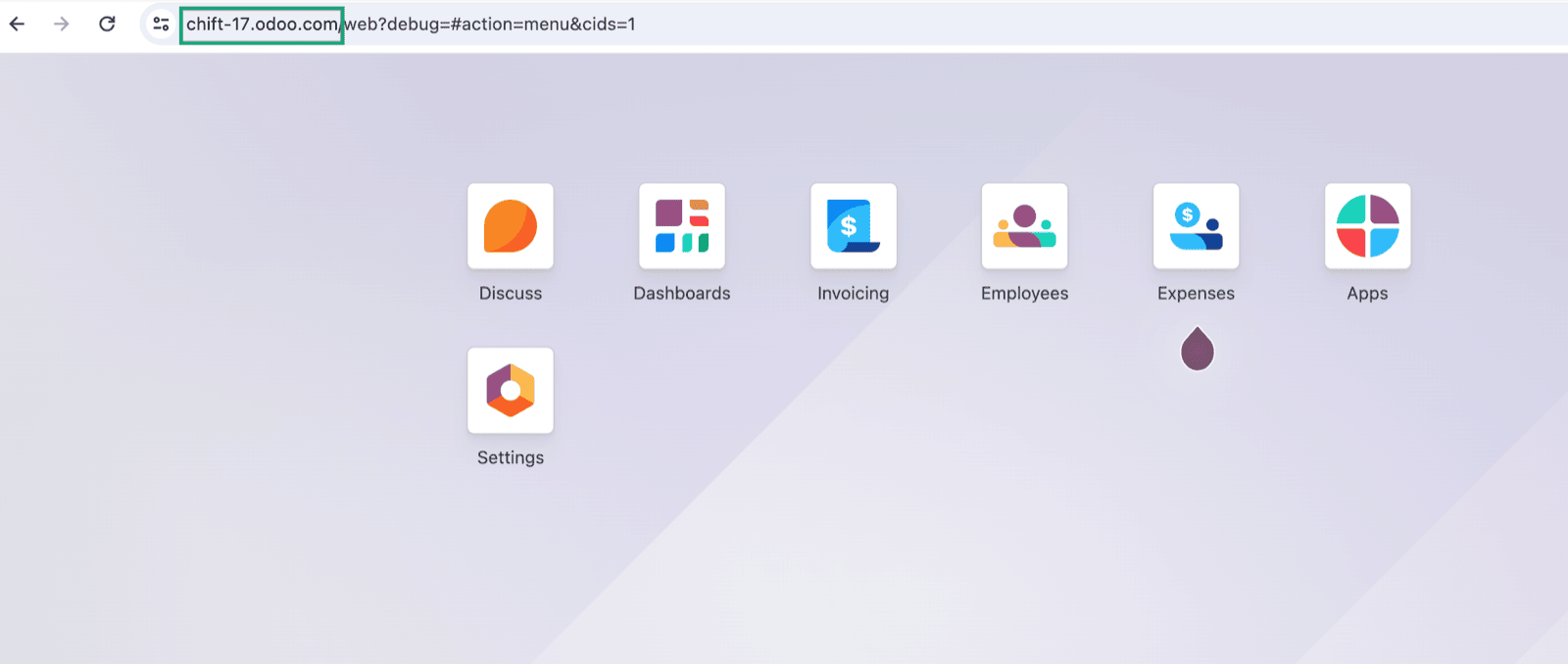 2. **(Als u deze niet kent of niet zeker bent) Zoek de versie van uw Odoo-account in uw instellingen**
* Ga naar **Configuratie → Instellingen**
2. **(Als u deze niet kent of niet zeker bent) Zoek de versie van uw Odoo-account in uw instellingen**
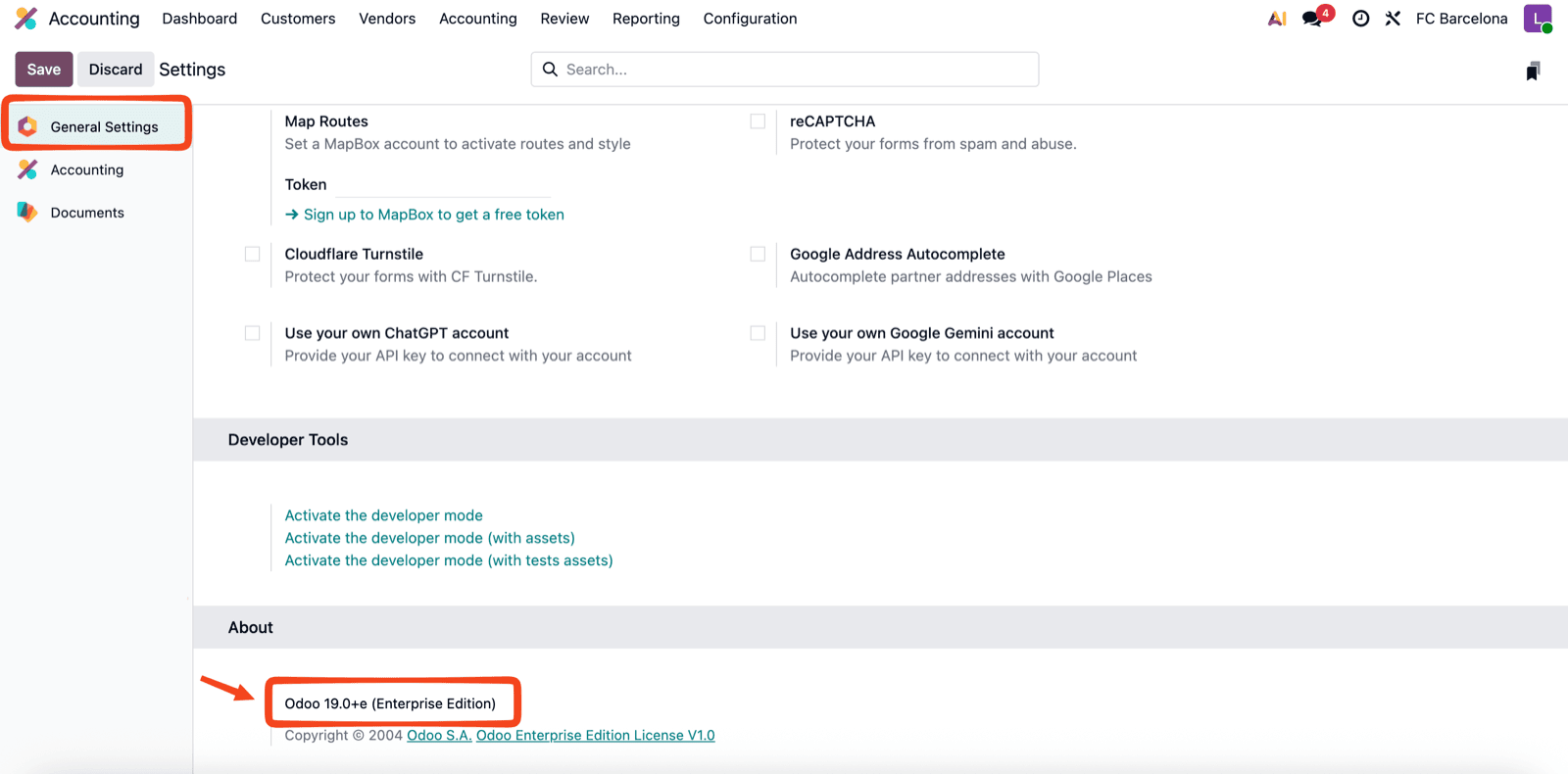
* Ga naar **Configuratie → Instellingen** 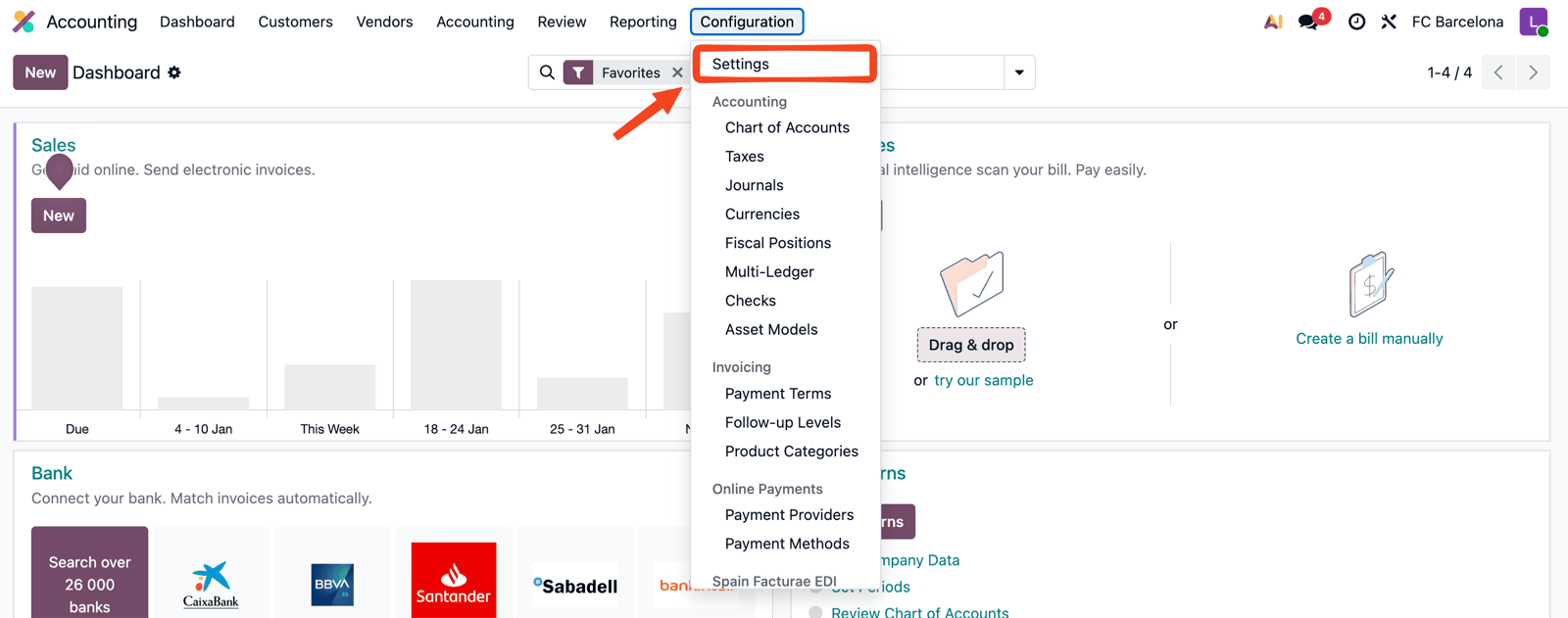 * Selecteer in het linkermenu Algemene instellingen. Scrol vervolgens naar beneden naar de sectie Over om uw versie te zien.
  3. **Zoek uw databasenaam**
* Activeer de ontwikkelaarsmodus in Odoo.
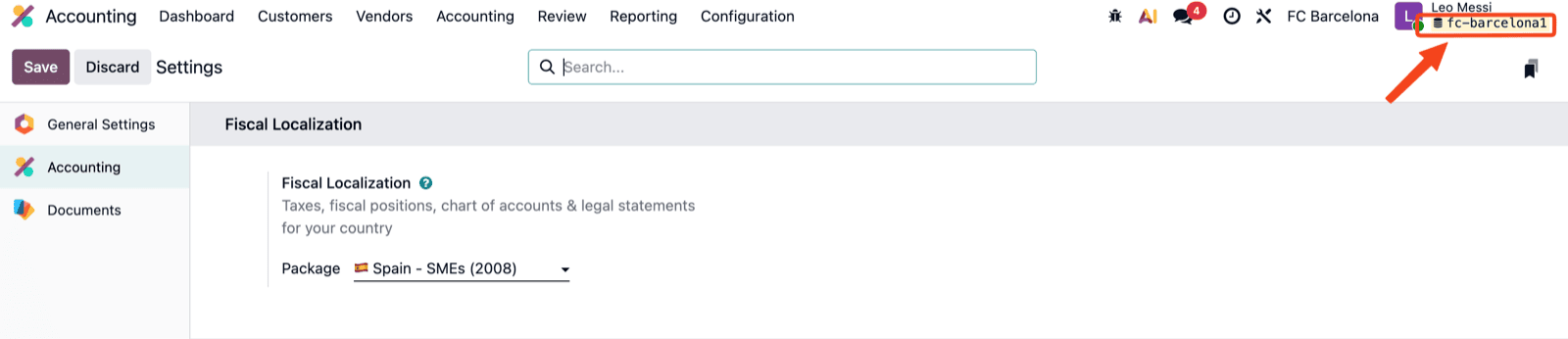
* Uw databasenaam verschijnt rechtsboven onder uw gebruikersnaam.
3. **Zoek uw databasenaam**
* Activeer de ontwikkelaarsmodus in Odoo.
* Uw databasenaam verschijnt rechtsboven onder uw gebruikersnaam.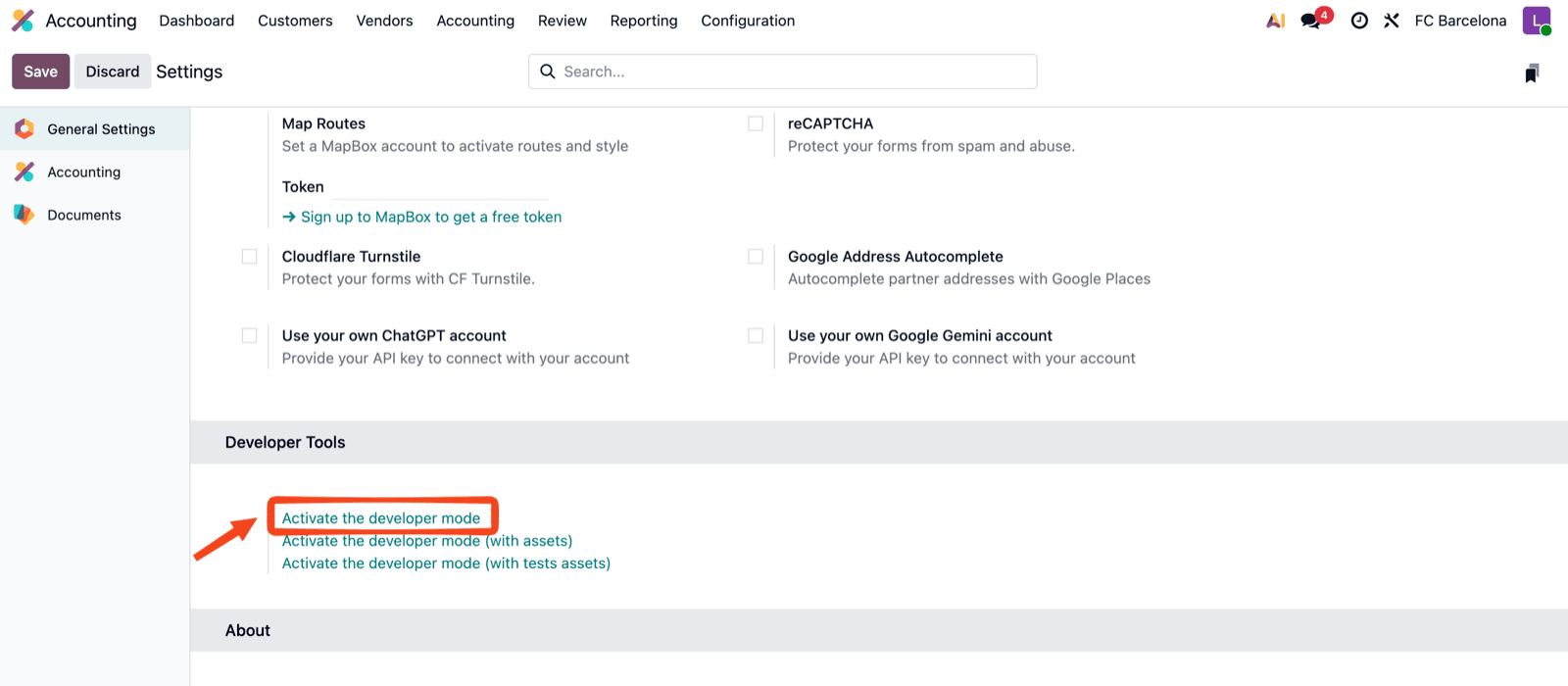
 # ⚡️ VERBINDING
**Stap 1:** Kies een naam voor uw verbinding. (Als het veld voor de verbindingsnaam niet zichtbaar is, kunt u deze stap overslaan en verdergaan.)
# ⚡️ VERBINDING
**Stap 1:** Kies een naam voor uw verbinding. (Als het veld voor de verbindingsnaam niet zichtbaar is, kunt u deze stap overslaan en verdergaan.)
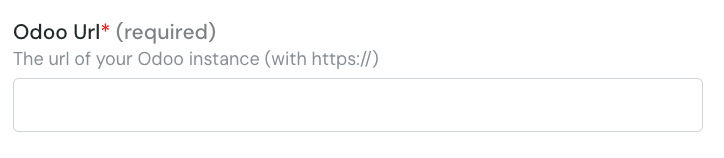
 **Stap 2:** Voer de url van uw Odoo-instantie in.
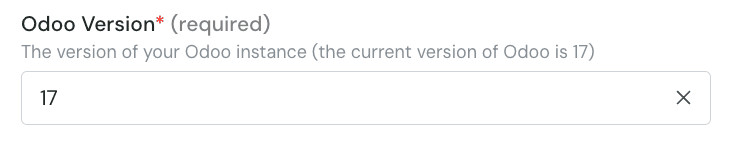
 **Stap 3:** Voer de versie van uw Odoo-account in.
 **Stap 4:** Voer de databasenaam in
 **Stap 5:** Voer de gebruikersnaam van uw Odoo-account in.
 **Stap 6:** Voer het wachtwoord van uw Odoo-account in.
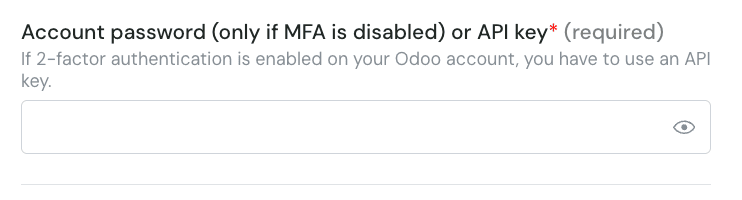 ⚠ Let op: als u MFA hebt geactiveerd op uw Odoo-account, moet u een API-sleutel instellen en deze gebruiken in plaats van uw wachtwoord.
**Stap 6-1:** Als u een API-sleutel moet genereren, log in op Odoo en klik op de knop rechtsboven en op "voorkeuren".
⚠ Let op: als u MFA hebt geactiveerd op uw Odoo-account, moet u een API-sleutel instellen en deze gebruiken in plaats van uw wachtwoord.
**Stap 6-1:** Als u een API-sleutel moet genereren, log in op Odoo en klik op de knop rechtsboven en op "voorkeuren".
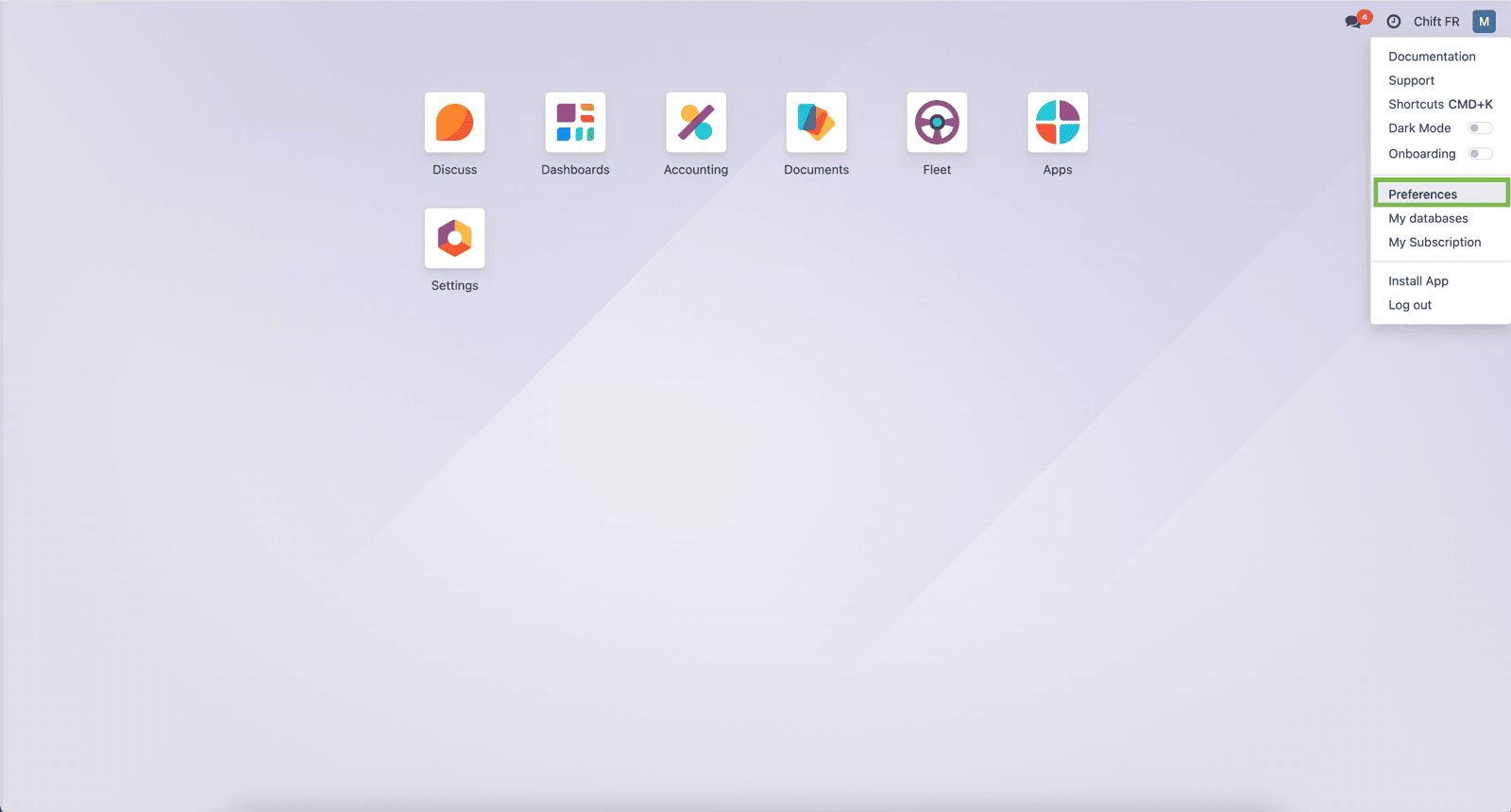 **Stap 6-2:** Selecteer "Accountbeveiliging"
 **Stap 6-3:** Selecteer "Nieuwe API-sleutel"
 **Stap 6-4:** Vul uw wachtwoord in
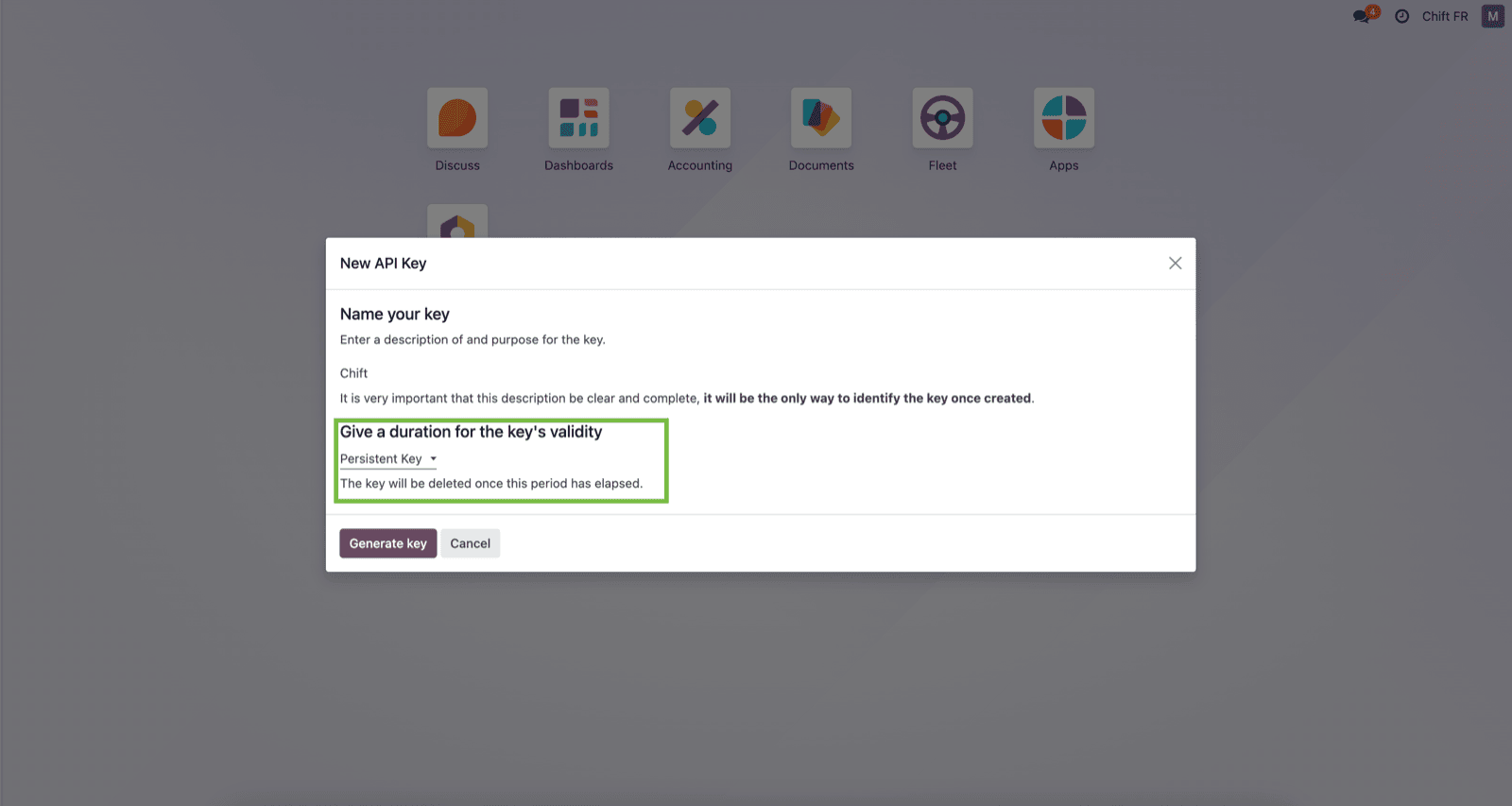
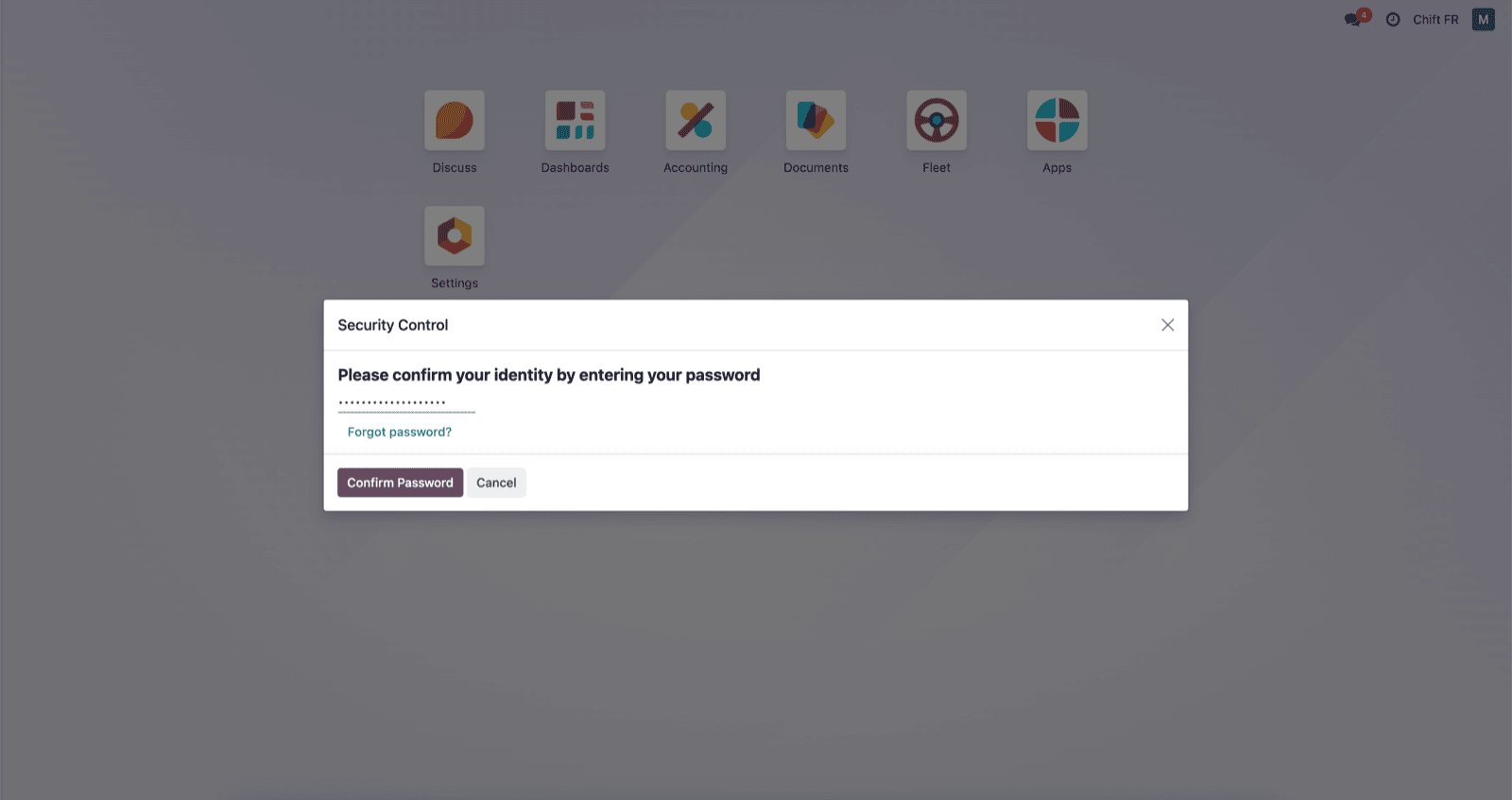 **Stap 6-5:** Geef uw API-sleutel een naam en geef "permanente sleutel" als duur op.
 **Stap 6-6:** Hier is uw API-sleutel die u in de Chift-funnel kunt gebruiken om Odoo te verbinden.
 **Stap 7:** Klik op "Verbinden" om de verbinding af te ronden.
 # CONFIGURATIE
**Stap 1:** Selecteer het bedrijf waarmee u verbinding wilt maken in Odoo.
# CONFIGURATIE
**Stap 1:** Selecteer het bedrijf waarmee u verbinding wilt maken in Odoo.
 **Stap 2:** Klik op "Verzenden" om de configuratie af te ronden
 # 🧯 PROBLEEMOPLOSSING
| Symptoom | Oorzaak | Oplossing |
| - | - | - |
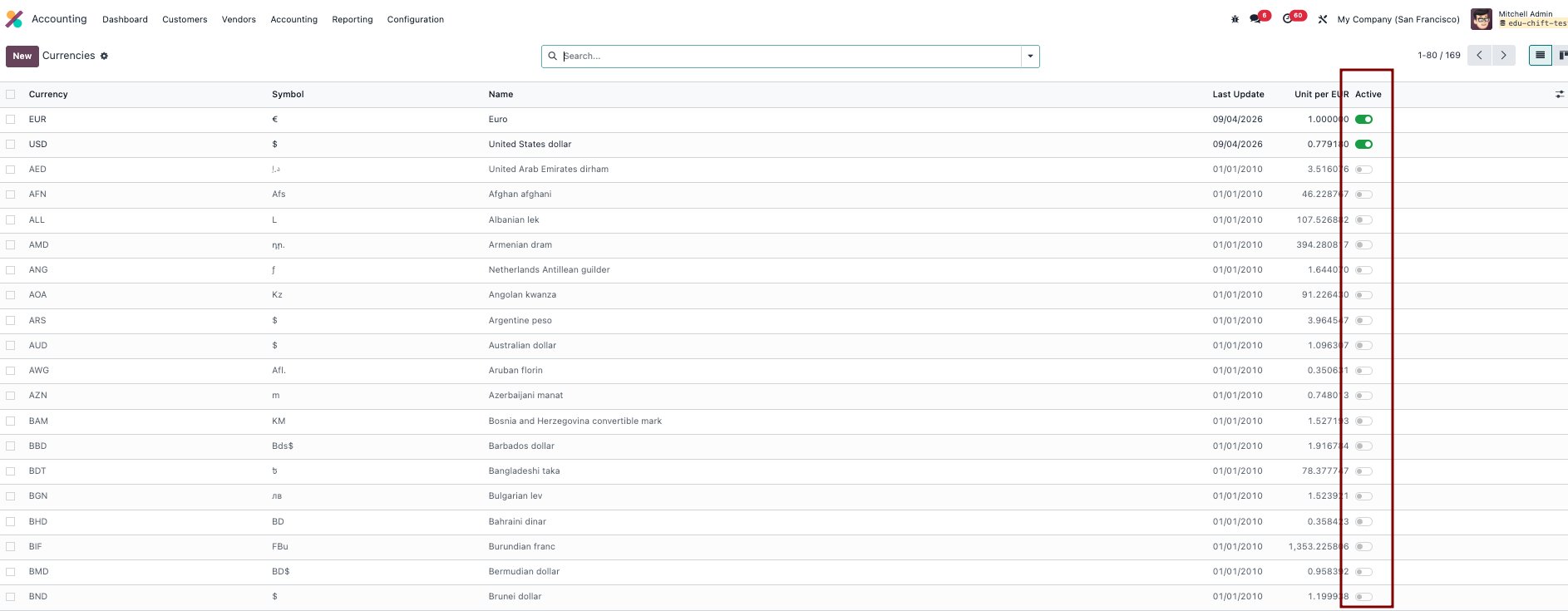
| Het aanmaken van een bankrekening of een andere instantie in Odoo met een vreemde valuta mislukt | De valuta is niet geactiveerd in Odoo | Ga in Odoo naar **Boekhouding → Configuratie → Valuta's** en zet de schakelaar **Actief** aan voor de gewenste valuta, probeer het dan opnieuw. |
# 🧯 PROBLEEMOPLOSSING
| Symptoom | Oorzaak | Oplossing |
| - | - | - |
| Het aanmaken van een bankrekening of een andere instantie in Odoo met een vreemde valuta mislukt | De valuta is niet geactiveerd in Odoo | Ga in Odoo naar **Boekhouding → Configuratie → Valuta's** en zet de schakelaar **Actief** aan voor de gewenste valuta, probeer het dan opnieuw. |