> ## Documentation Index
> Fetch the complete documentation index at: https://docs.chift.eu/llms.txt
> Use this file to discover all available pages before exploring further.
# Zelty
# **PREPARATION**
There are two possible configurations depending on whether your software vendor is available on Zelty’s Marketplace.
### Case 1: Your software vendor is available on the Marketplace
1. Go to **Zelty’s Marketplace**.
 2. Find your software vendor’s application and open its card.
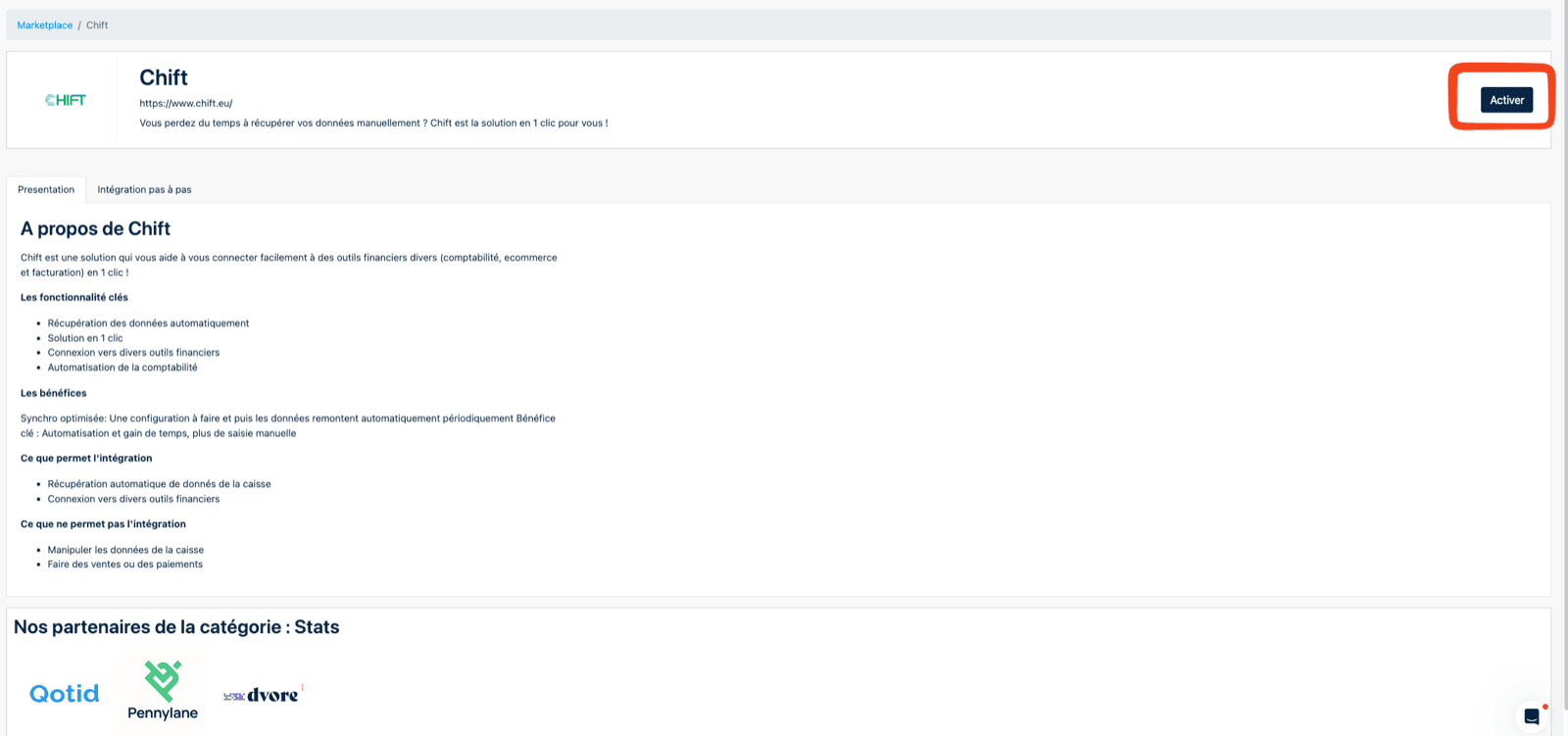
3. If the application is not yet active, click **Activate**.\
If it is already active, the status will be **Activated**.
2. Find your software vendor’s application and open its card.
3. If the application is not yet active, click **Activate**.\
If it is already active, the status will be **Activated**.
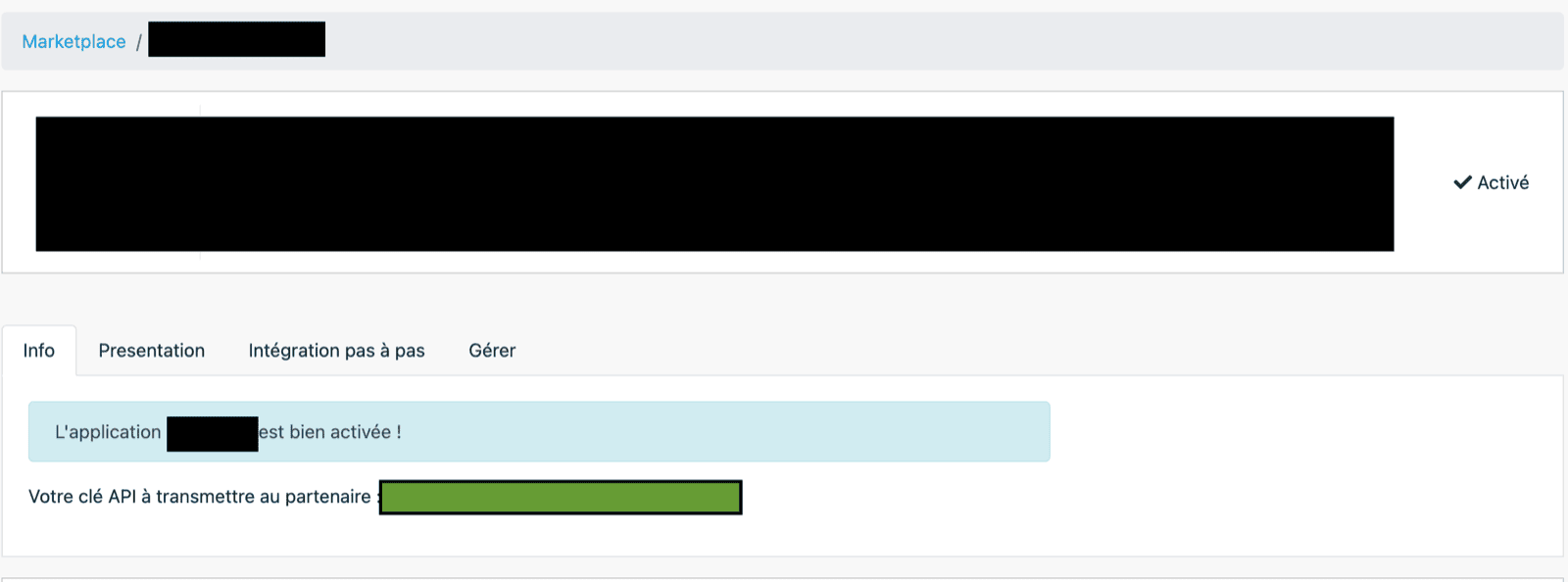
 4. Once activated, copy the **API key** displayed.
⚠ If an API key was already generated in the past, Zelty will only display a masked version (for example: `MTY123******IHA=`).\
This is **not** the full API key. It is only shown to help you identify it.
4. Once activated, copy the **API key** displayed.
⚠ If an API key was already generated in the past, Zelty will only display a masked version (for example: `MTY123******IHA=`).\
This is **not** the full API key. It is only shown to help you identify it.
 If you no longer have access to the original API key, you will need to generate a new one (see “**Lost API key**” below).
***
### Case 2: Your software vendor is **not** available on the Marketplace
If your vendor does not appear on Zelty’s Marketplace:
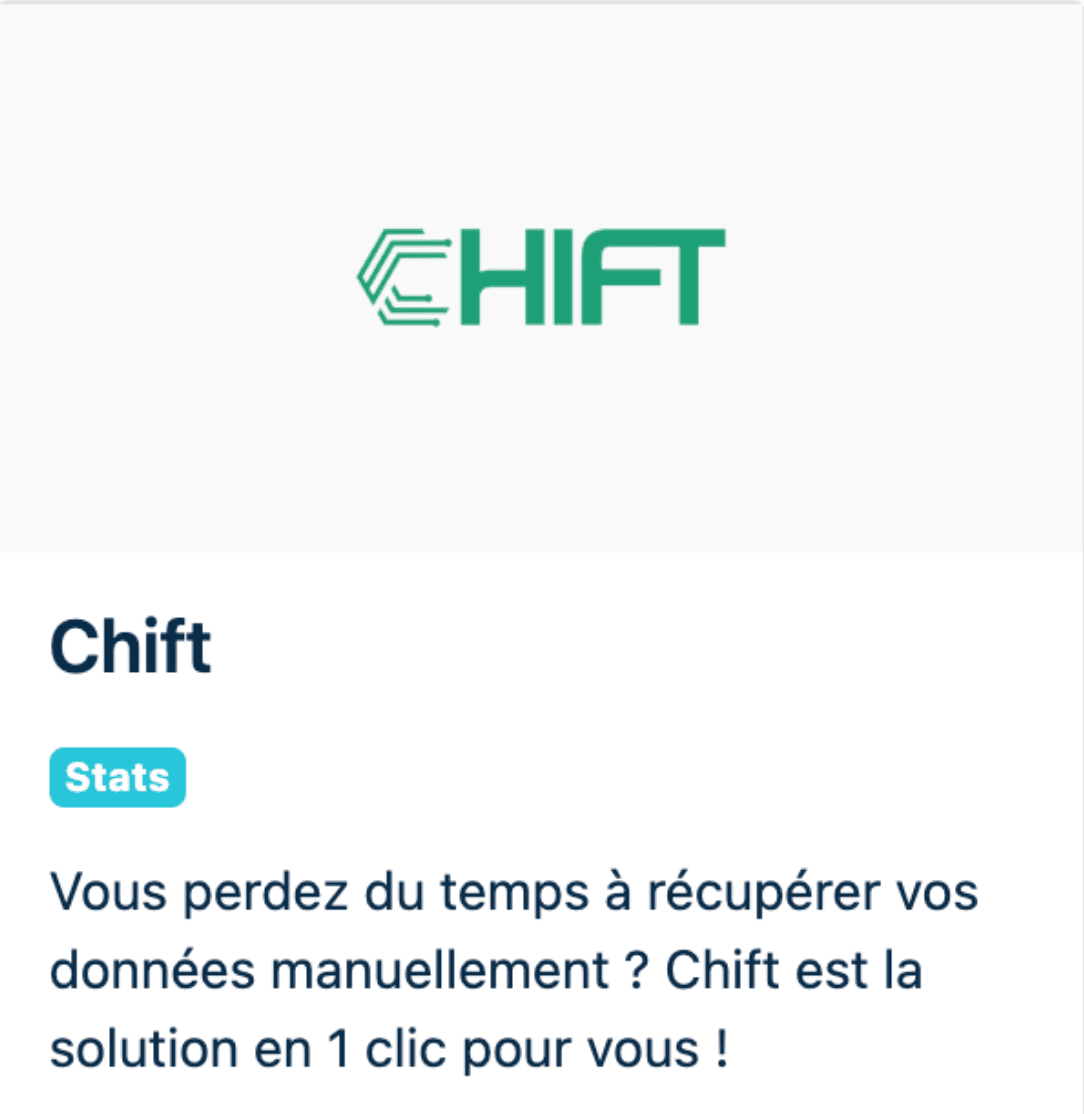
1. Open **CHIFT’s application card** instead.
If you no longer have access to the original API key, you will need to generate a new one (see “**Lost API key**” below).
***
### Case 2: Your software vendor is **not** available on the Marketplace
If your vendor does not appear on Zelty’s Marketplace:
1. Open **CHIFT’s application card** instead.
 2. Follow the steps described in "**Case 1"** to activate the application if it is not already activated.
3. Copy the generated **API key**.
***
### Lost API key
If you have lost your API key and only see a masked version:
1. Go to the **Manage** tab of the application.
2. **Deactivate** the application.
3. **Reactivate** it.
A **new API key** will be generated.\
Be aware that this will **invalidate all existing integrations** using the previous key.
# CONNECTION
**Step 1:** Choose a name for your connection.
2. Follow the steps described in "**Case 1"** to activate the application if it is not already activated.
3. Copy the generated **API key**.
***
### Lost API key
If you have lost your API key and only see a masked version:
1. Go to the **Manage** tab of the application.
2. **Deactivate** the application.
3. **Reactivate** it.
A **new API key** will be generated.\
Be aware that this will **invalidate all existing integrations** using the previous key.
# CONNECTION
**Step 1:** Choose a name for your connection.
 **Step 2:** Enter the API Key.
 **Step 3:** Click "Connect" to finalise the connection.