> ## Documentation Index
> Fetch the complete documentation index at: https://docs.chift.eu/llms.txt
> Use this file to discover all available pages before exploring further.
# Shopcaisse
# Prerequisites
1. Activate Chift's module:
1. Go to Modules & Subscriptions
2. Click on "Cash register modules"
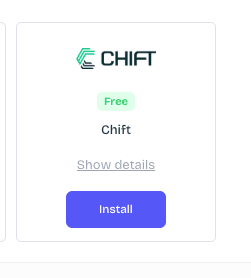
3. Click on "Install" on Chift's module
 d. Once this is done, click again on the application and open the settings
e. You are now able to copy the API token that you will need to use to create the connection
Note that this needs to be done for each of your stores that you want to connect
# CONNEXION
**Step 1:** Choose a name for your connection (optional)
d. Once this is done, click again on the application and open the settings
e. You are now able to copy the API token that you will need to use to create the connection
Note that this needs to be done for each of your stores that you want to connect
# CONNEXION
**Step 1:** Choose a name for your connection (optional)
 **Step 2:** Enter the API key that you created previously
 **Step 4:** Click "Connect" to finalise the connection.