> ## Documentation Index
> Fetch the complete documentation index at: https://docs.chift.eu/llms.txt
> Use this file to discover all available pages before exploring further.

# Oracle Simphony

# PREPARATION

Contact your Oracle Account Manager to setup the BI API. This requires an additional license and is linked to the Reporting & Analytics portal & the BI API.

The following versions are needed:

* Min. 20.1 for the Reporting & Analytics portal
* Access to the BI API

Once setup by Oracle, you will receive the following information to connect:

* Authentication API BI URL Domain (URL with .oracleindustry.com/oidc-provider/v1/oauth2)
* BI API URL Domain (URL with /bi/v1)
* Client ID
* API username
* API password
* Enterprise Short Name (OPN by default)

This is what you need to fill in the form.

# CONNEXION

**Step 1:** Choose a name for your connection.

<img src="https://mintcdn.com/chift/BdpOGZbsoSOAHSl9/images/help/oracle-simphonypreparation/oracle-simphonypreparation-1.png?fit=max&auto=format&n=BdpOGZbsoSOAHSl9&q=85&s=16b616a4e5a1c5ab9bbdd1bf7a09fcb3" alt="" width="868" height="186" data-path="images/help/oracle-simphonypreparation/oracle-simphonypreparation-1.png" />

**Step 2:** Enter the subdomain of the BI authentication url (see above)
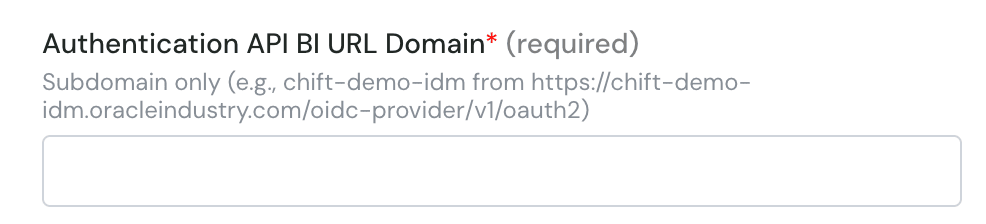
<img src="https://mintcdn.com/chift/BdpOGZbsoSOAHSl9/images/help/oracle-simphonypreparation/oracle-simphonypreparation-2.png?fit=max&auto=format&n=BdpOGZbsoSOAHSl9&q=85&s=593ae17ab16a1bf7230144c58e531001" alt="image.png" width="986" height="224" data-path="images/help/oracle-simphonypreparation/oracle-simphonypreparation-2.png" />

**Step 3:** Enter the subdomain of the BI API url (see above)
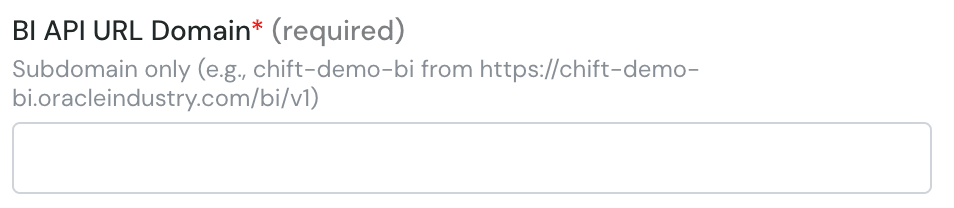
<img src="https://mintcdn.com/chift/BdpOGZbsoSOAHSl9/images/help/oracle-simphonypreparation/oracle-simphonypreparation-3.png?fit=max&auto=format&n=BdpOGZbsoSOAHSl9&q=85&s=ac2406e141b3f1a8829d69fa858059c3" alt="image.png" width="954" height="208" data-path="images/help/oracle-simphonypreparation/oracle-simphonypreparation-3.png" />

**Step 4:** Enter the client id

<img src="https://mintcdn.com/chift/BdpOGZbsoSOAHSl9/images/help/oracle-simphonypreparation/oracle-simphonypreparation-4.png?fit=max&auto=format&n=BdpOGZbsoSOAHSl9&q=85&s=f163aebdae474e496b639da3f3c301df" alt="image.png" width="956" height="144" data-path="images/help/oracle-simphonypreparation/oracle-simphonypreparation-4.png" />

**Step 5:** Enter API username

<img src="https://mintcdn.com/chift/BdpOGZbsoSOAHSl9/images/help/oracle-simphonypreparation/oracle-simphonypreparation-5.png?fit=max&auto=format&n=BdpOGZbsoSOAHSl9&q=85&s=a71b04b0d32ac3729058526182d781c6" alt="image.png" width="956" height="158" data-path="images/help/oracle-simphonypreparation/oracle-simphonypreparation-5.png" />

**Step 6:** Enter the enterprise short name (e.g. OPN)

<img src="https://mintcdn.com/chift/BdpOGZbsoSOAHSl9/images/help/oracle-simphonypreparation/oracle-simphonypreparation-6.png?fit=max&auto=format&n=BdpOGZbsoSOAHSl9&q=85&s=7b62c022964d52b0c67746f8aaaa25ff" alt="image.png" width="960" height="156" data-path="images/help/oracle-simphonypreparation/oracle-simphonypreparation-6.png" />

**Step 7:** Enter API password

<img src="https://mintcdn.com/chift/BdpOGZbsoSOAHSl9/images/help/oracle-simphonypreparation/oracle-simphonypreparation-7.png?fit=max&auto=format&n=BdpOGZbsoSOAHSl9&q=85&s=494a264ae62003700bb017c02c2a2a3a" alt="image.png" width="952" height="138" data-path="images/help/oracle-simphonypreparation/oracle-simphonypreparation-7.png" />

<img src="https://mintcdn.com/chift/BdpOGZbsoSOAHSl9/images/help/oracle-simphonypreparation/oracle-simphonypreparation-8.png?fit=max&auto=format&n=BdpOGZbsoSOAHSl9&q=85&s=73a5e5cd961f6bc4921620b7fc29356e" alt="" width="110" height="47" data-path="images/help/oracle-simphonypreparation/oracle-simphonypreparation-8.png" />