> ## Documentation Index
> Fetch the complete documentation index at: https://docs.chift.eu/llms.txt
> Use this file to discover all available pages before exploring further.
# L'Addition
# PREREQUISITE
* have an Addition Premium Account to be able to benefit from integrations.
# PREPARATION
From your account l'Addition, select the partner you want to connect to Laddition.
 If you do not manage to find the partner you want to connect, please select "Chift" as the partner to connect.
 You can then follow the activation steps of the partner in order to generate your authentication key enabling you to establish a connection with the Addition.
Here is the [link](https://laddition.slite.page/p/OuMkennDjrX2Bc/L-Addition-and-Chift-Guide-d-integration) to the explanatory documentation of L'Addition. (Only available in French - we provide below the translated version)
#### **L'Addition & Chift - Integration Guide**
**Context**
The integration of L'Addition x Chift allows for the synchronization of sales data from the cash register with Chift and its partners.
Chift offers a one-click connectivity solution that enables easy connection from the same Chift connector to various financial tools (accounting, e-commerce, invoicing).
**Automatic Onboarding**
1. **Partner Activation**\
To start your Chift integration with L’Addition, go to your reporting at [reporting.laddition.com](http://reporting.laddition.com/).
Then click on the Partner Activation box > Then search for the Chift tile.
2. **Unlock the Connector**\
Connectors to L’Addition partners are available to L’Addition customers who have subscribed to the premium package.
The closed padlock at the bottom right of the Chift tile indicates that the package is not unlocked.
Click on Unlock to initiate a quote request.
You can then follow the activation steps of the partner in order to generate your authentication key enabling you to establish a connection with the Addition.
Here is the [link](https://laddition.slite.page/p/OuMkennDjrX2Bc/L-Addition-and-Chift-Guide-d-integration) to the explanatory documentation of L'Addition. (Only available in French - we provide below the translated version)
#### **L'Addition & Chift - Integration Guide**
**Context**
The integration of L'Addition x Chift allows for the synchronization of sales data from the cash register with Chift and its partners.
Chift offers a one-click connectivity solution that enables easy connection from the same Chift connector to various financial tools (accounting, e-commerce, invoicing).
**Automatic Onboarding**
1. **Partner Activation**\
To start your Chift integration with L’Addition, go to your reporting at [reporting.laddition.com](http://reporting.laddition.com/).
Then click on the Partner Activation box > Then search for the Chift tile.
2. **Unlock the Connector**\
Connectors to L’Addition partners are available to L’Addition customers who have subscribed to the premium package.
The closed padlock at the bottom right of the Chift tile indicates that the package is not unlocked.
Click on Unlock to initiate a quote request.
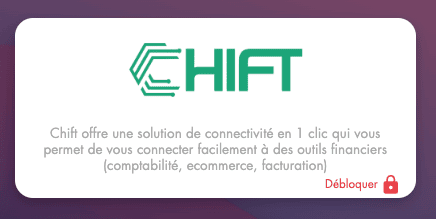 Once the quote is signed, the padlock will appear open, and you can start configuring your Chift connector.\
3. **Start Configuration**\
From the Chift tile (open padlock) > click on Configure.
Once the quote is signed, the padlock will appear open, and you can start configuring your Chift connector.\
3. **Start Configuration**\
From the Chift tile (open padlock) > click on Configure.
 Then click on Start Configuration
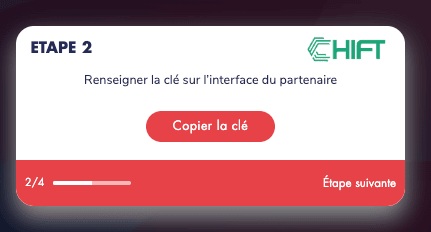
 Next, you will need to copy the key so you can enter it into the Chift interface.\
 \
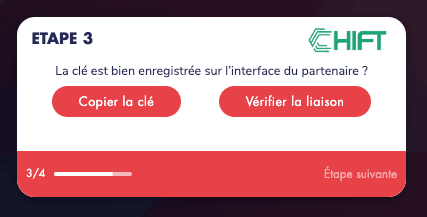
Once you have saved the key on the Chift interface, return to your L'Addition partner interface and click on **Verify Connection**.\
\
Once you have saved the key on the Chift interface, return to your L'Addition partner interface and click on **Verify Connection**.\
 There you go, you are integrated with Chift, the tile is displayed in your active partners!\
 At any time, you can retrieve your partner key by clicking on the small (i) at the top left of the connector.
***
# CONNEXION
**Étape 1:** Choisissez un nom pour votre connection.
At any time, you can retrieve your partner key by clicking on the small (i) at the top left of the connector.
***
# CONNEXION
**Étape 1:** Choisissez un nom pour votre connection.
 **Étape 2:** Renseignez votre clé d'authentification, précédemment trouvée sur votre compte l'Addition
 **Étape 3:** Cliquez sur "Connecter" pour finaliser la connection.