> ## Documentation Index
> Fetch the complete documentation index at: https://docs.chift.eu/llms.txt
> Use this file to discover all available pages before exploring further.
# Hiboutik
# PREREQUISITE
* You need to preconfigure your user rights and find your API information by doing the preparation steps 1 and 2 described below.
* Be a Hiboutik "Premium" client.\
(Warning: Hiboutik does not allow data retrieval via the API for dates prior to the subscription period)
# **PREPARATION**
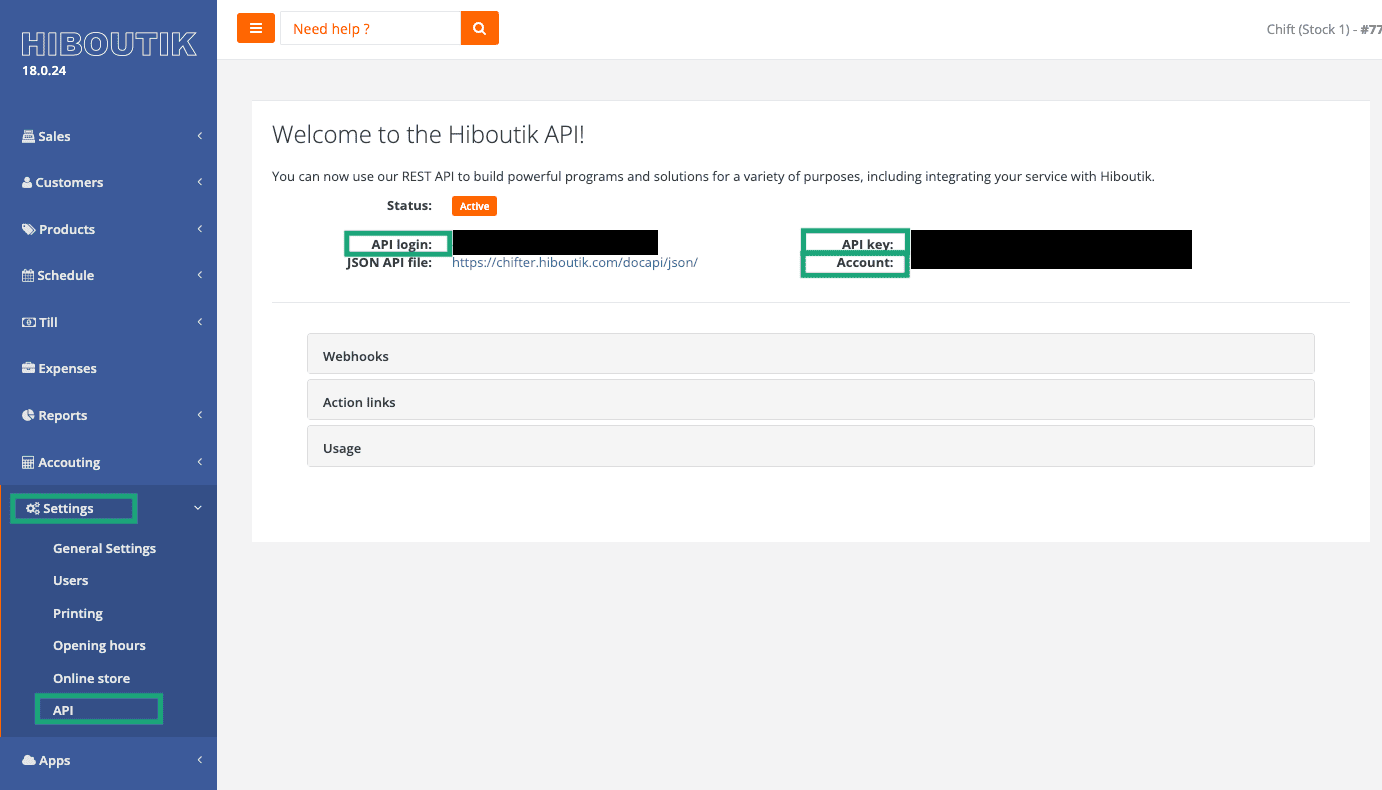
1. ## Find your client API information:
1. API login
2. API Key
3. Account
Go to your Hiboutik account, on the left side menu, find: Parameters → API.
 ## 2. Configure your account permissions (the user account corresponding to the API login email)
You can find the permissions of the users by going to the tab Settings > Users > Access management and by checking the permissions of the user that you are going to use to create the connection.
To be able to create the connection to your Hiboutik account, the account that you are going to use needs to have the following permissions:
* 1. Sales Tab
* 35. Show pending sales
* 37. Show validated sales
* 99. Customers Tab
* 120. Products Tab
* 176. Syntheses Tab and all sub permissions enables
* 186. Show summaries: monthly, annual, customers, stock and others
* 189. Onglet Paramètres
* 200. Manage point of sale identification
* 202. Manage VAT rates
# CONNEXION
**Step 1:** Choose a name for your connection.
## 2. Configure your account permissions (the user account corresponding to the API login email)
You can find the permissions of the users by going to the tab Settings > Users > Access management and by checking the permissions of the user that you are going to use to create the connection.
To be able to create the connection to your Hiboutik account, the account that you are going to use needs to have the following permissions:
* 1. Sales Tab
* 35. Show pending sales
* 37. Show validated sales
* 99. Customers Tab
* 120. Products Tab
* 176. Syntheses Tab and all sub permissions enables
* 186. Show summaries: monthly, annual, customers, stock and others
* 189. Onglet Paramètres
* 200. Manage point of sale identification
* 202. Manage VAT rates
# CONNEXION
**Step 1:** Choose a name for your connection.
 **Step 2:** Enter your account name, which you previously found on Hiboutik.
 **Step 3:** Enter your API login, which you previously found on your Hiboutik.
 **Step 4:** Enter your API key, which you previously found on your Hiboutik API page
 **Step 5:** Click "Connect" to finalise the connection.
 # CONFIGURATION
**Step 1:** Select your point of sale.
# CONFIGURATION
**Step 1:** Select your point of sale.
 **Step 2:** Click "Submit" to complete the configuration.