> ## Documentation Index
> Fetch the complete documentation index at: https://docs.chift.eu/llms.txt
> Use this file to discover all available pages before exploring further.

# Oracle Opera

# PREPARATION

Contact your Oracle Account Manager to setup the Oracle Opera API and obtain the necessary credentials:

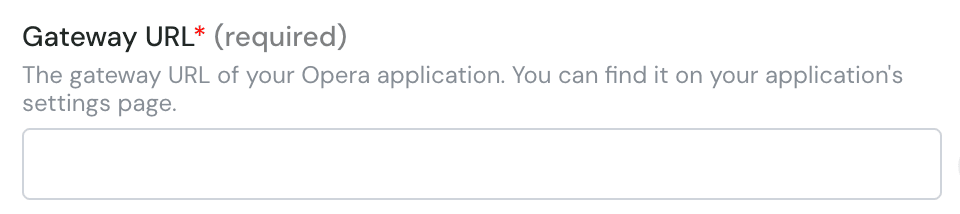
* Gateway URL
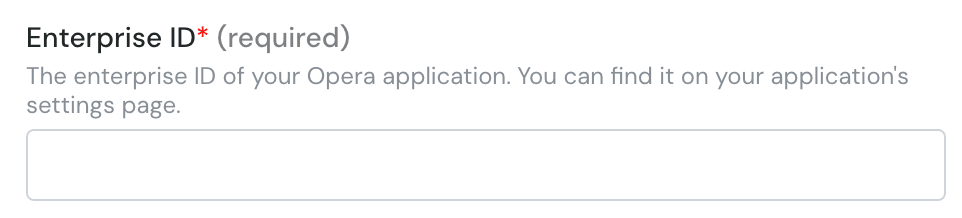
* Enterprise ID
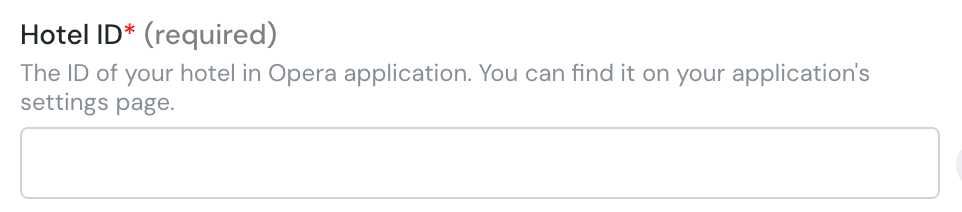
* Hotel ID
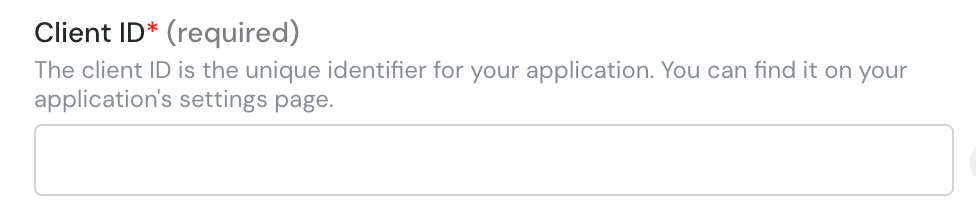
* Client ID
* Client Secret
* Application key

This is what you need to fill in the form.

# CONNEXION

**Step 1:** Choose a name for your connection.

<img src="https://mintcdn.com/chift/BdpOGZbsoSOAHSl9/images/help/oracle-opera/oracle-opera-1.png?fit=max&auto=format&n=BdpOGZbsoSOAHSl9&q=85&s=78c1094c5520d06929404cca7b106c34" alt="" width="868" height="186" data-path="images/help/oracle-opera/oracle-opera-1.png" />

**Step 2:** Enter the gateway url

<img src="https://mintcdn.com/chift/BdpOGZbsoSOAHSl9/images/help/oracle-opera/oracle-opera-2.png?fit=max&auto=format&n=BdpOGZbsoSOAHSl9&q=85&s=b2fef18f8913f6f6b9386a678bf01a82" alt="image.png" width="960" height="214" data-path="images/help/oracle-opera/oracle-opera-2.png" />

**Step 3:** Enter the enterprise ID

<img src="https://mintcdn.com/chift/BdpOGZbsoSOAHSl9/images/help/oracle-opera/oracle-opera-3.png?fit=max&auto=format&n=BdpOGZbsoSOAHSl9&q=85&s=36e6456afcb2d78db97345f8e5d24a1a" alt="image.png" width="962" height="218" data-path="images/help/oracle-opera/oracle-opera-3.png" />

**Step 4:** Enter the hotel id

<img src="https://mintcdn.com/chift/BdpOGZbsoSOAHSl9/images/help/oracle-opera/oracle-opera-4.png?fit=max&auto=format&n=BdpOGZbsoSOAHSl9&q=85&s=b9ad6788be68c83dd106fc6fdea4447c" alt="image.png" width="962" height="212" data-path="images/help/oracle-opera/oracle-opera-4.png" />

**Step 5:** Enter client id

<img src="https://mintcdn.com/chift/BdpOGZbsoSOAHSl9/images/help/oracle-opera/oracle-opera-5.png?fit=max&auto=format&n=BdpOGZbsoSOAHSl9&q=85&s=ecfb5689d8ec668e2f570717cc1a90a8" alt="image.png" width="976" height="216" data-path="images/help/oracle-opera/oracle-opera-5.png" />

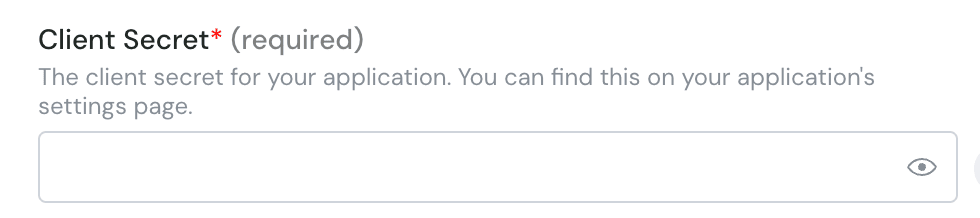
**Step 6:** Enter client secret

<img src="https://mintcdn.com/chift/BdpOGZbsoSOAHSl9/images/help/oracle-opera/oracle-opera-6.png?fit=max&auto=format&n=BdpOGZbsoSOAHSl9&q=85&s=4fa19e1890fc85dcc2f84e25673e2eeb" alt="image.png" width="980" height="218" data-path="images/help/oracle-opera/oracle-opera-6.png" />

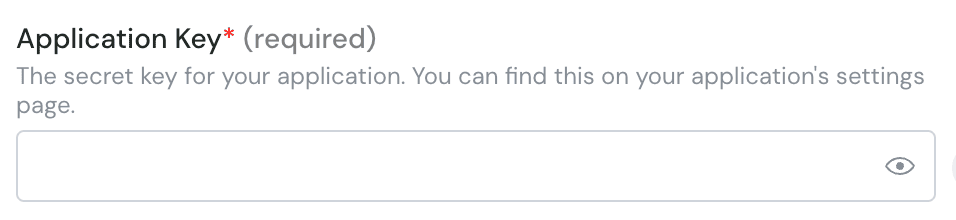
**Step 7:** Enter the application key

<img src="https://mintcdn.com/chift/BdpOGZbsoSOAHSl9/images/help/oracle-opera/oracle-opera-7.png?fit=max&auto=format&n=BdpOGZbsoSOAHSl9&q=85&s=95e30817d655f32dce894e184e0152e3" alt="image.png" width="956" height="220" data-path="images/help/oracle-opera/oracle-opera-7.png" />

<img src="https://mintcdn.com/chift/BdpOGZbsoSOAHSl9/images/help/oracle-opera/oracle-opera-8.png?fit=max&auto=format&n=BdpOGZbsoSOAHSl9&q=85&s=bf0c6e9d0ac36ba2db04557e2feb452a" alt="" width="110" height="47" data-path="images/help/oracle-opera/oracle-opera-8.png" />