> ## Documentation Index
> Fetch the complete documentation index at: https://docs.chift.eu/llms.txt
> Use this file to discover all available pages before exploring further.
# AirWallex
## 🚨Prerequisites
* You must have an active **Airwallex account** (business accounts only).
* You must be an **admin** on your Airwallex account (or have sufficient permissions) to access the API keys section.
***
## 🔑 Where to find your credentials
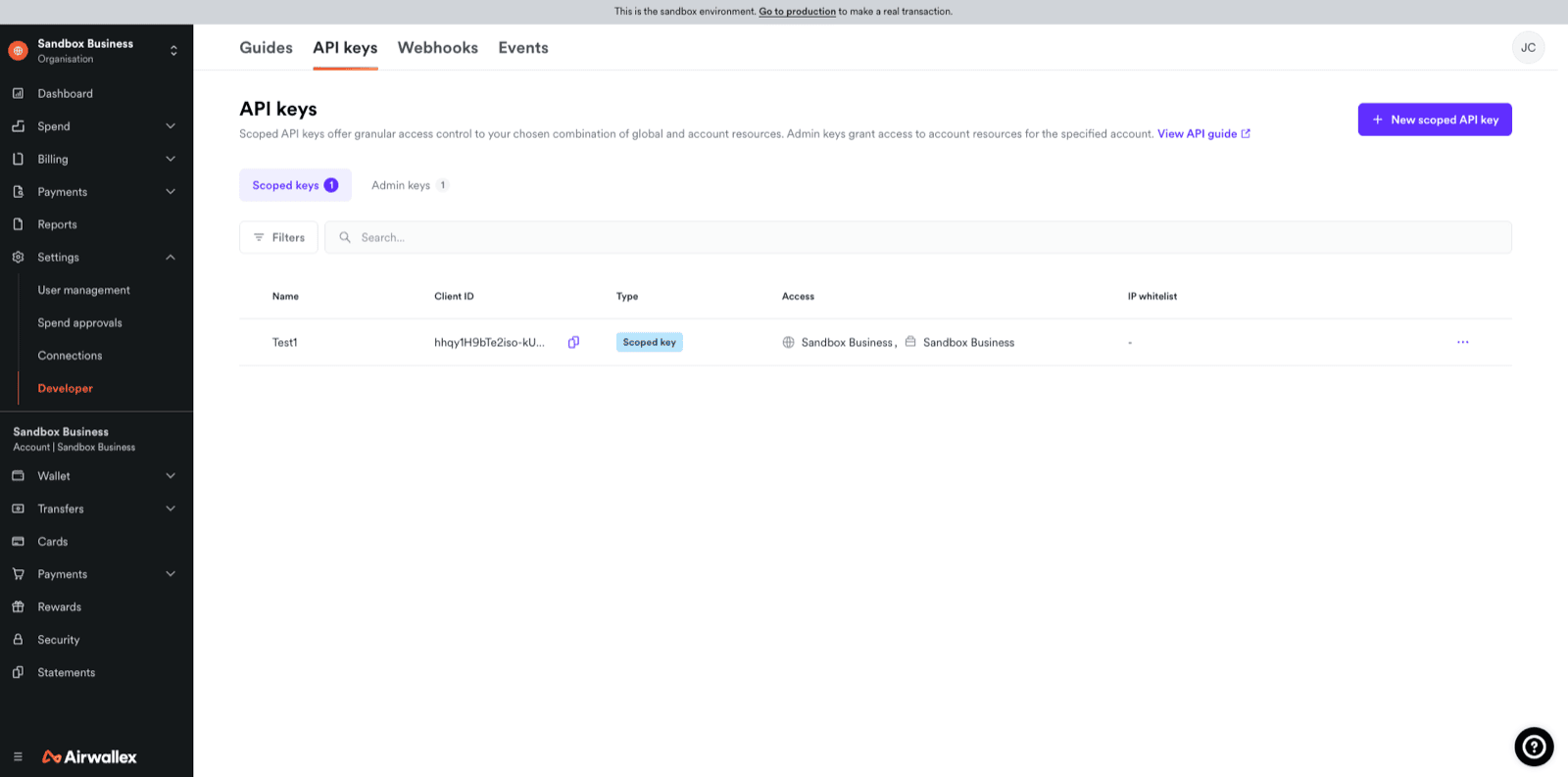
You will need two credentials to connect Airwallex to Chift: your **Client ID** and your **API Key**.
Both are available in the Airwallex web app:
1. Log in to your Airwallex account at [app.airwallex.com](http://app.airwallex.com)
2. Go to **Settings** → **Developer** → **API keys**
 ### Client ID
Your Client ID is displayed on the **API keys** page. It is a fixed identifier for your account and does not change.
### API Key
⚠ Your API Key is shown **only once** at the time of creation. If you have already generated a key but did not save it, you will need to regenerate one.
To generate a new API Key:
1. On the **API keys** page, click **Generate** next to your organization or account.
2. Enter your login password when prompted.
3. **Copy the generated key immediately** and store it securely (e.g. in a password manager). You will not be able to view it again in the web app.
Regenerating an API Key will invalidate your previous key. If Chift was already connected using an older key, you will need to update the connection with the new key.
***
## ⚡ Connection
**Step 1:** Choose a name for your connection.
**Step 2:** Enter your Airwallex **Client ID** and **API Key** in the fields provided.
### Client ID
Your Client ID is displayed on the **API keys** page. It is a fixed identifier for your account and does not change.
### API Key
⚠ Your API Key is shown **only once** at the time of creation. If you have already generated a key but did not save it, you will need to regenerate one.
To generate a new API Key:
1. On the **API keys** page, click **Generate** next to your organization or account.
2. Enter your login password when prompted.
3. **Copy the generated key immediately** and store it securely (e.g. in a password manager). You will not be able to view it again in the web app.
Regenerating an API Key will invalidate your previous key. If Chift was already connected using an older key, you will need to update the connection with the new key.
***
## ⚡ Connection
**Step 1:** Choose a name for your connection.
**Step 2:** Enter your Airwallex **Client ID** and **API Key** in the fields provided.
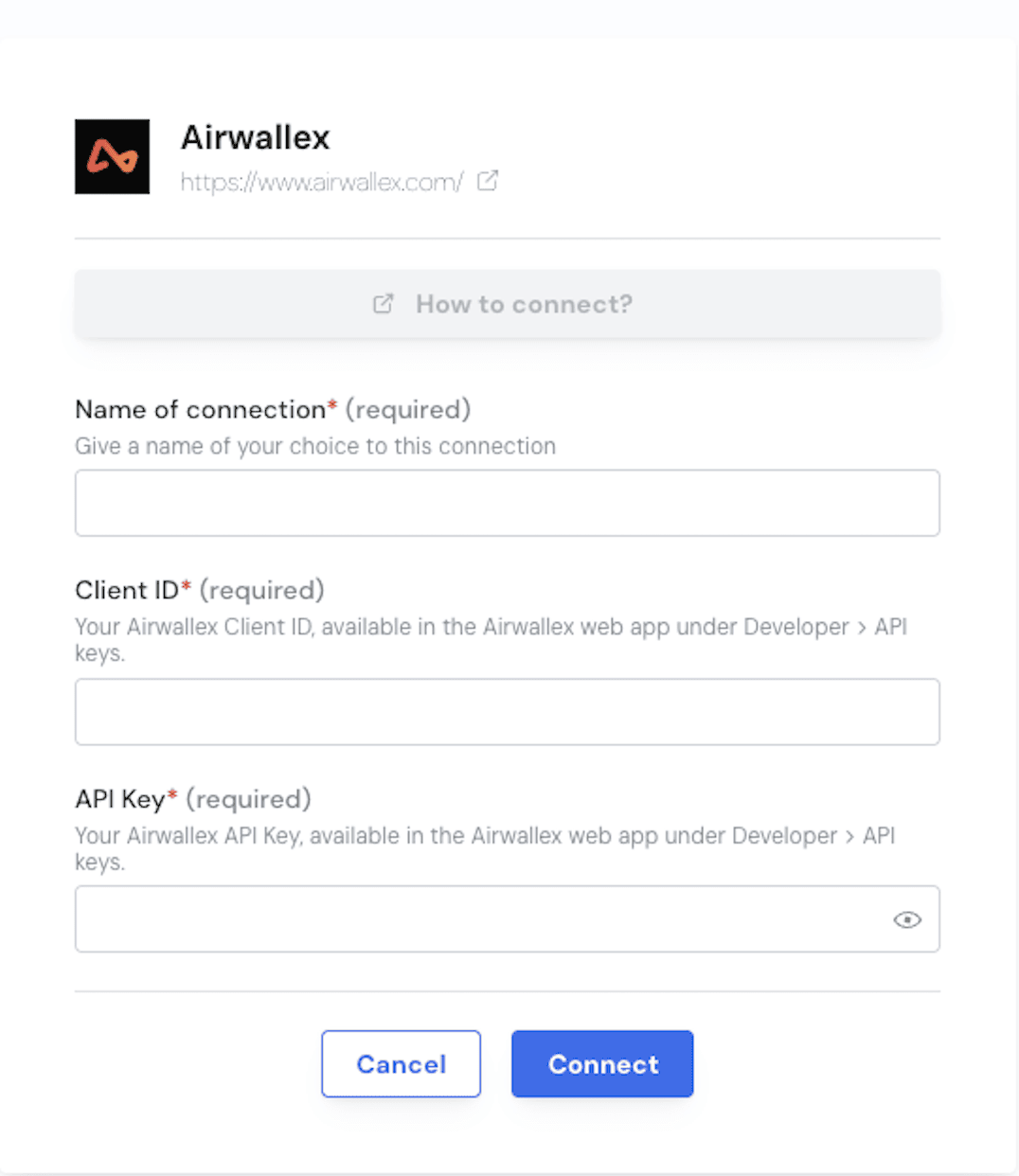 **Step 3:** Click **"Connect"** to finalise the connection.
Your Airwallex account is now connected to Chift. Chift will use these credentials to retrieve data from your account via read-only API calls.
***
## ❓ Troubleshooting
| Issue | What to do |
| ------------------------------------ | ---------------------------------------------------------------------------------------------------------------------------------------- |
| "Invalid credentials" error | Double-check that you copied the Client ID and API Key correctly — no extra spaces or missing characters. |
| API Key field says it's invalid | Your API Key may have been regenerated or revoked. Go back to Airwallex → Settings → Developer → API keys and generate a new one. |
| You can't find the Developer section | Make sure your Airwallex user role has access to developer settings. Contact your Airwallex account admin if the section is not visible. |
**Step 3:** Click **"Connect"** to finalise the connection.
Your Airwallex account is now connected to Chift. Chift will use these credentials to retrieve data from your account via read-only API calls.
***
## ❓ Troubleshooting
| Issue | What to do |
| ------------------------------------ | ---------------------------------------------------------------------------------------------------------------------------------------- |
| "Invalid credentials" error | Double-check that you copied the Client ID and API Key correctly — no extra spaces or missing characters. |
| API Key field says it's invalid | Your API Key may have been regenerated or revoked. Go back to Airwallex → Settings → Developer → API keys and generate a new one. |
| You can't find the Developer section | Make sure your Airwallex user role has access to developer settings. Contact your Airwallex account admin if the section is not visible. |