> ## Documentation Index
> Fetch the complete documentation index at: https://docs.chift.eu/llms.txt
> Use this file to discover all available pages before exploring further.
# Qonto
# CONNEXION
**Step 1:** Choose a name for your connection.
 **Step 2:** Click "Authorise" to finalise the connection.
 # AUTHENTIFICATION
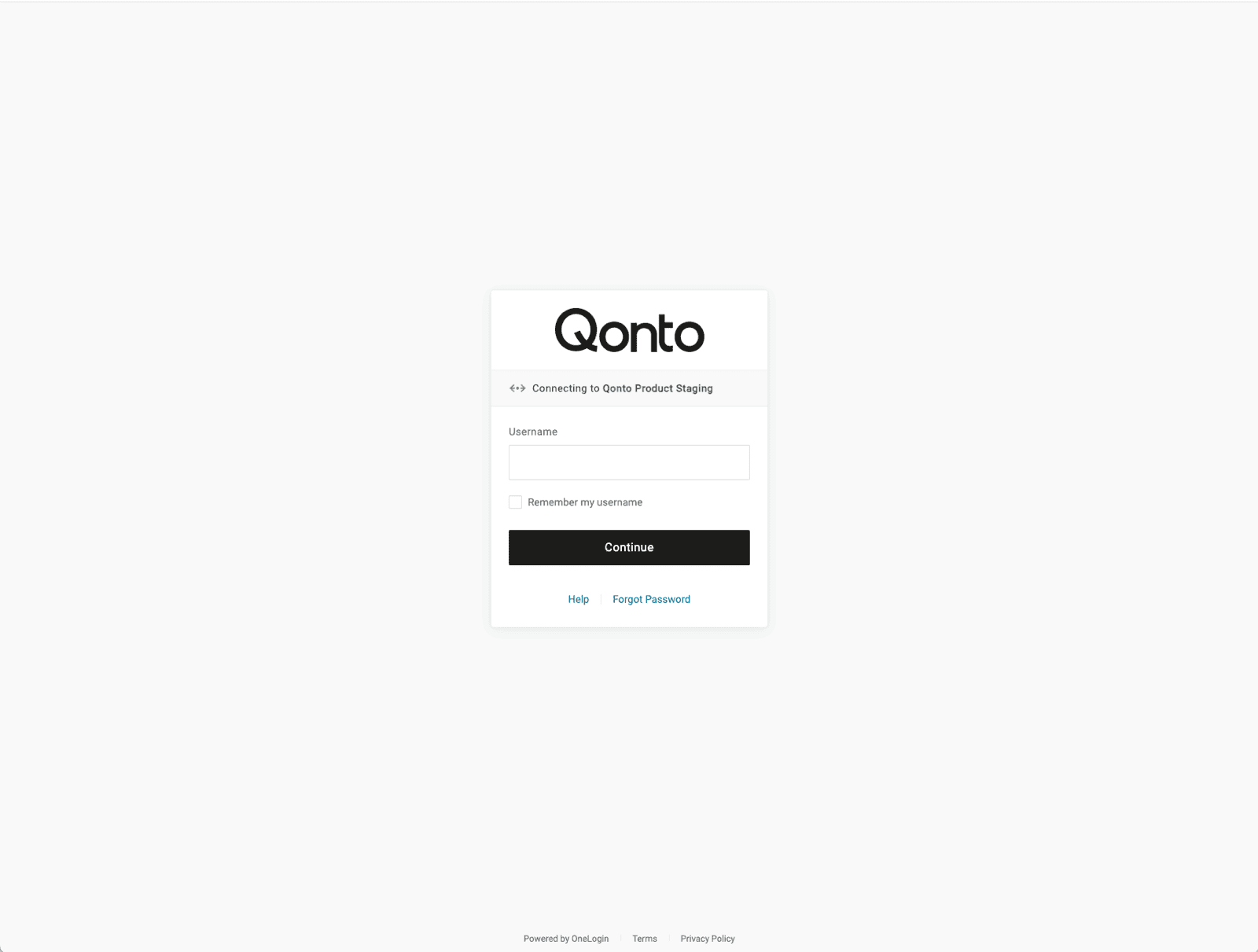
You will be redirected to a Qonto login page to authenticate yourself. Follow the steps to authenticate your Qonto account
1. Log into your Qonto account
# AUTHENTIFICATION
You will be redirected to a Qonto login page to authenticate yourself. Follow the steps to authenticate your Qonto account
1. Log into your Qonto account
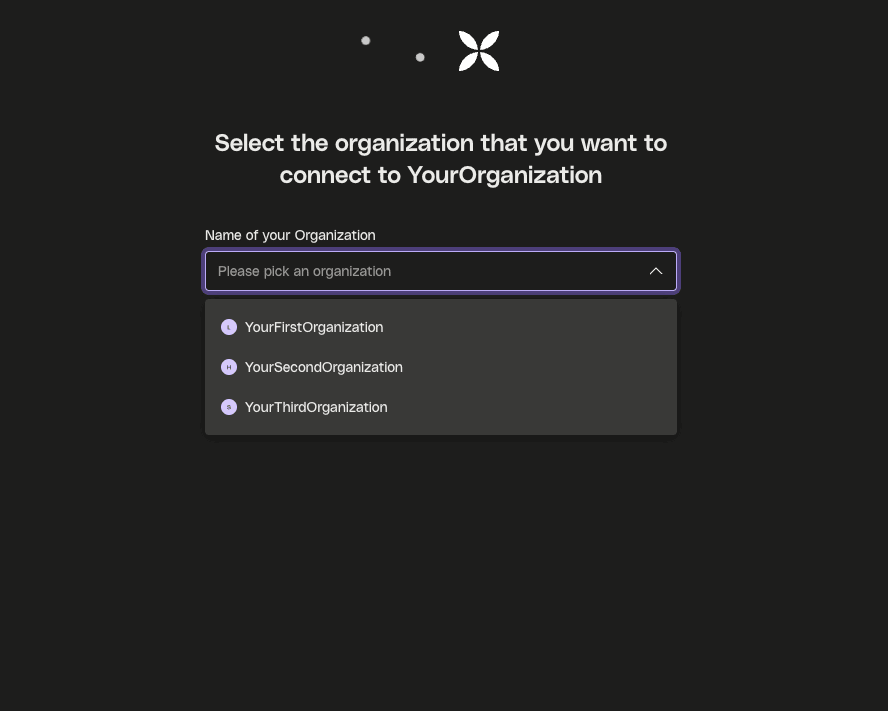
 2. Select the organisation you wish to connect
 ## **🎉 You are now successfully connected to Qonto**