> ## Documentation Index
> Fetch the complete documentation index at: https://docs.chift.eu/llms.txt
> Use this file to discover all available pages before exploring further.
# Hubspot
# CONNEXION
**Step 1:** Choose a name for your connection.
 **Step 2:** Click "Authorise" to finalise the connection.
 # AUTHORISATION
You will need to log in to your Hubspot account and grant permissions to allow data sharing with Hubspot.
**Step 1:** Log in to your account.
# AUTHORISATION
You will need to log in to your Hubspot account and grant permissions to allow data sharing with Hubspot.
**Step 1:** Log in to your account.
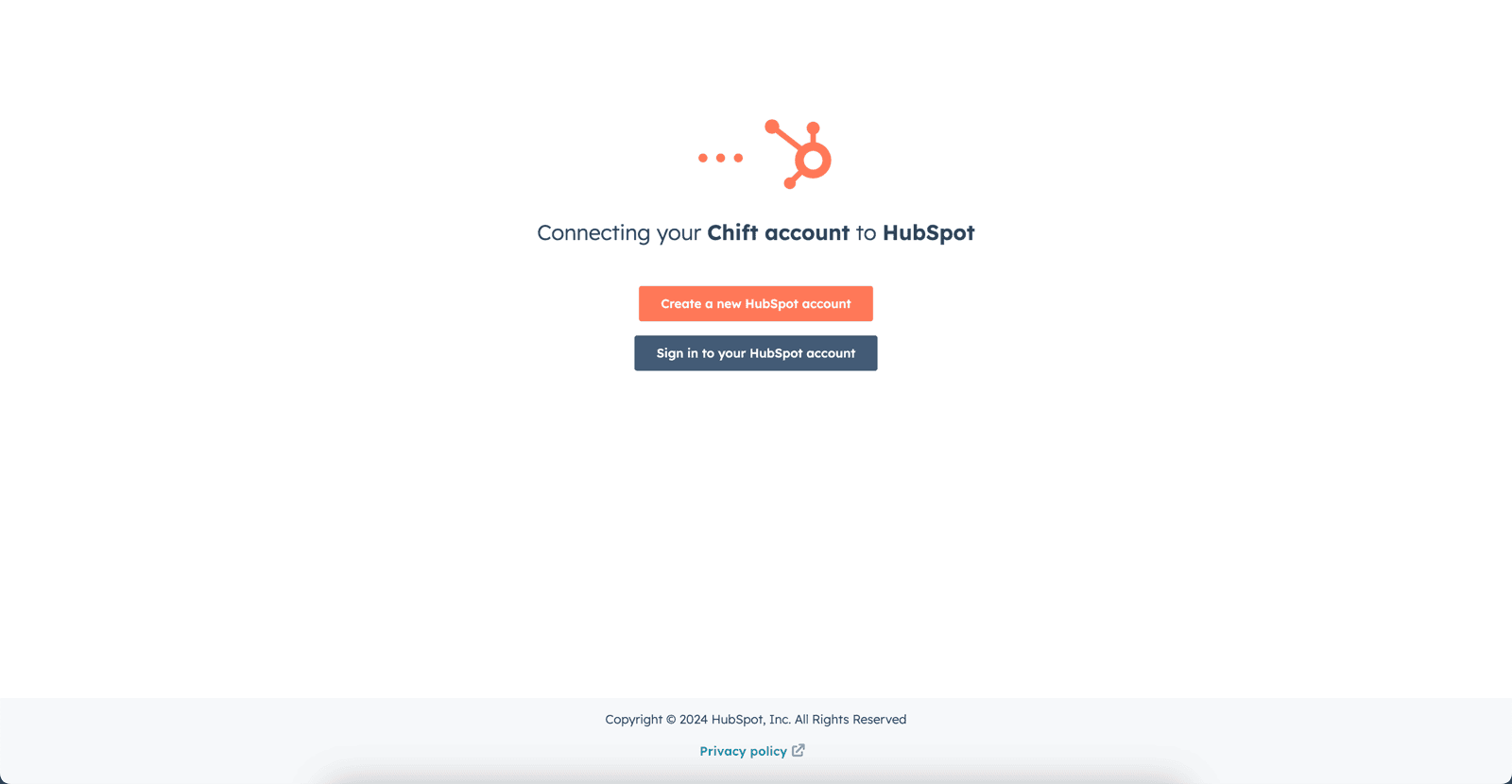 **Step 2:** Select the Hubspot account to connect.
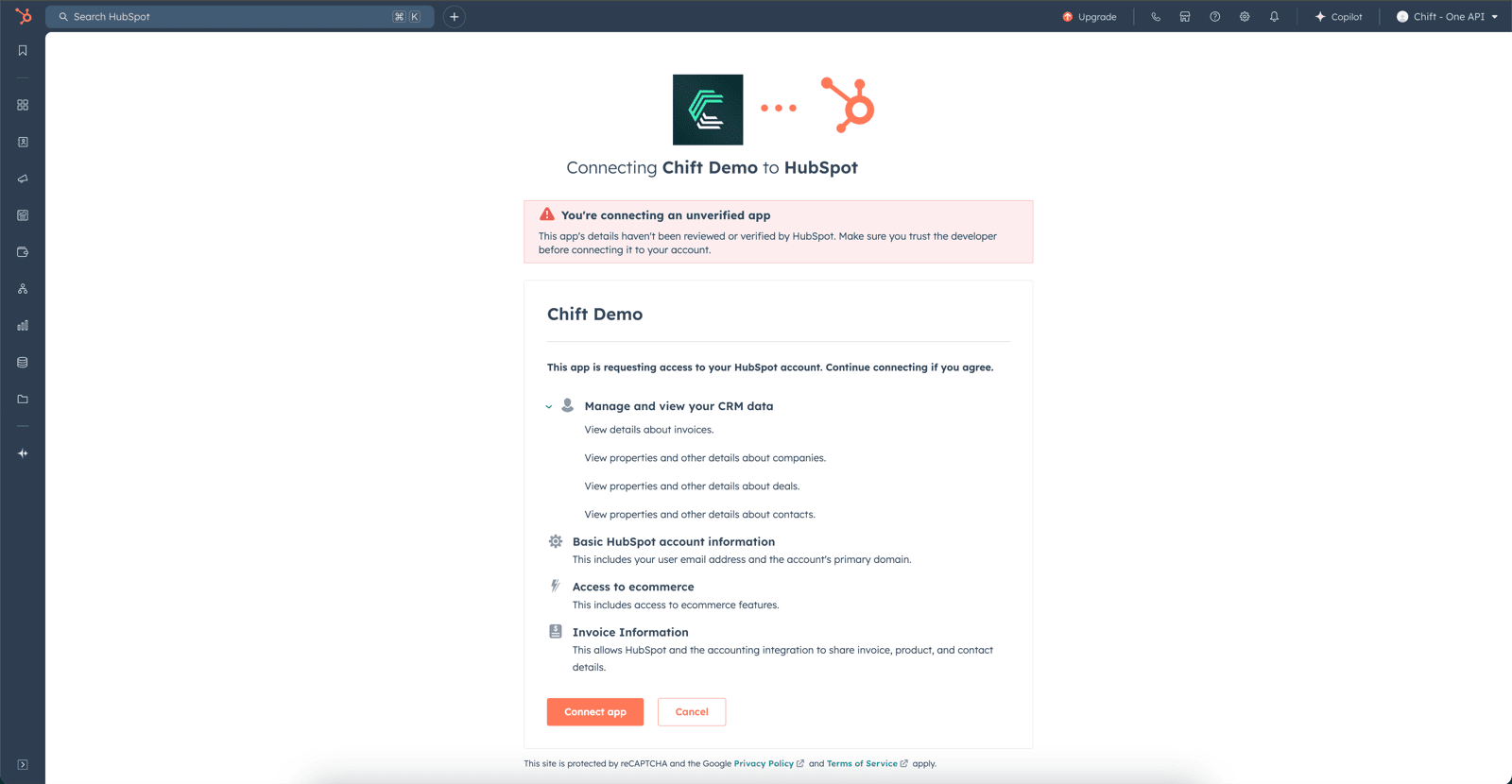
 **Step 3:** Authorize data sharing with your Hubspot account.
 # FREQUENT ERRORS
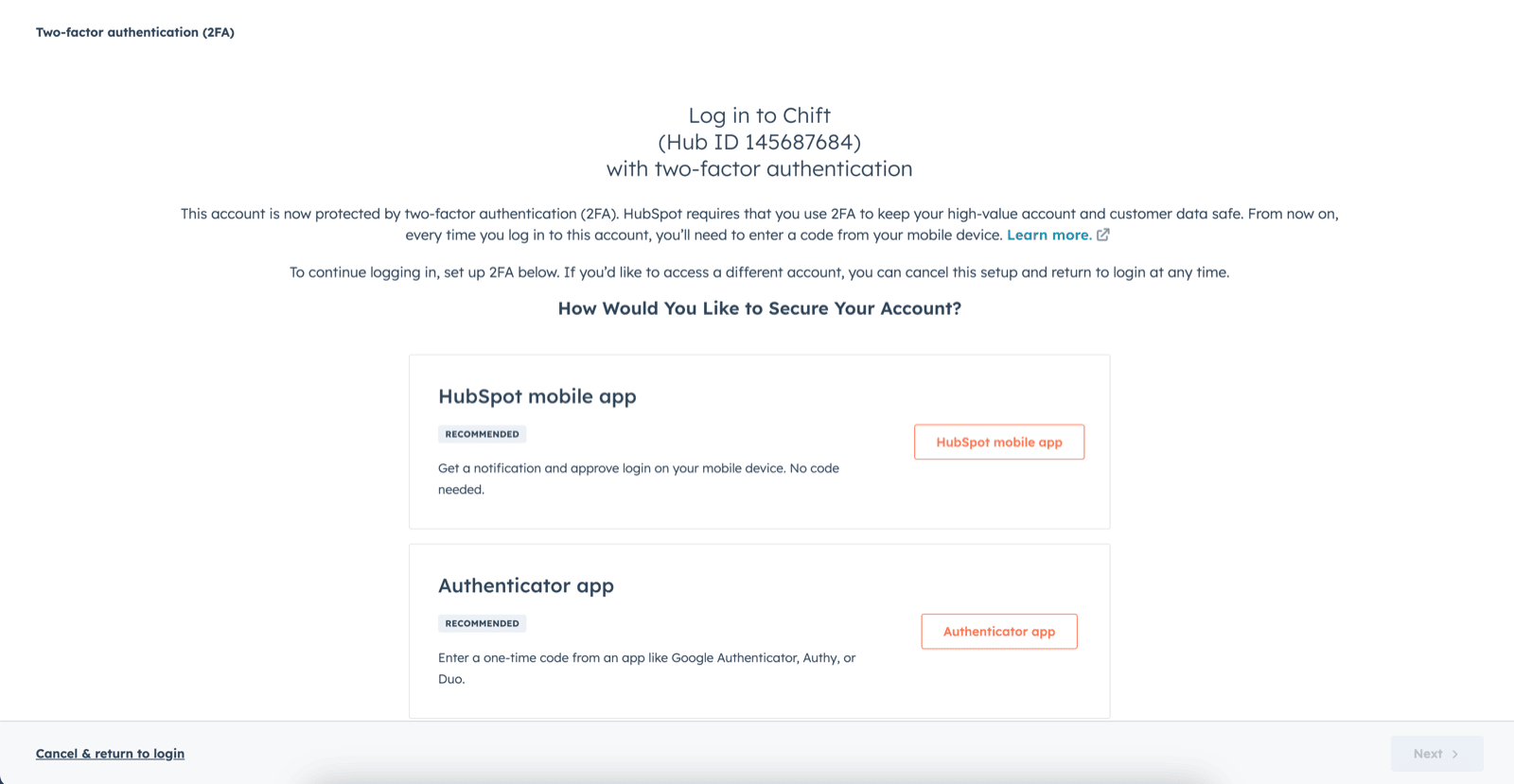
1. In case of a permissions error: "Couldn't complete the connection due to permissions." You will need to go into your account settings to enable two-factor authentication.
# FREQUENT ERRORS
1. In case of a permissions error: "Couldn't complete the connection due to permissions." You will need to go into your account settings to enable two-factor authentication.
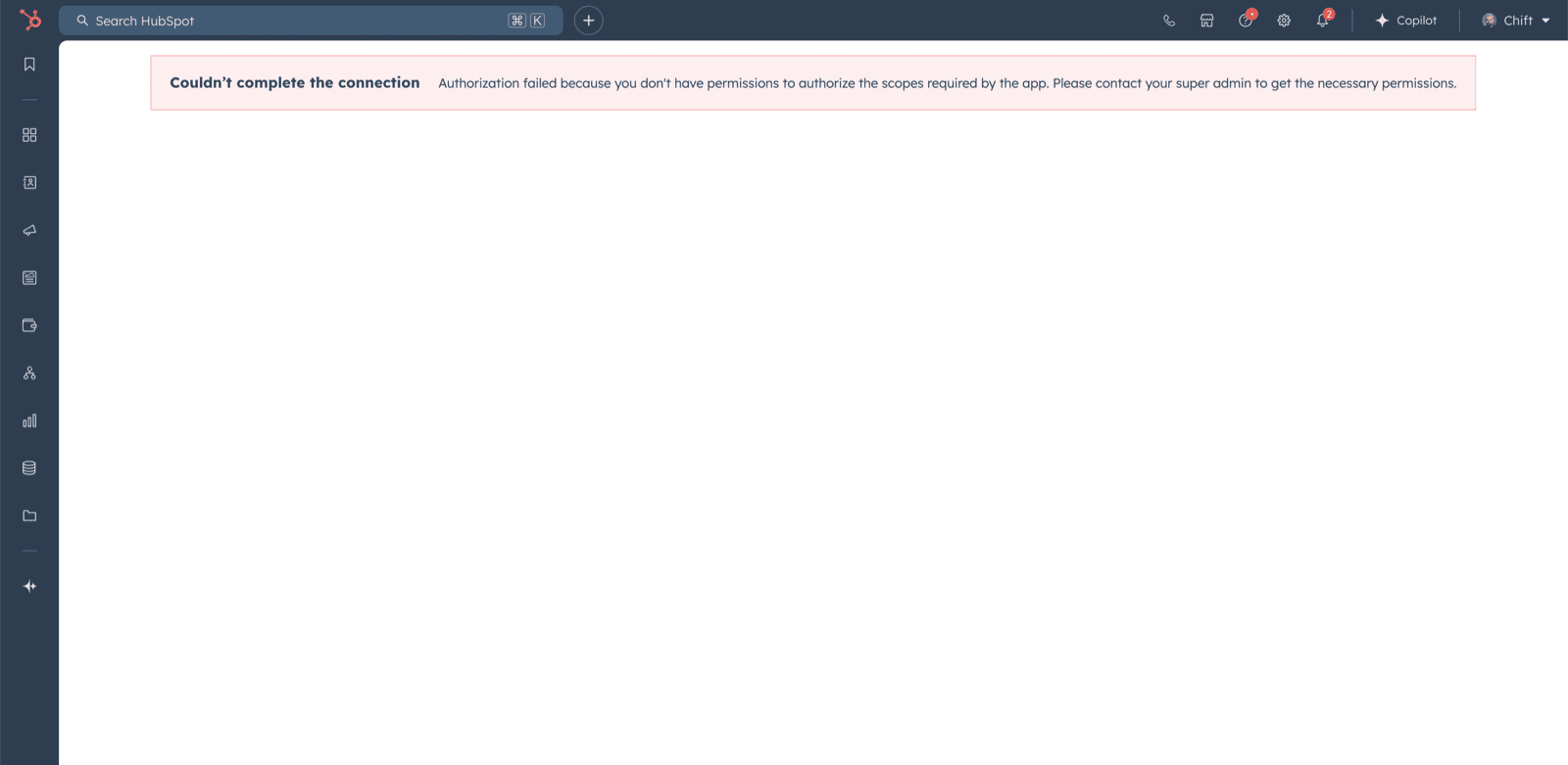 To enable two-factor authentication, you need to go to the Hubspot account and have the rights to access the scopes:
* oauth
* accounting
* e-commerce
* crm.objects.companies.read
* crm.objects.deals.read
* crm.objects.invoices.read
* crm.objects.contacts.read
To enable two-factor authentication, you need to go to the Hubspot account and have the rights to access the scopes:
* oauth
* accounting
* e-commerce
* crm.objects.companies.read
* crm.objects.deals.read
* crm.objects.invoices.read
* crm.objects.contacts.read