> ## Documentation Index
> Fetch the complete documentation index at: https://docs.chift.eu/llms.txt
> Use this file to discover all available pages before exploring further.
# Evoliz
# PREPARATION
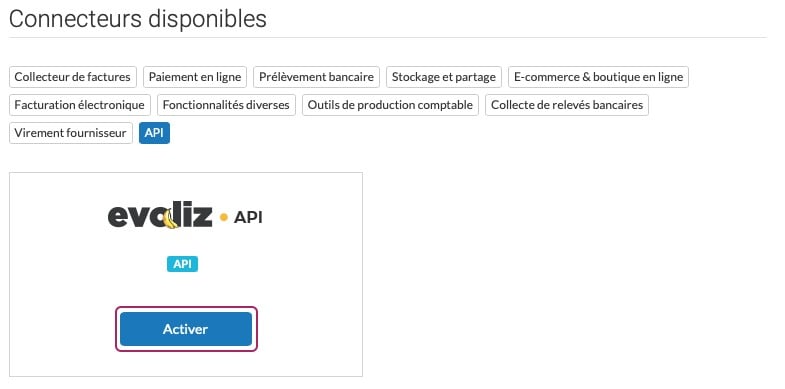
1. Access your Evoliz account and navigate to **Account → Applications → Available Connectors**.
2. Then, activate the **Evoliz API** connector.
To find it more easily, you can directly select the **API** tag.
 **3. Create a new key**
To generate an API key, click on **"Create a Key"**.
**3. Create a new key**
To generate an API key, click on **"Create a Key"**.
 You now have access to the two codes that make up your API key: your **Public Ke**y and your **Secret Key**. You can also name your API key to easily identify it among your various API keys.
Once you have entered the name for your API key and copied the codes, you can click on **"Validate" to activate the key**.
**Good to know:** the secret key you generate is communicated only once. Make sure to store it securely; otherwise, you will need to delete the key and create a new one.
You now have access to the two codes that make up your API key: your **Public Ke**y and your **Secret Key**. You can also name your API key to easily identify it among your various API keys.
Once you have entered the name for your API key and copied the codes, you can click on **"Validate" to activate the key**.
**Good to know:** the secret key you generate is communicated only once. Make sure to store it securely; otherwise, you will need to delete the key and create a new one.
 # CONNEXION
**Step 1:** Choose a name for your connection.
# CONNEXION
**Step 1:** Choose a name for your connection.
 **Step 2:** Select your account's environment.
 **Step 3:** Enter the public key, previously generated from your Evoliz account.
 **Step 4:** Enter the secret key, previously generated from your Evoliz account.
 **Step 5:** Click "Connect" to finalise the connection.
 #
#