> ## Documentation Index
> Fetch the complete documentation index at: https://docs.chift.eu/llms.txt
> Use this file to discover all available pages before exploring further.
# Prestashop
⚠ Only "1.7", "8" and "9" Prestashop versions are compatible with Chift.
# PREREQUISITES
## **1. Retrieve the shop URL**
* Log into PrestaShop
* Then click on "Advanced settings" → "Webservice"
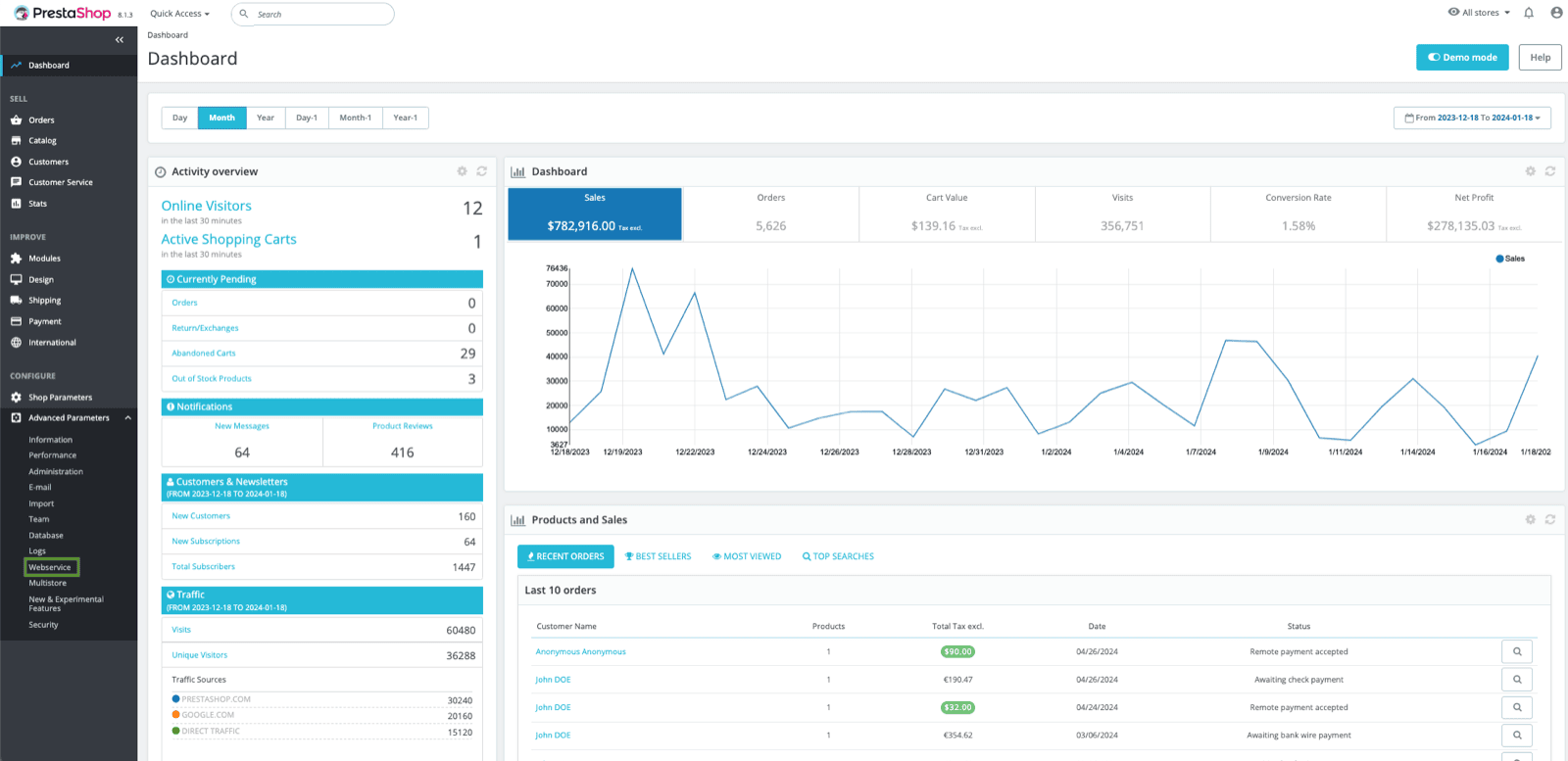 * Copy URL after "Webservice is enabled. Main entry point is". If you do not see this, please take a look at this [link](https://devdocs.prestashop-project.org/8/webservice/getting-started/) to find the URL of your instance.
💡 **This is the URL you need to fill in Chift in order to sync Prestashop.**
* Copy URL after "Webservice is enabled. Main entry point is". If you do not see this, please take a look at this [link](https://devdocs.prestashop-project.org/8/webservice/getting-started/) to find the URL of your instance.
💡 **This is the URL you need to fill in Chift in order to sync Prestashop.**
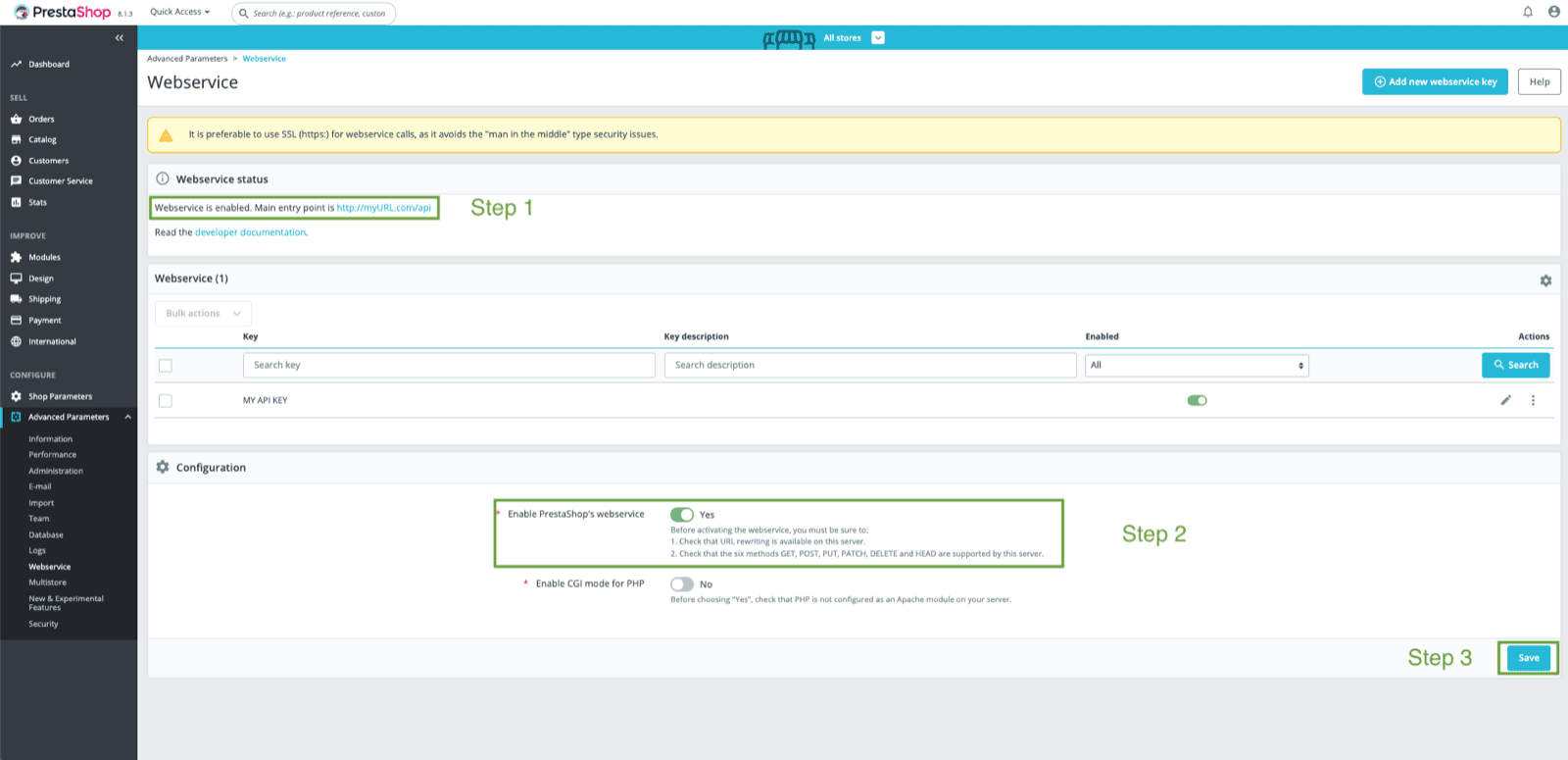 💡 **If webservice is not enabled, you can activate it at the bottom of the screen ; don't forget to save your changes.**
## 2. Generate an API key
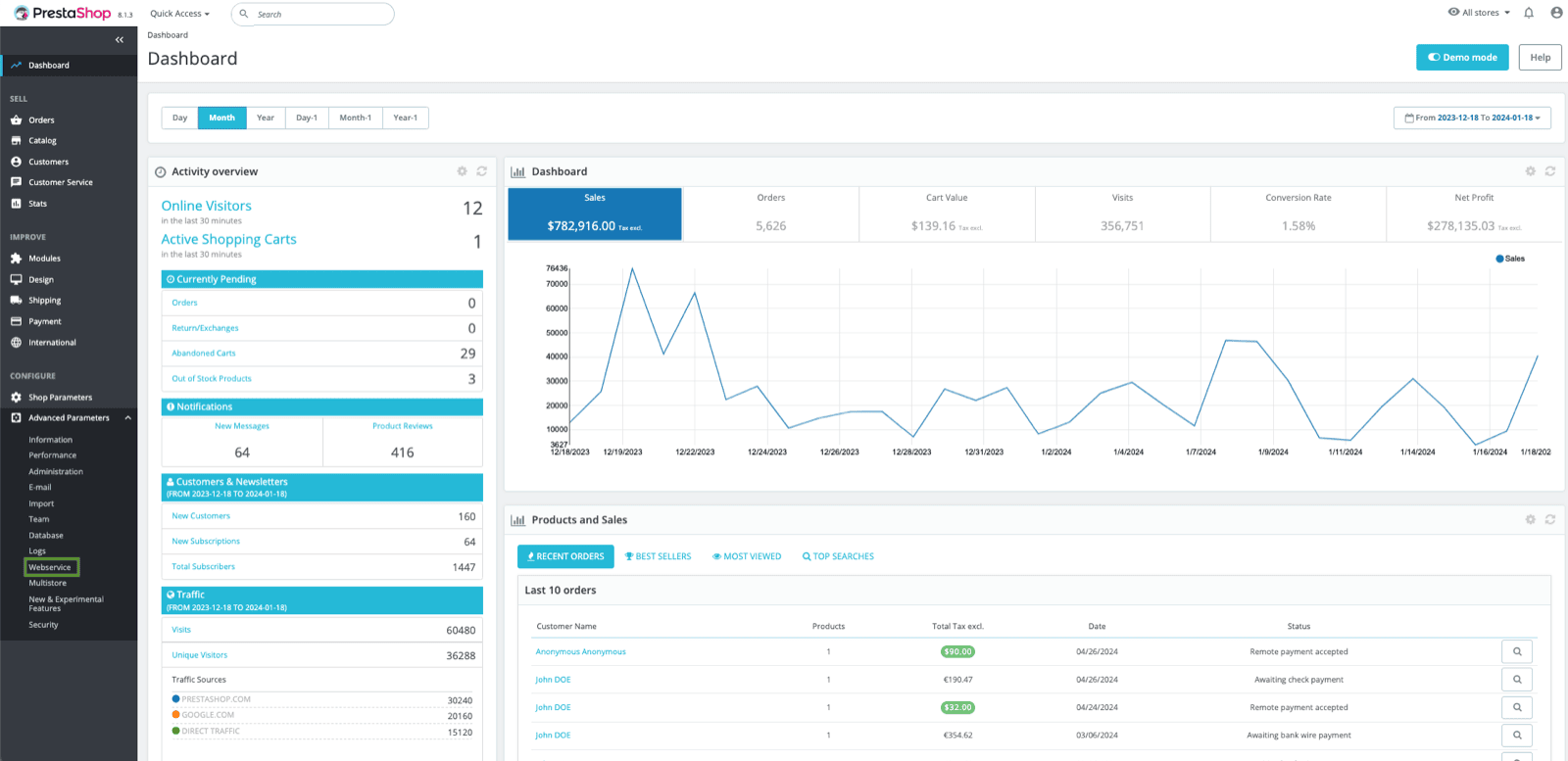
* On Prestashop, click on "Advanced settings" → "Webservice"
💡 **If webservice is not enabled, you can activate it at the bottom of the screen ; don't forget to save your changes.**
## 2. Generate an API key
* On Prestashop, click on "Advanced settings" → "Webservice"
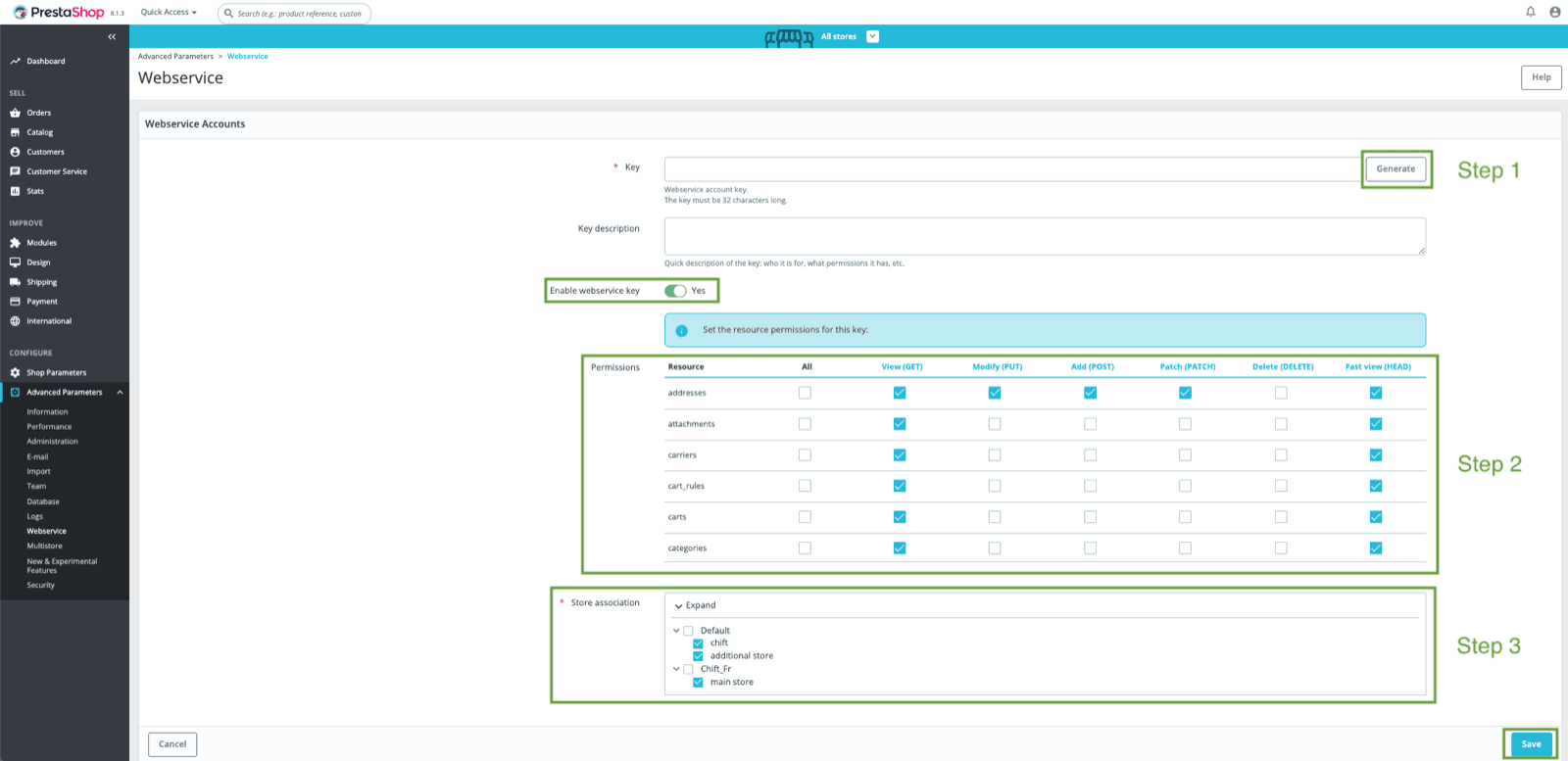
 * Then on "Add a new webservice key"
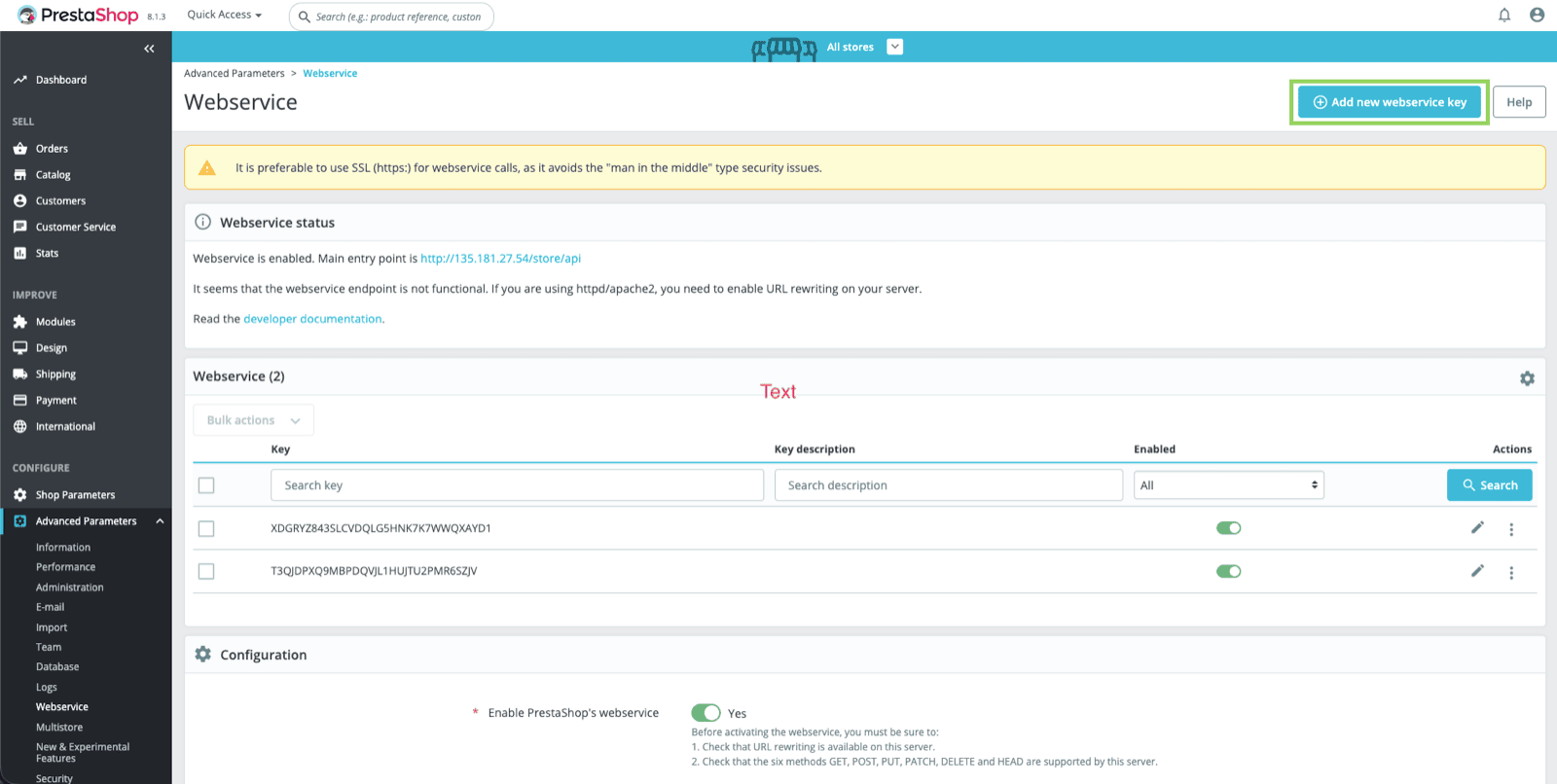 * Click on "Generate"
 💡 **This is the API key you need to fill in Chift in order to sync Prestashop.**
1. Enable the "Enable webservice key" toggle
2. Allow "**GET**" rights for your API key to the following resources:
products, combinations, product\_option\_values, addresses, orders, order\_details, order\_payments, order\_slip, customers, categories, stock\_availables, product\_options, languages, countries, shops, order\_states, carriers, taxes, tax\_rules, currencies, configurations, order\_cart\_rules, order\_carriers, order\_invoices, order\_histories, deliveries, product\_suppliers, tags, attachments
3. Select the shop(s) you want to associate to this API key
💡 **This is the API key you need to fill in Chift in order to sync Prestashop.**
1. Enable the "Enable webservice key" toggle
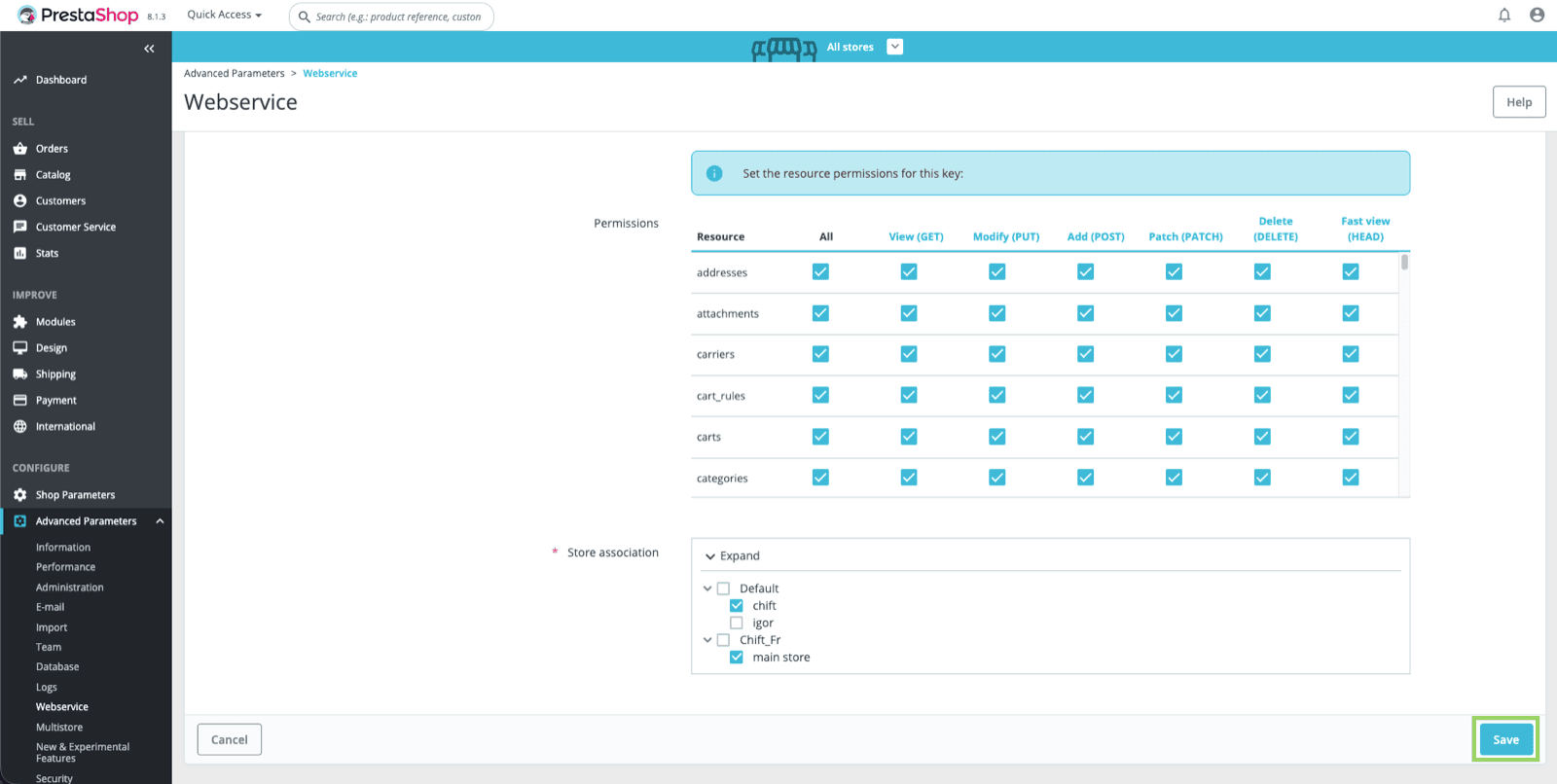
2. Allow "**GET**" rights for your API key to the following resources:
products, combinations, product\_option\_values, addresses, orders, order\_details, order\_payments, order\_slip, customers, categories, stock\_availables, product\_options, languages, countries, shops, order\_states, carriers, taxes, tax\_rules, currencies, configurations, order\_cart\_rules, order\_carriers, order\_invoices, order\_histories, deliveries, product\_suppliers, tags, attachments
3. Select the shop(s) you want to associate to this API key
 ⚠ **Don't forget to save your changes before leaving this page**
 # CONNEXION
**Step 1:** Choose a name for your connection
# CONNEXION
**Step 1:** Choose a name for your connection
 **Step 2:** Fill in your Prestashop URL
 **Step 3:** Fill in your Prestashop API Key
 **Step 4:** Click on "Connect" to finalize connection
