> ## Documentation Index
> Fetch the complete documentation index at: https://docs.chift.eu/llms.txt
> Use this file to discover all available pages before exploring further.
# Tripletex
# 🚨 **PREREQUISITES**
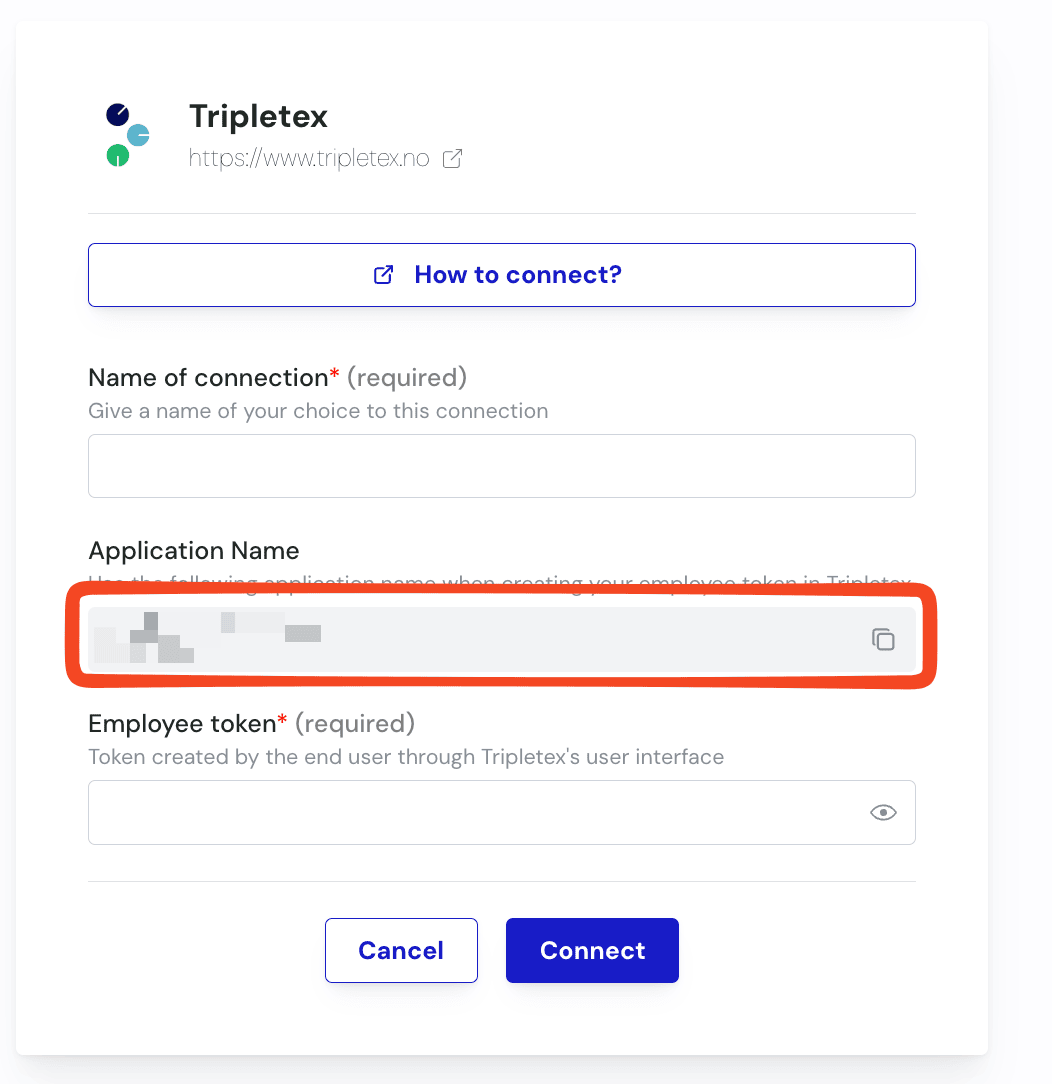
* You must obtain the Application Name from the software you want to connect to Tripletex.
This Application Name is displayed on the connection page you are currently filling out. See below:
 # 🛠 **PREPARATION**
### **Create the EmployeeToken for your API user in TripleTex** 👇
**Step 1:** Log into your TripleTex environment
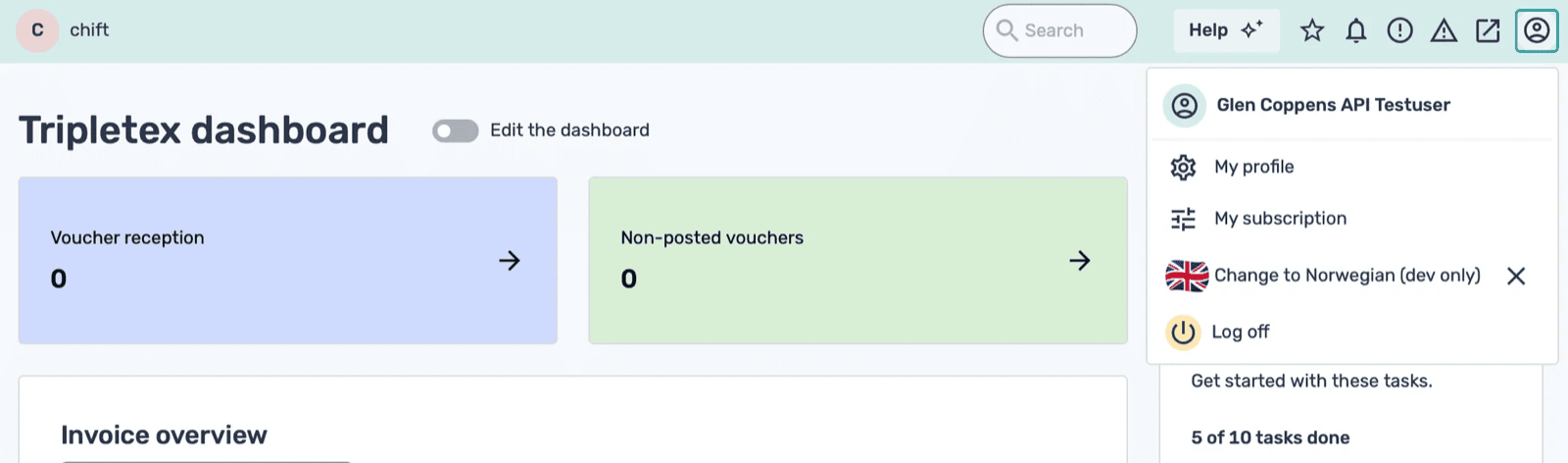
**Step 2:** Click on your user in the top right corner of the screen
**Step 3:** Select “My profile”
# 🛠 **PREPARATION**
### **Create the EmployeeToken for your API user in TripleTex** 👇
**Step 1:** Log into your TripleTex environment
**Step 2:** Click on your user in the top right corner of the screen
**Step 3:** Select “My profile”
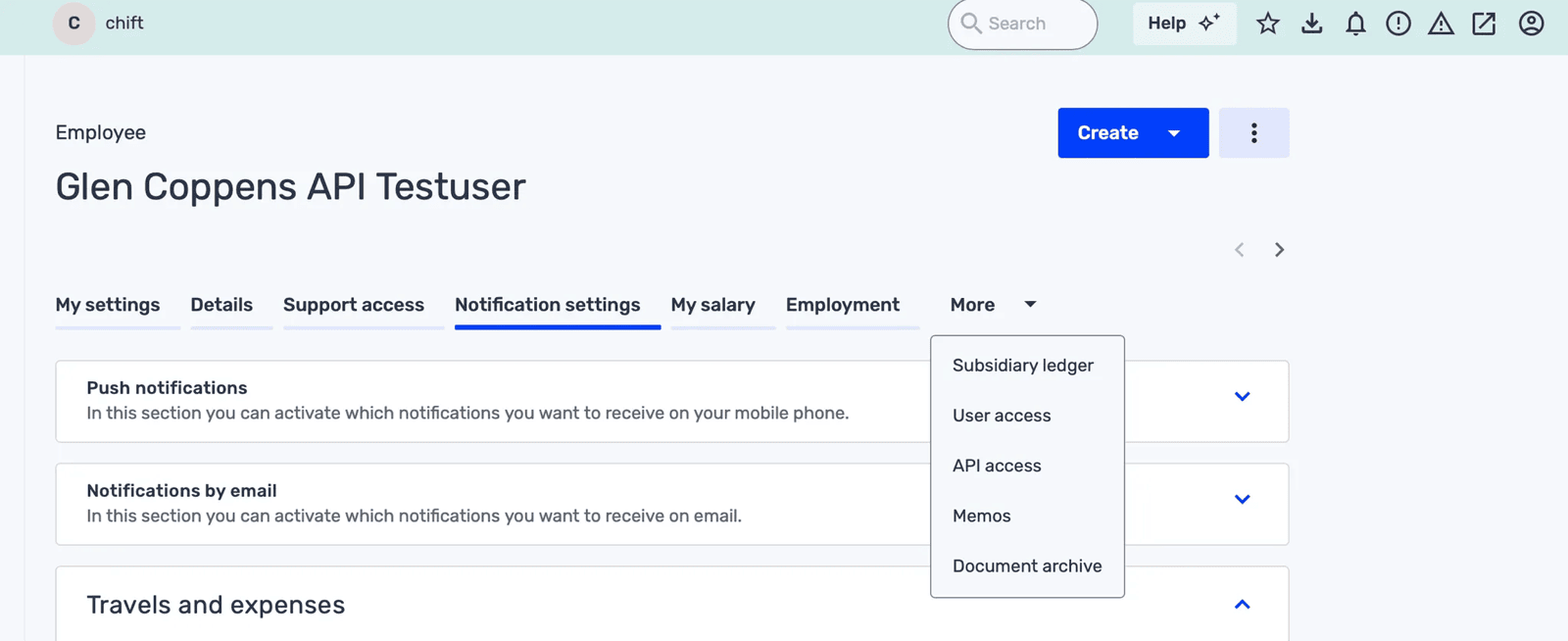
 **Step 4:** Click on “More”, and select “API access”
 **Step 5:** Click on “New token”
**Step 6:** Use “Adapted setup” & “all entitlements”
**Step 5:** Click on “New token”
**Step 6:** Use “Adapted setup” & “all entitlements”
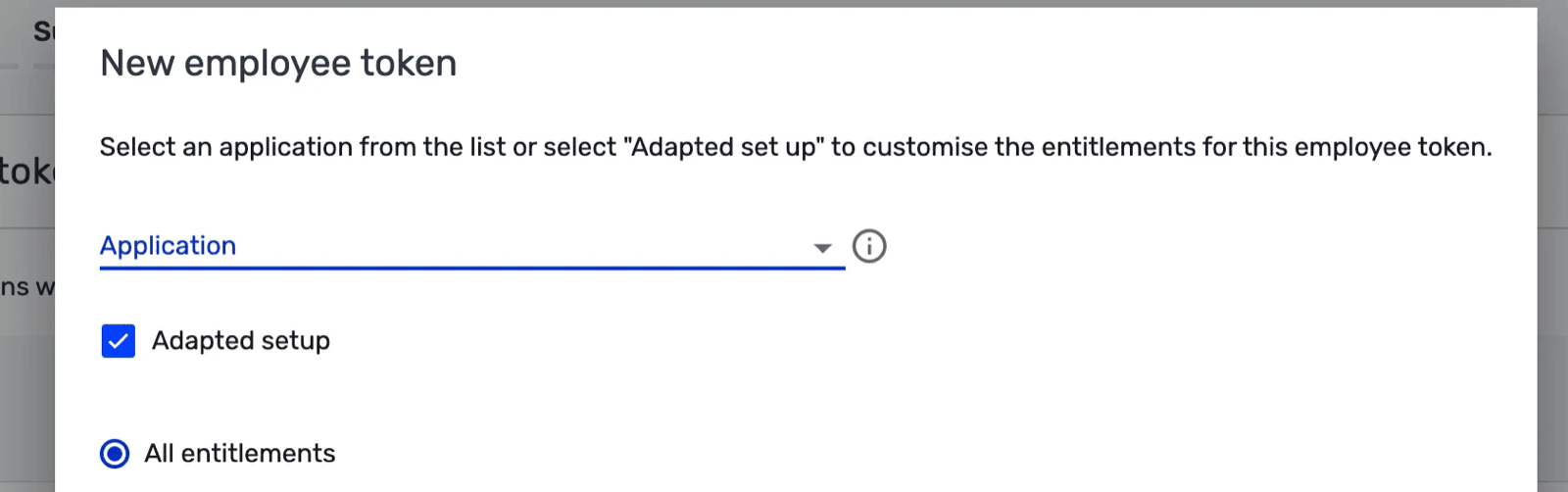 **Step 7:** In the **“Application name”** field, enter the **Application Name** exactly as it appears in the activation window — the same page where you click **“Connect”** to finalize the connection. You can simply **copy it directly from there**.
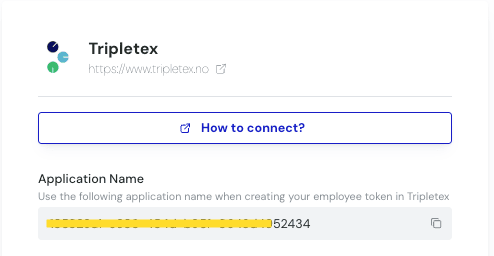
 **Step 8:** Give the token a name e.g. “Software Provider API”
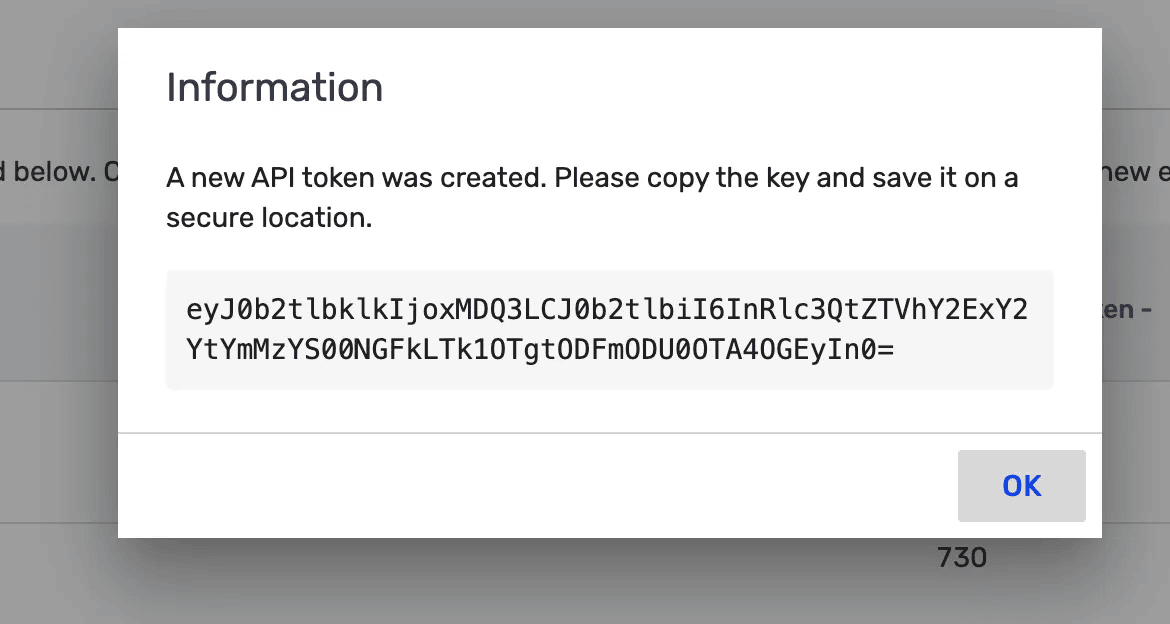
 **Step 9:** Save the employeeToken that is returned. You will need it when activating it in the activation page.
 # ⚡️ CONNECTION
**Step 1:** Choose a name for your connection.
# ⚡️ CONNECTION
**Step 1:** Choose a name for your connection.
 **Step 2:** Add the employeeToken generated in your TripleTex environment
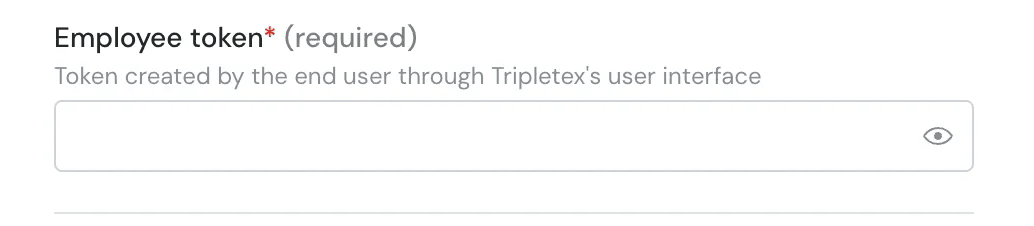 **Step 3:** Click "Connect" to finalise the connection.