> ## Documentation Index
> Fetch the complete documentation index at: https://docs.chift.eu/llms.txt
> Use this file to discover all available pages before exploring further.
# Sage Intacct
# PREREQUISITES
* You must have an **active Sage Intacct Web Services developer license** (this can be purchased by contacting your Intacct account manager)
* You must have a valid **Web Services sender ID** (this will be sent by email after purchasing the *Sage Intacct Web Services developer license*)
* You must have a valid **Web Services sender password** (you will receive an email after purchasing the *Sage Intacct Web Services developer license* that will allow you to generate this password)
# PREPARATION
## Create your API application
* Go to [**Sage Developer Portal**](https://developer.sage.com/intacct/)
* Click on "View Console" and create your organisation
* Go to "Applications" and click on "New application"
* Select "Sage Intacct"
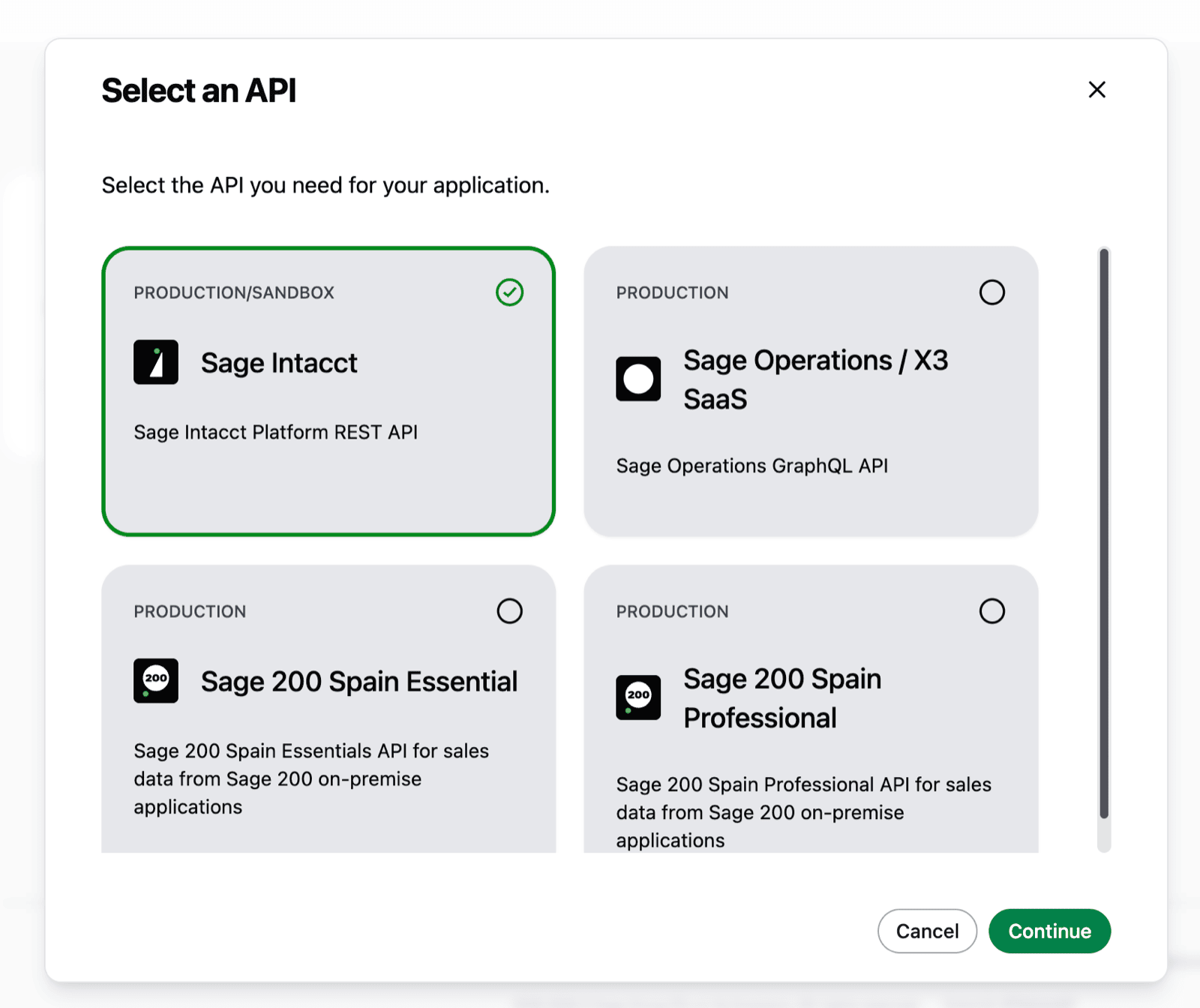 * Fill in an "Application name" and click on continue (the application name is informative and can be whatever you want)
 * Fill in Chift's Redirect URI with the following value: [https://chift.app/oauth2/redirect](https://chift.app/oauth2/redirect)
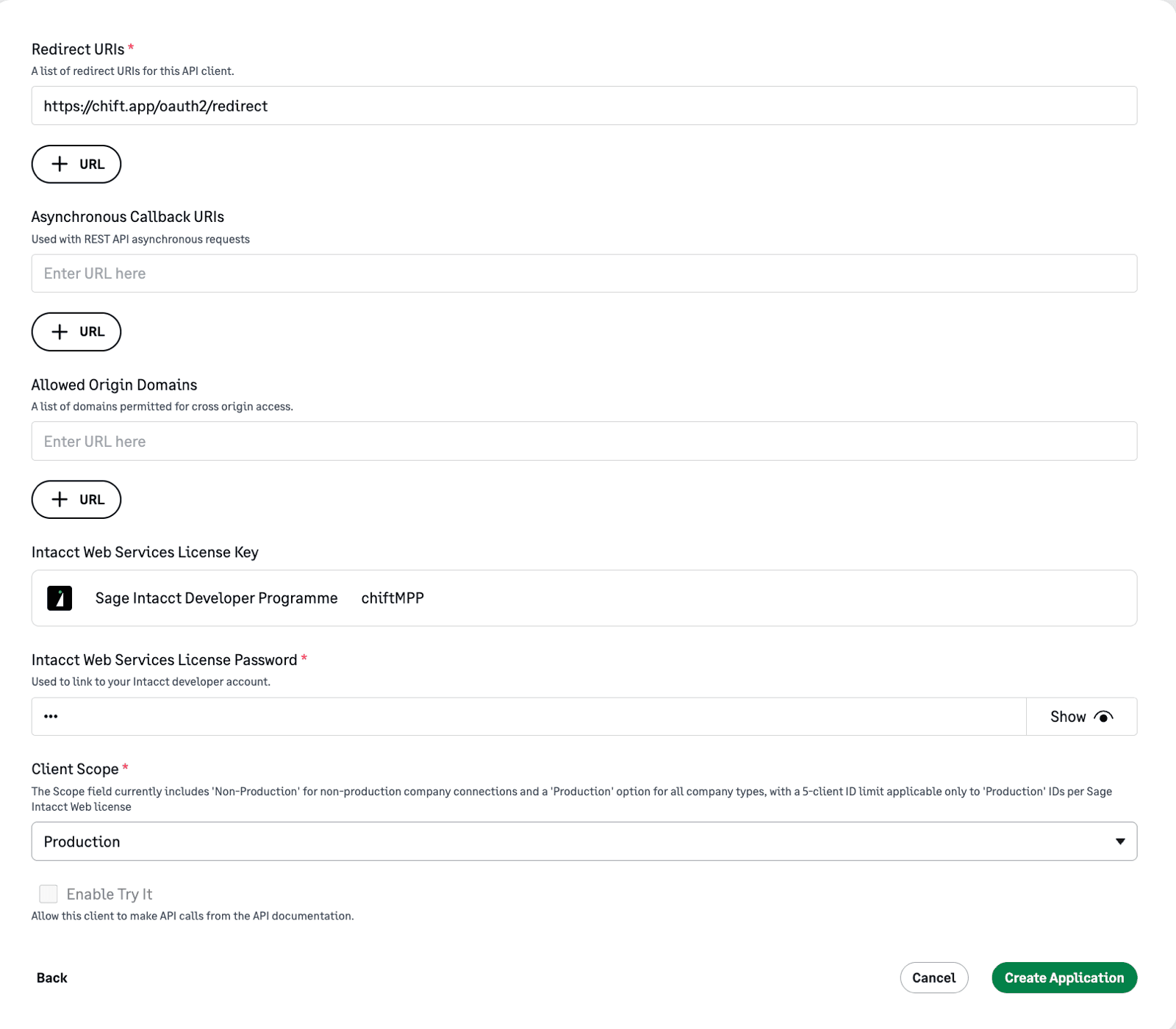 * Specify the *Web Services sender ID* from the prerequisites as *Intacct Web Services License Key*
* Specify the *Web Services sender password* from the prerequisites as *Intacct Web Services License Password*
* Select "Production" as client scope
* Click on "Create Application"
* This will generate a client ID and a client Secret that you will need during the "Connection" step below
* Specify the *Web Services sender ID* from the prerequisites as *Intacct Web Services License Key*
* Specify the *Web Services sender password* from the prerequisites as *Intacct Web Services License Password*
* Select "Production" as client scope
* Click on "Create Application"
* This will generate a client ID and a client Secret that you will need during the "Connection" step below
 ## Authorize the Webservice on each company you want to connect
After
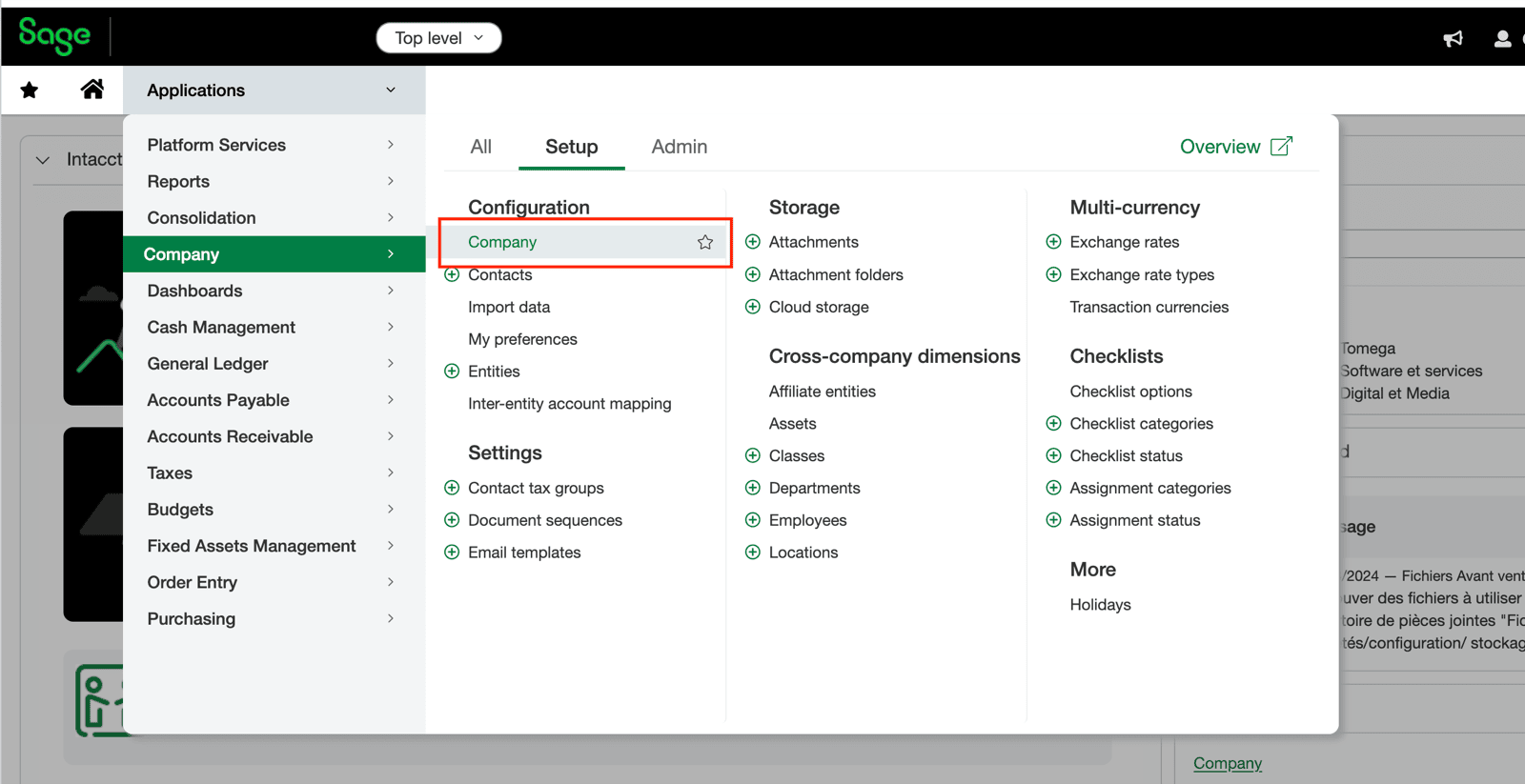
* Connect to your Sage Intacct account
* Navigate to **Company > Configuration > Company**
## Authorize the Webservice on each company you want to connect
After
* Connect to your Sage Intacct account
* Navigate to **Company > Configuration > Company**
 * Go to **Security tab** and click on "Edit"
* Scroll down to the **Web Services Authorizations** section and click on "Add"
* Go to **Security tab** and click on "Edit"
* Scroll down to the **Web Services Authorizations** section and click on "Add"
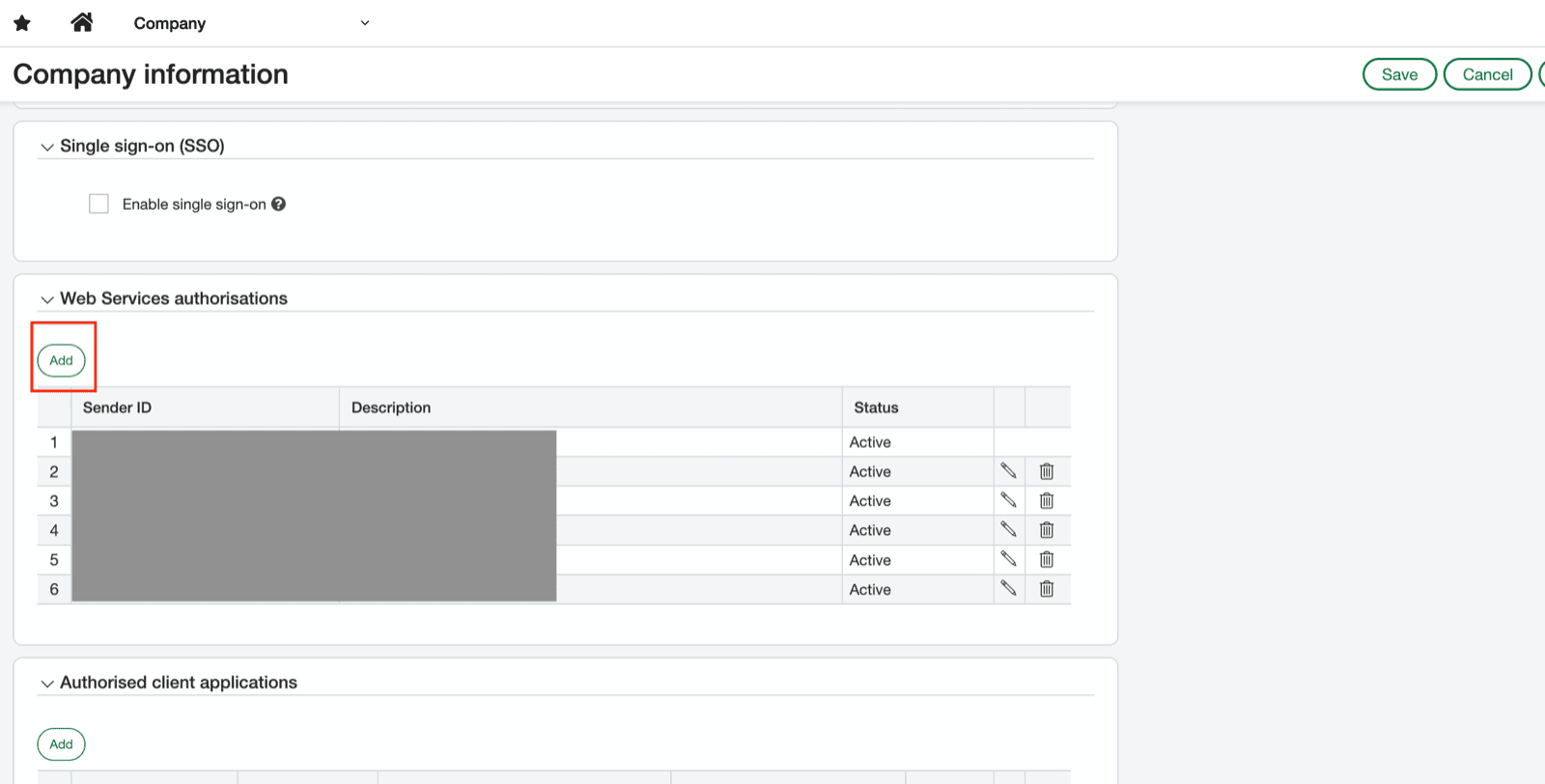 * Fill in your **Web Services sender ID** from the prerequisites
* Set status to "Active" and click on "Save"
# CONNECTION
**Step 1:** Choose a name for your connection. (If the connection name field isn’t visible, simply skip this step and continue.)
* Fill in your **Web Services sender ID** from the prerequisites
* Set status to "Active" and click on "Save"
# CONNECTION
**Step 1:** Choose a name for your connection. (If the connection name field isn’t visible, simply skip this step and continue.)
 **Step 2:** Specify if you want analytic data to be pushed and retrieved from Sage Intacct (e.g. locations, departments, projects...)
 **Step 3:** Specify the **Client ID** that was generated after creating the application
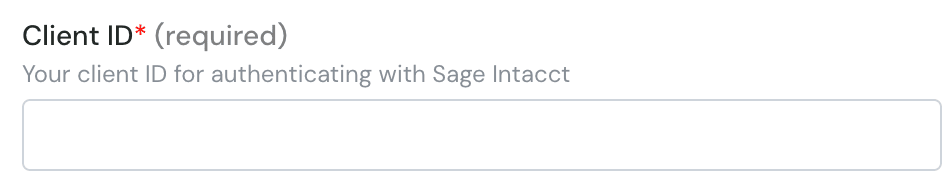 **Step 4:** Specify your **Web Services sender ID** from the prerequisites
 **Step 5:** Specify the **Client Secret** that was generated after creating the application
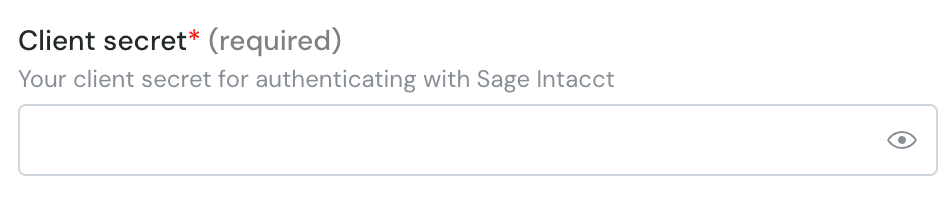 **Step 6:** Specify your **Web Services sender password** from the prerequisites
 **Step 7:** Click "Authorise" to finalise the connection.
 # AUTHENTICATION
You will be redirected to the login page to authenticate yourself and authorize the connection.
# AUTHENTICATION
You will be redirected to the login page to authenticate yourself and authorize the connection.