> ## Documentation Index
> Fetch the complete documentation index at: https://docs.chift.eu/llms.txt
> Use this file to discover all available pages before exploring further.
# Sage 50 UK
# **PREREQUISITES**
* You need to install the program on the same server or workstation where Sage 50 is running. Before starting the installation, please ensure the following:
* You have **administrator rights** on the server/machine.
* The server/machine is **permanently accessible with an active internet connection (24/7)**; otherwise, data will not synchronize.
* You have your **Sage 50 login credentials** (username and password).
* **.NET Framework 4.8** is installed.
* The correct **Sage 50 UK ODBC drivers** are installed, matching both the Sage 50 version and the Windows architecture (32-bit or 64-bit)
# **PREPARATION**
1. **Install the Sage 50 UK ODBC drivers**
* Go to the [download page](https://gb-kb.sage.com/portal/app/portlets/results/viewsolution.jsp?solutionid=200427112347837\&hypermediatext=null) and follow the instructions to install the drivers on the machine/server where your Sage 50 is running.
**Retrieve** your **Sage version** and **bit version** :
* Open **Sage 50 UK**.
* Go to **Help → About** (or sometimes **Help → About Sage 50 Accounts**).
This window shows:
* **Version number** (e.g., 2023 v29.x)
* **Bit version** (sometimes explicitly listed; if not, you can confirm from the installation folder, but this is rarely needed if you use the installer info).
2. **Set up an ODBC Data Source (DSN)**
* Open the ODBC Data Source Administrator that matches your Sage version (32 or 64-bit).
* Go to System DSN tab and create a new **System DSN**.
* Select the Sage ODBC driver you installed in previous step.
* The DSN **must** be named exactly: `Sage50UK`.
3. **Specify the Sage data path**
* Enter the path to the Sage company data (visible in the company information screen inside Sage).
**Retrieve the path**
Open **Sage 50 UK :**
1. Go to **Company → Company Information** (sometimes **Settings → Company → Company Information**).
2. Look for **Data Path** or **Company Data Directory**.
* This is the folder containing the company’s `.ACCDATA` (or `AG Data`) files.
* Example typical path:
```
C:\ProgramData\Sage\Accounts\2023\CompanyName\ACCDATA
```
3. Note that some Sage versions hide `ProgramData` by default; you may need to enable **Show hidden files and folders** in Windows Explorer.
4. **Validate the configuration**
* Save the datasource.
* Confirm it appears in the ODBC System DSN list.
# CONNECTION
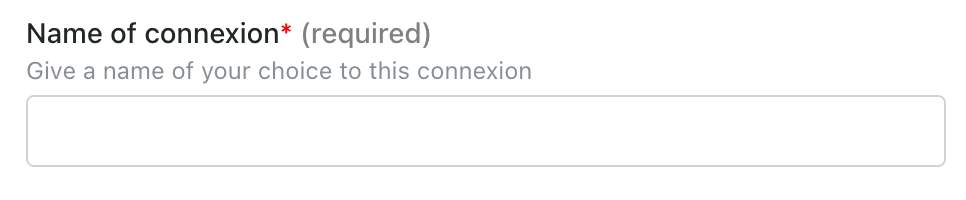
**Step 1:** Choose a name for your connection.
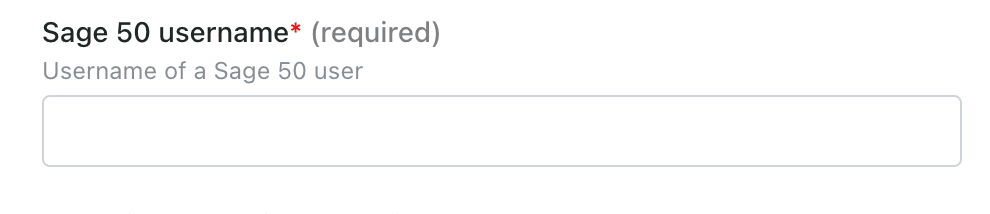
 **Step 2:** Enter the username of your Sage 50 user.
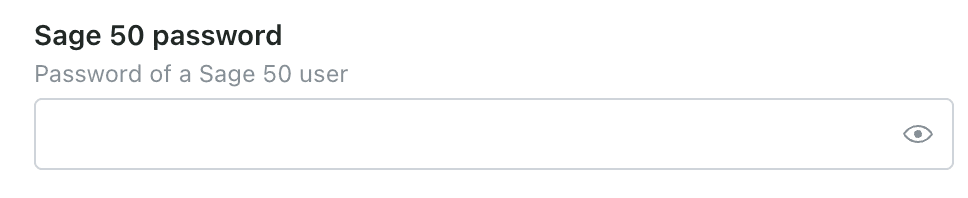
 **Step 3:** Enter the password of your Sage 50 user.
 **Step 5:** Click "Connect" to finalise the connection.
 # **DOWNLOAD OF THE LOCAL AGENT**
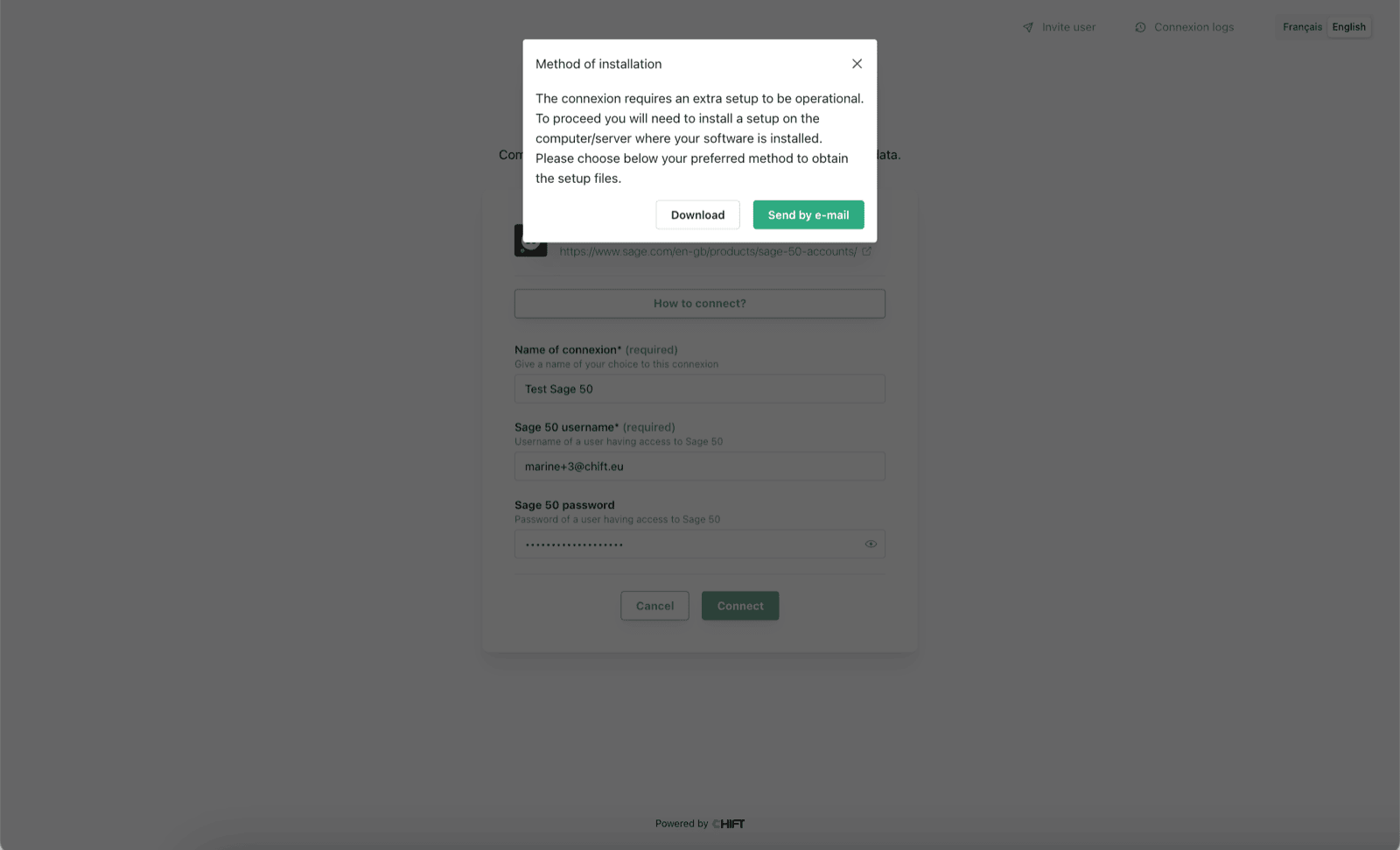
Sage 50 is installed on a server. To enable data sharing, it is necessary to download a program (local agent) that will allow data transmission with Sage 50.
After the connection step, you will have two options to download and install the local agent on the same server as your Sage 50 instance:
* If Sage 50 is hosted on your computer, you can directly download the program by clicking on **Download** and installing it
* If Sage 50 is hosted on another server, you have the option to send the program via email to the person or company hosting Sage 50 so they can download and install it.
# **DOWNLOAD OF THE LOCAL AGENT**
Sage 50 is installed on a server. To enable data sharing, it is necessary to download a program (local agent) that will allow data transmission with Sage 50.
After the connection step, you will have two options to download and install the local agent on the same server as your Sage 50 instance:
* If Sage 50 is hosted on your computer, you can directly download the program by clicking on **Download** and installing it
* If Sage 50 is hosted on another server, you have the option to send the program via email to the person or company hosting Sage 50 so they can download and install it.