> ## Documentation Index
> Fetch the complete documentation index at: https://docs.chift.eu/llms.txt
> Use this file to discover all available pages before exploring further.
# Odoo
# 🚨 **PREREQUISITES**
* The integration is enabled for Odoo versions 13 and above for Odoo.sh and Odoo SaaS.
* A "custom" pricing plan is necessary for the activation of the integration with Odoo. (Odoo's Plans & Pricing)
* The user must have admin permissions to enable the connection
Constraints added in customisations in Odoo may impact the performances of the connector.
# 🛠 **PREPARATION**
Watch this video:
[https://chift-connector-videos.s3.eu-west-3.amazonaws.com/1000/1000-config.mp4](https://chift-connector-videos.s3.eu-west-3.amazonaws.com/1000/1000-config.mp4)
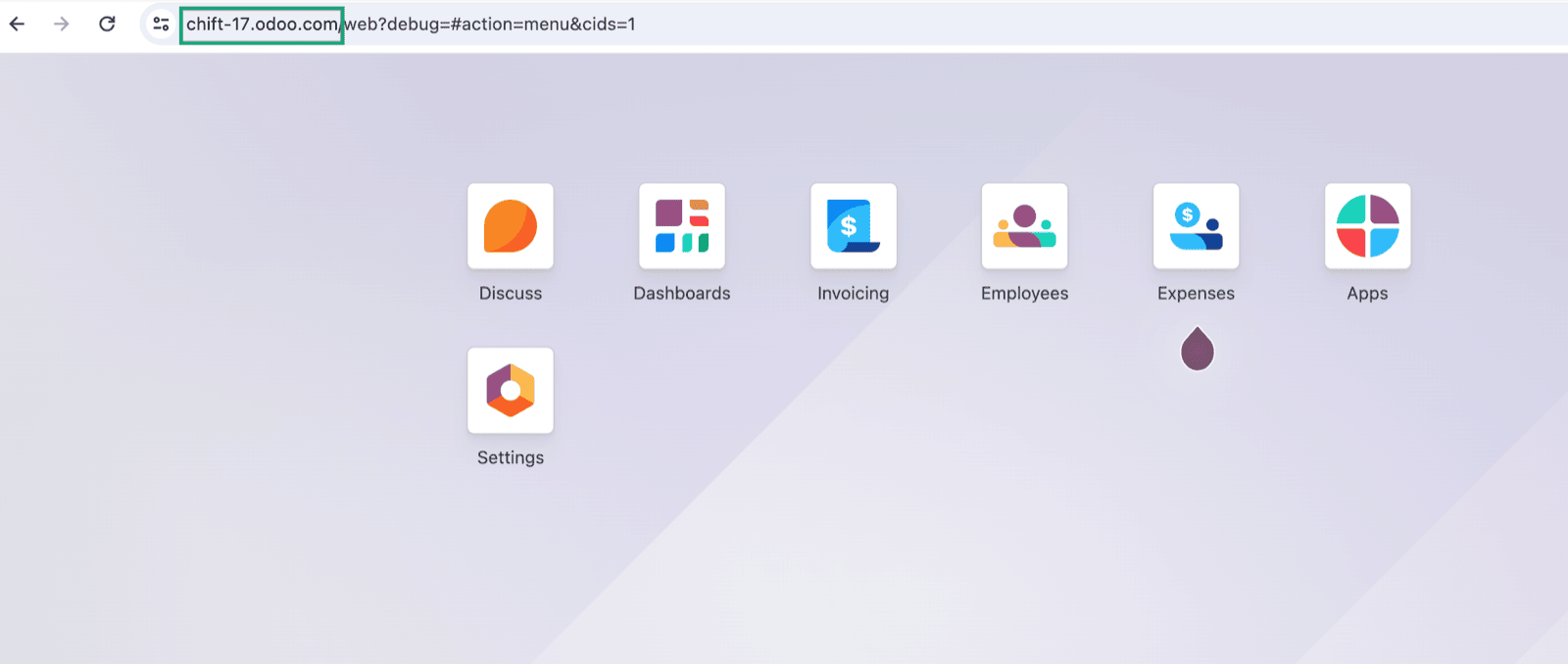
1. **Find your Odoo URL.**
 2. **(If you don't know it or are unsure) Find the version of your Odoo account in your settings**
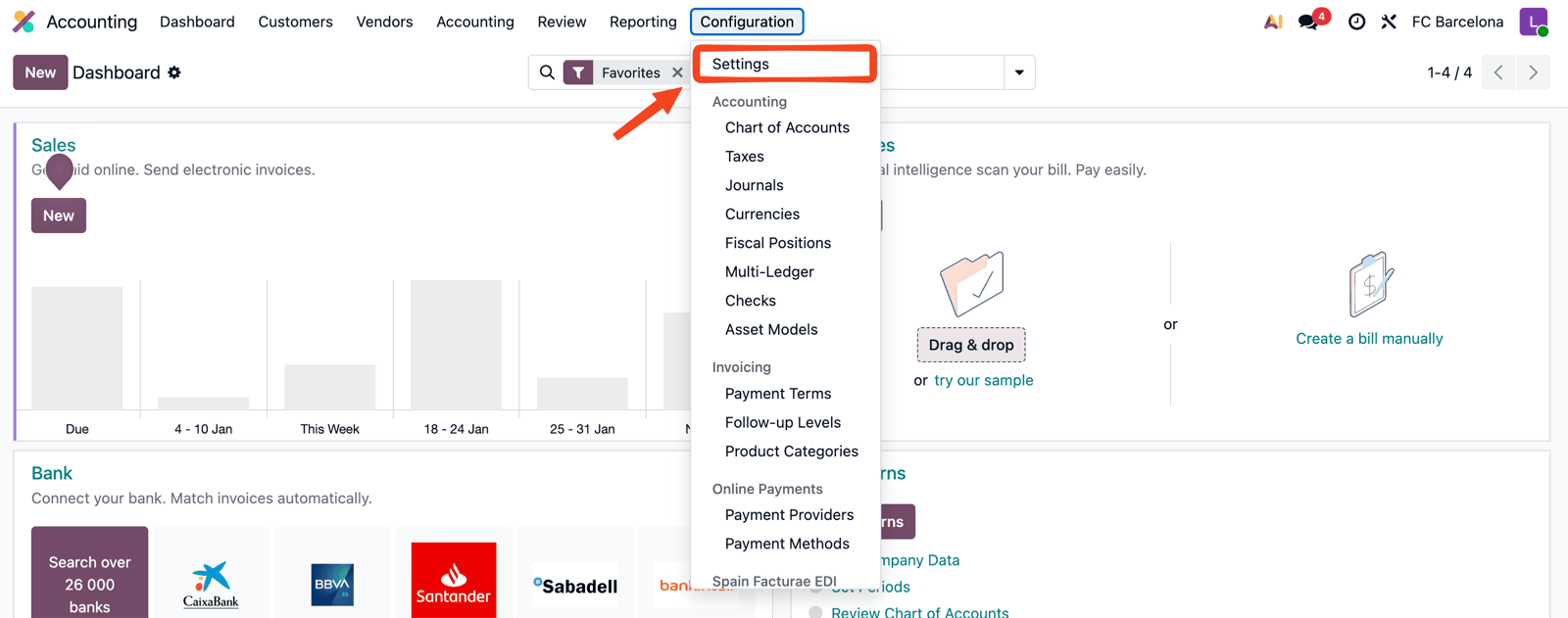
* Go to **Configuration → Settings**
2. **(If you don't know it or are unsure) Find the version of your Odoo account in your settings**
* Go to **Configuration → Settings**
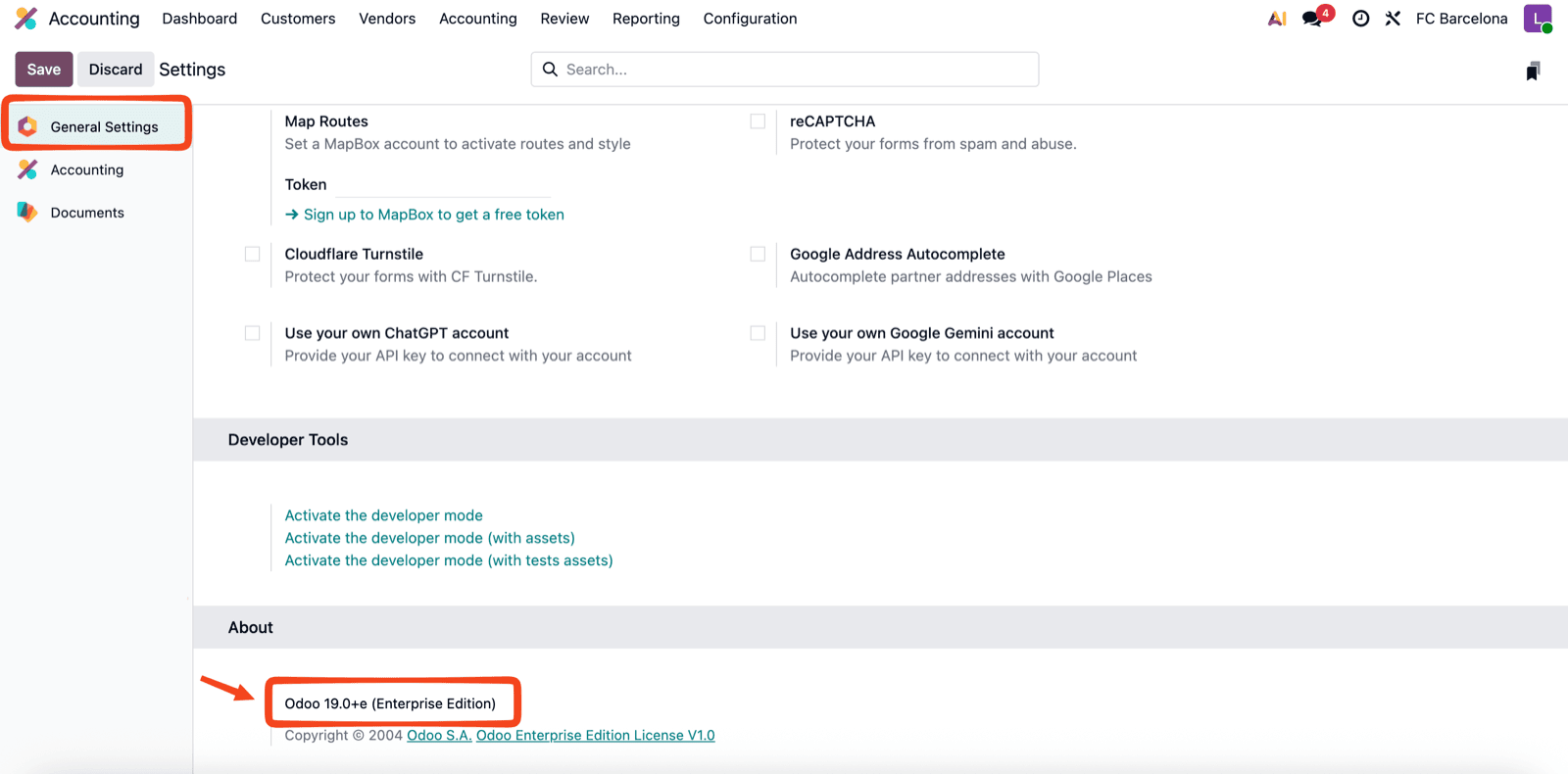
 * In the left menu, select General Settings. Then, scroll down to the About section to see your version.
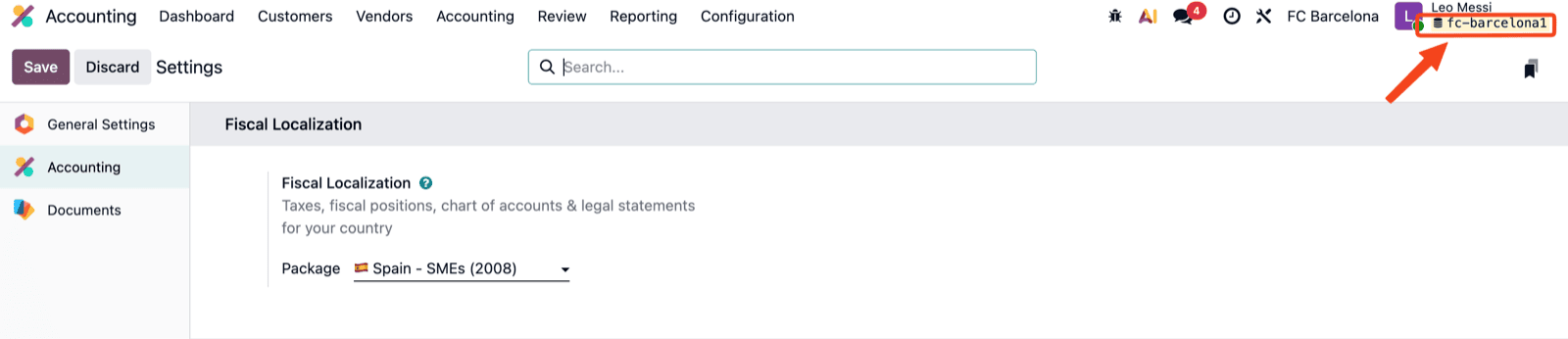
 3. **Find your database name**
* Activate developer mode in Odoo.
* Your database name will appear in the top-right corner under your username.
3. **Find your database name**
* Activate developer mode in Odoo.
* Your database name will appear in the top-right corner under your username.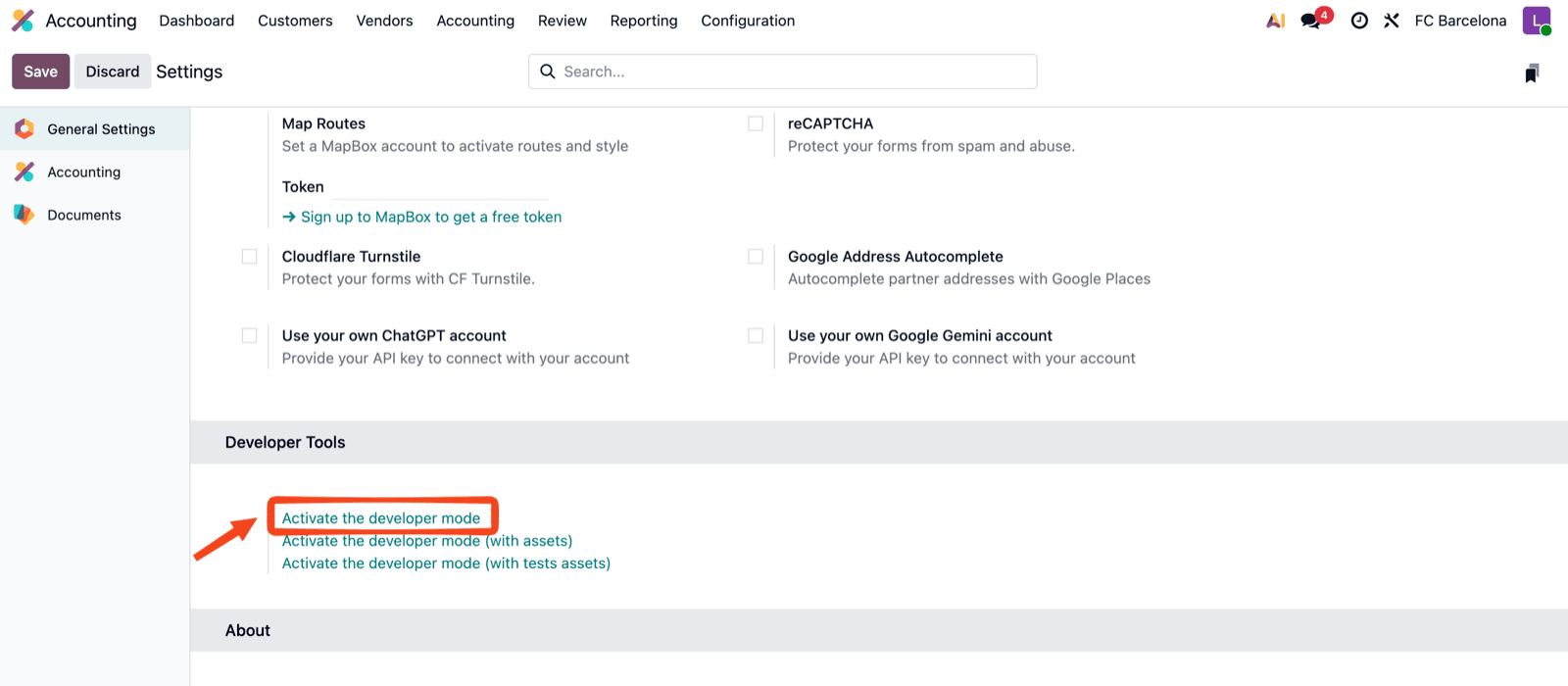
 # ⚡️ CONNECTION
**Step 1:** Choose a name for your connection. (If the connection name field isn’t visible, simply skip this step and continue.)
# ⚡️ CONNECTION
**Step 1:** Choose a name for your connection. (If the connection name field isn’t visible, simply skip this step and continue.)
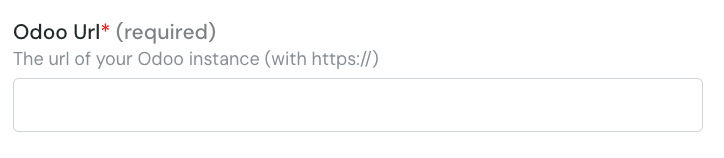
 **Step 2:** Enter the url of your Odoo instance.
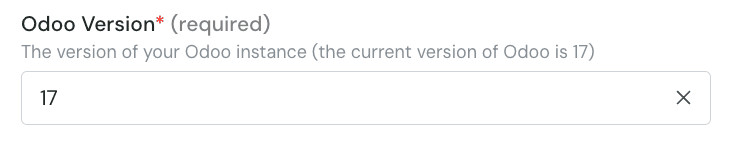
 **Step 3:** Enter the version of your odoo account.
 **Step 4:** Enter the database name
 **Step 5:** Enter your Odoo account username.
 **Step 6:** Enter your Odoo account password.
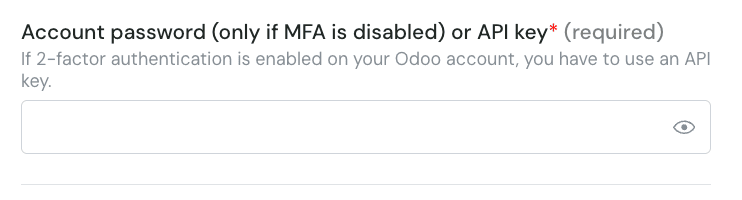 ⚠ Please note that if you activated the MFA on your Odoo account, you will need to setup an API Key and use it instead of your password.
**Step 6-1:** If you need to generate an API Key, log into Odoo and click on the right top corner button and on "preferences".
⚠ Please note that if you activated the MFA on your Odoo account, you will need to setup an API Key and use it instead of your password.
**Step 6-1:** If you need to generate an API Key, log into Odoo and click on the right top corner button and on "preferences".
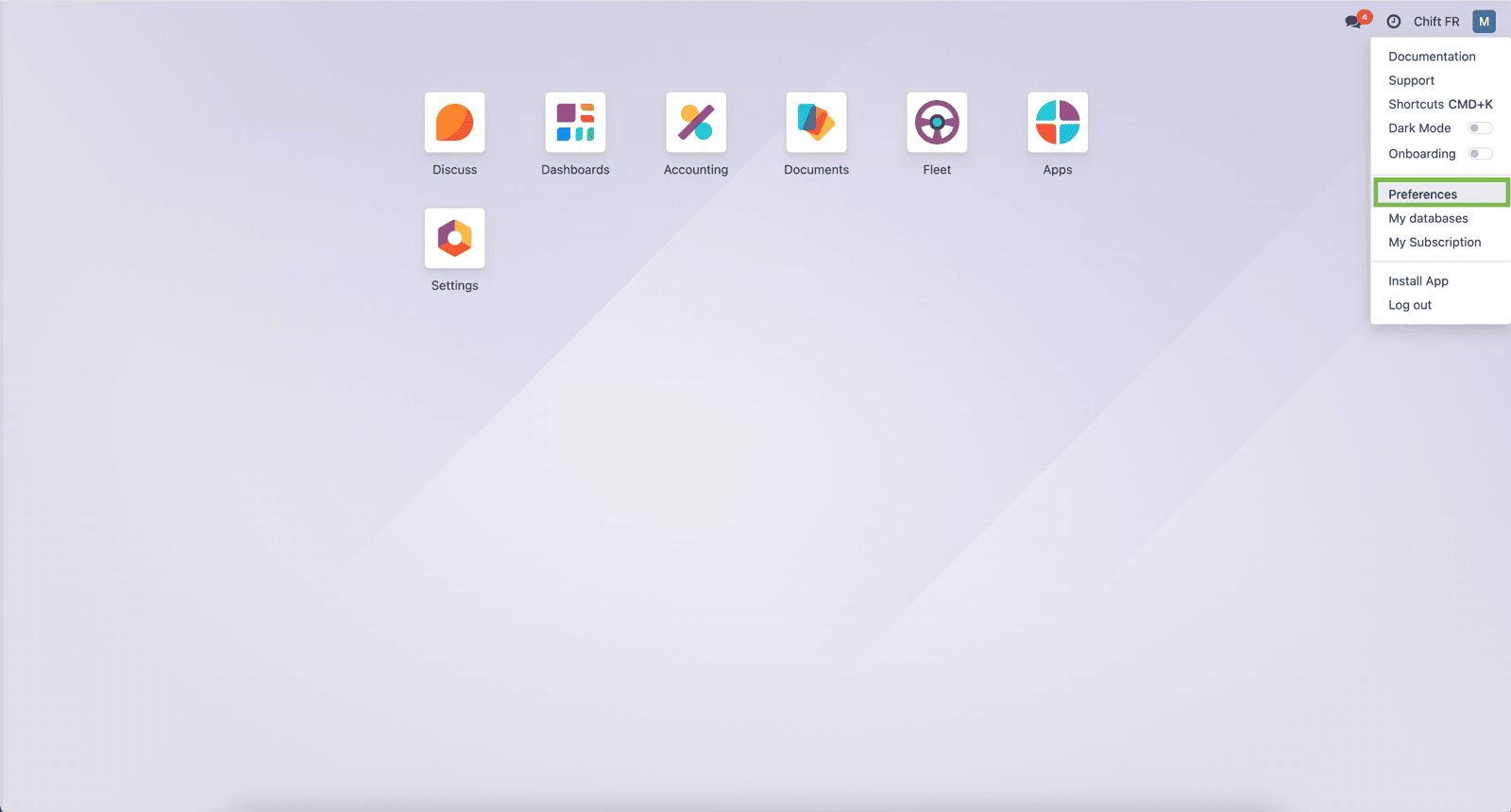 **Step 6-2:** Select "Account security"
 **Step 6-3:** Select "New API key"
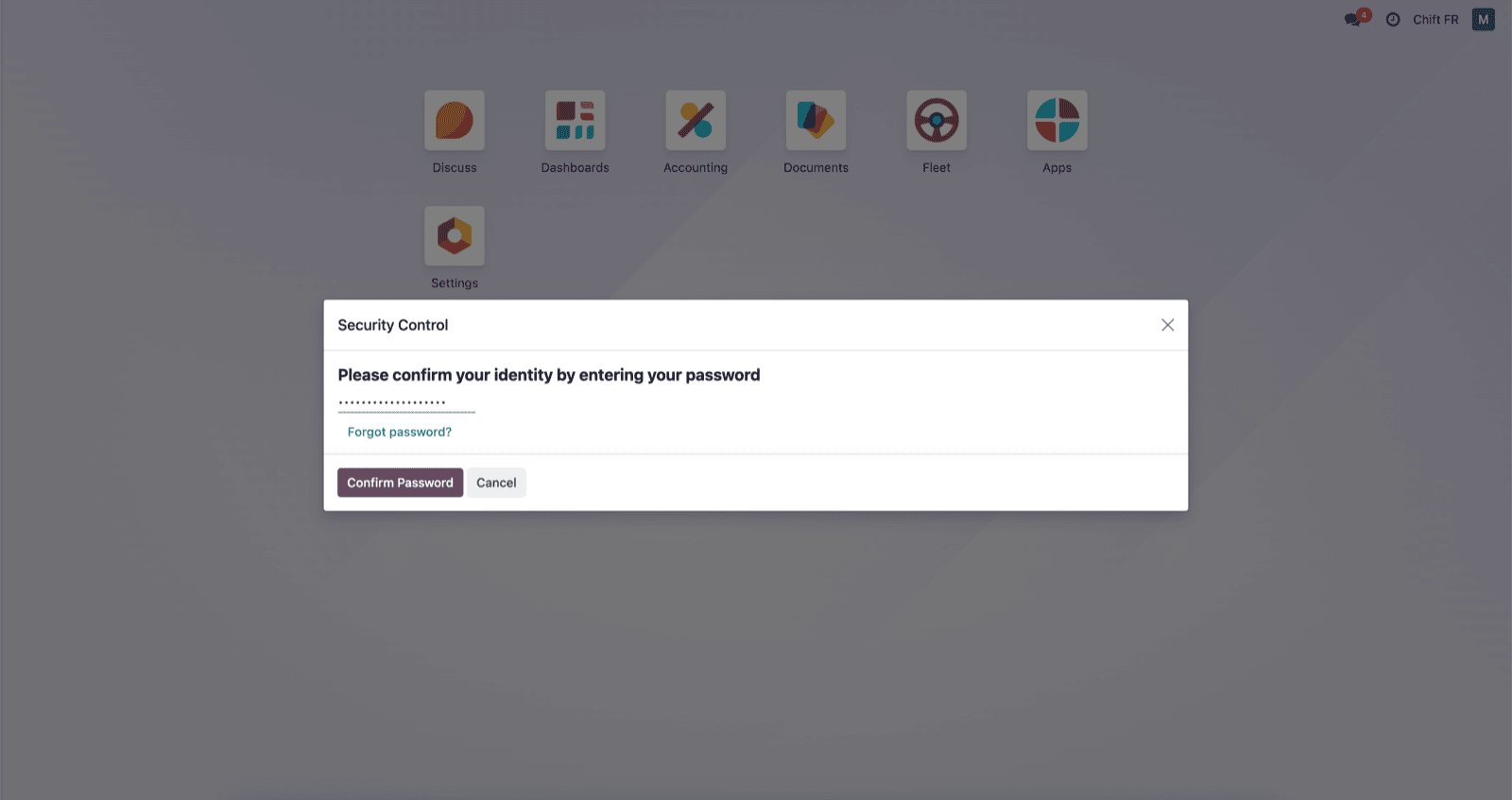
 **Step 6-4:** Fill your password
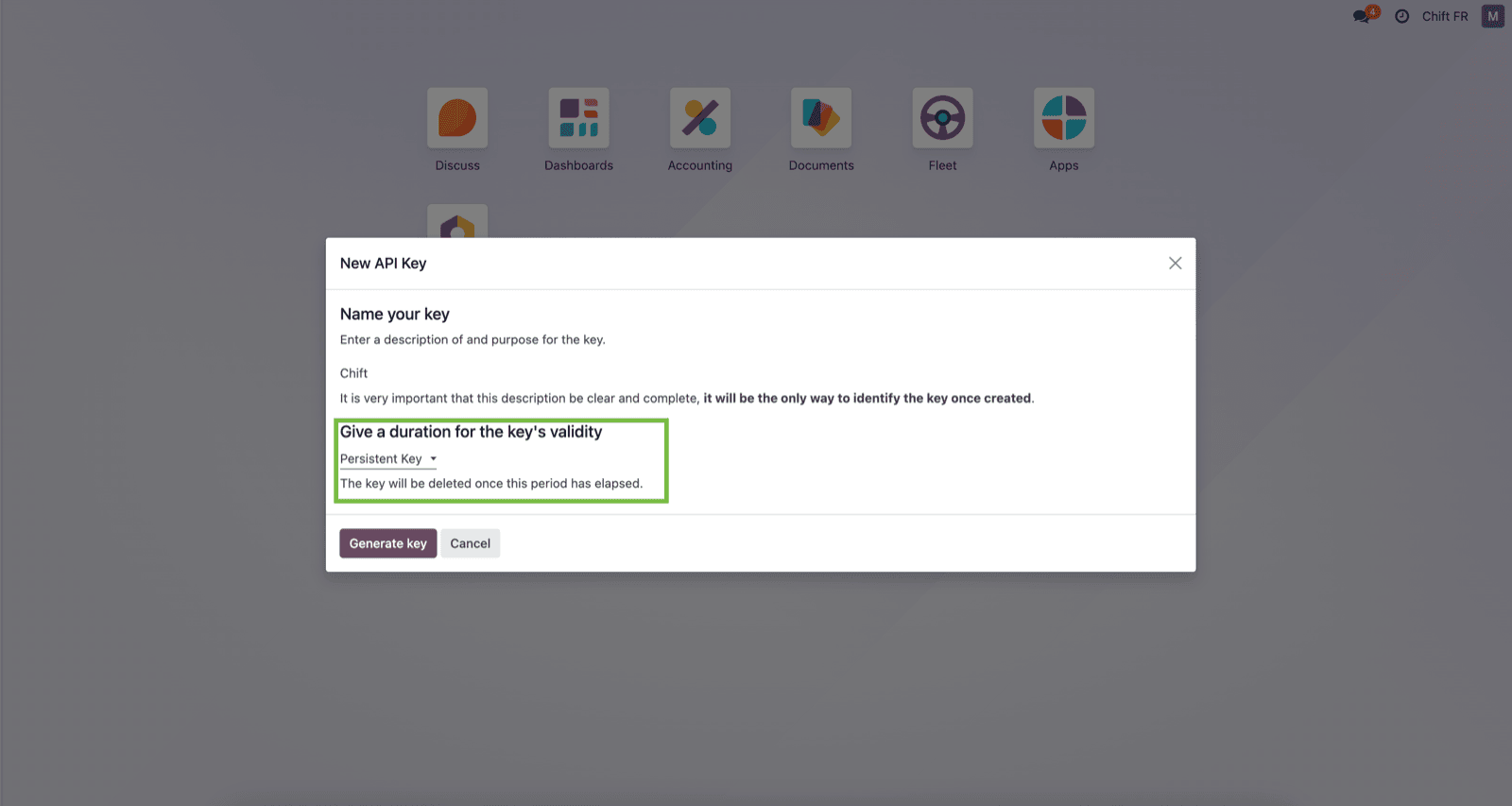
 **Step 6-5:** Give a name to your API key and give "persistant key" as duration.
 **Step 6-6:** Here is your API key that you can use in Chift funnel to connect Odoo.
 **Step 7:** Click "Connect" to finalise the connection.
 # CONFIGURATION
**Step 1:** Select the company to connect to on Odoo.
# CONFIGURATION
**Step 1:** Select the company to connect to on Odoo.
 **Step 2:** Click "Submit" to finalise the configuration