> ## Documentation Index
> Fetch the complete documentation index at: https://docs.chift.eu/llms.txt
> Use this file to discover all available pages before exploring further.

# MyUnisoft

# **PREPARATION**

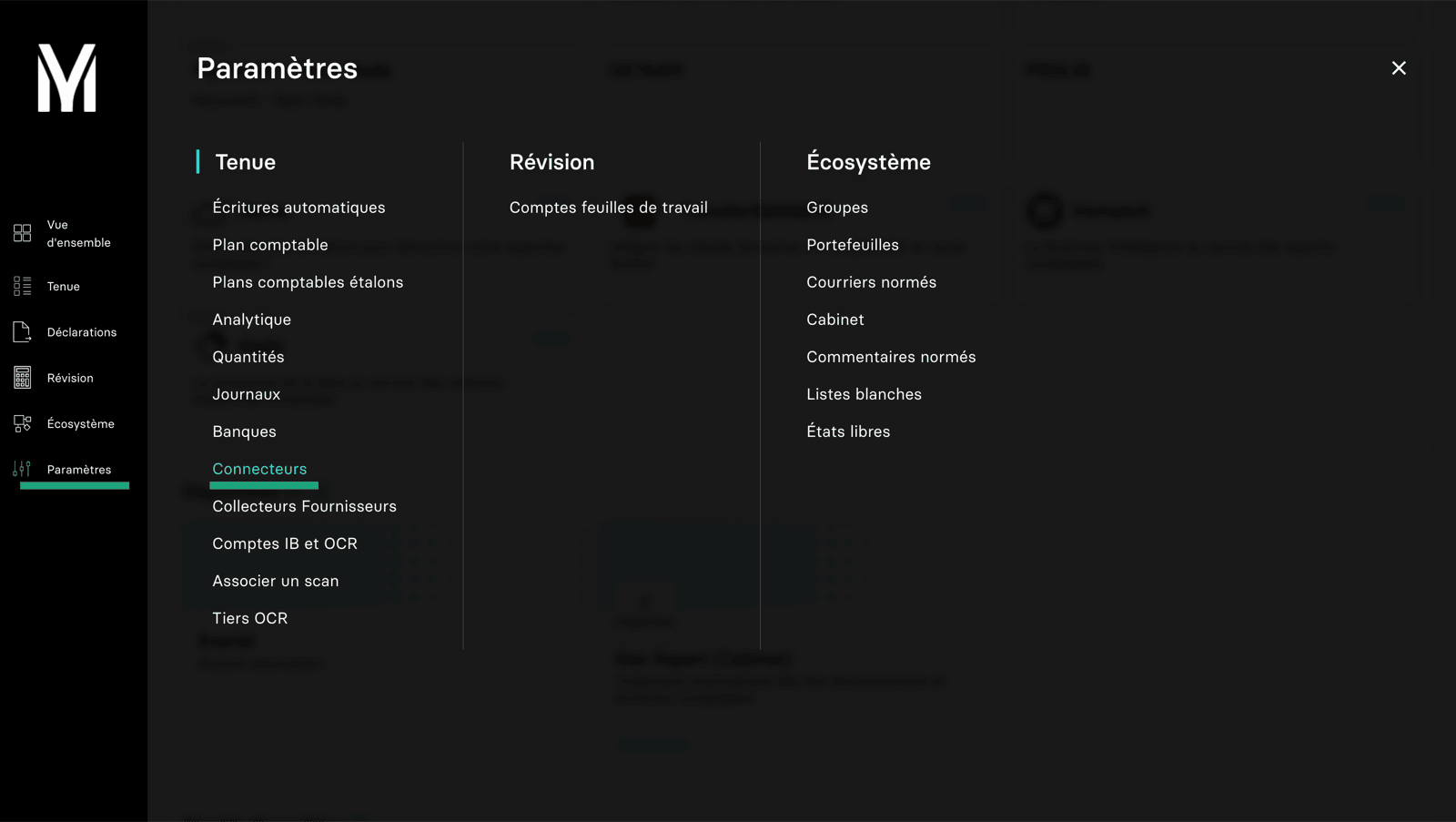
1. Generate an API Token for your connection to MyUnisoft.

   * Go to your MyUnisoft account, Parameters, then connectors.
<img src="https://mintcdn.com/chift/31nQ8nkwKpxNtIUa/images/help/myunisoft/myunisoft-1.png?fit=max&auto=format&n=31nQ8nkwKpxNtIUa&q=85&s=d623a3667d04d08c0eb940511e7d8429" alt="" width="1600" height="903" data-path="images/help/myunisoft/myunisoft-1.png" />

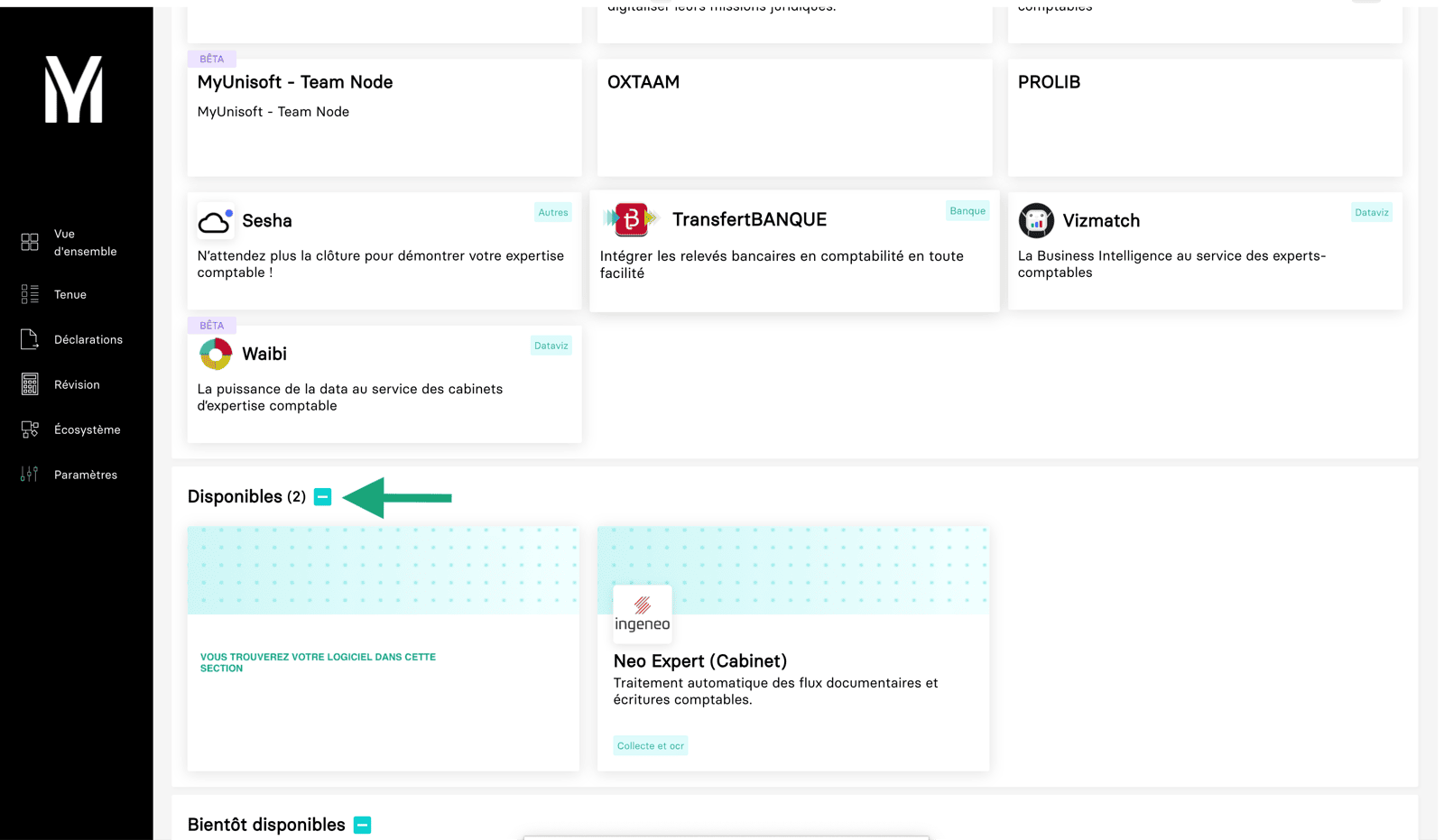
* You will find your software in the list of available connectors
<img src="https://mintcdn.com/chift/31nQ8nkwKpxNtIUa/images/help/myunisoft/myunisoft-2.png?fit=max&auto=format&n=31nQ8nkwKpxNtIUa&q=85&s=e01c4ed6c585b57ab64e39e928807ba4" alt="" width="1600" height="931" data-path="images/help/myunisoft/myunisoft-2.png" />

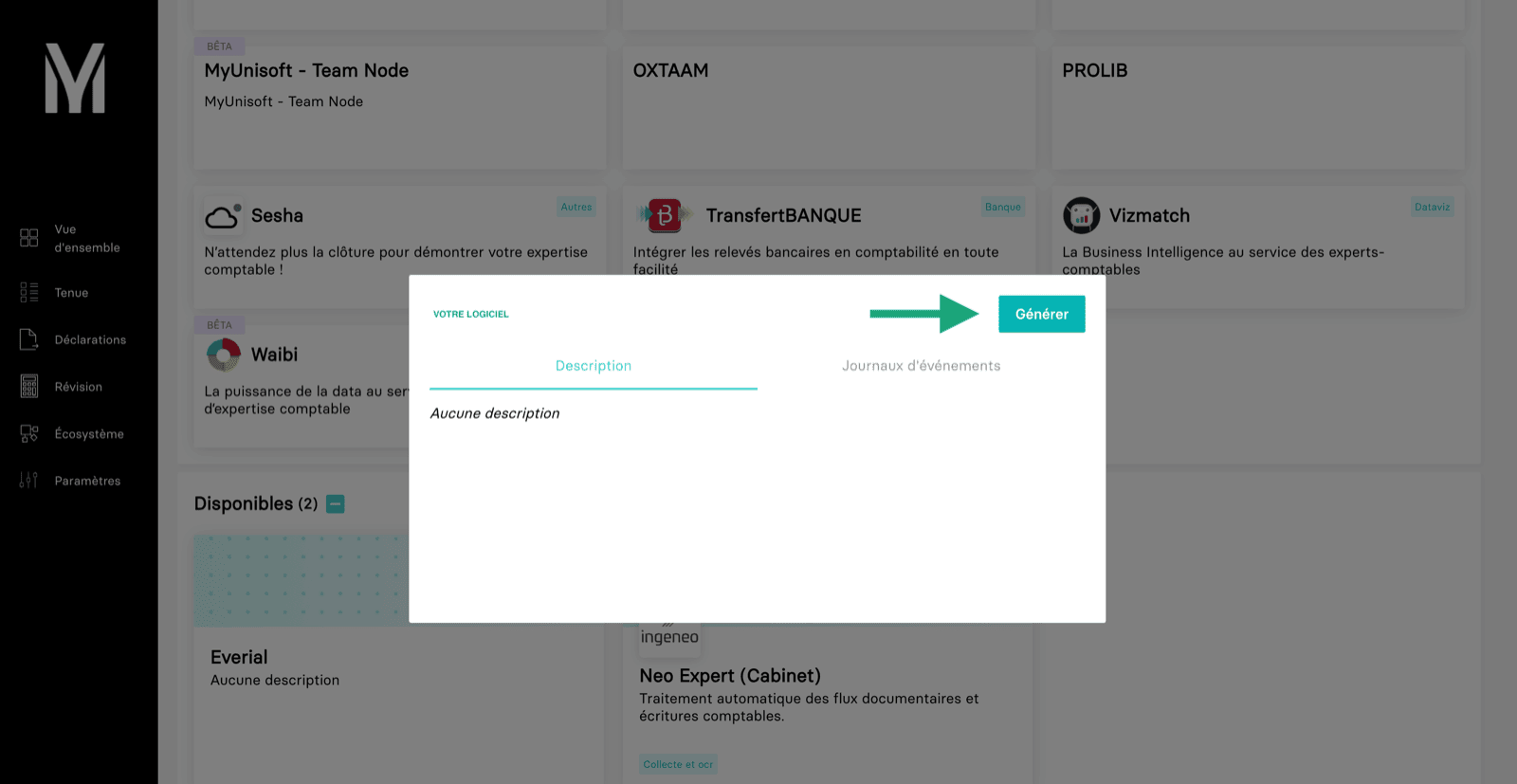
* Select the connector and generate an API token and copy.
<img src="https://mintcdn.com/chift/31nQ8nkwKpxNtIUa/images/help/myunisoft/myunisoft-3.png?fit=max&auto=format&n=31nQ8nkwKpxNtIUa&q=85&s=8feb3455d6b641684b5d4fbfc1855d16" alt="" width="1600" height="827" data-path="images/help/myunisoft/myunisoft-3.png" />

# CONNECTION

**Step 1:** Choose a name for your connection.

<img src="https://mintcdn.com/chift/31nQ8nkwKpxNtIUa/images/help/myunisoft/myunisoft-4.png?fit=max&auto=format&n=31nQ8nkwKpxNtIUa&q=85&s=656aed4957c9f9119a58ab0a97c56680" alt="" width="592" height="115" data-path="images/help/myunisoft/myunisoft-4.png" />

**Step 2:** Determine if you want to enable analytical data to be transferred.

<img src="https://mintcdn.com/chift/31nQ8nkwKpxNtIUa/images/help/myunisoft/myunisoft-5.png?fit=max&auto=format&n=31nQ8nkwKpxNtIUa&q=85&s=60fd26c922470bc4954eda0bb55beb5e" alt="" width="591" height="108" data-path="images/help/myunisoft/myunisoft-5.png" />

**Step 3:** Provide the API token, which you previously generated on MyUnisoft.

<img src="https://mintcdn.com/chift/31nQ8nkwKpxNtIUa/images/help/myunisoft/myunisoft-6.png?fit=max&auto=format&n=31nQ8nkwKpxNtIUa&q=85&s=2c4e4c6a4b2432e57954e1fa23fc44a1" alt="" width="593" height="90" data-path="images/help/myunisoft/myunisoft-6.png" />

**Step 4:** Click "Connect" to finalise the connection.

<img src="https://mintcdn.com/chift/31nQ8nkwKpxNtIUa/images/help/myunisoft/myunisoft-7.png?fit=max&auto=format&n=31nQ8nkwKpxNtIUa&q=85&s=bc6a35b61d975667e292d4497a3d0f5f" alt="" width="184" height="79" data-path="images/help/myunisoft/myunisoft-7.png" />
