> ## Documentation Index
> Fetch the complete documentation index at: https://docs.chift.eu/llms.txt
> Use this file to discover all available pages before exploring further.
# Visma e-conomic
## 🚨 Prerequisites
* You must have an active **e-conomic account** with accounting data
* You must use one of the following users to grant access to e-conomic:
* superuser
* normal user with the following access:
* accounting
* sales (if you want to handle customers)
***
## ⚡ Connection
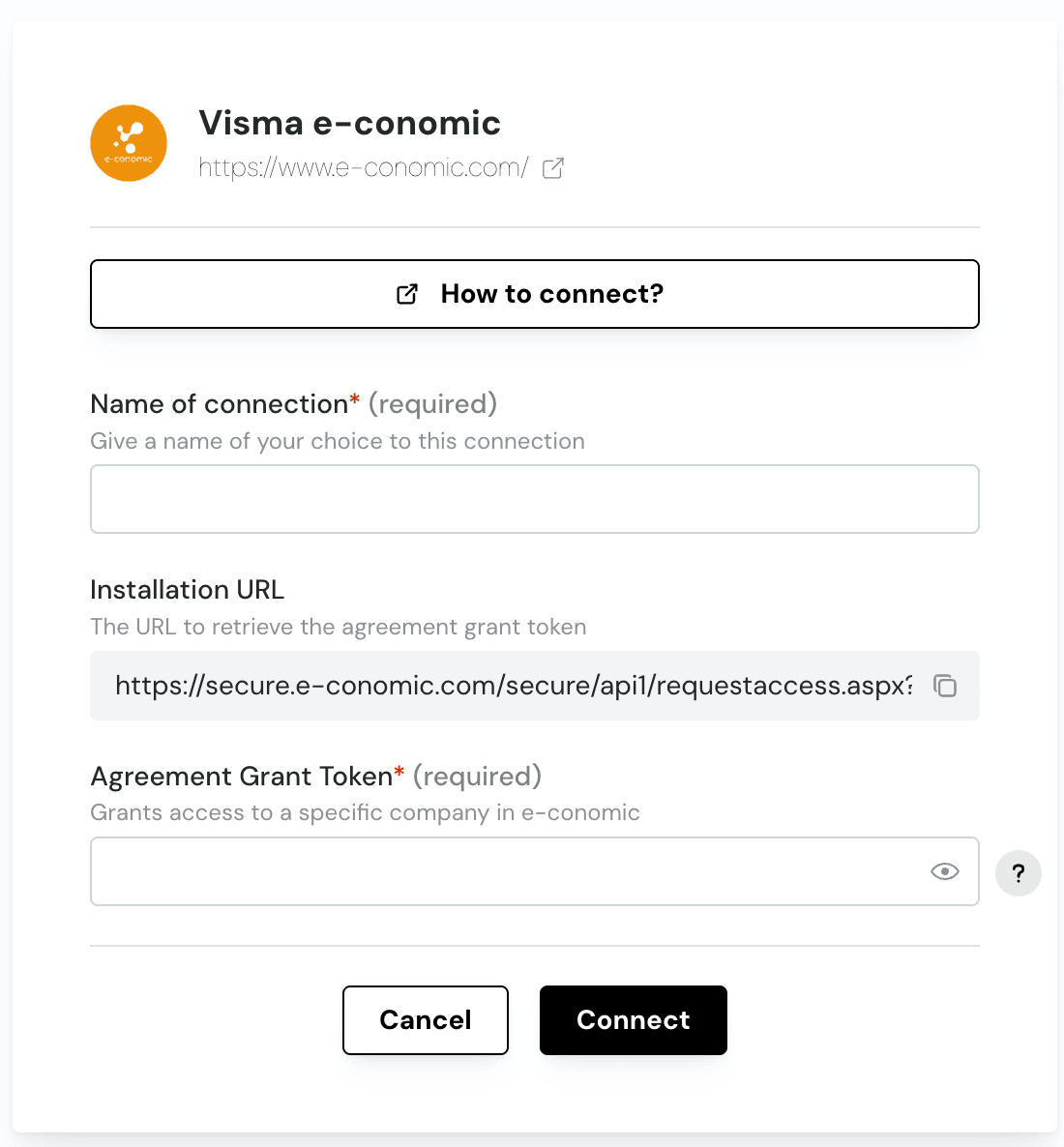 **Step 1:** Choose a name for your connection (if the connection name field isn’t visible, simply skip this step and continue)
 **Step 2:** Retrieve the Agreement Grant Token
* Copy & paste the **Installation URL** in a new tab
**Step 2:** Retrieve the Agreement Grant Token
* Copy & paste the **Installation URL** in a new tab
 * Accept the access request
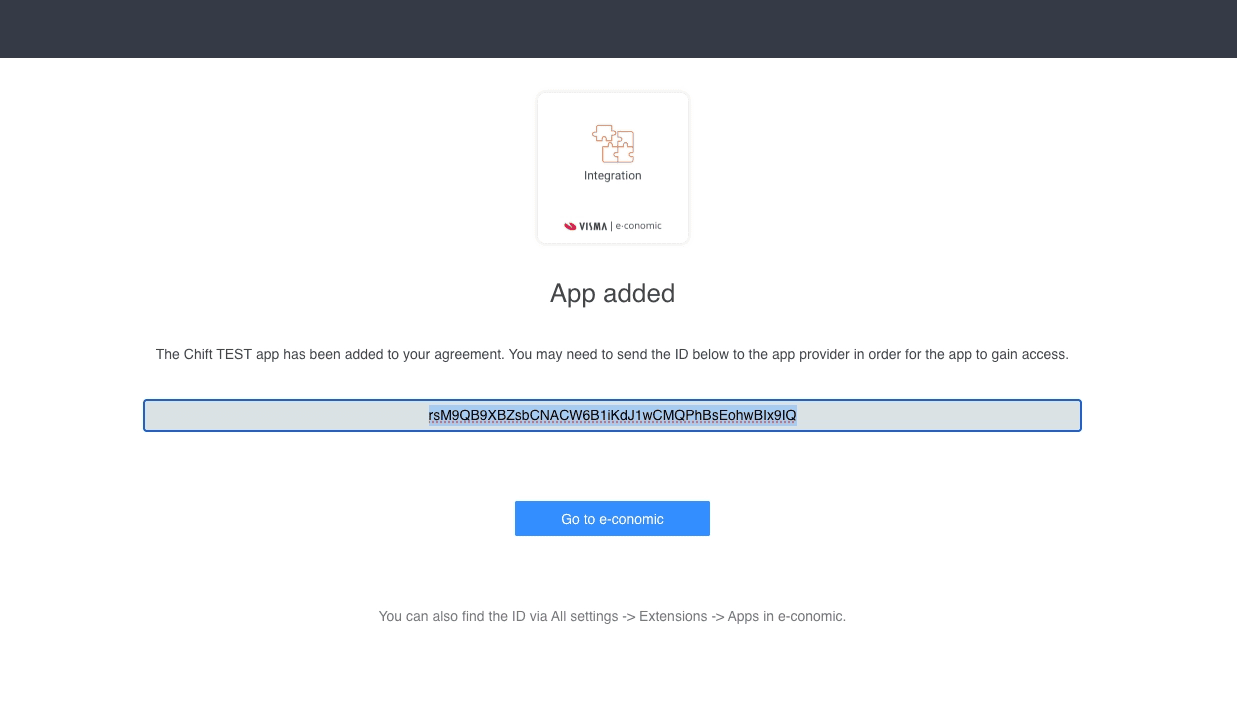 * Copy the generated **Agreement grant token** and paste it in the corresponding field in the form
**Step 3:** Click on **Connect**
***
## ❓ Troubleshooting
| Issue | What to do |
| ------------------------------------- | -------------------------------------------------------------------------------------------------------------------------------------------------------- |
| "Access denied" or connection fails | Make sure you are logged in to the correct e-conomic agreement (the one with accounting data, not the developer agreement). |
| You manage multiple agreements | Click "Administer" on the target agreement before following the grant link. [More info here](https://techtalk.e-conomic.com/tokens-for-administrators/). |
| Connection worked but no data appears | Ensure your e-conomic user role has the **SuperUser** permission. Other roles (Bookkeeping, Sales) have limited API access. |
| You want to revoke Chift's access | Log in to your e-conomic account → Apps → find Chift and remove the grant. |
* Copy the generated **Agreement grant token** and paste it in the corresponding field in the form
**Step 3:** Click on **Connect**
***
## ❓ Troubleshooting
| Issue | What to do |
| ------------------------------------- | -------------------------------------------------------------------------------------------------------------------------------------------------------- |
| "Access denied" or connection fails | Make sure you are logged in to the correct e-conomic agreement (the one with accounting data, not the developer agreement). |
| You manage multiple agreements | Click "Administer" on the target agreement before following the grant link. [More info here](https://techtalk.e-conomic.com/tokens-for-administrators/). |
| Connection worked but no data appears | Ensure your e-conomic user role has the **SuperUser** permission. Other roles (Bookkeeping, Sales) have limited API access. |
| You want to revoke Chift's access | Log in to your e-conomic account → Apps → find Chift and remove the grant. |