> ## Documentation Index
> Fetch the complete documentation index at: https://docs.chift.eu/llms.txt
> Use this file to discover all available pages before exploring further.
# DATEV Buchungsdatenservice
## 📋 Overview
This integration connects with two DATEV components:
* **DATEV Rechnungswesen** – On-premise accounting software. The generated bookings will be pushed into DATEV Rechnungswesen.
* **DATEV Unternehmen Online (DUO)** – Cloud portal used for sending attachments such as documents, invoices, or receipts. If you don’t plan to send attachments, DUO is not required.
***
## 🚨PREREQUISITES **(conditions to be met** prior to connection\*\*)\*\*
### 1. Licenses
| | |
| ------------------------------------------ | ------------------------------------------------------------------------------------------------------------------------------------------------------------------------------------------------------------------------------------------------------------------------------------------------------------------------------------ |
| Licences | Requirement descriptions |
| **DATEV Rechnungswesen licence** | Mandatory. Owned either by your company or provided through your accountant/tax advisor. |
| **DATEV Buchungsdatenservice** | Mandatory. Enables API access to push bookings to DATEV Rechnungswesen. This service needs to be activated on company level: [https://www.datev.de/web/de/shop/produkt-details/datev-buchungsdatenservice-91000](https://www.datev.de/web/de/shop/produkt-details/datev-buchungsdatenservice-91000) |
| **DATEV Unternehmen Online (DUO) licence** | Only required if attachments (PDFs, invoices, receipts) will be sent to DATEV. |
| **DATEV Belegbilderservice** | Only required if attachments (PDFs, invoices, receipts) will be sent to DATEV. This service needs to be activated on company level: [https://www.datev.de/web/de/shop/produkt-details/datev-belegbilderservice-rechnungswesen-92902](https://www.datev.de/web/de/shop/produkt-details/datev-belegbilderservice-rechnungswesen-92902) |
**How to confirm licenses:**
* In DATEV Arbeitsplatz, go to **Licence Management (Lizenzverwaltung)** to view installed licences.
* Or request confirmation from your DATEV administrator, tax consultant (Steuerberater), or DATEV service partner.
### 2. Information to provide
Verify that you are able to provide all information listed in the "Connection" section below. Contact the needed persons before the activation process if you miss some information.
***
# ⚡️ CONNECTION
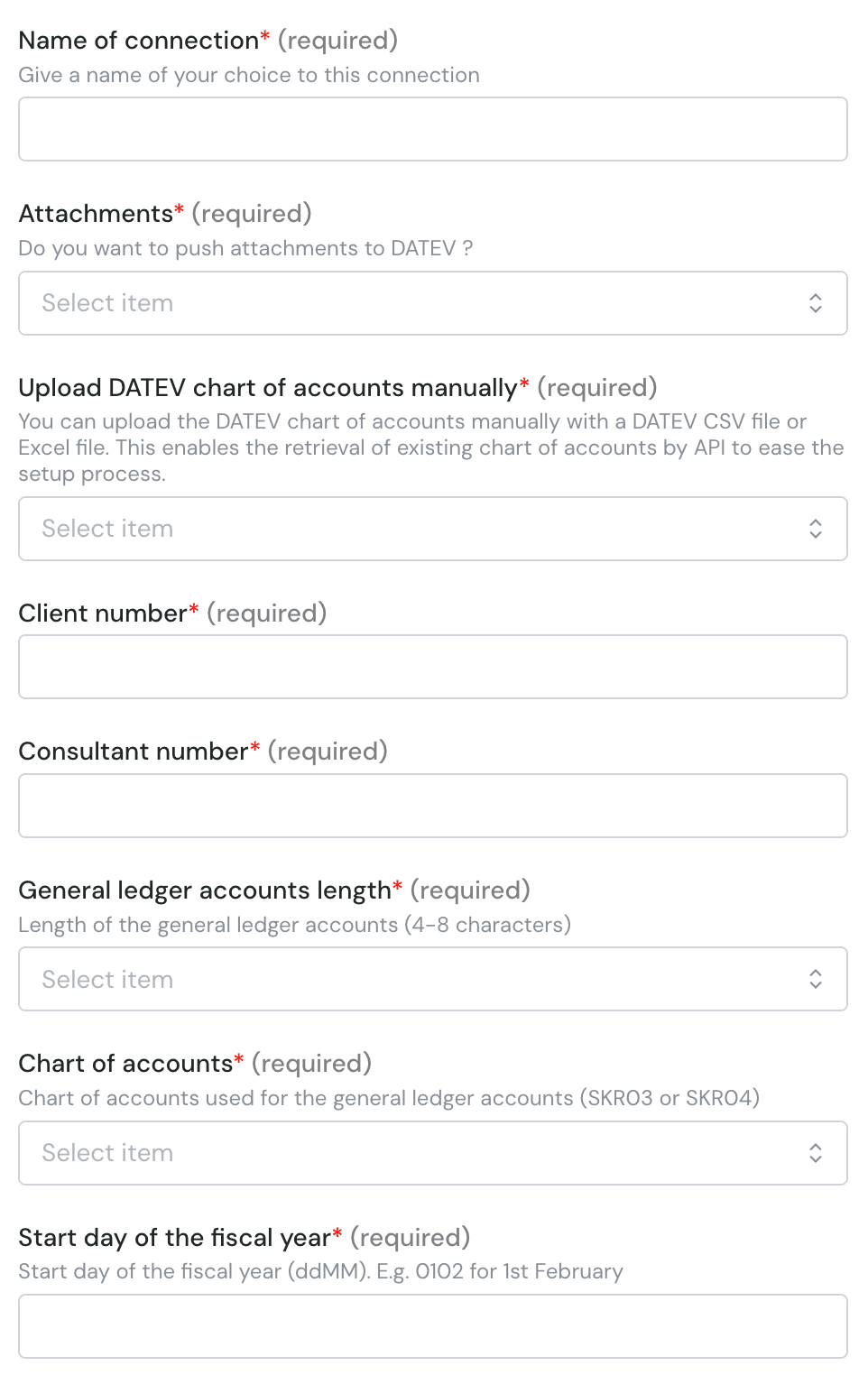 **Step 1:** Choose a name for your connection. (If the connection name field isn’t visible, simply skip this step and continue.)
 **Step 2 :** Choose whether you want to send attachments
If you don’t see this option, it means your software provider preconfigured this setting for you.
**Step 2 :** Choose whether you want to send attachments
If you don’t see this option, it means your software provider preconfigured this setting for you.
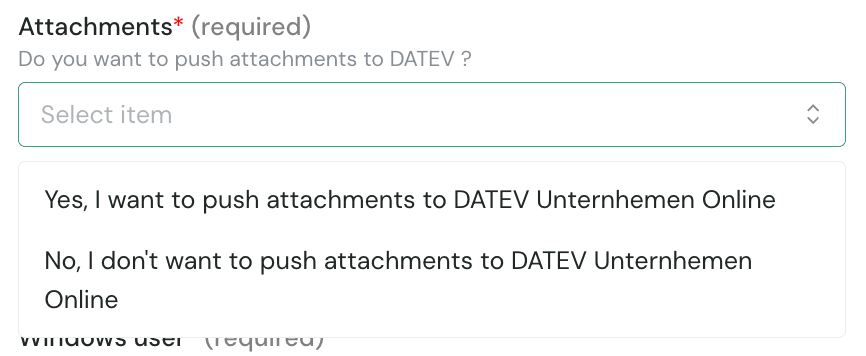 * If your integration needs to send PDF invoices, receipts, or supporting documents to DATEV, select **Yes** to enable attachments
* This requires a valid **DATEV Unternehmen Online** licence (see above in prerequisites section)
* This requires the **Belegbilderservice** to be enabled on your company (see above in prerequisites section)
**Step 3 :** Choose whether you want to upload the chart of accounts
If you don’t see this option, it means your software provider preconfigured this setting for you.
* If your integration needs to send PDF invoices, receipts, or supporting documents to DATEV, select **Yes** to enable attachments
* This requires a valid **DATEV Unternehmen Online** licence (see above in prerequisites section)
* This requires the **Belegbilderservice** to be enabled on your company (see above in prerequisites section)
**Step 3 :** Choose whether you want to upload the chart of accounts
If you don’t see this option, it means your software provider preconfigured this setting for you.
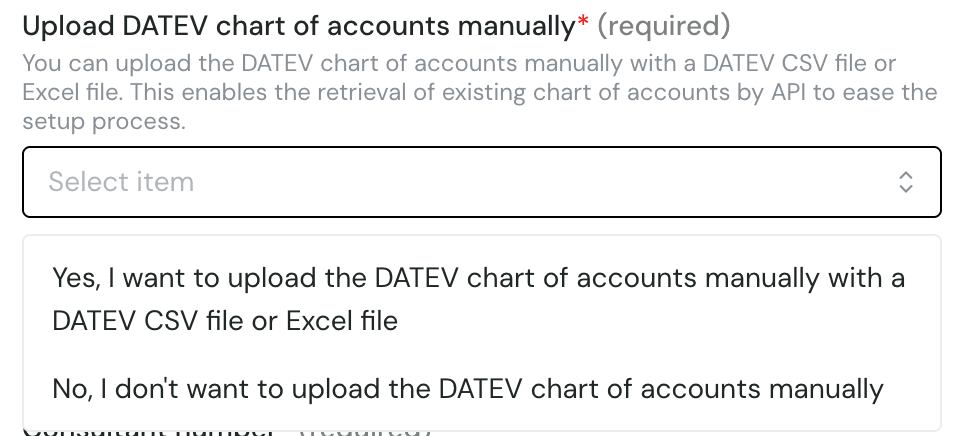 By default DATEV doesn't allow you to retrieve the existing general ledger accounts from DATEV Rechnungswesen automatically. If you select "Yes", you will have the possibility to upload the existing general ledger accounts in the next step of the activation process. Uploading the existing general ledger accounts can ease the activation process when mappings need to be done. This avoids having to manually fill in the number of the ledger accounts you want to use in the generated bookings. You can find more info about this at the bottom of this document in the "CONFIGURE" section.
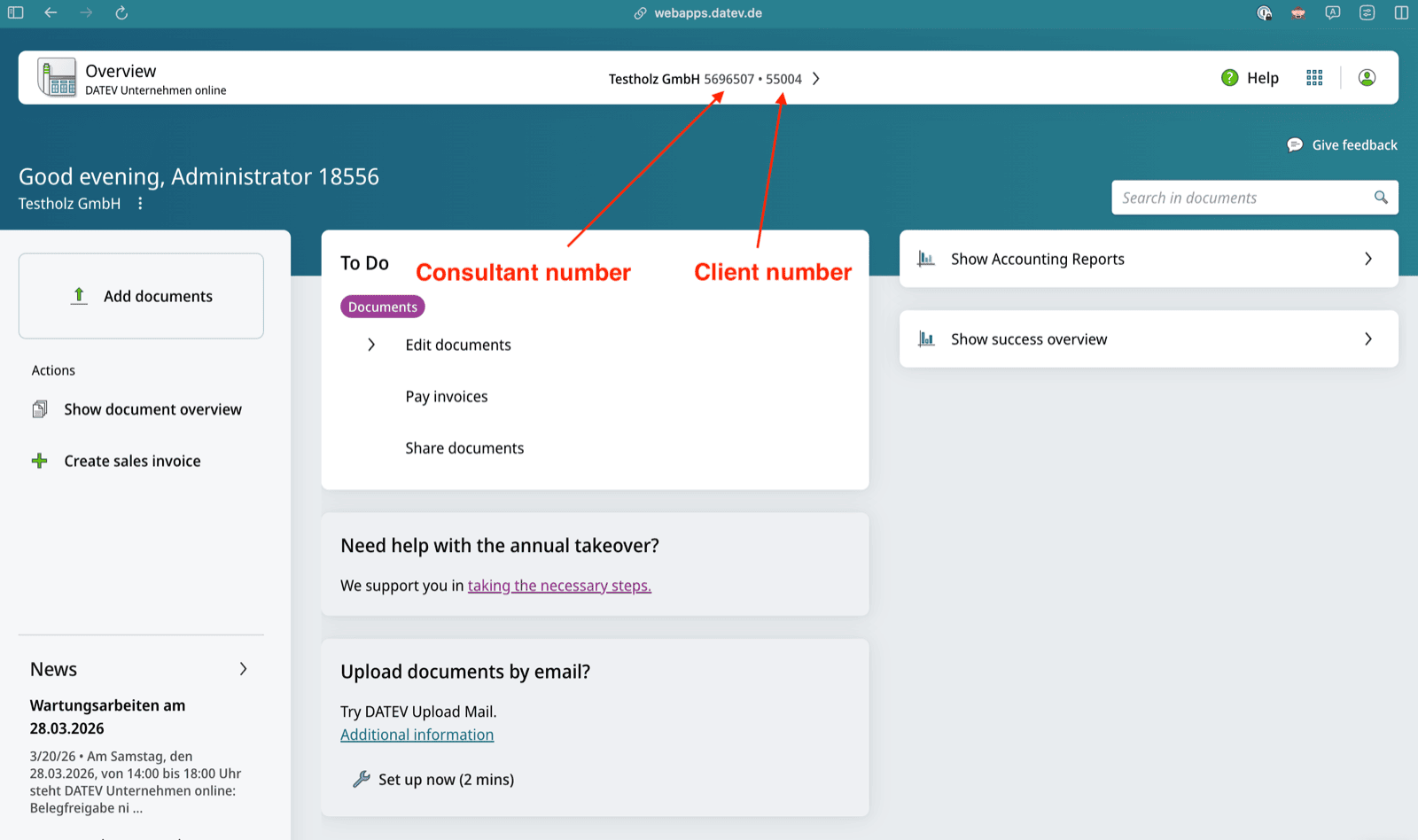
**Step 4** : Enter your **Client number** and **Consultant number**
By default DATEV doesn't allow you to retrieve the existing general ledger accounts from DATEV Rechnungswesen automatically. If you select "Yes", you will have the possibility to upload the existing general ledger accounts in the next step of the activation process. Uploading the existing general ledger accounts can ease the activation process when mappings need to be done. This avoids having to manually fill in the number of the ledger accounts you want to use in the generated bookings. You can find more info about this at the bottom of this document in the "CONFIGURE" section.
**Step 4** : Enter your **Client number** and **Consultant number**
 Where to find them ? 👇
* Go to DUO sign-in page
* Select your company (if asked)
* The numbers are shown on the top bar:
Where to find them ? 👇
* Go to DUO sign-in page
* Select your company (if asked)
* The numbers are shown on the top bar:
 **Step 5** : Specify the length of the general ledger accounts configured in DATEV Rechnungswesen
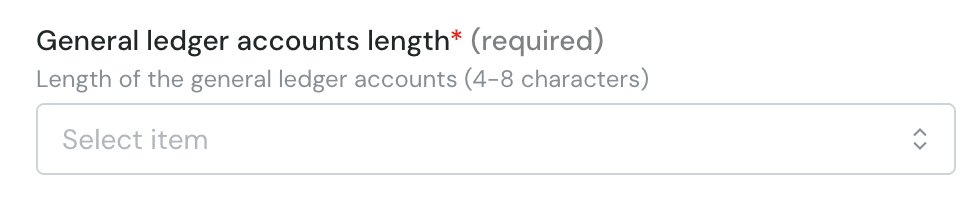 In DATEV Rechnungswesen you can specify the length you want to use when handling general ledger accounts. This information is important as it is needed to generate the bookings.
The length can be:
* 4 characters
* 5 characters
* 6 characters
* 7 characters
* 8 characters
You can retrieve this information from DATEV Unternehmen online (if the setup has been done correctly):
1. Go to DUO sign-in page
2. Select your company (if asked)
3. Go to "Stammdaten":
In DATEV Rechnungswesen you can specify the length you want to use when handling general ledger accounts. This information is important as it is needed to generate the bookings.
The length can be:
* 4 characters
* 5 characters
* 6 characters
* 7 characters
* 8 characters
You can retrieve this information from DATEV Unternehmen online (if the setup has been done correctly):
1. Go to DUO sign-in page
2. Select your company (if asked)
3. Go to "Stammdaten":
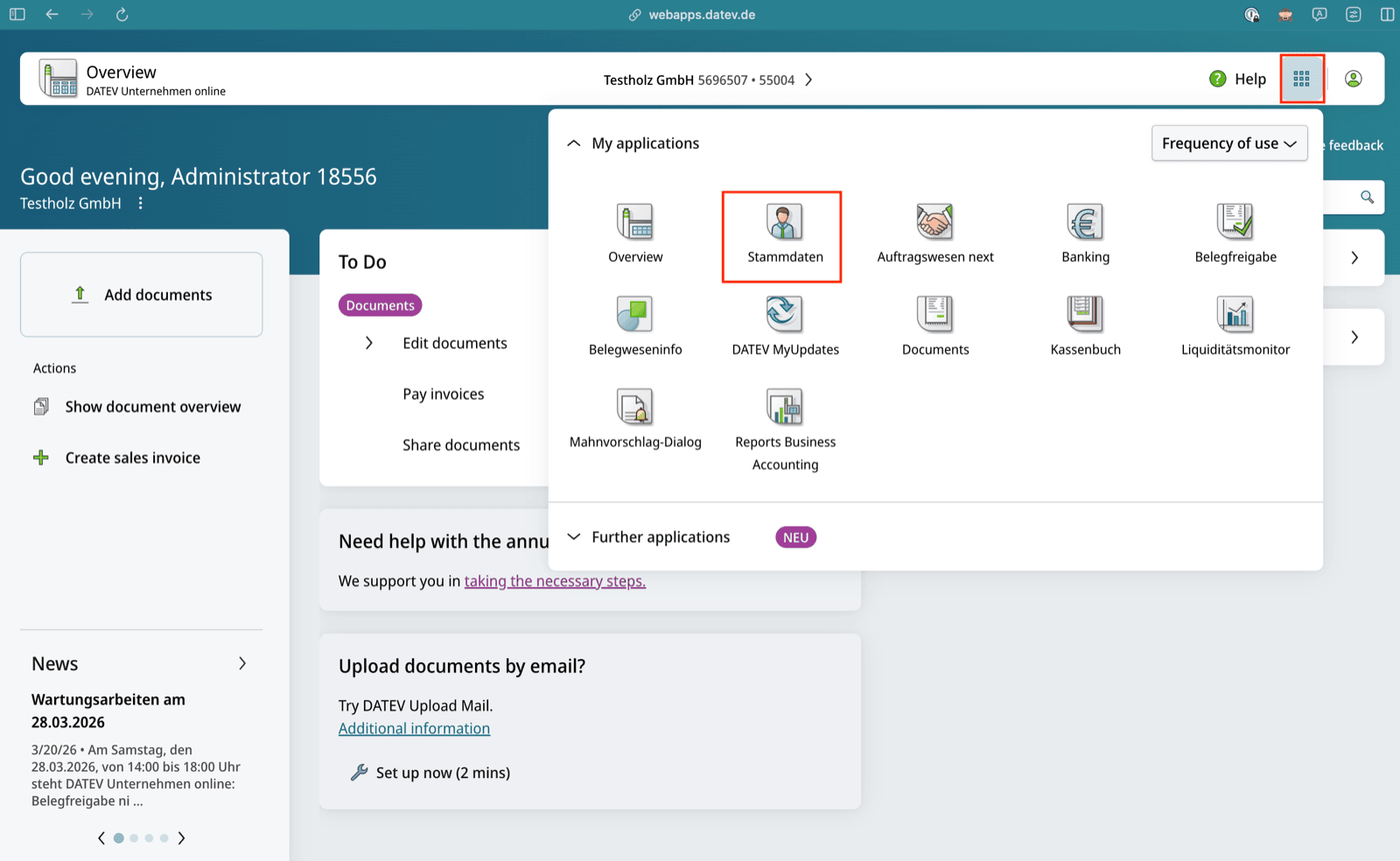 4. You can see the information at the bottom right of your screen. In this example "4":
 If this information is not shown it means it has not been set up correctly in DATEV Unternehmen online. In this case you need to ask your tax consultant for this information.
**Step 6** : Specify the type of chart of accounts
If this information is not shown it means it has not been set up correctly in DATEV Unternehmen online. In this case you need to ask your tax consultant for this information.
**Step 6** : Specify the type of chart of accounts
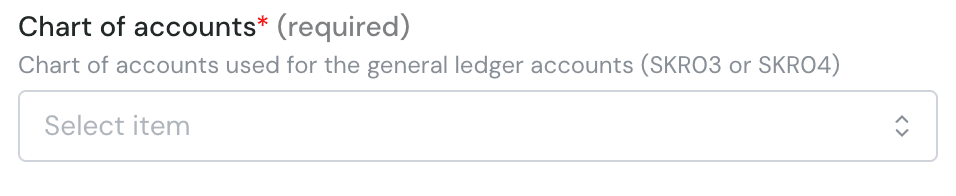 You can use 2 different charts of accounts in DATEV:
* SKR 03
* SKR 04
This information is needed to generate the bookings. Contact the needed person before the activation process if you don't have this information on your side. Your tax consultant will be able to provide you this information.
**Step 7** : Specify the start day of the fiscal year
You can use 2 different charts of accounts in DATEV:
* SKR 03
* SKR 04
This information is needed to generate the bookings. Contact the needed person before the activation process if you don't have this information on your side. Your tax consultant will be able to provide you this information.
**Step 7** : Specify the start day of the fiscal year
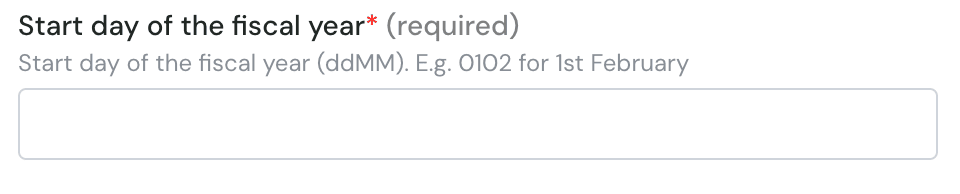 A fiscal year generally starts on the 1st of January. For accounting or administrative reasons, it can be the case that the fiscal year starts on another day. Please provide this information as it is needed to generate the bookings.
The expected format is day and Month without spaces (ddMM): this means 0102 for the 1st of February.
You can retrieve this information from DATEV Unternehmen online (if the setup has been done correctly):
1. Go to DUO sign-in page
2. Select your company (if asked)
3. Go to "Stammdaten":
A fiscal year generally starts on the 1st of January. For accounting or administrative reasons, it can be the case that the fiscal year starts on another day. Please provide this information as it is needed to generate the bookings.
The expected format is day and Month without spaces (ddMM): this means 0102 for the 1st of February.
You can retrieve this information from DATEV Unternehmen online (if the setup has been done correctly):
1. Go to DUO sign-in page
2. Select your company (if asked)
3. Go to "Stammdaten":
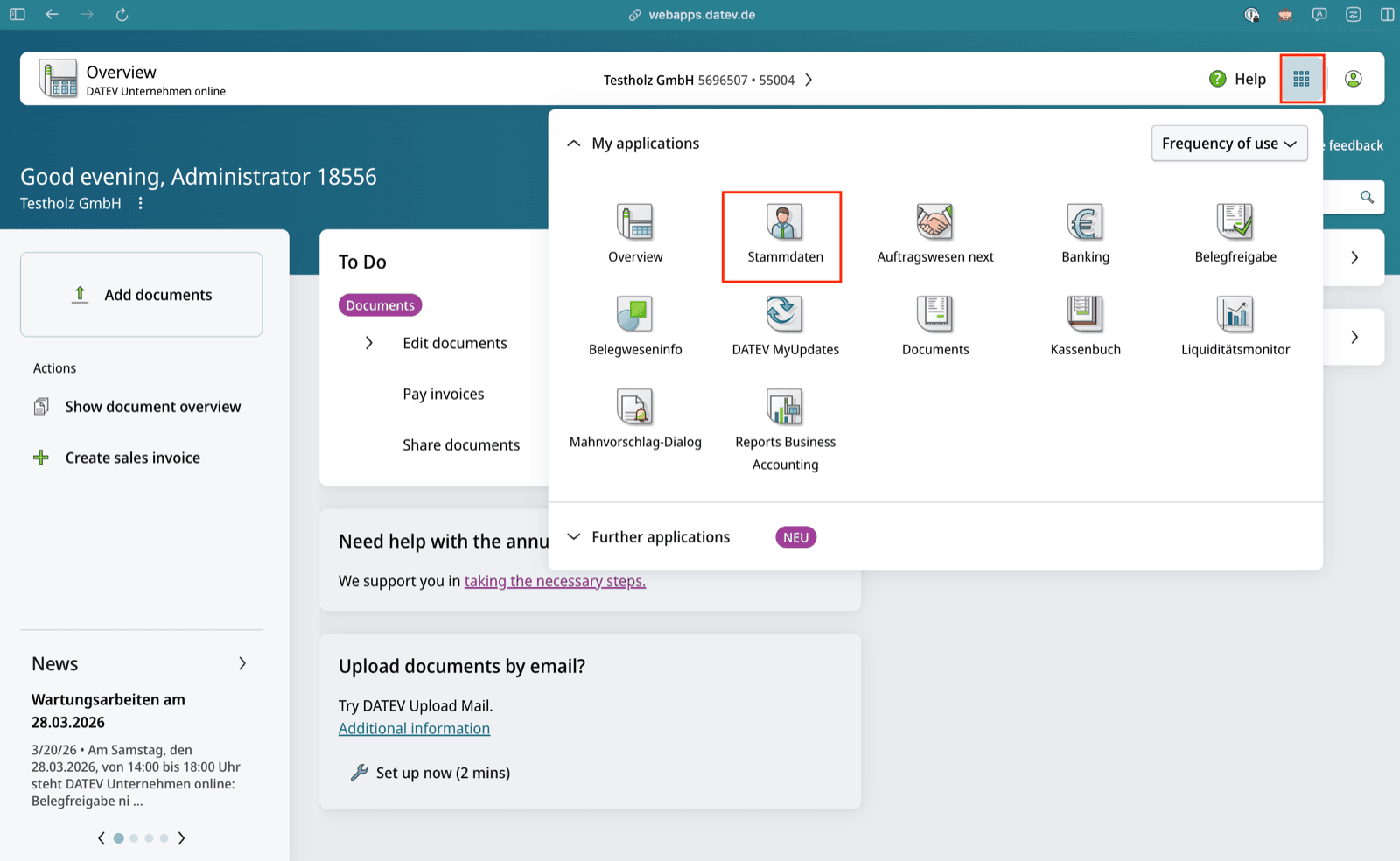 4. You can see the information at the bottom right of your screen. In this example "01.01.2026". It means that you need to fill in 0101.
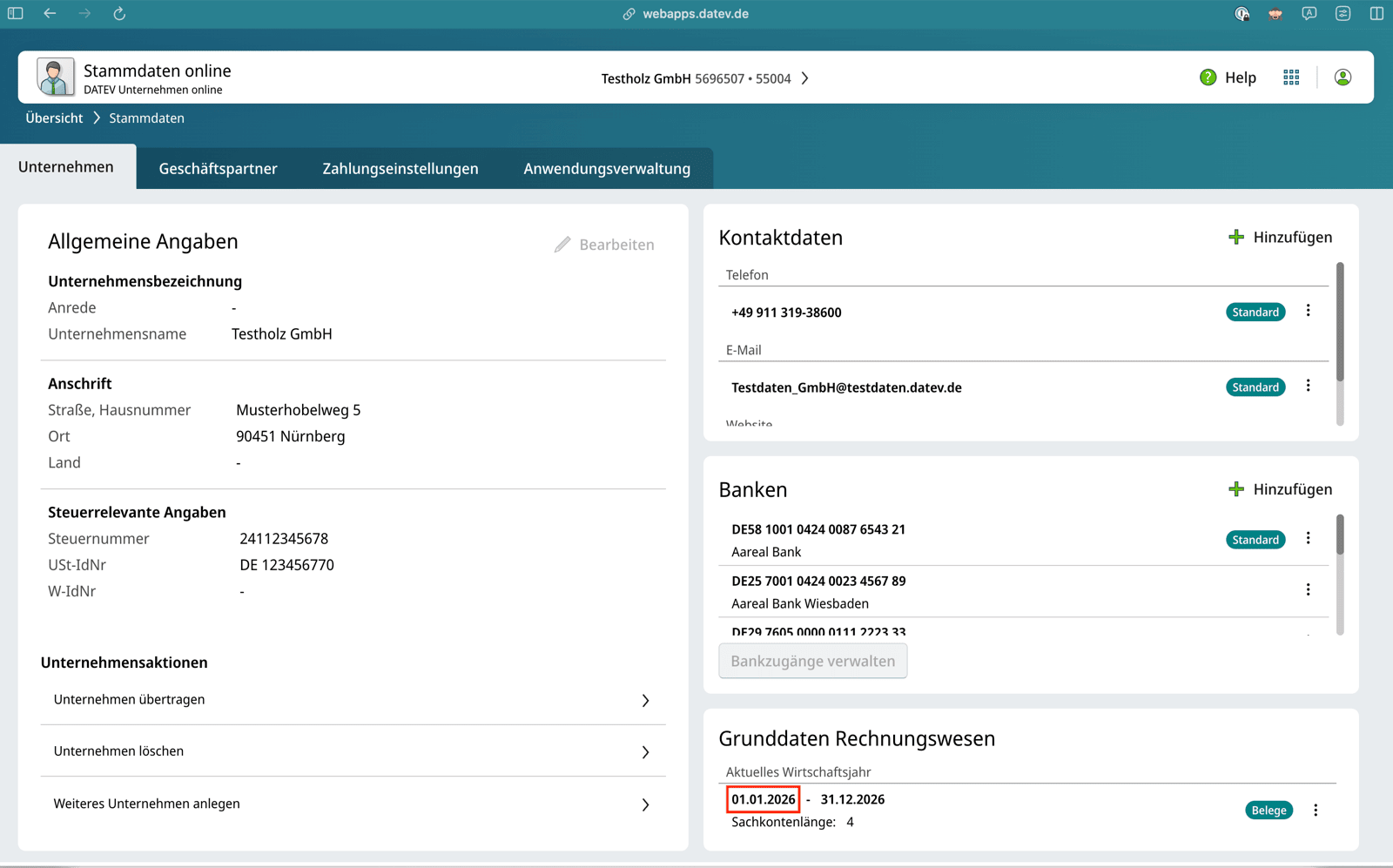 If this information is not shown it means it has not been set up correctly in DATEV Unternehmen online. In this case you need to ask your tax consultant for this information.
 # AUTHENTICATION
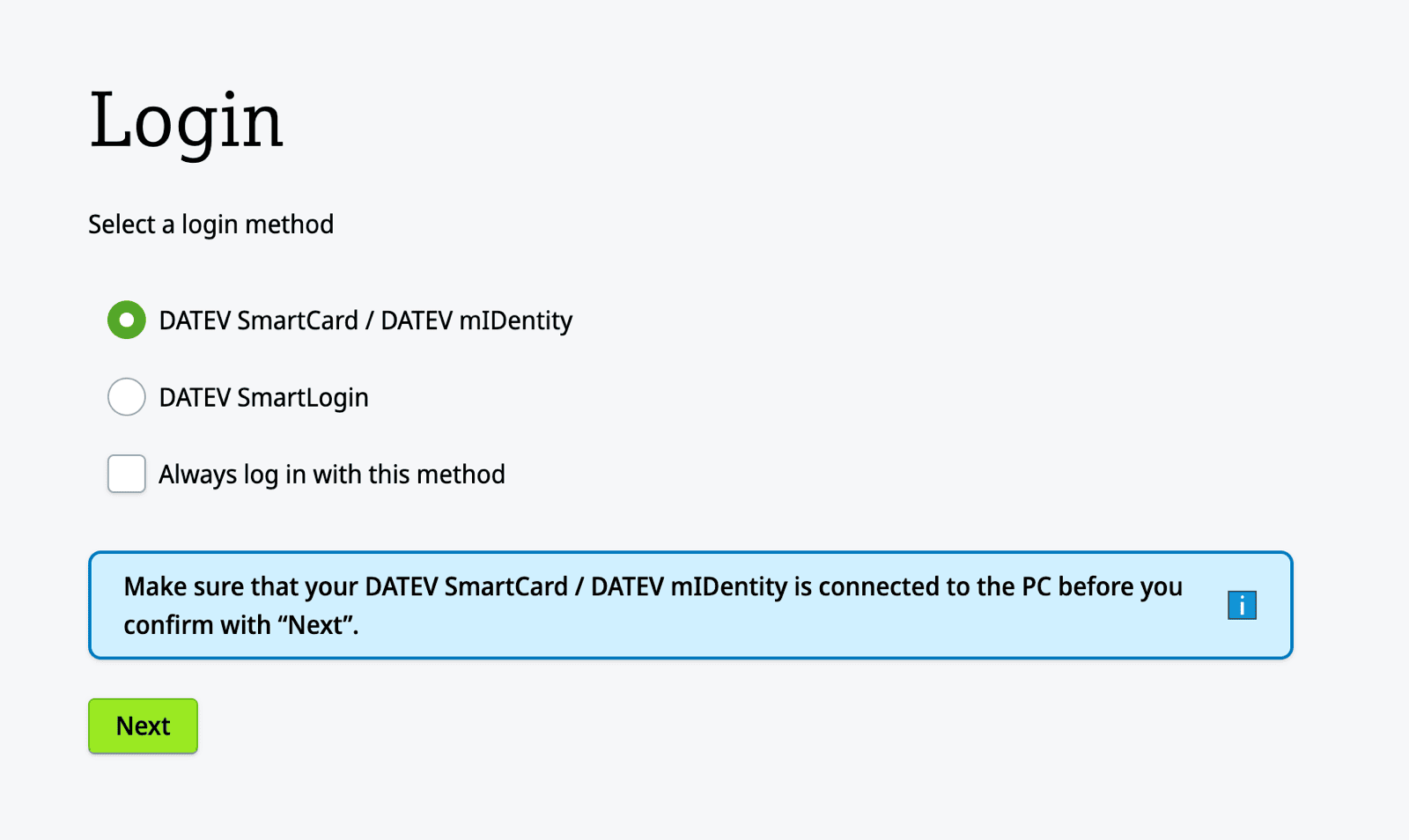
You will be redirected to the login page of DUO to authenticate yourself and authorise the connection.
You can log in using your SmartLogin or your SmartCard/mIDentity.
# AUTHENTICATION
You will be redirected to the login page of DUO to authenticate yourself and authorise the connection.
You can log in using your SmartLogin or your SmartCard/mIDentity.
 # CONFIGURE
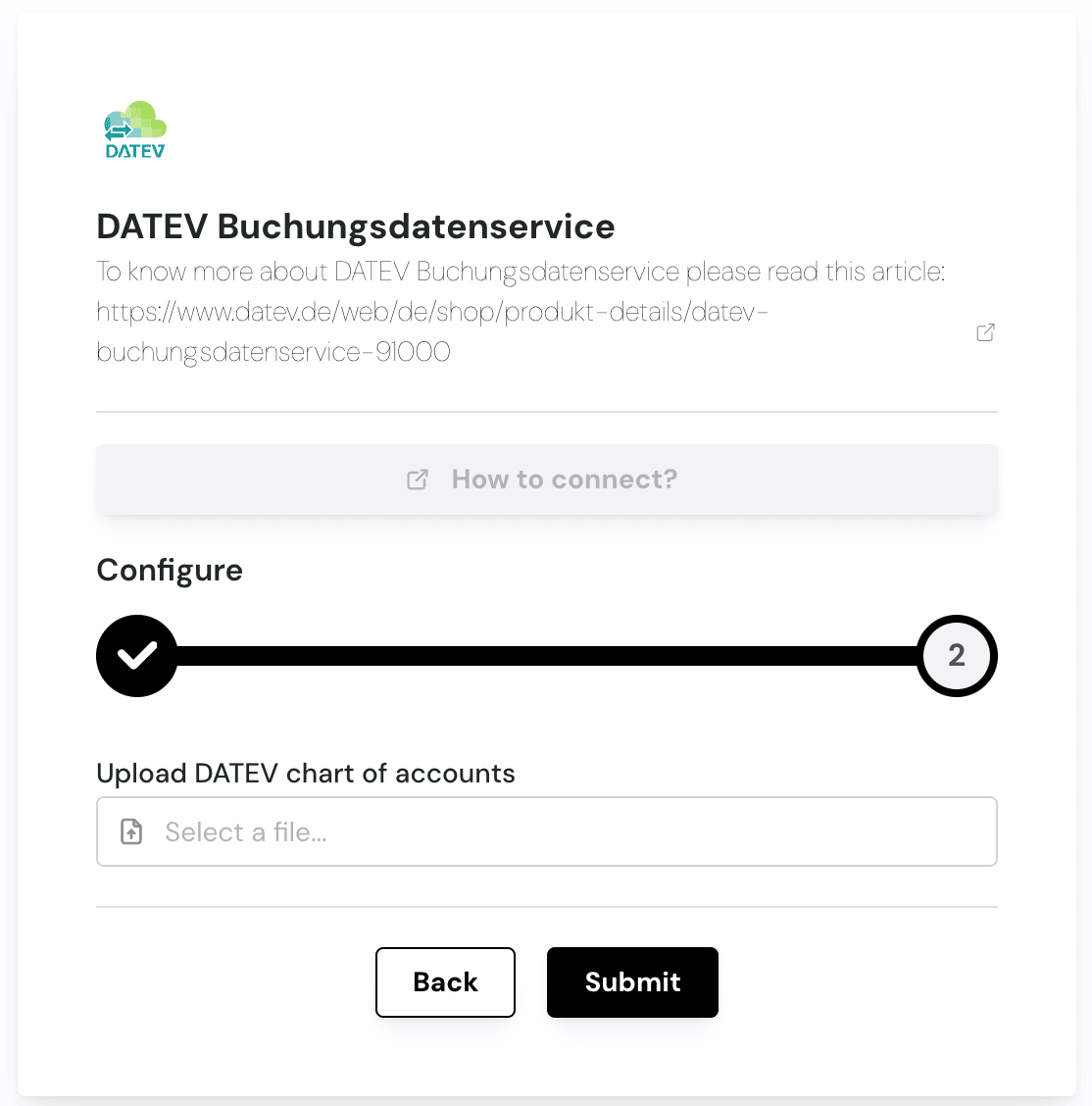 In the first step you can choose to upload the chart of accounts. If you select "Yes" this extra activation step will be enabled. In this step you can upload the existing general ledger accounts based on 2 file formats:
* Excel
* CSV (DATEV-format)
Both files will have to be generated from DATEV Rechnungswesen.
### Excel:
To generate the Excel file you need to follow these steps:
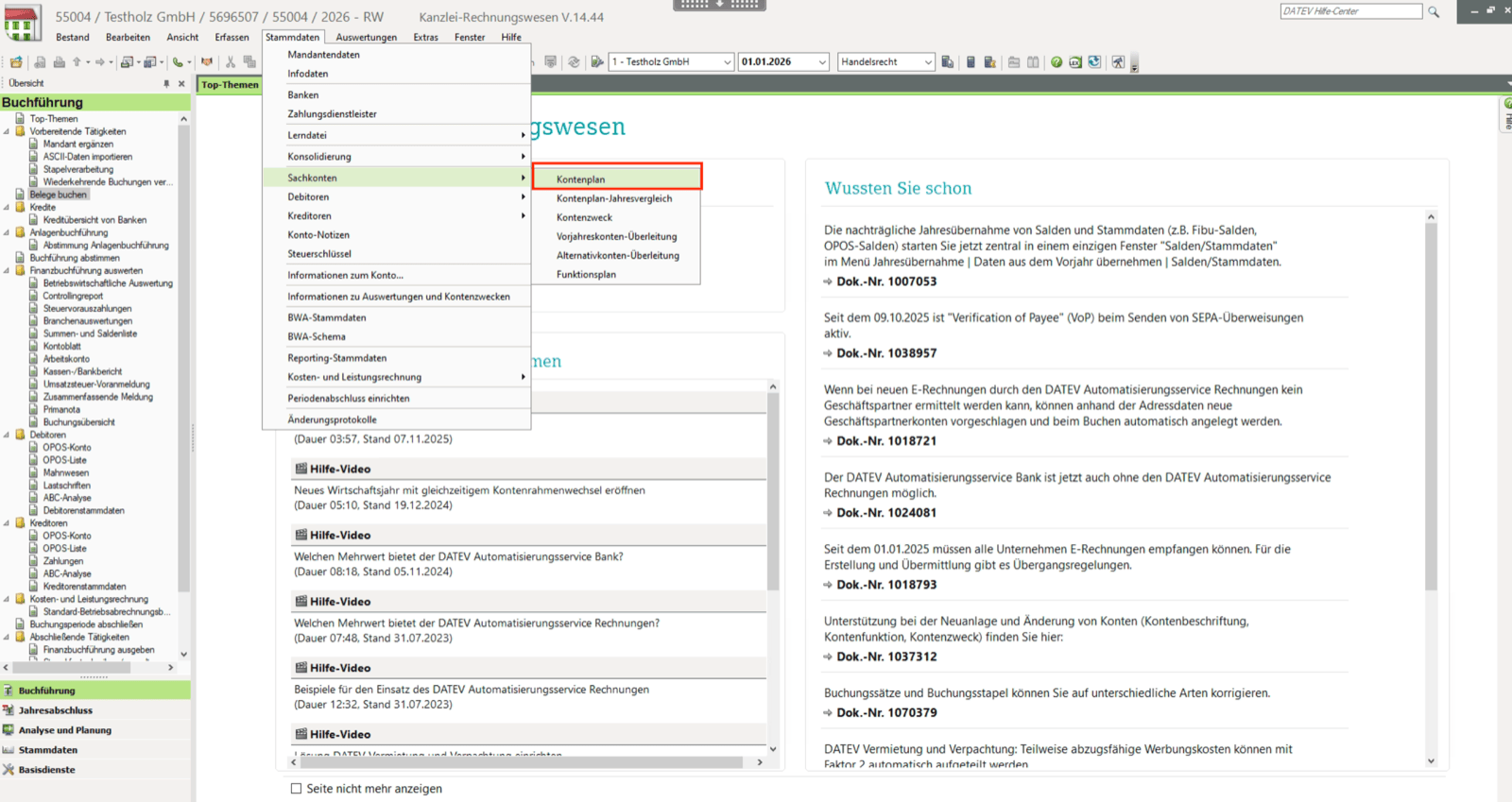
1. Open your company in DATEV Rechnungswesen
2. Go to the accounting plan:
In the first step you can choose to upload the chart of accounts. If you select "Yes" this extra activation step will be enabled. In this step you can upload the existing general ledger accounts based on 2 file formats:
* Excel
* CSV (DATEV-format)
Both files will have to be generated from DATEV Rechnungswesen.
### Excel:
To generate the Excel file you need to follow these steps:
1. Open your company in DATEV Rechnungswesen
2. Go to the accounting plan:
 3. Choose the "Beschriftet (Standard, Kanzlei, Ind.)" view, select all ledger accounts and open the ledger accounts in an Excel file:
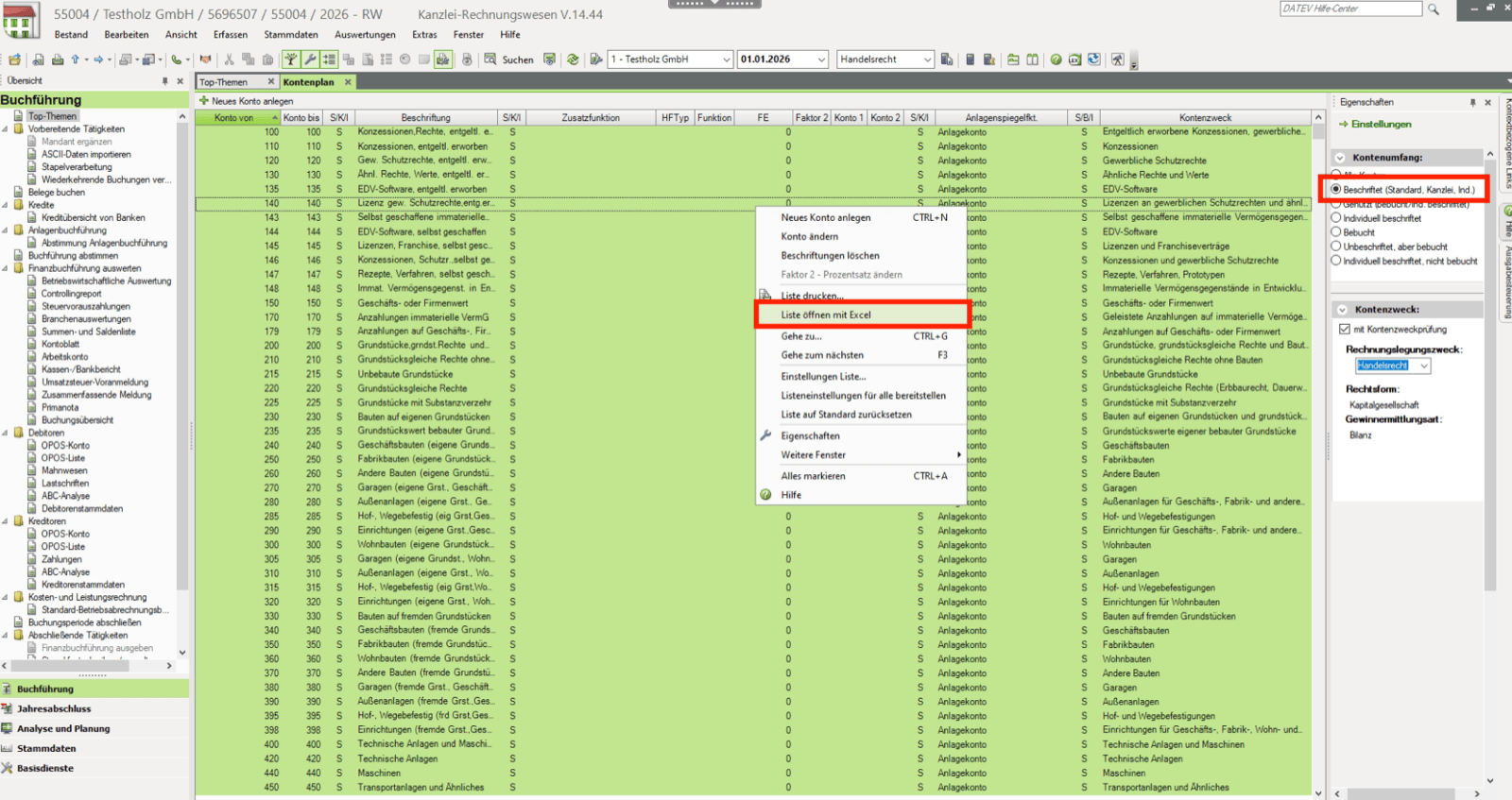 4. Save the file
In this format the following columns are **REQUIRED**:
* Konto von
* Beschriftung
* HFTyp
* Funktion
* FE
### CSV DATEV-Format:
DATEV allows you to export the general ledger accounts in its own DATEV-format. You can generate this file as follows:
1. Open your company in DATEV Rechnungswesen
2. Open the export menu:
4. Save the file
In this format the following columns are **REQUIRED**:
* Konto von
* Beschriftung
* HFTyp
* Funktion
* FE
### CSV DATEV-Format:
DATEV allows you to export the general ledger accounts in its own DATEV-format. You can generate this file as follows:
1. Open your company in DATEV Rechnungswesen
2. Open the export menu:
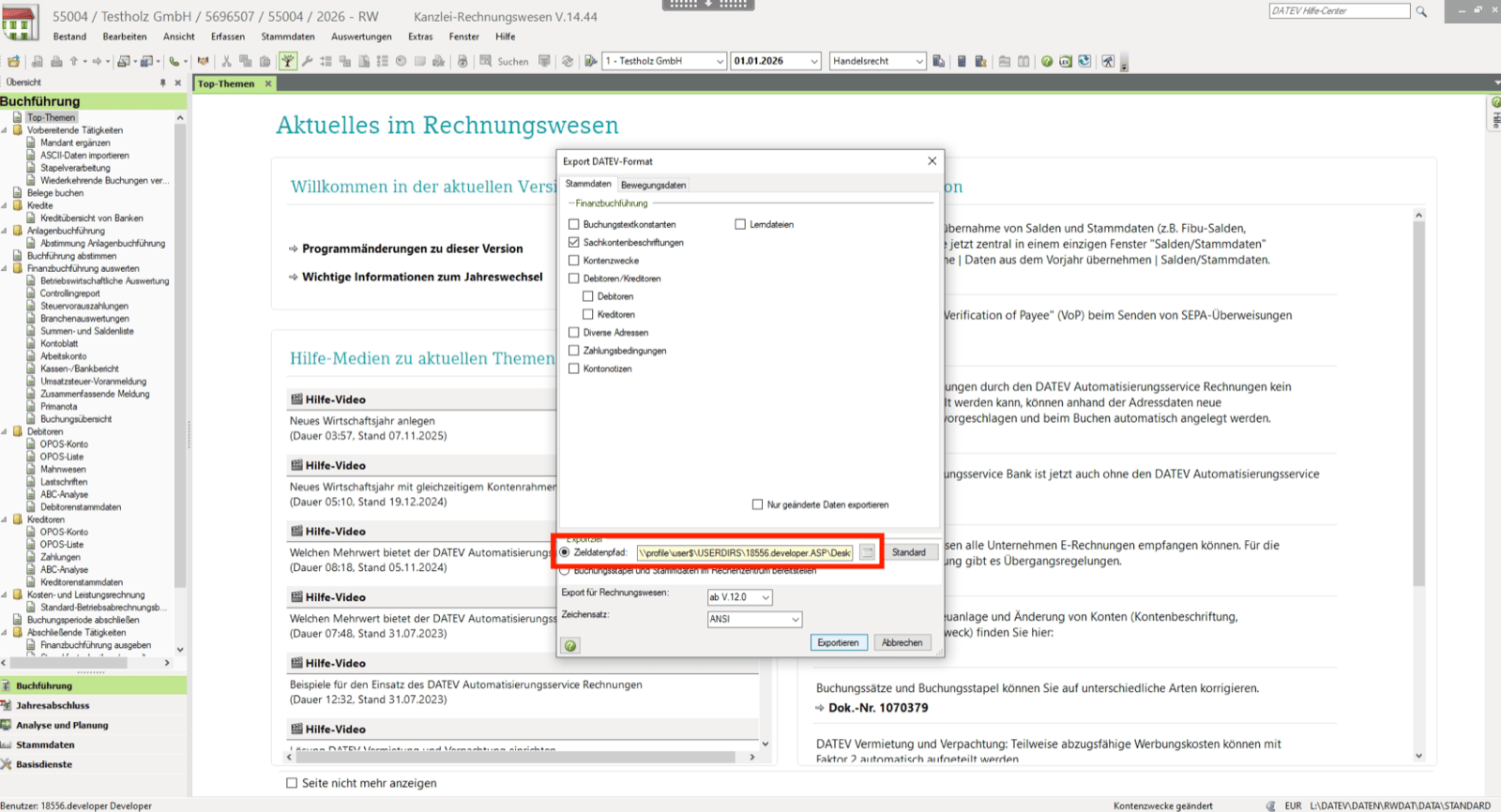
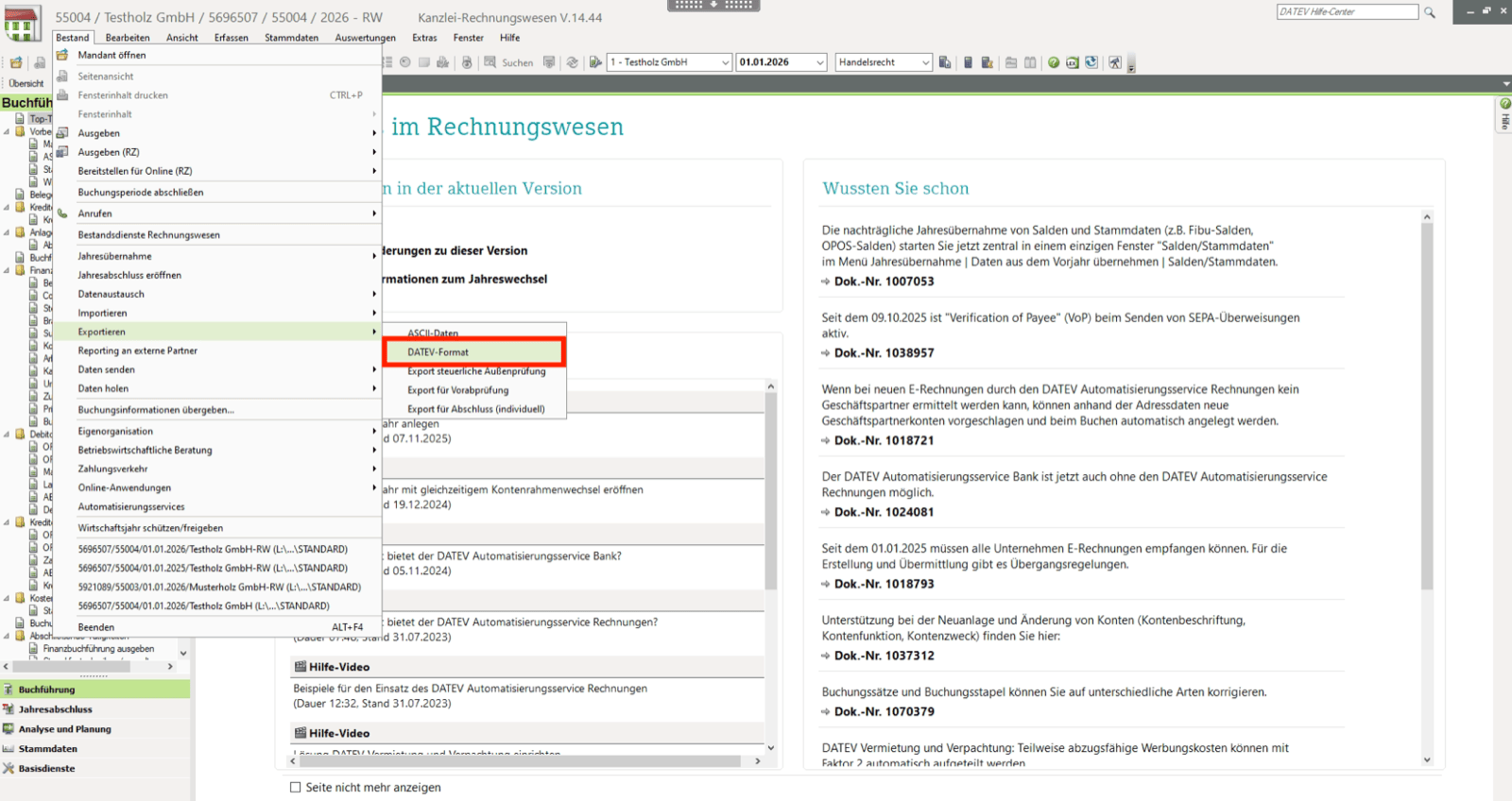 3. Select the general ledger accounts export checkboxes:
 4. Save the file in the wanted folder:
 It is important that you don't adapt the content of this file manually !
# Import exported data in DATEV Rechnungswesen
To import the exported data in DATEV Rechnungswesen, you need to follow these steps:
1. Open your company in DATEV Rechnungswesen
2. Select the "Mandant ergänzen" function and download the data:
It is important that you don't adapt the content of this file manually !
# Import exported data in DATEV Rechnungswesen
To import the exported data in DATEV Rechnungswesen, you need to follow these steps:
1. Open your company in DATEV Rechnungswesen
2. Select the "Mandant ergänzen" function and download the data:
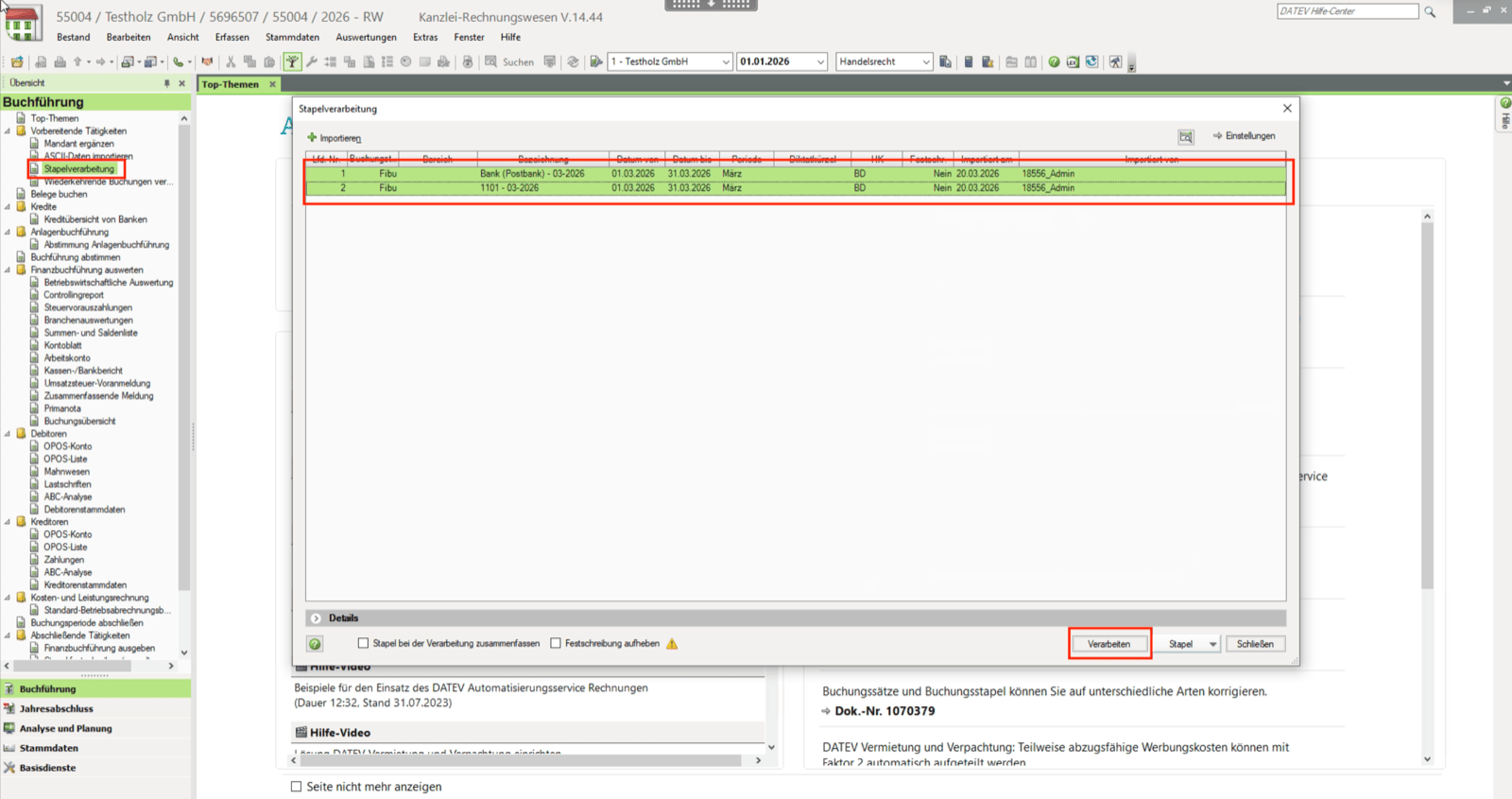
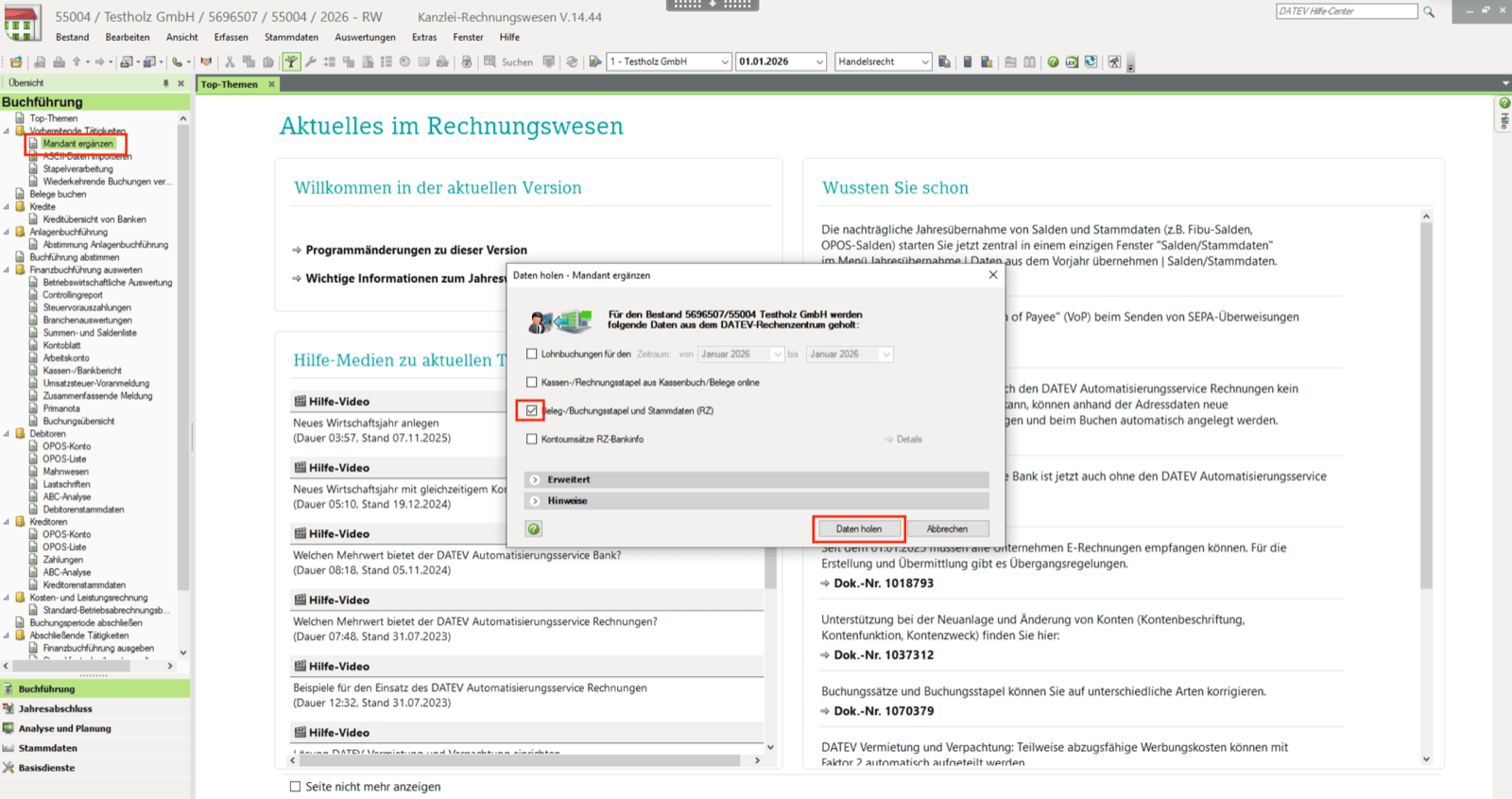 3. Go to the "Stapelverarbeitung" function and select the imports you want to handle: