> ## Documentation Index
> Fetch the complete documentation index at: https://docs.chift.eu/llms.txt
> Use this file to discover all available pages before exploring further.

# Inqom

# ⚡️ Connection

**Step 1:** Choose a name for your connection.

<img src="https://mintcdn.com/chift/ZesGAZ6_2X6KlqGn/images/help/inqom/inqom-1.png?fit=max&auto=format&n=ZesGAZ6_2X6KlqGn&q=85&s=50bd57df98bd65e7b08da832a5bedb5c" className="mx-auto" style={{ width: "70%" }} width="578" height="106" data-path="images/help/inqom/inqom-1.png" />

**Step 2:** Click "Connect" to finalise the connection.

<img src="https://mintcdn.com/chift/ZesGAZ6_2X6KlqGn/images/help/inqom/inqom-2.png?fit=max&auto=format&n=ZesGAZ6_2X6KlqGn&q=85&s=667fdfb0296c5eb183c722a2fe8ad4a4" className="mx-auto" style={{ width: "20%" }} width="171" height="72" data-path="images/help/inqom/inqom-2.png" />

# ✅ Authentication

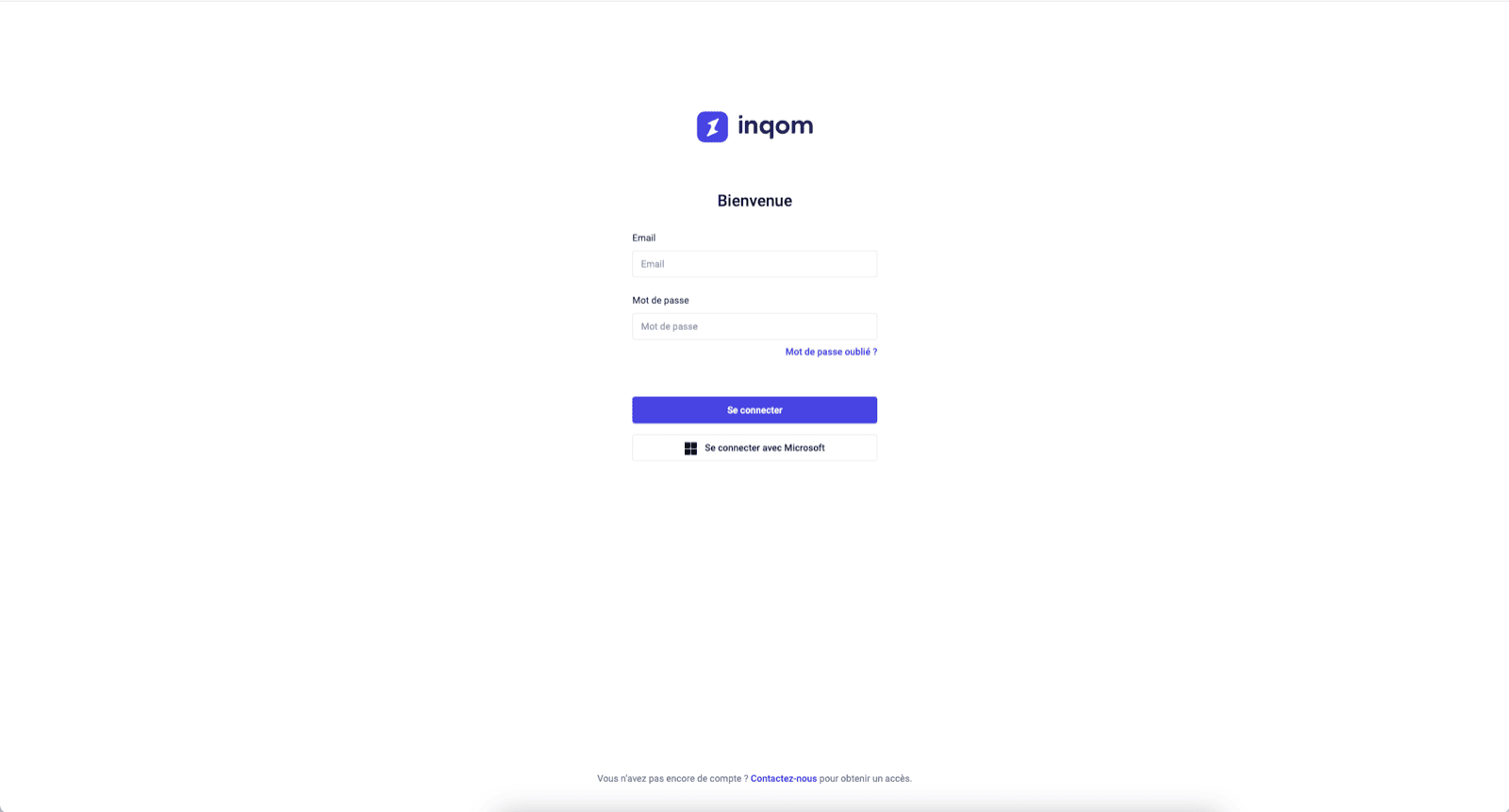
You will be redirected to an Inqom page to authenticate your account.
<img src="https://mintcdn.com/chift/ZesGAZ6_2X6KlqGn/images/help/inqom/inqom-3.png?fit=max&auto=format&n=ZesGAZ6_2X6KlqGn&q=85&s=c6312fd52536815b771f77396bff5b17" className="mx-auto" style={{ width: "70%" }} width="1600" height="861" data-path="images/help/inqom/inqom-3.png" />
