> ## Documentation Index
> Fetch the complete documentation index at: https://docs.chift.eu/llms.txt
> Use this file to discover all available pages before exploring further.

# Sage Génération Experts

# 🛠 Preparation

In Sage Génération Experts, you need to activate the public application Chift in order for the data exchange with Sage Génération Experts to work. This consists of 2 steps:

## Step 1: Activating Chift application

* First of all open the marketplace settings
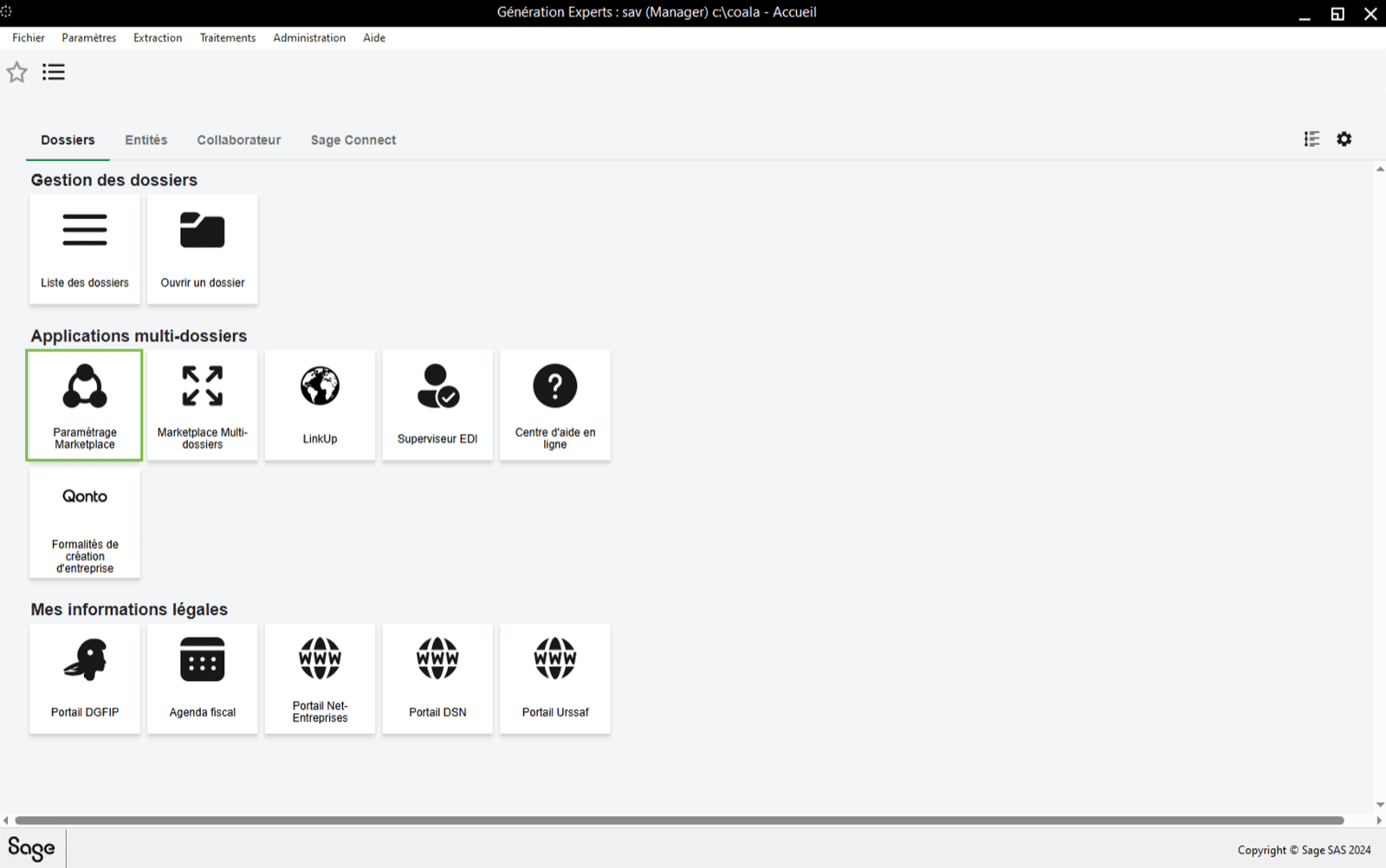
<img src="https://mintcdn.com/chift/9bn2xYeQyHl1D8Fi/images/help/sage-g-n-ration-experts/sage-g-n-ration-experts-1.png?fit=max&auto=format&n=9bn2xYeQyHl1D8Fi&q=85&s=74b0ea78e106814b76162f96afdacfe4" className="mx-auto" style={{ width: "70%" }} width="1600" height="1002" data-path="images/help/sage-g-n-ration-experts/sage-g-n-ration-experts-1.png" />

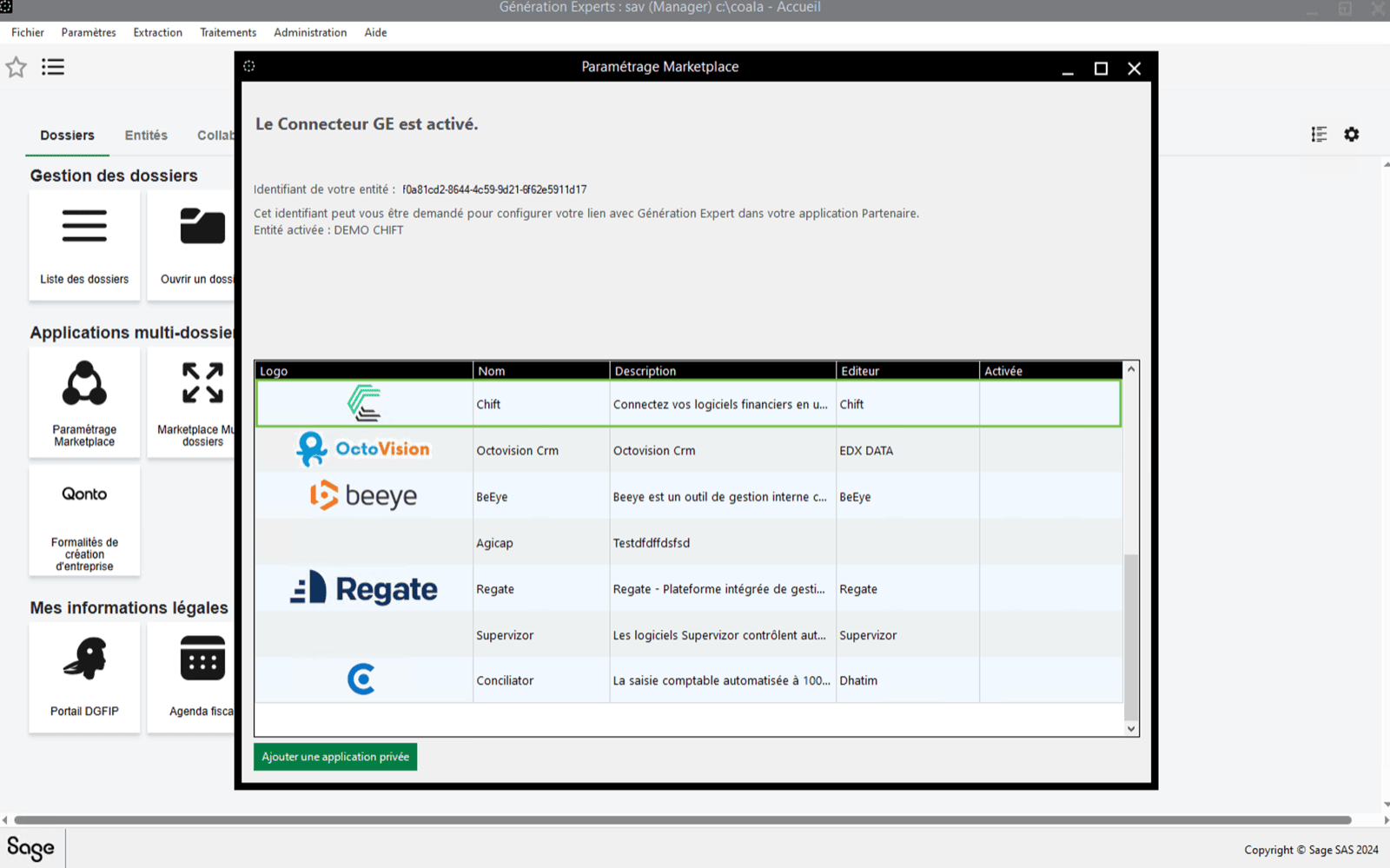
* In the list you will find the application "Chift". If the "Chift" application **is not yet activated**, **double click** on it to do so.

<Warning>Careful, there are 4 CHIFT Apps in Sage. Choose the one to connect your financial software.</Warning>

On the following screenshot you can see the id of the entity. Write it down, you'll need it to enable the connection later.
<img src="https://mintcdn.com/chift/9bn2xYeQyHl1D8Fi/images/help/sage-g-n-ration-experts/sage-g-n-ration-experts-2.png?fit=max&auto=format&n=9bn2xYeQyHl1D8Fi&q=85&s=d153e316959d514685a3876e13b7758d" className="mx-auto" style={{ width: "70%" }} width="1600" height="999" data-path="images/help/sage-g-n-ration-experts/sage-g-n-ration-experts-2.png" />

* Accept the conditions and activate the application.

<Warning>Sage is rectifying the 10€ charge announced in the conditions. Note that Sage GE will not charge for this 10€ fee if you proceed in activating the connector. Sage is doing the technical change (coming soon).</Warning>

<img src="https://mintcdn.com/chift/9bn2xYeQyHl1D8Fi/images/help/sage-g-n-ration-experts/sage-g-n-ration-experts-3.png?fit=max&auto=format&n=9bn2xYeQyHl1D8Fi&q=85&s=5d1b86aa0ec5c8fcfb2c302c058b1205" className="mx-auto" style={{ width: "70%" }} width="1600" height="1002" data-path="images/help/sage-g-n-ration-experts/sage-g-n-ration-experts-3.png" />

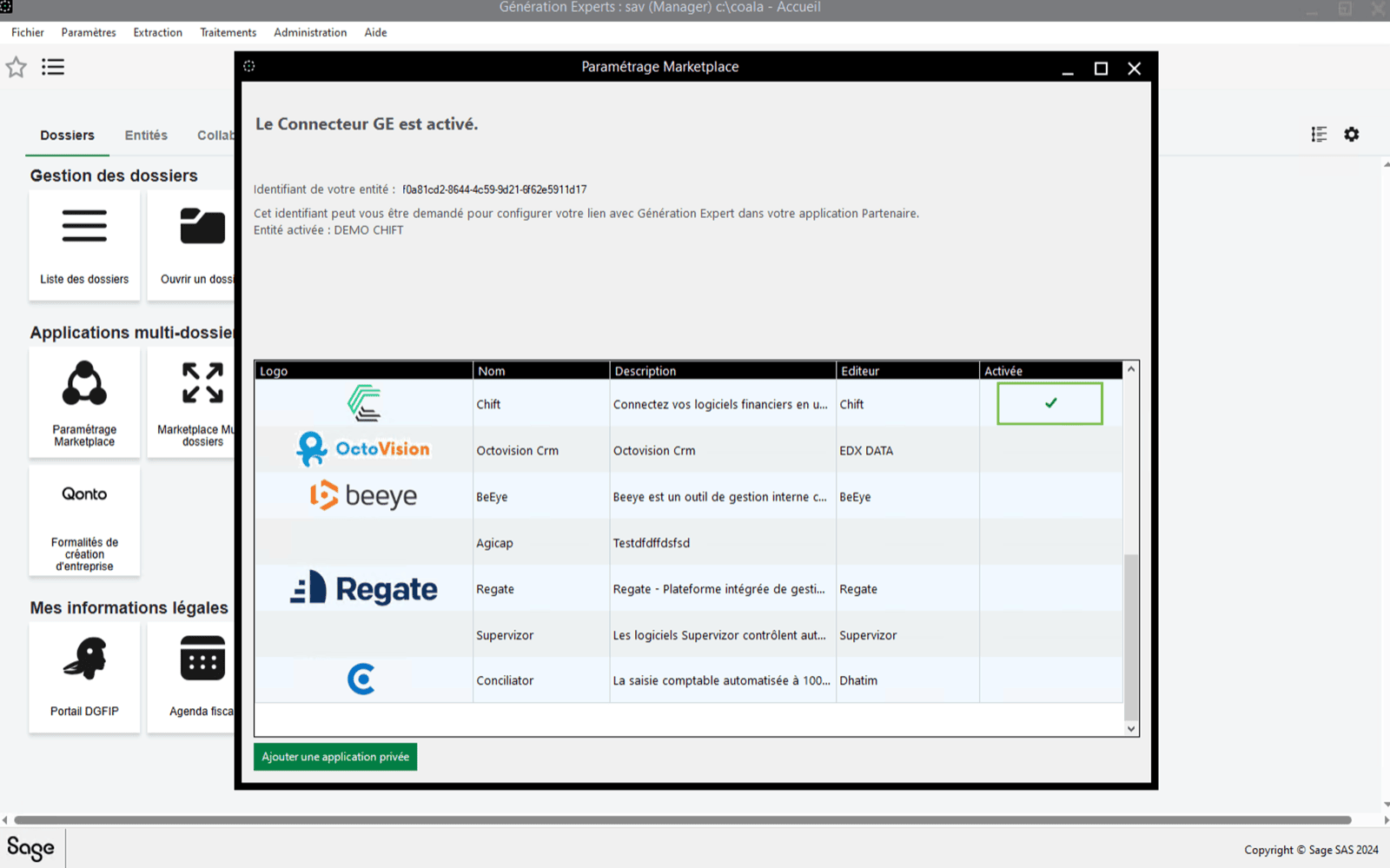
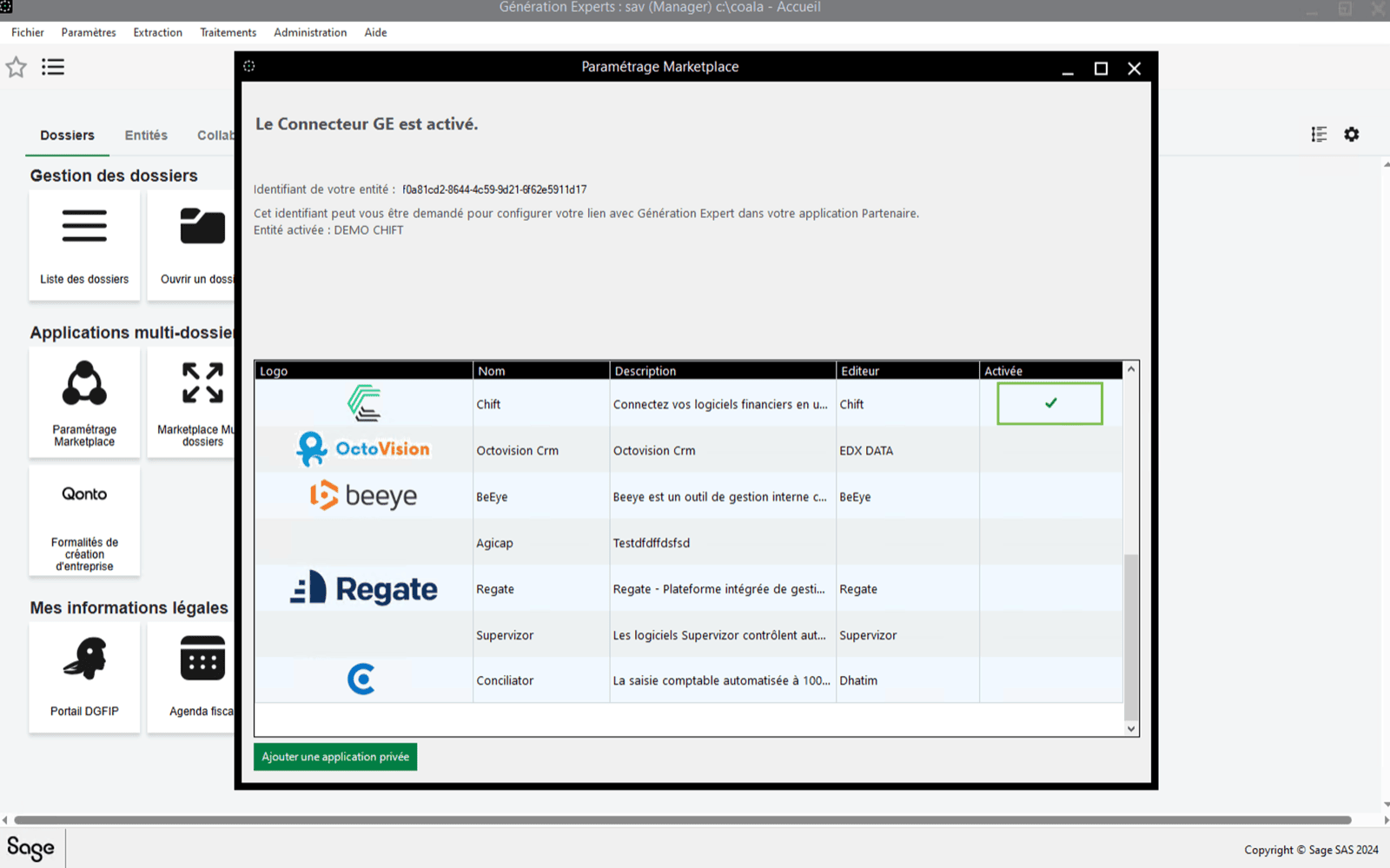
* You can see that the "Chift" application has been **activated**
<img src="https://mintcdn.com/chift/9bn2xYeQyHl1D8Fi/images/help/sage-g-n-ration-experts/sage-g-n-ration-experts-4.png?fit=max&auto=format&n=9bn2xYeQyHl1D8Fi&q=85&s=d9fa77c544d56eb19edd9593ff1a159a" className="mx-auto" style={{ width: "70%" }} width="1600" height="999" data-path="images/help/sage-g-n-ration-experts/sage-g-n-ration-experts-4.png" />

## Step 2: Activating Chift application on each customer company

<Warning>Please note that you will be required to perform the next steps for **each customer company** you want to synchronize with Chift.</Warning>

* First of all open a **folder/company** on Sage.

<img src="https://mintcdn.com/chift/9bn2xYeQyHl1D8Fi/images/help/sage-g-n-ration-experts/sage-g-n-ration-experts-5.png?fit=max&auto=format&n=9bn2xYeQyHl1D8Fi&q=85&s=fcb3af93494ca35d2d3ea9d417ef28cc" className="mx-auto" style={{ width: "70%" }} width="1600" height="963" data-path="images/help/sage-g-n-ration-experts/sage-g-n-ration-experts-5.png" />

<img src="https://mintcdn.com/chift/9bn2xYeQyHl1D8Fi/images/help/sage-g-n-ration-experts/sage-g-n-ration-experts-6.png?fit=max&auto=format&n=9bn2xYeQyHl1D8Fi&q=85&s=1c6f727acfb6c923237b191689dde34c" className="mx-auto" style={{ width: "70%" }} width="1600" height="974" data-path="images/help/sage-g-n-ration-experts/sage-g-n-ration-experts-6.png" />

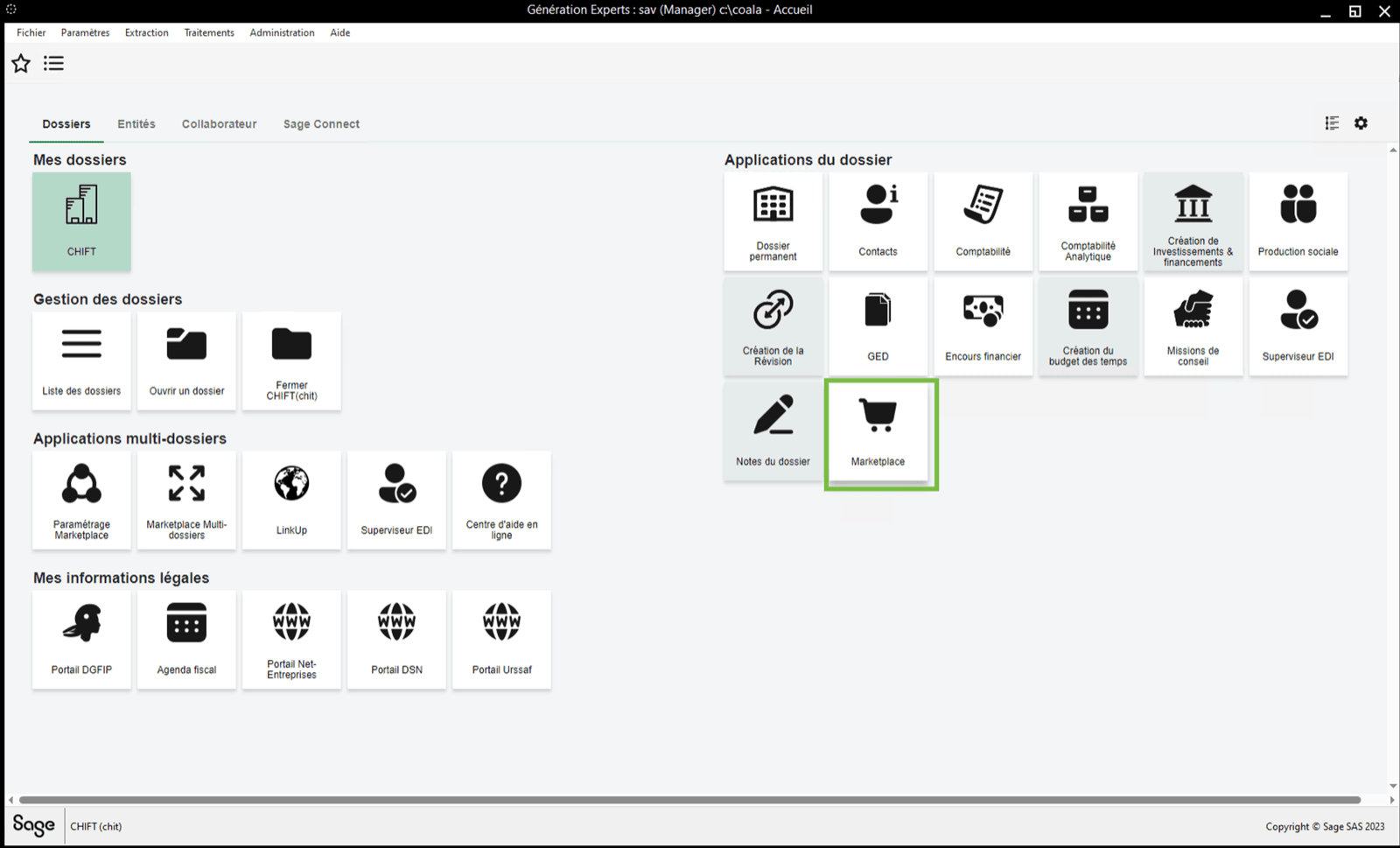
* Then, go to "**marketplace**" on the right panel.
<img src="https://mintcdn.com/chift/9bn2xYeQyHl1D8Fi/images/help/sage-g-n-ration-experts/sage-g-n-ration-experts-7.png?fit=max&auto=format&n=9bn2xYeQyHl1D8Fi&q=85&s=e91e22a4182b0ddfcfe02cbb2a750716" className="mx-auto" style={{ width: "70%" }} width="1600" height="969" data-path="images/help/sage-g-n-ration-experts/sage-g-n-ration-experts-7.png" />

* If the "Chift" application **is not yet activated**, **double click** on it to do so.
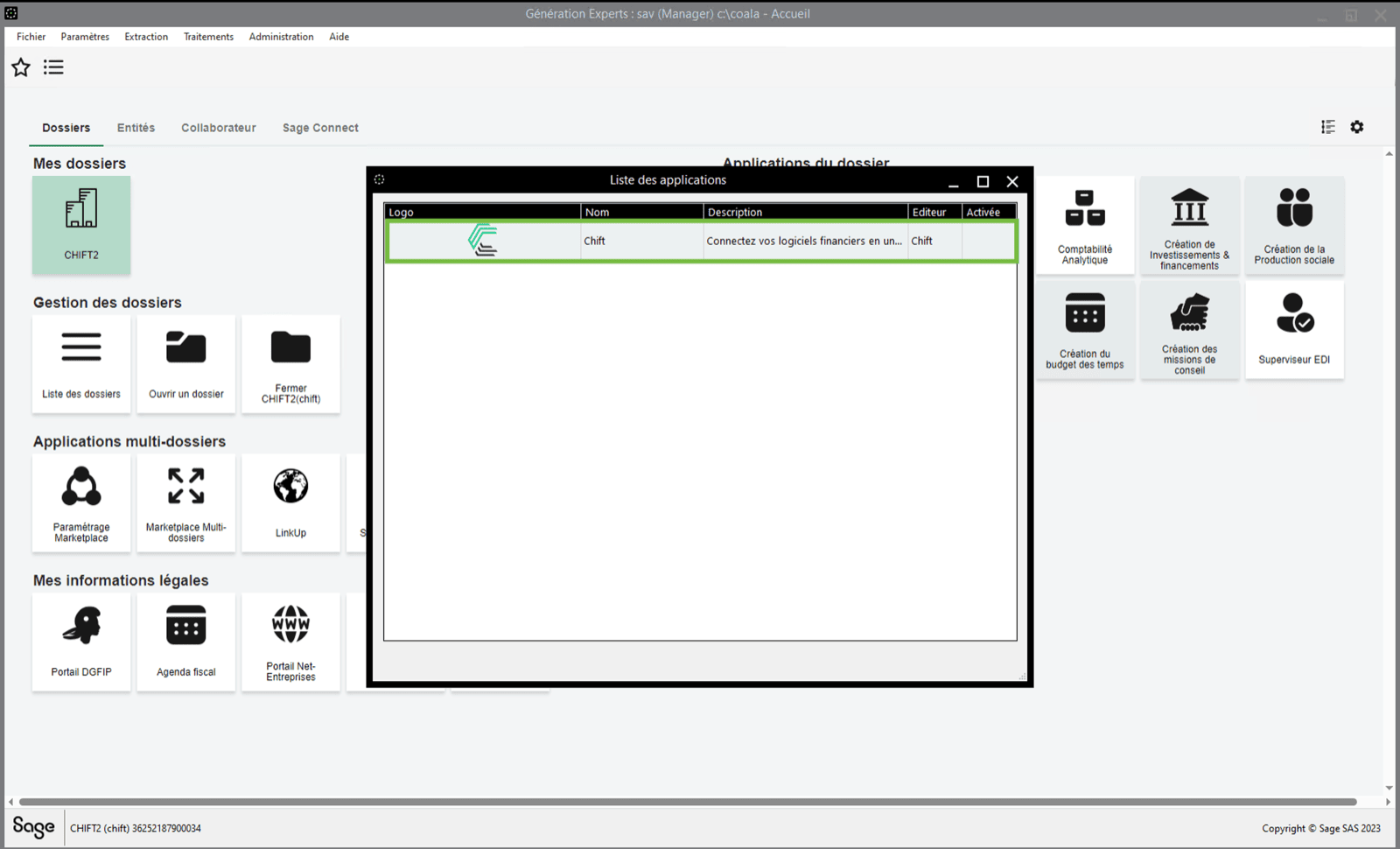
<img src="https://mintcdn.com/chift/9bn2xYeQyHl1D8Fi/images/help/sage-g-n-ration-experts/sage-g-n-ration-experts-8.png?fit=max&auto=format&n=9bn2xYeQyHl1D8Fi&q=85&s=8224811da06c9f1f1e09d2bf277822ab" className="mx-auto" style={{ width: "70%" }} width="1600" height="970" data-path="images/help/sage-g-n-ration-experts/sage-g-n-ration-experts-8.png" />

* Accept the conditions and activate the application
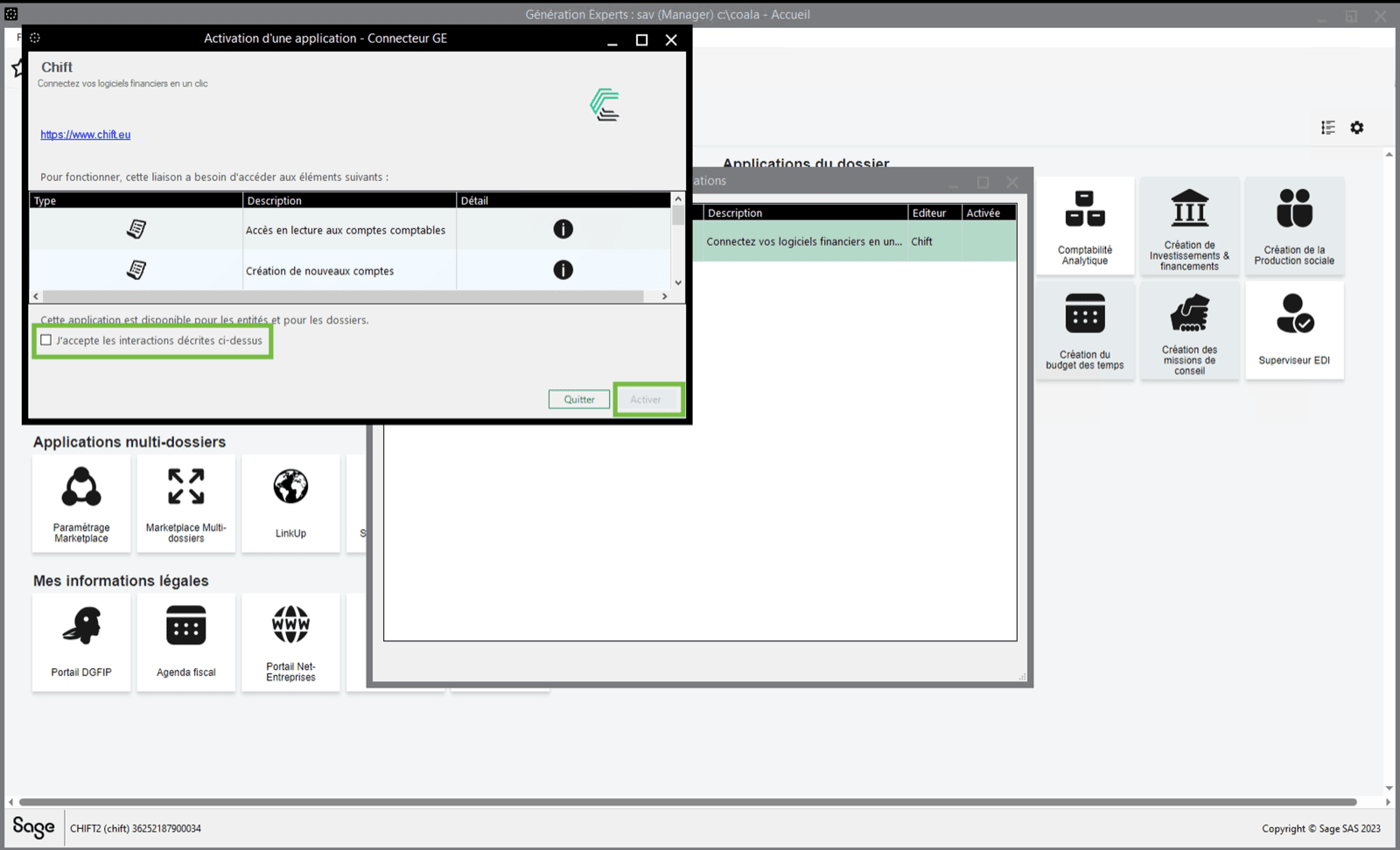
<img src="https://mintcdn.com/chift/9bn2xYeQyHl1D8Fi/images/help/sage-g-n-ration-experts/sage-g-n-ration-experts-9.png?fit=max&auto=format&n=9bn2xYeQyHl1D8Fi&q=85&s=f68242f7d40fd5c06b561429fe844524" className="mx-auto" style={{ width: "70%" }} width="1600" height="972" data-path="images/help/sage-g-n-ration-experts/sage-g-n-ration-experts-9.png" />

* You can see that the "Chift" application has been **activated**
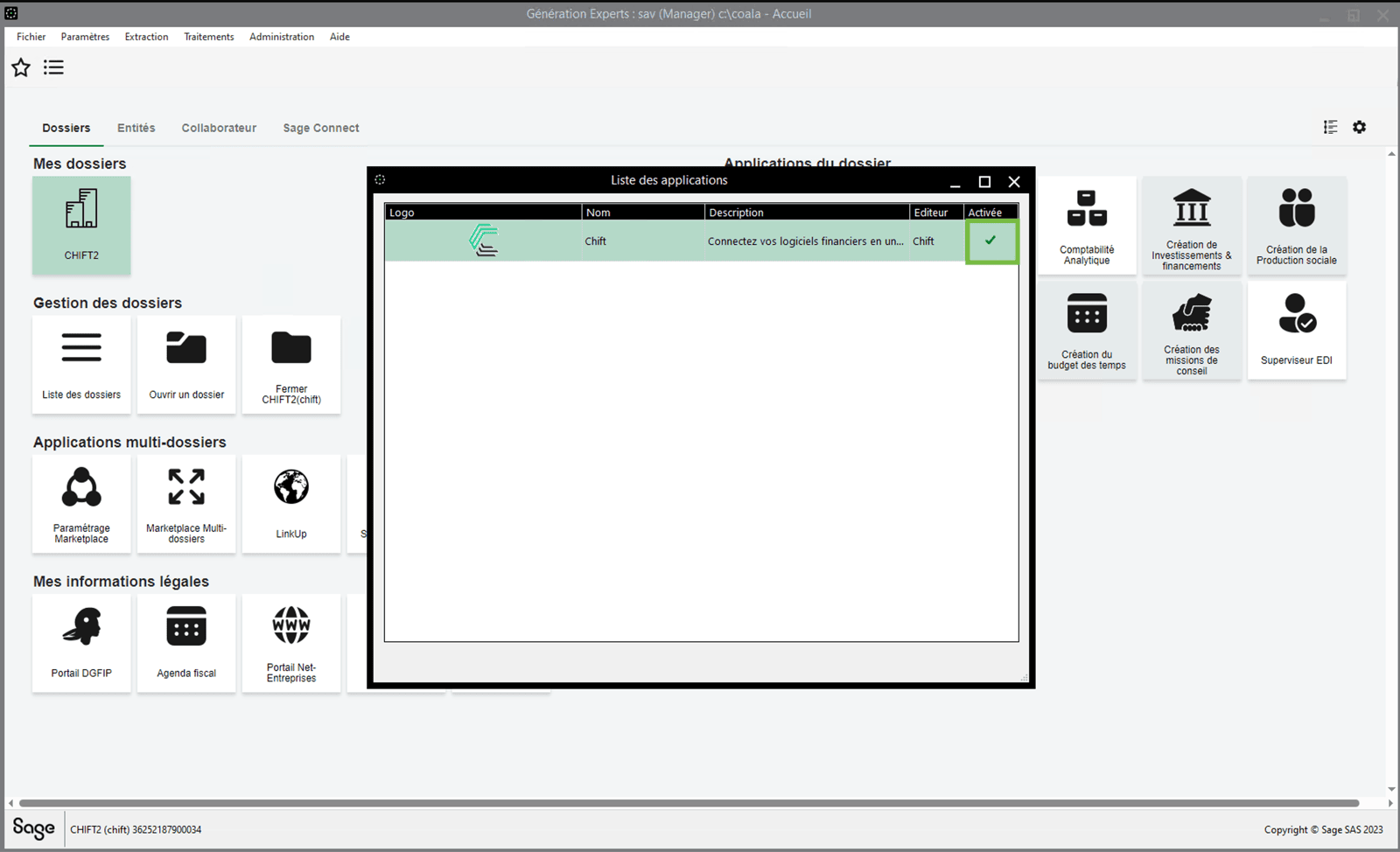
<img src="https://mintcdn.com/chift/9bn2xYeQyHl1D8Fi/images/help/sage-g-n-ration-experts/sage-g-n-ration-experts-10.png?fit=max&auto=format&n=9bn2xYeQyHl1D8Fi&q=85&s=4eb45e31819c610d3e6f50cb38f06ec8" className="mx-auto" style={{ width: "70%" }} width="1600" height="974" data-path="images/help/sage-g-n-ration-experts/sage-g-n-ration-experts-10.png" />

***

# ⚡️ Connection

**Step 1:** Choose a name for your connection.

<img src="https://mintcdn.com/chift/9bn2xYeQyHl1D8Fi/images/help/sage-g-n-ration-experts/sage-g-n-ration-experts-11.png?fit=max&auto=format&n=9bn2xYeQyHl1D8Fi&q=85&s=4354fbb354ac55a5110cedb2b7b7bc73" className="mx-auto" style={{ width: "70%" }} width="714" height="136" data-path="images/help/sage-g-n-ration-experts/sage-g-n-ration-experts-11.png" />

**Step 2:** Enter your accountancy practice's ID. It is the id of the company that you wrote down on the previous steps.

<img src="https://mintcdn.com/chift/9bn2xYeQyHl1D8Fi/images/help/sage-g-n-ration-experts/sage-g-n-ration-experts-12.png?fit=max&auto=format&n=9bn2xYeQyHl1D8Fi&q=85&s=8deca6f184cda89bf748250754592345" className="mx-auto" style={{ width: "70%" }} width="379" height="59" data-path="images/help/sage-g-n-ration-experts/sage-g-n-ration-experts-12.png" />

<img src="https://mintcdn.com/chift/9bn2xYeQyHl1D8Fi/images/help/sage-g-n-ration-experts/sage-g-n-ration-experts-13.png?fit=max&auto=format&n=9bn2xYeQyHl1D8Fi&q=85&s=7d75a4d7b6c8ed1e161d86b48e6f96fe" className="mx-auto" style={{ width: "70%" }} width="1600" height="999" data-path="images/help/sage-g-n-ration-experts/sage-g-n-ration-experts-13.png" />

**Step 3:** Click "Connect" to finalise the connection.

<img src="https://mintcdn.com/chift/9bn2xYeQyHl1D8Fi/images/help/sage-g-n-ration-experts/sage-g-n-ration-experts-14.png?fit=max&auto=format&n=9bn2xYeQyHl1D8Fi&q=85&s=394772b02509aa14d3569b4f7007815a" className="mx-auto" style={{ width: "20%" }} width="160" height="74" data-path="images/help/sage-g-n-ration-experts/sage-g-n-ration-experts-14.png" />
