> ## Documentation Index
> Fetch the complete documentation index at: https://docs.chift.eu/llms.txt
> Use this file to discover all available pages before exploring further.
# Shopcaisse
# Prérequis
1. Activer le module Chift :
1. Aller à Modules & Abonnements
2. Cliquer sur "Modules de caisse"
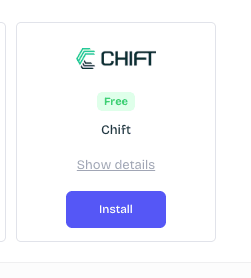
3. Cliquer sur "Installer" sur le module Chift
 d. Une fois cela fait, cliquez à nouveau sur l'application et ouvrez les paramètres
e. Vous pouvez maintenant copier la clé d'accès que vous devrez utiliser pour créer la connexion
Notez que cela doit être fait pour chacun de vos magasins que vous souhaitez connecter
# CONNEXION
**Étape 1 :** Choisissez un nom pour votre connexion (optionnel)
d. Une fois cela fait, cliquez à nouveau sur l'application et ouvrez les paramètres
e. Vous pouvez maintenant copier la clé d'accès que vous devrez utiliser pour créer la connexion
Notez que cela doit être fait pour chacun de vos magasins que vous souhaitez connecter
# CONNEXION
**Étape 1 :** Choisissez un nom pour votre connexion (optionnel)
 **Étape 2 :** Entrez la clé API que vous avez créée précédemment
 **Étape 4 :** Cliquez sur "Connecter" pour finaliser la connexion.