> ## Documentation Index
> Fetch the complete documentation index at: https://docs.chift.eu/llms.txt
> Use this file to discover all available pages before exploring further.

# Oracle Opera

# PRÉPARATION

Contactez votre responsable de compte Oracle pour configurer l'API Oracle Opera et obtenir les informations d'identification nécessaires:

* URL de la passerelle
* ID d'entreprise
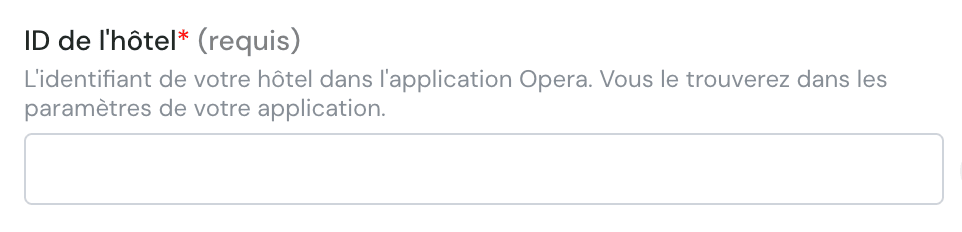
* ID d'hôtel
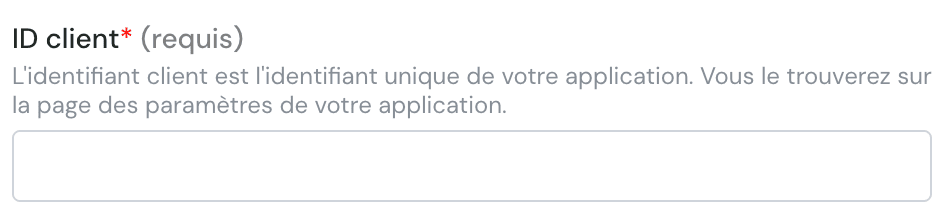
* Client ID
* Client Secret
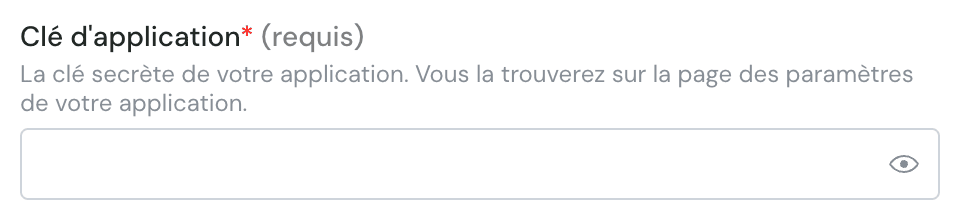
* Clé d'application

Voici ce que vous devez remplir dans le formulaire.

# CONNEXION

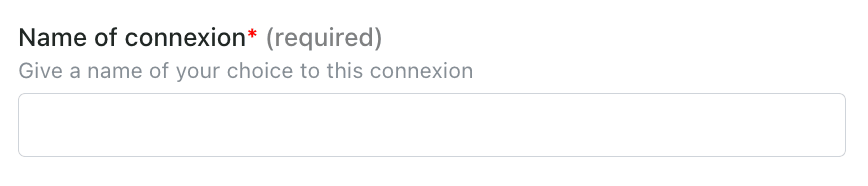
**Étape 1:** Choisissez un nom pour votre connexion.
<img src="https://mintcdn.com/chift/BdpOGZbsoSOAHSl9/images/help/oracle-opera/oracle-opera-fr-1.png?fit=max&auto=format&n=BdpOGZbsoSOAHSl9&q=85&s=7e6a7a23d8798fbdc6824a6641f887d6" alt="" width="868" height="186" data-path="images/help/oracle-opera/oracle-opera-fr-1.png" />

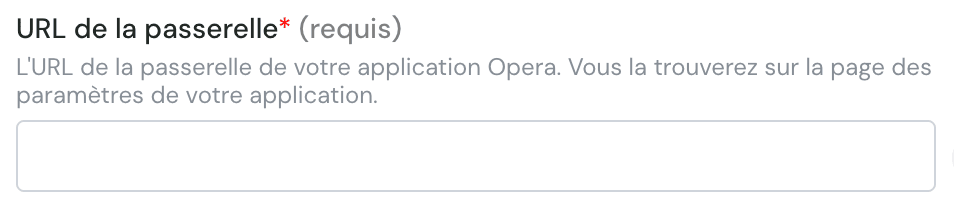
**Étape 2:** Entrez leurl de la passerelle
<img src="https://mintcdn.com/chift/BdpOGZbsoSOAHSl9/images/help/oracle-opera/oracle-opera-fr-2.png?fit=max&auto=format&n=BdpOGZbsoSOAHSl9&q=85&s=594d3985a570d95c92e1876479abeb04" alt="image.png" width="954" height="200" data-path="images/help/oracle-opera/oracle-opera-fr-2.png" />

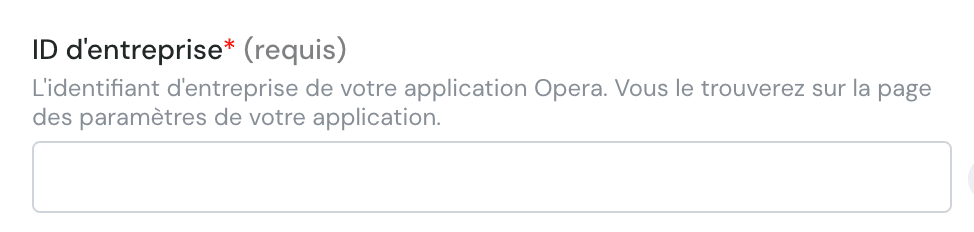
**Étape 3:** Entrez l'ID d'entreprise

<img src="https://mintcdn.com/chift/BdpOGZbsoSOAHSl9/images/help/oracle-opera/oracle-opera-fr-3.png?fit=max&auto=format&n=BdpOGZbsoSOAHSl9&q=85&s=840f1ec9bf52858a44d0bcd5cf505474" alt="image.png" width="974" height="232" data-path="images/help/oracle-opera/oracle-opera-fr-3.png" />

**Étape 4:** Entrez leidentifiant d'hôtel
<img src="https://mintcdn.com/chift/BdpOGZbsoSOAHSl9/images/help/oracle-opera/oracle-opera-fr-4.png?fit=max&auto=format&n=BdpOGZbsoSOAHSl9&q=85&s=22b759b9cfb88c7fd8bd9270ffa599b2" alt="image.png" width="962" height="232" data-path="images/help/oracle-opera/oracle-opera-fr-4.png" />

**Étape 5:** Entrez l'identifiant client
<img src="https://mintcdn.com/chift/BdpOGZbsoSOAHSl9/images/help/oracle-opera/oracle-opera-fr-5.png?fit=max&auto=format&n=BdpOGZbsoSOAHSl9&q=85&s=d7c6d15191e0d5ad4e01d3e3d3c620db" alt="image.png" width="948" height="218" data-path="images/help/oracle-opera/oracle-opera-fr-5.png" />

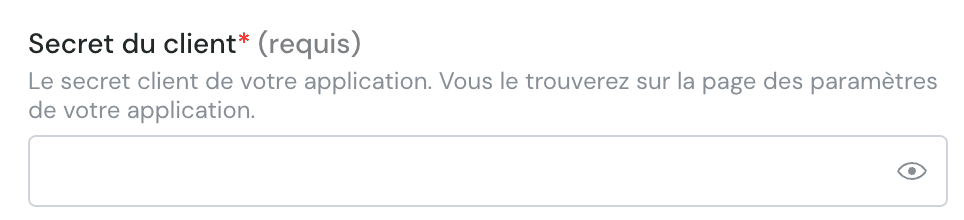
**Étape 6:** Entrez le secret client

<img src="https://mintcdn.com/chift/BdpOGZbsoSOAHSl9/images/help/oracle-opera/oracle-opera-fr-6.png?fit=max&auto=format&n=BdpOGZbsoSOAHSl9&q=85&s=85cd7734b684767b2e5316395347f43b" alt="image.png" width="964" height="220" data-path="images/help/oracle-opera/oracle-opera-fr-6.png" />

**Étape 7:** Entrez la clé d'application
<img src="https://mintcdn.com/chift/BdpOGZbsoSOAHSl9/images/help/oracle-opera/oracle-opera-fr-7.png?fit=max&auto=format&n=BdpOGZbsoSOAHSl9&q=85&s=334d89385d986f7c41e82f3a85bfeb23" alt="image.png" width="954" height="218" data-path="images/help/oracle-opera/oracle-opera-fr-7.png" />

<img src="https://mintcdn.com/chift/BdpOGZbsoSOAHSl9/images/help/oracle-opera/oracle-opera-fr-8.png?fit=max&auto=format&n=BdpOGZbsoSOAHSl9&q=85&s=35b61ae0222cf47eb9bd184dba8d2640" alt="" width="110" height="47" data-path="images/help/oracle-opera/oracle-opera-fr-8.png" />