> ## Documentation Index
> Fetch the complete documentation index at: https://docs.chift.eu/llms.txt
> Use this file to discover all available pages before exploring further.
# Organilog
# **PREPARATION**
1. Connectez-vous sur votre compte organilog
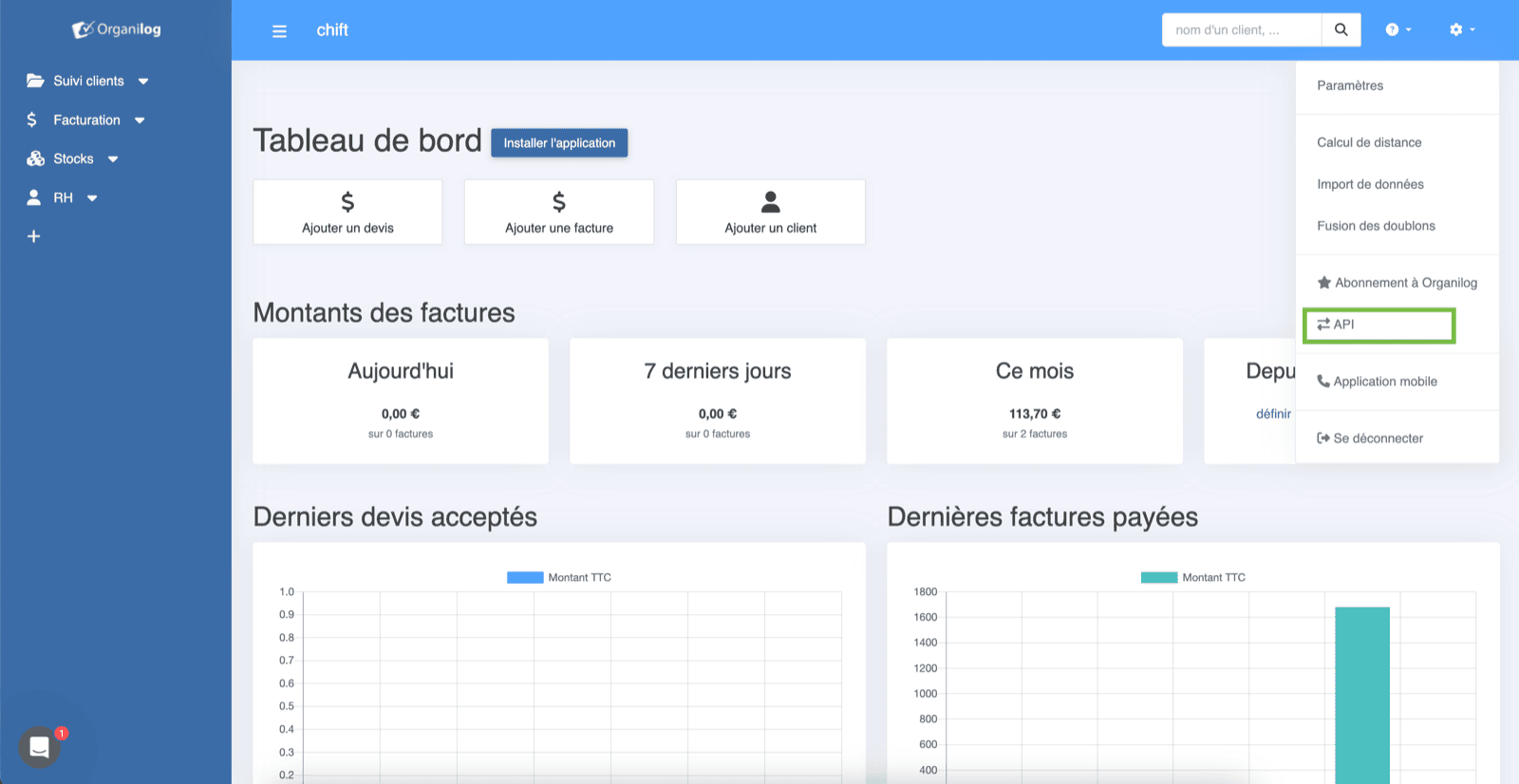
2. Dans le coin supérieur droit (bouton paramètres), cliquez sur "API"
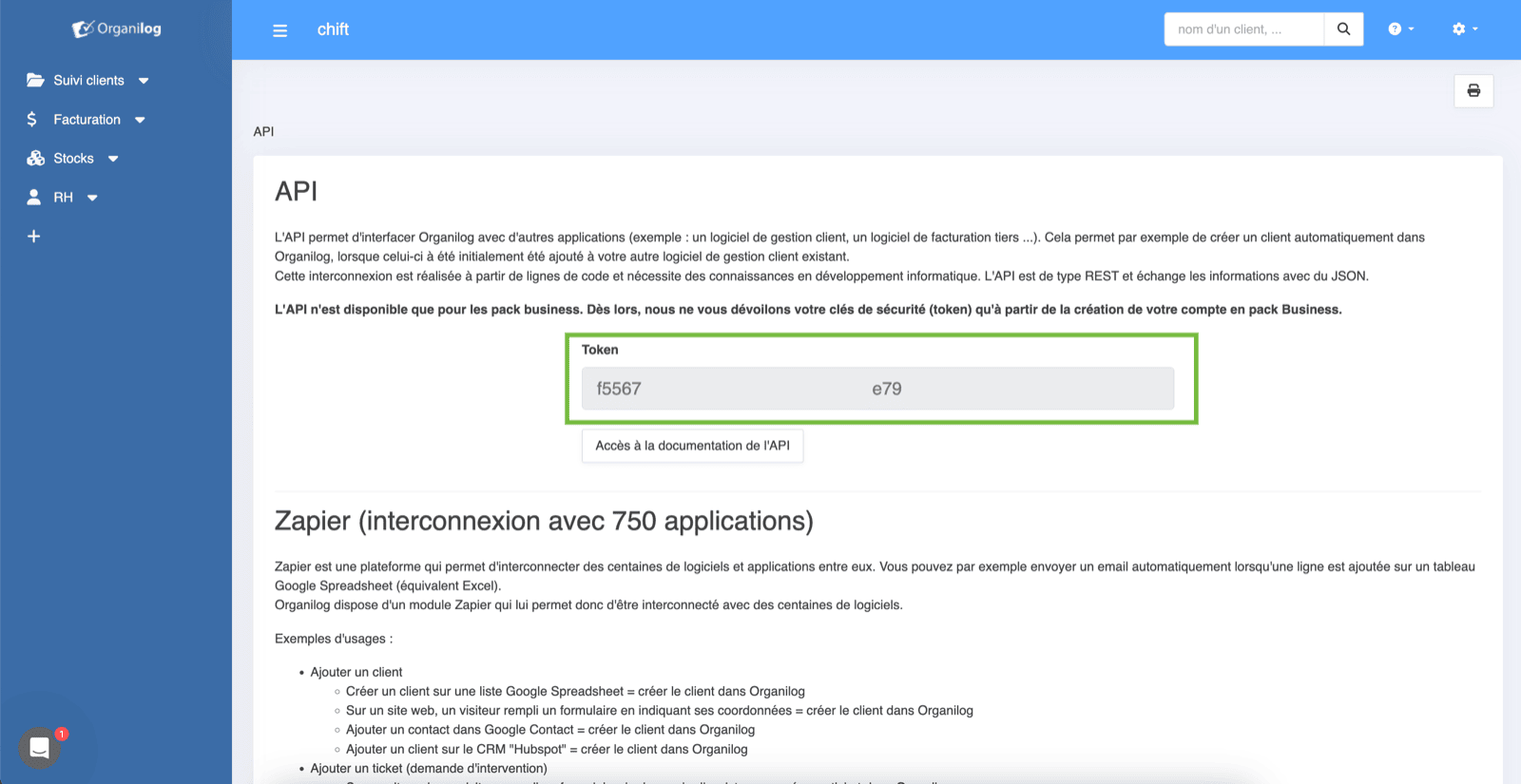
 3. Vous pouvez copier cette clé et l'utiliser directement dans Chift.
⚠️ L'utilisation d'une clé API est réservée aux clients avec un abonnement business.
**Dans le cas contraire, la clé API sera grisée et non fonctionnelle.**
3. Vous pouvez copier cette clé et l'utiliser directement dans Chift.
⚠️ L'utilisation d'une clé API est réservée aux clients avec un abonnement business.
**Dans le cas contraire, la clé API sera grisée et non fonctionnelle.**
 # CONNEXION
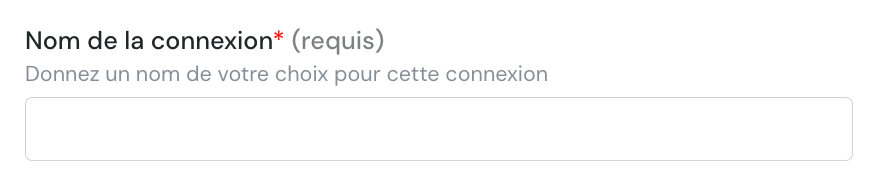
**Étape 1:** Choisissez un nom pour votre connexion
# CONNEXION
**Étape 1:** Choisissez un nom pour votre connexion
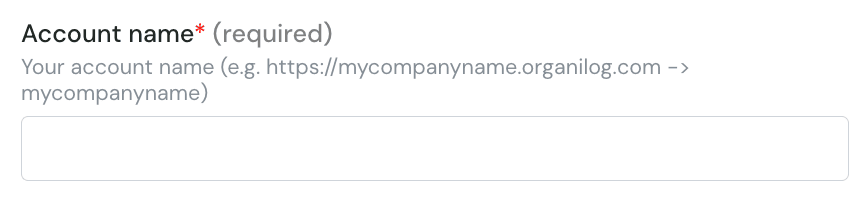
 **Étape 2 :** fill in the company subdomain in organilog (sans le domaine ni HTTPS)
 **Étape 3 :** Choisissez si vous souhaitez importer plusieurs entités légales
 **Étape 4:** Saisissez la clé API récupérée préalablement sur organilog
 **Étape 5:** Cliquez sur "Connecter" pour finaliser la connexion