> ## Documentation Index
> Fetch the complete documentation index at: https://docs.chift.eu/llms.txt
> Use this file to discover all available pages before exploring further.
# Hubspot
# CONNEXION
**Étape 1:** Choisissez un nom pour votre connexion.
 **Étape 2:** Cliquez sur "Autoriser" pour finaliser la connexion.
 # AUTHORISATION
Il vous faudra vous connecter sur votre compte Hubspot et donner les permissions afin de permettre le partage de données avec Hubspot.
**Étape 1:** Connectez-vous sur votre compte.
# AUTHORISATION
Il vous faudra vous connecter sur votre compte Hubspot et donner les permissions afin de permettre le partage de données avec Hubspot.
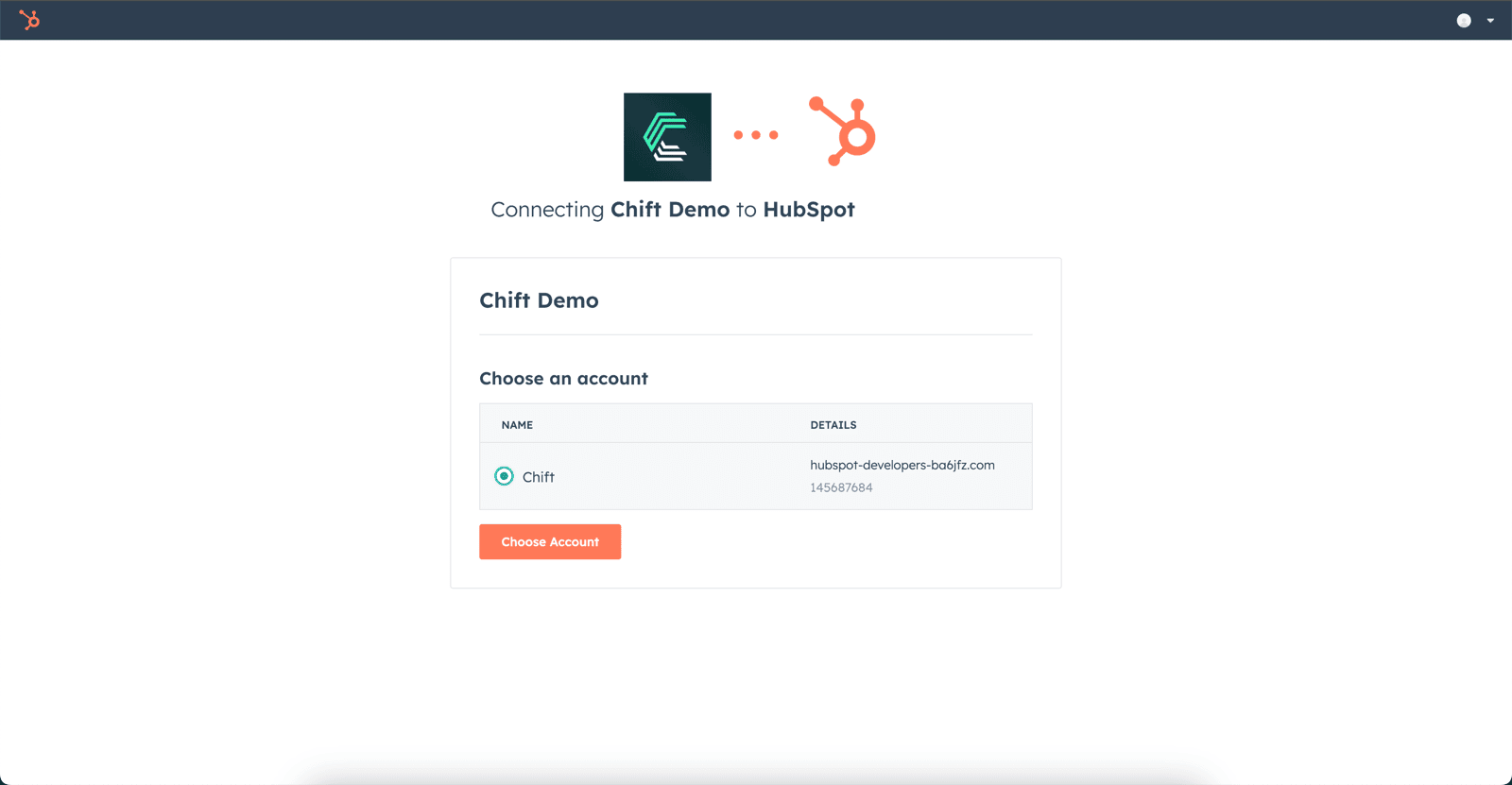
**Étape 1:** Connectez-vous sur votre compte.
 **Étape 2:** Choisissez le compte Hubspot à connecter.
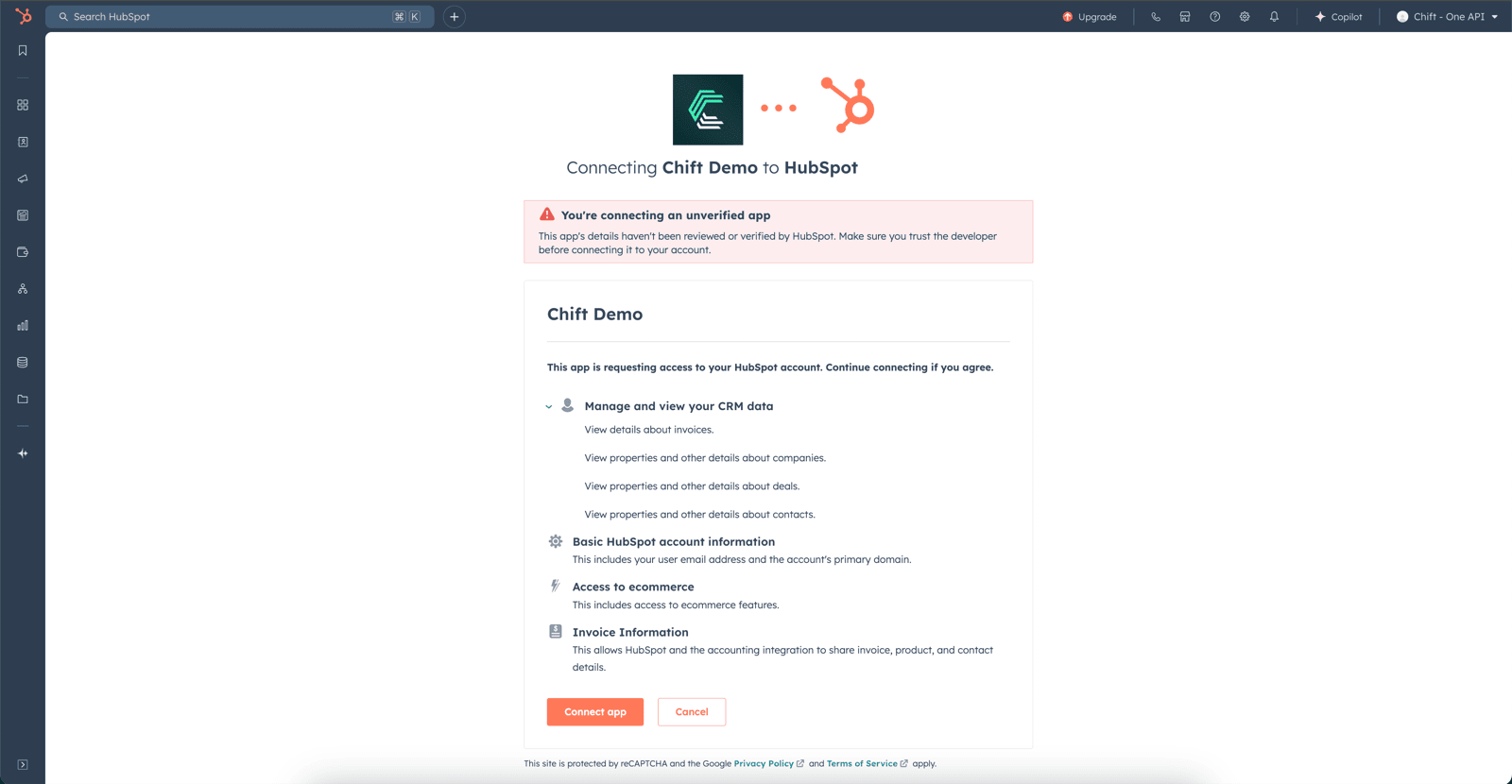
 **Étape 3:** Authorisez le partage de données avec votre compte Hubspot.
 # ERREURS FR**É**QUENTES
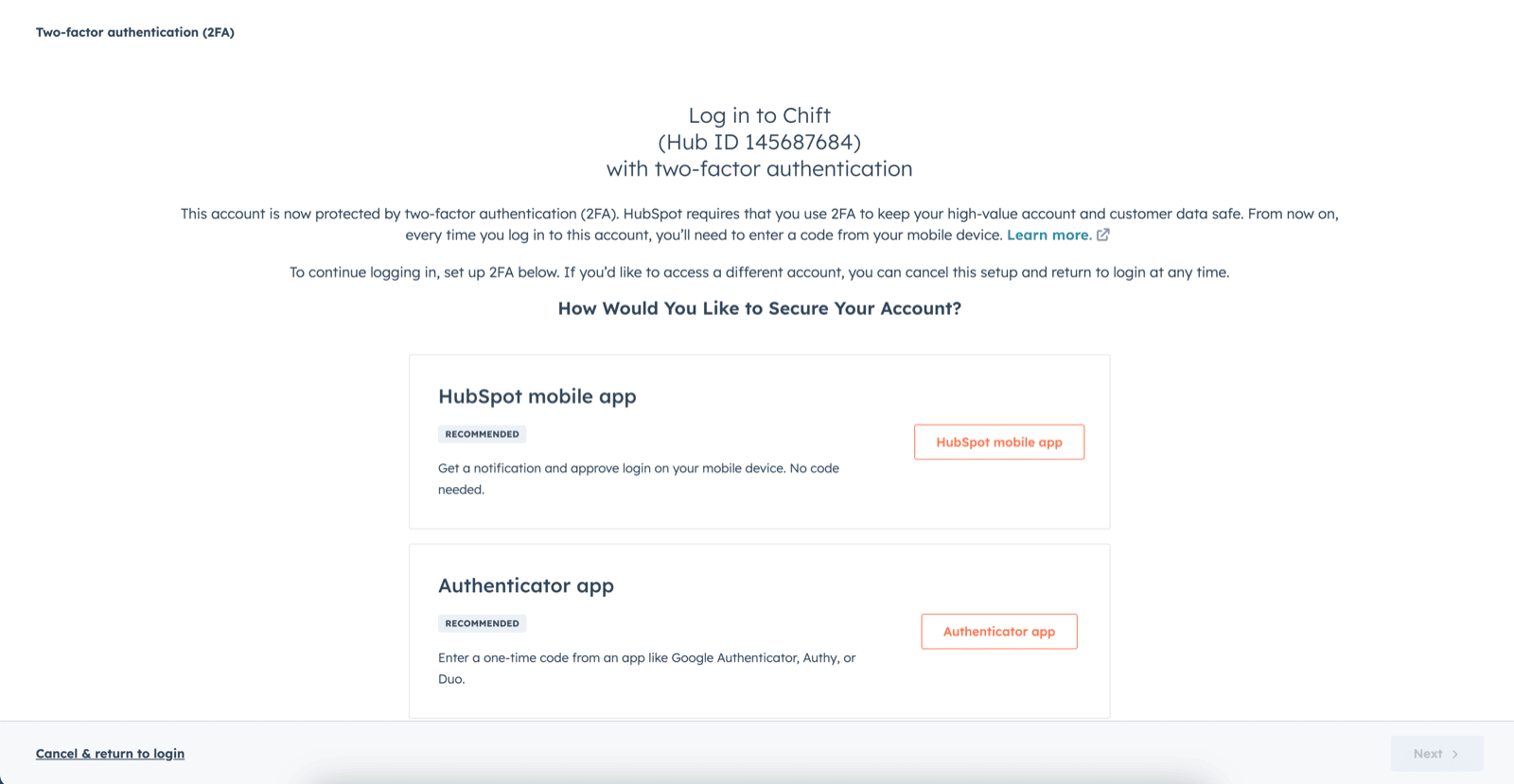
1. En cas d'erreur de permissions: *"Couldn't Complete the connection, due to permissions".* Il vous faudra aller dans les paramétrages de votre compte pour activer l'authentification à deux facteurs.
# ERREURS FR**É**QUENTES
1. En cas d'erreur de permissions: *"Couldn't Complete the connection, due to permissions".* Il vous faudra aller dans les paramétrages de votre compte pour activer l'authentification à deux facteurs.
 Pour activer l'authentification à deux facteurs, il vous faut aller sur le compte Hubspot et avoir les droits permettant d'accéder aux "scopes":
* oauth
* accounting
* e-commerce
* crm.objects.companies.read
* crm.objects.deals.read
* crm.objects.invoices.read
* crm.objects.contacts.read
Pour activer l'authentification à deux facteurs, il vous faut aller sur le compte Hubspot et avoir les droits permettant d'accéder aux "scopes":
* oauth
* accounting
* e-commerce
* crm.objects.companies.read
* crm.objects.deals.read
* crm.objects.invoices.read
* crm.objects.contacts.read