> ## Documentation Index
> Fetch the complete documentation index at: https://docs.chift.eu/llms.txt
> Use this file to discover all available pages before exploring further.
# WooCommerce
# 🛠 PREPARATION
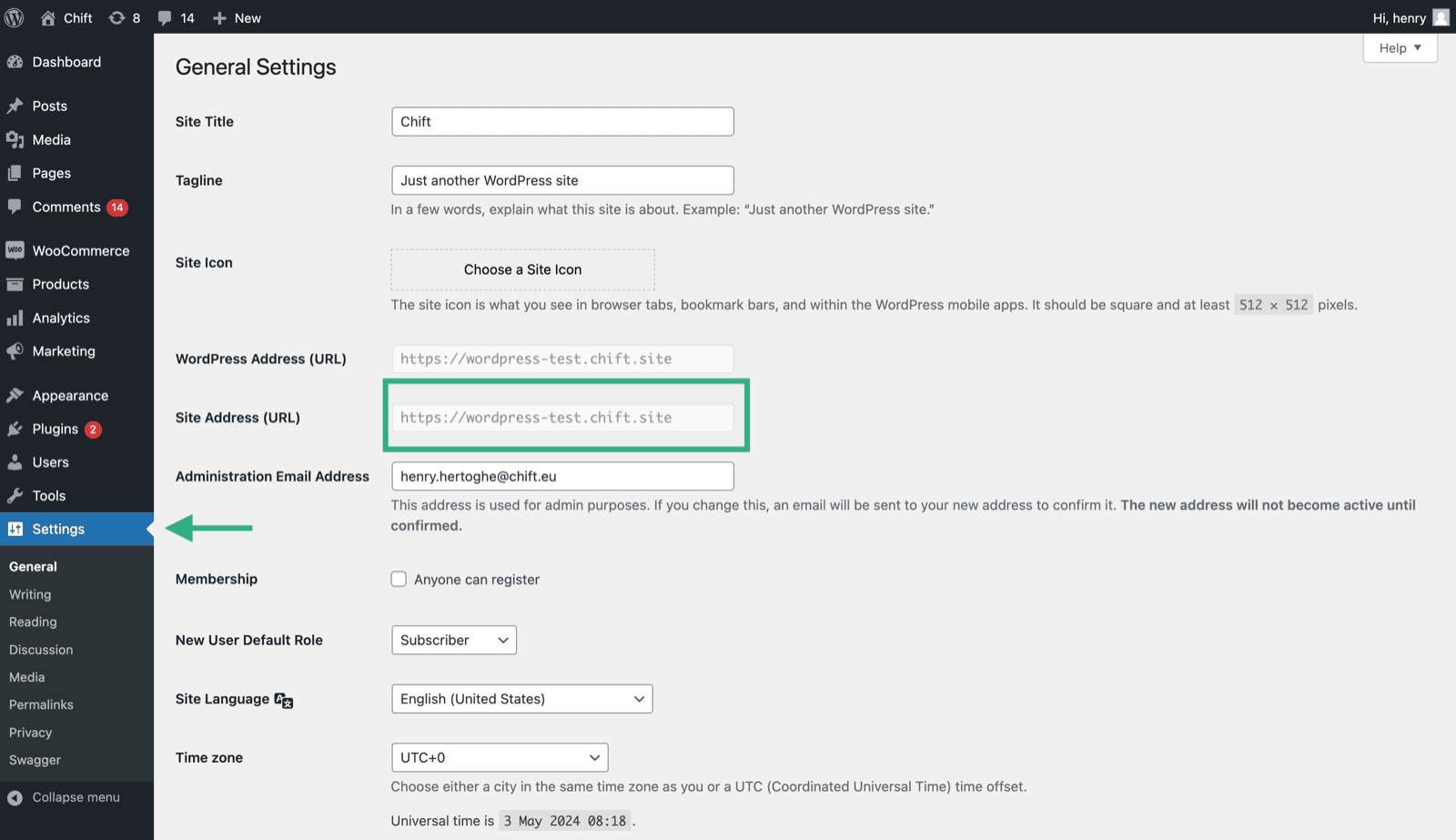
Comment trouver l’URL de votre compte
 ## Comment trouver votre clé et secret client sur WooCommerce
1. Activez l’API REST sur votre compte WooCommerce
Depuis la version 9.0 de WooCommerce, l’extension dédiée "WooCommerce Legacy REST API" est requise. Vous pouvez l’installer depuis le menu Extensions.
**Les versions antérieures ne nécessitent pas ce module.**
## Comment trouver votre clé et secret client sur WooCommerce
1. Activez l’API REST sur votre compte WooCommerce
Depuis la version 9.0 de WooCommerce, l’extension dédiée "WooCommerce Legacy REST API" est requise. Vous pouvez l’installer depuis le menu Extensions.
**Les versions antérieures ne nécessitent pas ce module.**
 Ensuite, n’oubliez pas d’activer l’API Legacy.
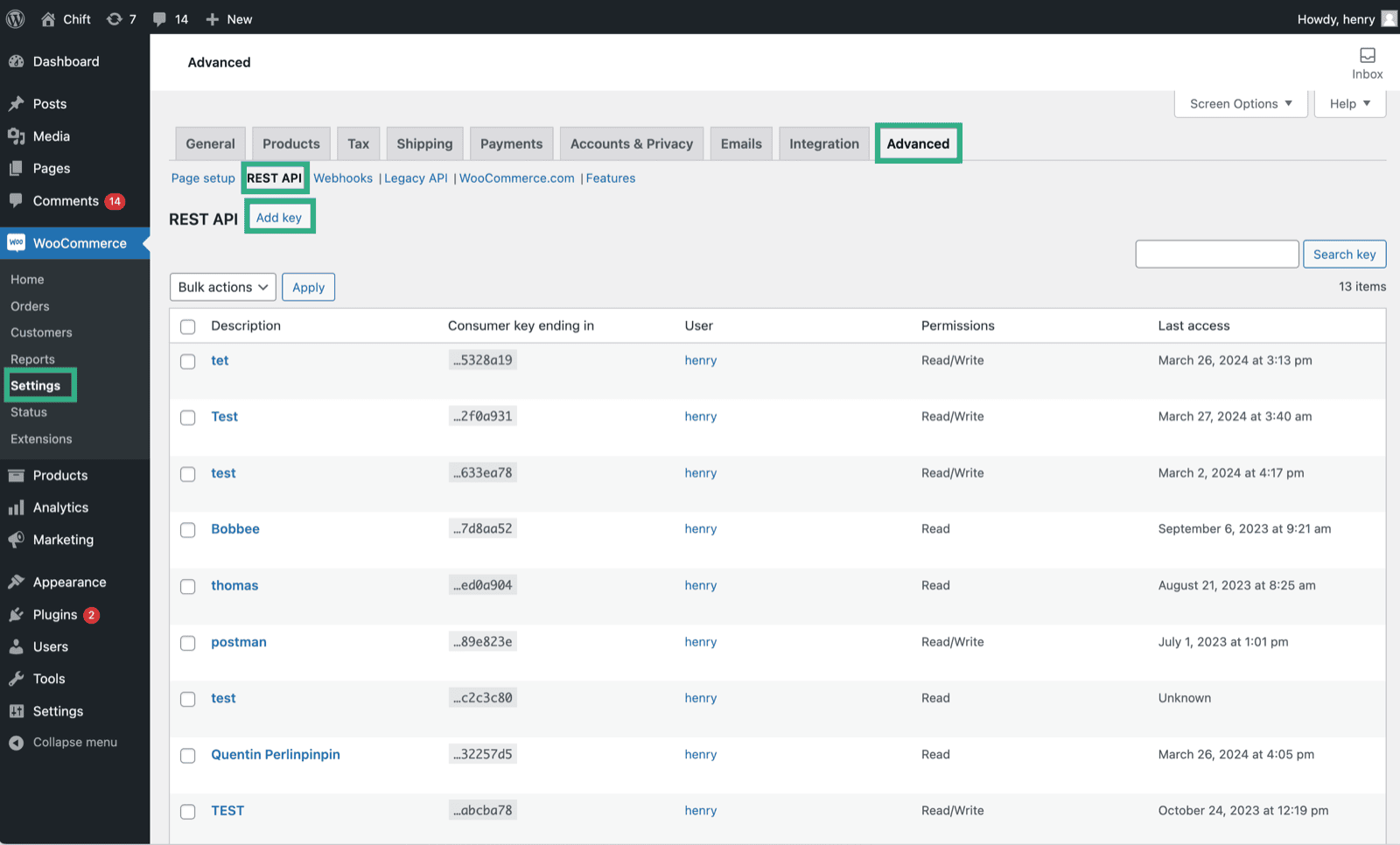
2. Créez une nouvelle clé API
Ensuite, n’oubliez pas d’activer l’API Legacy.
2. Créez une nouvelle clé API
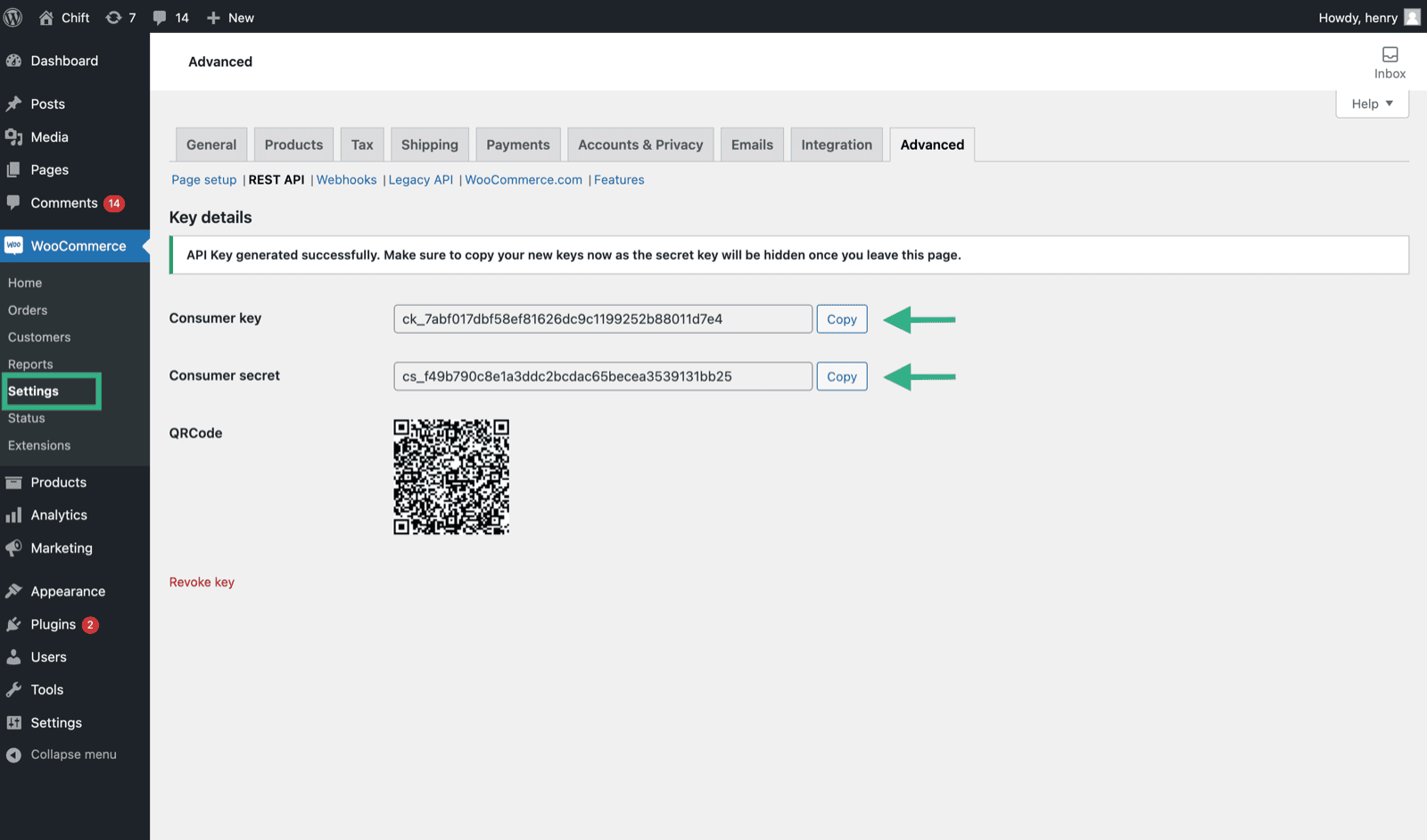
 3. Copiez les codes de la clé client et du secret client depuis votre nouvelle clé API.
 # ⚡️CONNEXION
**Étape 1 :** Choisissez un nom pour votre connexion.
# ⚡️CONNEXION
**Étape 1 :** Choisissez un nom pour votre connexion.
 **Étape 2 :** Fournissez l’URL de votre compte WooCommerce.
 **Étape 3 :** Fournissez votre clé client, que vous avez créée sur votre compte WooCommerce.
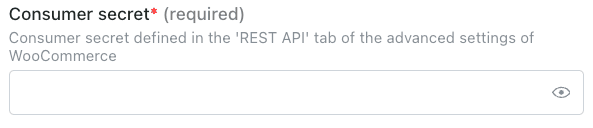
 **Étape 4 :** Fournissez votre clé secrète client, que vous avez créée sur votre compte WooCommerce.
 **Étape 5 :** Cliquez sur "Connect" pour finaliser la connexion.