> ## Documentation Index
> Fetch the complete documentation index at: https://docs.chift.eu/llms.txt
> Use this file to discover all available pages before exploring further.
# Yuki
# **PREPARATION**
1. Connectez-vous sur votre compte Yuki.
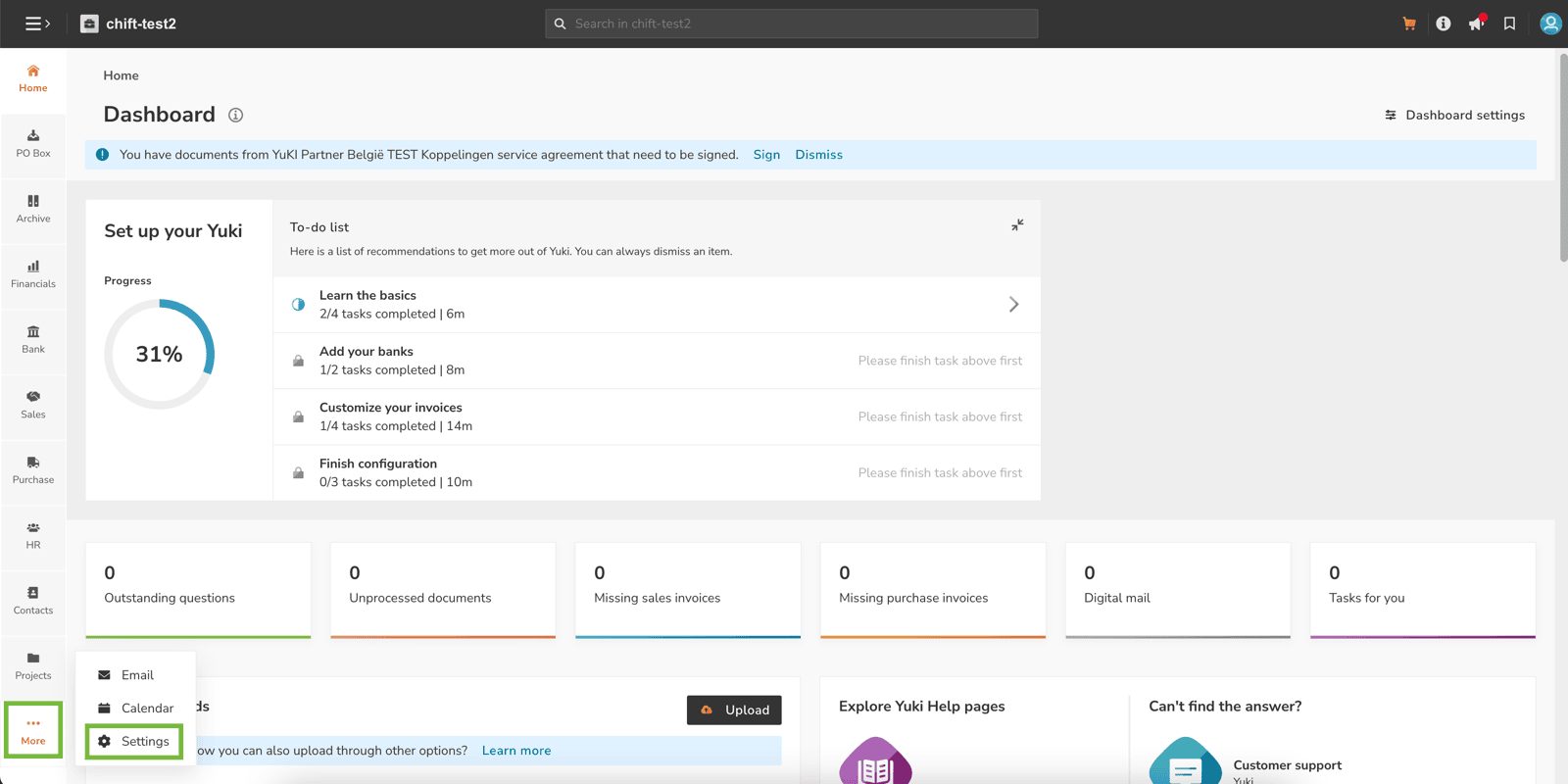
2. Dans le coin inférieur gauche (bouton "More"), cliquez sur "Settings".
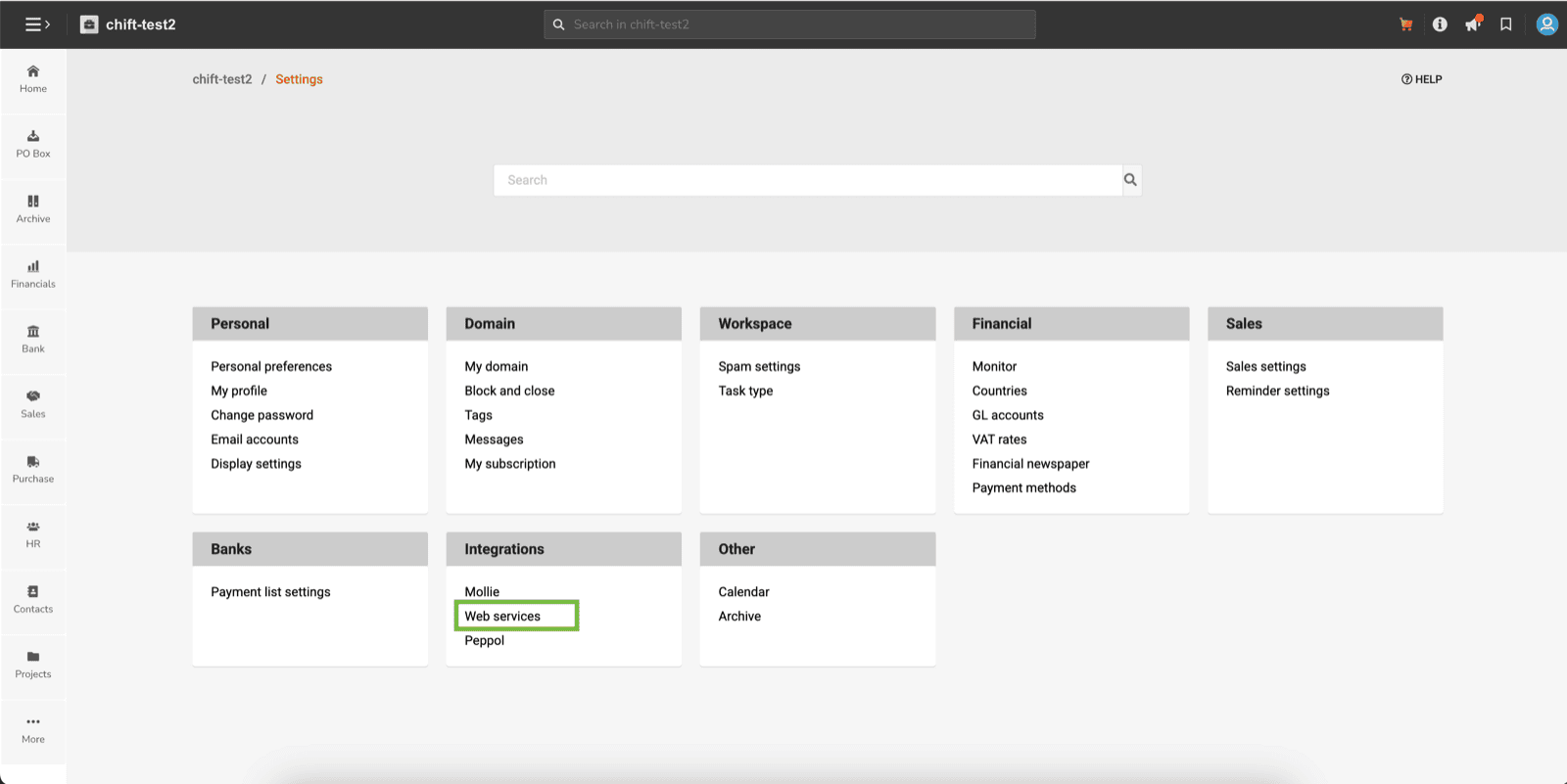
 3. Cliquez ensuite "Webservices" sur dans la rubrique "Integrations".
 4. Cliquez ensuite sur le bouton "+" dans le coin supérieur gauche.
 5. Assurez vous de sélectionner :
1. **Type :** Company
⚠ ***Vous crééz ici une clé par dossier client (company) ; si vous souhaitez créer une clé globale pour Chift et l'ensemble des dossier client, vous pouvez utiliser "Domain" dans "Type"***
2. **Company :** choisissez la société à importer dans Chift
3. **Rights :** All web services
5. Assurez vous de sélectionner :
1. **Type :** Company
⚠ ***Vous crééz ici une clé par dossier client (company) ; si vous souhaitez créer une clé globale pour Chift et l'ensemble des dossier client, vous pouvez utiliser "Domain" dans "Type"***
2. **Company :** choisissez la société à importer dans Chift
3. **Rights :** All web services ⚠ ***N'oubliez pas d'enregistrer via le bouton "Save" dans le coin supérieur gauche.***
6. Vous pouvez copier cette clé et l'utiliser directement dans Chift.
# CONNEXION
**Étape 1:** Choisissez un nom de connexion
⚠ ***N'oubliez pas d'enregistrer via le bouton "Save" dans le coin supérieur gauche.***
6. Vous pouvez copier cette clé et l'utiliser directement dans Chift.
# CONNEXION
**Étape 1:** Choisissez un nom de connexion
 **Étape 2:** Saisissez la clé API récupérée sur Yuki.
 **Étape 3:** Cliquer sur "Connecter" pour finaliser la connexion.