> ## Documentation Index
> Fetch the complete documentation index at: https://docs.chift.eu/llms.txt
> Use this file to discover all available pages before exploring further.
# MyUnisoft
# PRÉPARATION
1. Générez un token API pour votre connexion avec MyUnisoft.
* Rendez-vous sur votre compte, paramètres puis Connecteurs.
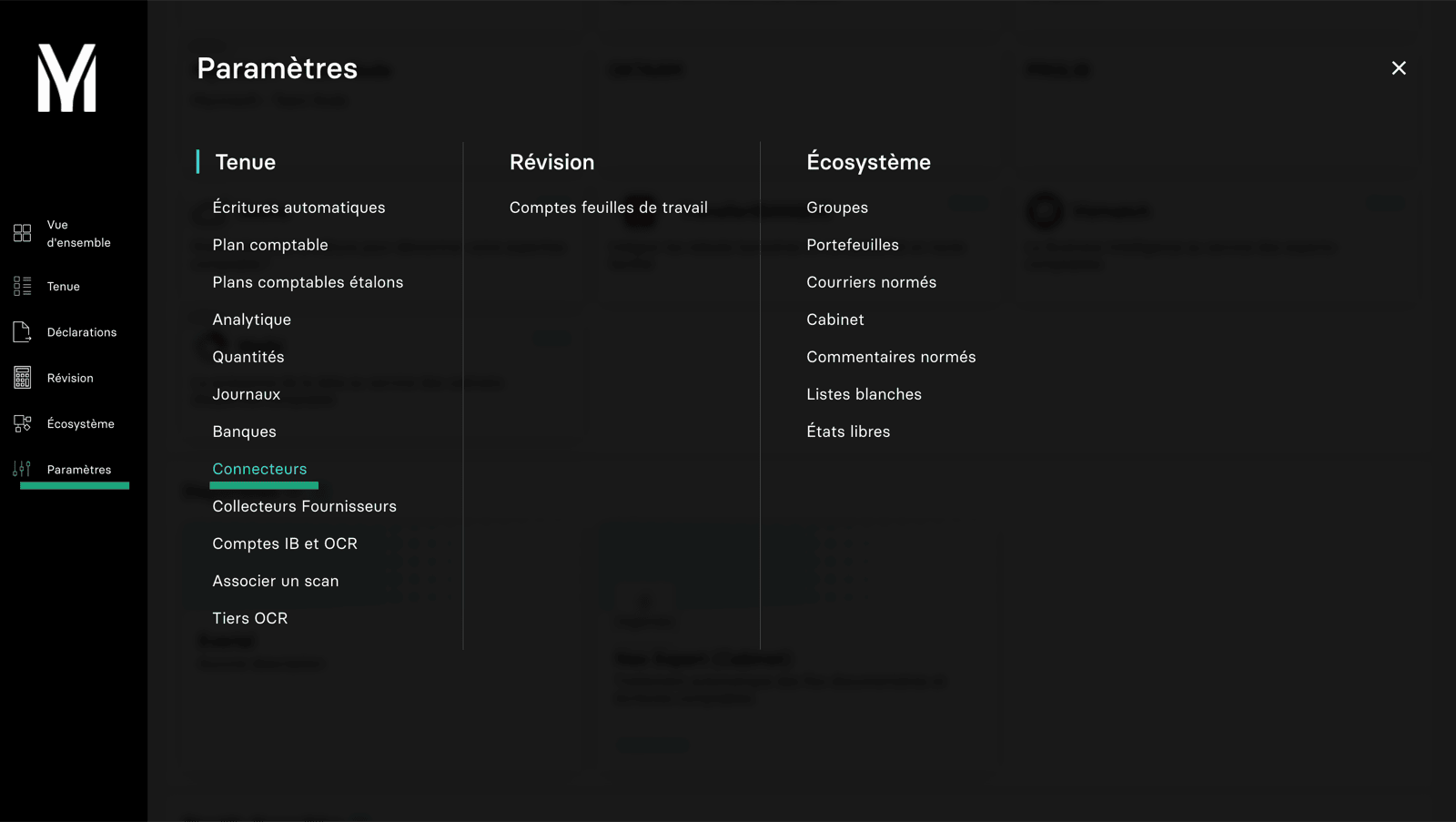 * Vous trouverez dans la liste des connecteurs, le logiciel que vous souhaitez connecter avec My Unisoft.
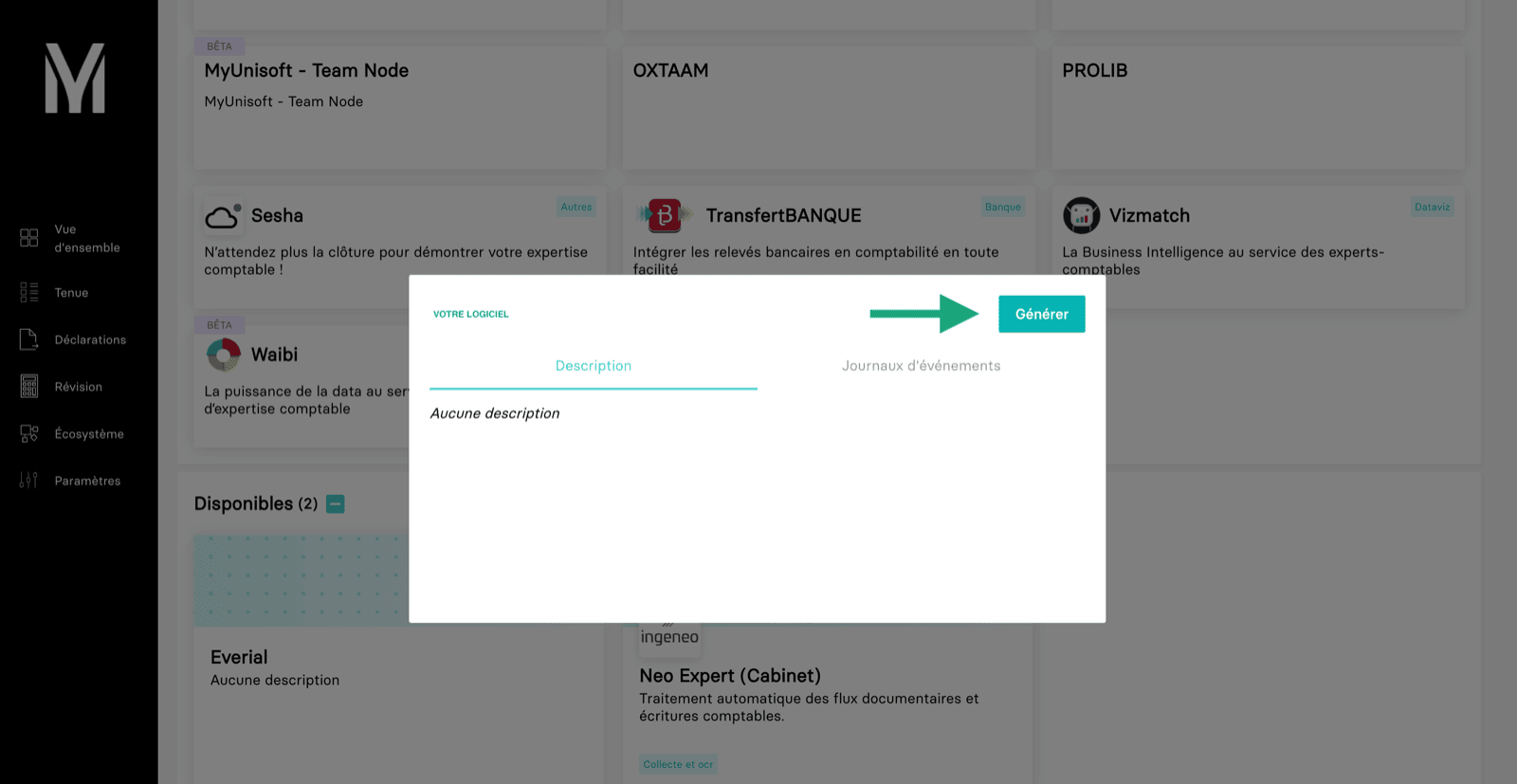
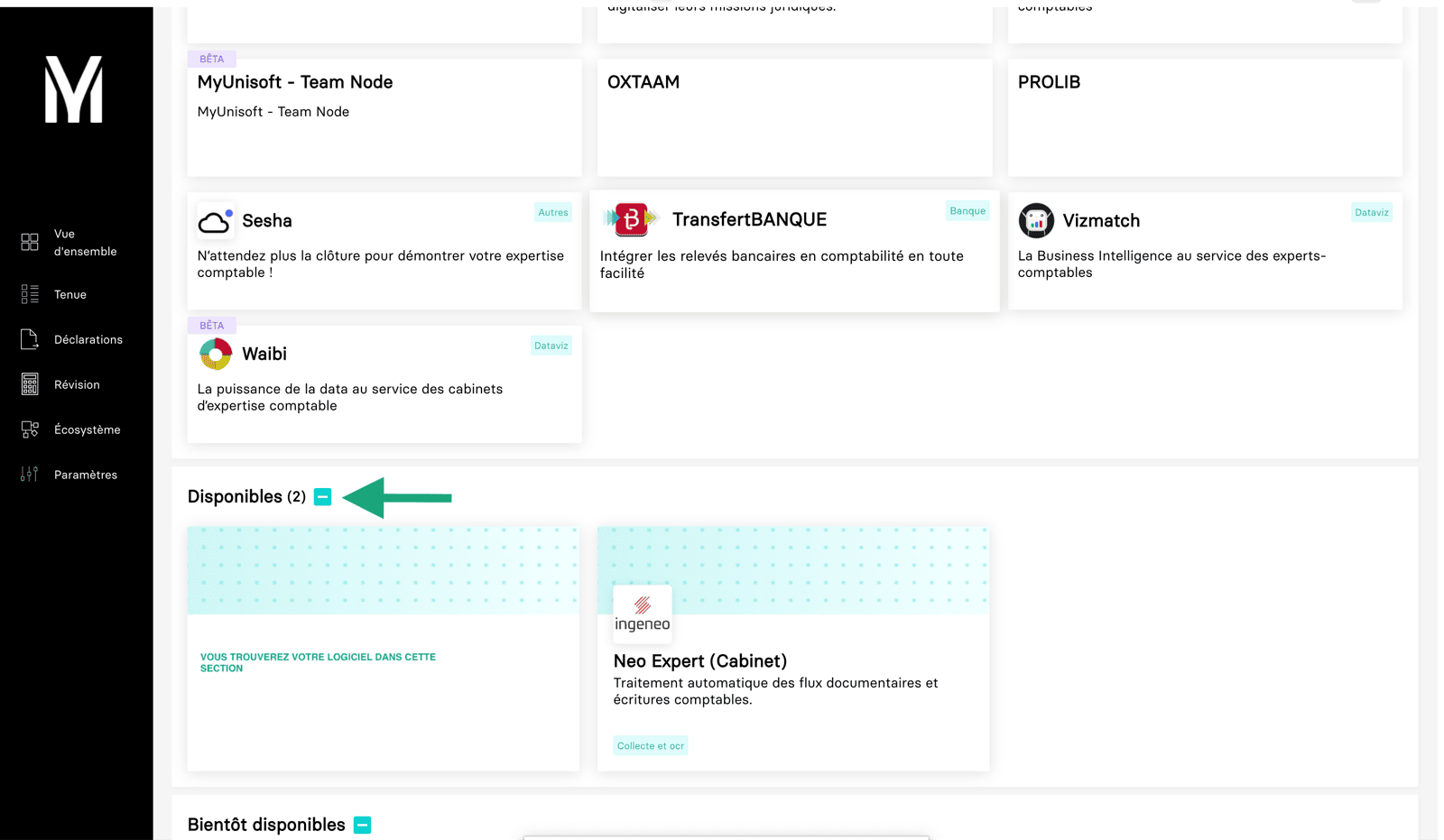 * Sélectionnez votre logiciel et générez une clé API à renseigner dans la page de connexion.
 # CONNEXION
**Étape 1:** Choisissez un nom pour votre connexion.
# CONNEXION
**Étape 1:** Choisissez un nom pour votre connexion.
 **Étape 2:** Souhaitez-vous récupérer les données analytiques.
Si oui, alors sélectionnez le champ "actif", sinon comptabilité analytique = "inactif".
**Étape 2:** Souhaitez-vous récupérer les données analytiques.
Si oui, alors sélectionnez le champ "actif", sinon comptabilité analytique = "inactif".
 **Étape 3:** Renseignez l'API token que vous avez généré depuis votre compte MyUnisoft.
 **Étape 4:** Cliquez sur "Connecter" pour finaliser la connexion.
 #
#