> ## Documentation Index
> Fetch the complete documentation index at: https://docs.chift.eu/llms.txt
> Use this file to discover all available pages before exploring further.
# Cegid Loop
# PRÉPARATION
1. Générez une clé API depuis votre compte.
Voici comment: [https://app.arcade.software/share/VWS4eqYN11QzPXSuRdRo](https://app.arcade.software/share/VWS4eqYN11QzPXSuRdRo)
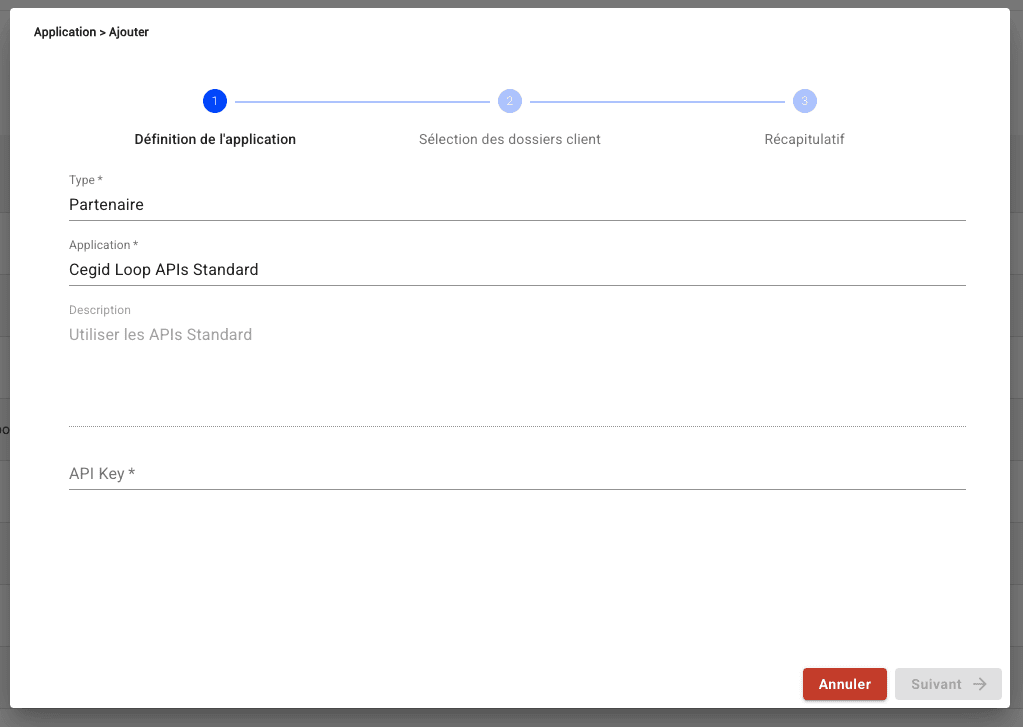
2. Connectez-vous sur Loop Hub et lié votre clé API avec le logiciel partenaire puis choisir le dossier comptable de partage.
Voici comment: [https://app.arcade.software/share/xDBcC6VmzS1Ls7wbOeuk](https://app.arcade.software/share/xDBcC6VmzS1Ls7wbOeuk)
Si vous ne trouvez pas votre éditeur de logiciel dans la liste, utilisez l'option par défaut **« Cegid Loop APIs Standard »**.
 # CONNEXION
**Étape 1:** Choisissez un nom pour votre connexion.
# CONNEXION
**Étape 1:** Choisissez un nom pour votre connexion.
 **Étape 2:** Définir si vous souhaitez activer le partage des données analytiques.
 **Étape 3:** Renseignez la clé API, générez depuis votre compte.
 **Étape 4:** Renseignez le code secret de la clé API, générez depuis votre compte.
 **Étape 5:** Cliquez sur "Connecter" pour finaliser la connexion.
 # CONFIGURATION
**Étape 1:** Sélectionnez le dossier comptable à relier.
# CONFIGURATION
**Étape 1:** Sélectionnez le dossier comptable à relier.
 **Étape 2:** Cliquez sur "Valider" pour finaliser la configuration.
